Every time you open an app, save a photo or join a Wi-Fi network, a quiet piece of software does the real work in the background. Your apps never touch the hardware themselves. They ask a middleman for help, and that middleman checks the request, fetches the file, watches the memory, and keeps every other app safe while it works.
That middleman is the kernel, the single most important program on your computer or phone. If you have ever wondered what is a kernel, why it exists, and what it actually does all day, this guide answers all three questions in plain words. No computer science degree needed.
The word kernel comes from the seed at the center of a fruit or a nut: the small, hard core that everything else grows around. The name fits perfectly. The kernel is the core of the operating system, wrapped in layers of other software, and almost nothing on your machine works without it.
What Is a Kernel?
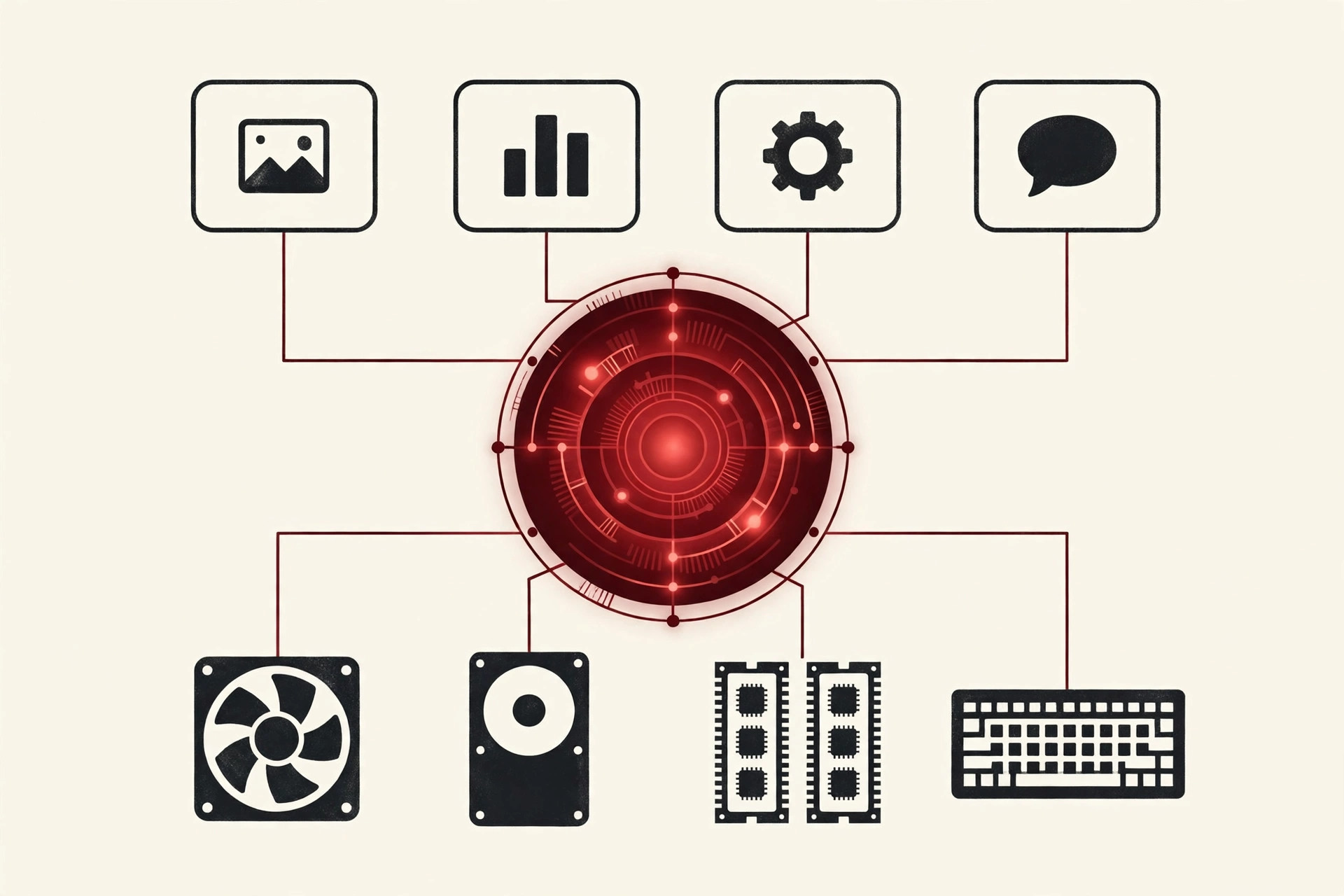
A kernel is the core program of an operating system, the part that runs the machine itself. When your computer starts, the kernel is one of the first programs loaded into memory, and it stays in memory the whole time the machine is on. As Wikipedia’s overview of the kernel puts it, the kernel always has complete control over everything in the system, and it manages the hardware on behalf of every other program.
Here is a simple way to picture it. Think of the kernel as the manager of a large office building. The tenants (your apps) cannot touch the boiler, the wiring or the water pipes. When a tenant needs something, they file a request at the front desk. The manager decides who gets what, keeps tenants out of each other’s rooms, and makes sure one tenant’s flood does not ruin the whole building.
Your apps work in a safe area called user space. The kernel works in its own protected area called kernel space. The wall between the two is one of the smartest ideas in computing: it is why one crashing game does not take your whole laptop down with it.
Where the Kernel Sits in an Operating System
Picture your computer as a stack of layers. At the bottom sits the hardware: the processor (CPU), the memory (RAM), the storage disk, the keyboard, the screen and the network card. Hardware is powerful but dumb. It cannot organize anything by itself.
Directly above the hardware sits the kernel, because it is the only part of the operating system that is trusted to talk to the hardware. Above the kernel come the rest of the operating system’s services and libraries, and at the very top sit your apps: the browser, the games, the photo editor.
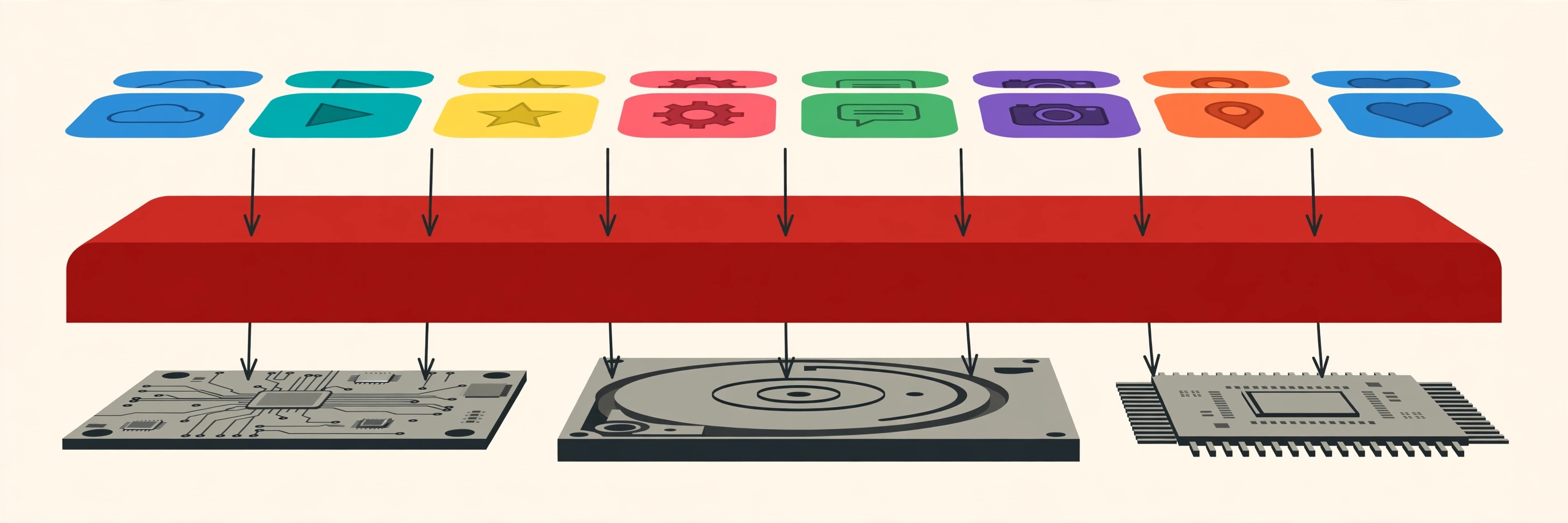
This position is the whole point. Every request from every app flows down through the kernel before it reaches a device, and every answer flows back up the same way. Nothing skips the line. When people ask what is a kernel in an operating system, this hardworking middle layer is the answer.
What Does a Kernel Do?
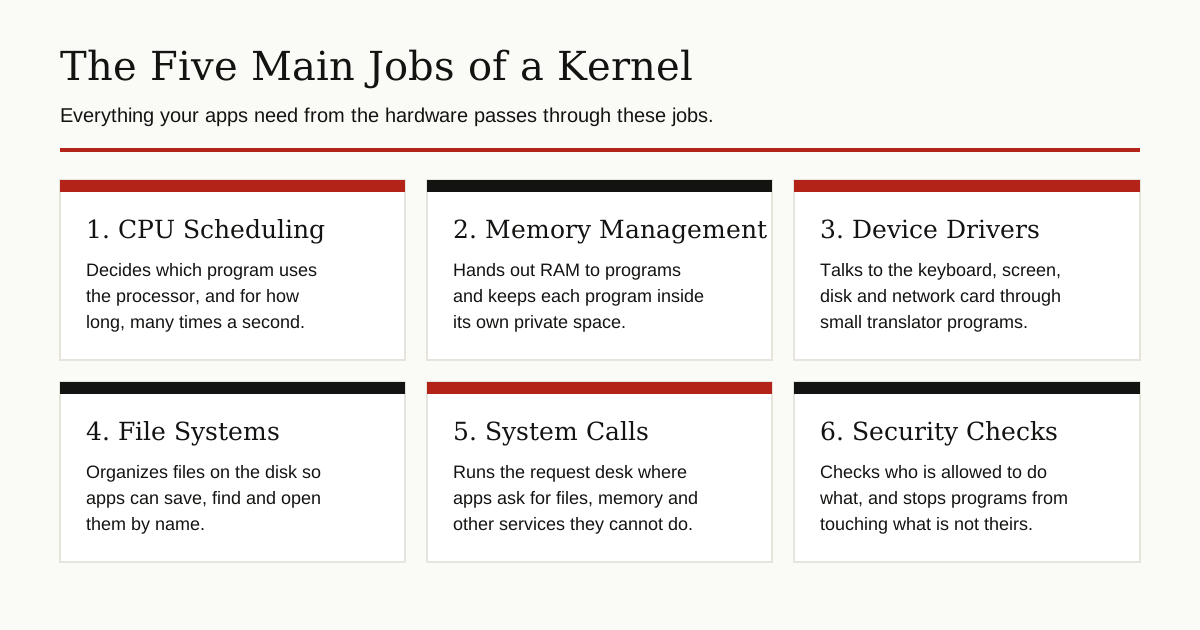
The kernel has a handful of big jobs, and it does all of them at once, thousands of times per second.
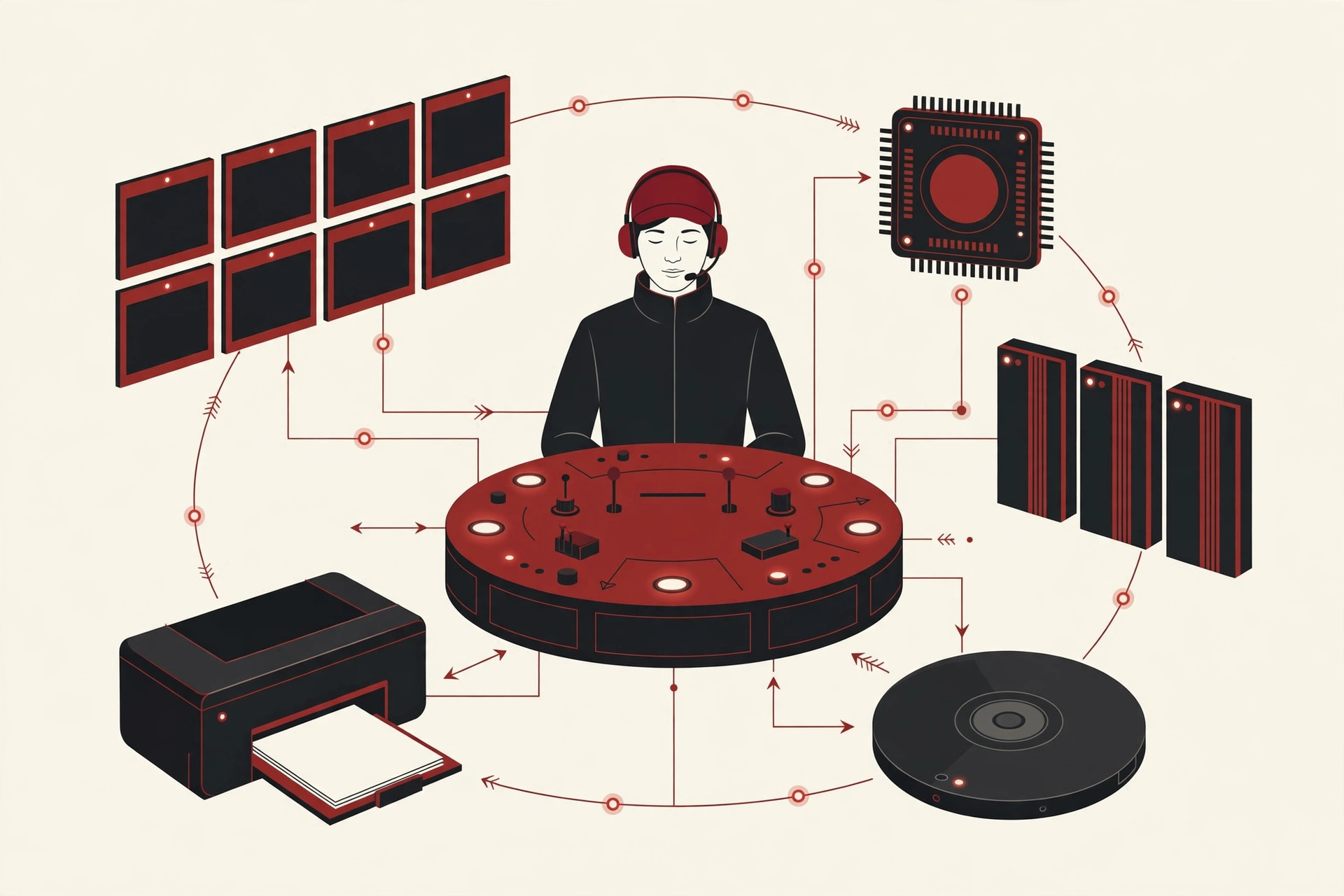
1. Scheduling the processor. Dozens of programs want the CPU at the same moment, but the CPU can only do a limited number of things at once. The kernel’s scheduler hands the processor to one program at a time, in tiny slices, switching so fast that everything feels simultaneous. This sharing act is also the heart of parallel and concurrent processing, where programs juggle work across one or more processors.
2. Managing memory. RAM is limited, and every program needs some. The kernel decides which program gets which part of memory, and it gives each program its own private space, so programs behave as if they have the machine to themselves and cannot peek at or overwrite each other’s data.
3. Talking to devices through drivers. A driver is a small translator program that knows how to run one kind of device, such as a printer or a graphics card. The kernel manages the drivers, so an app can simply say “print this page” without knowing anything about the printer model.
4. Running the file system. On a disk, your files are just long strings of raw data. The file system is the organizing scheme that turns that data into named files and folders. The kernel reads and writes files through the file system, and keeps track of where everything lives.
5. Answering system calls. Apps are not allowed to grab hardware directly. When an app needs a file, memory or a network connection, it makes a formal request to the kernel called a system call. The next section explains how that works.
6. Enforcing the rules. The kernel checks permissions constantly. Which user may open this file? May this app use the camera? Code that keeps one program from touching another program’s memory is also what stops a lot of malicious software from spreading.
System Calls: How Apps Ask the Kernel for Help
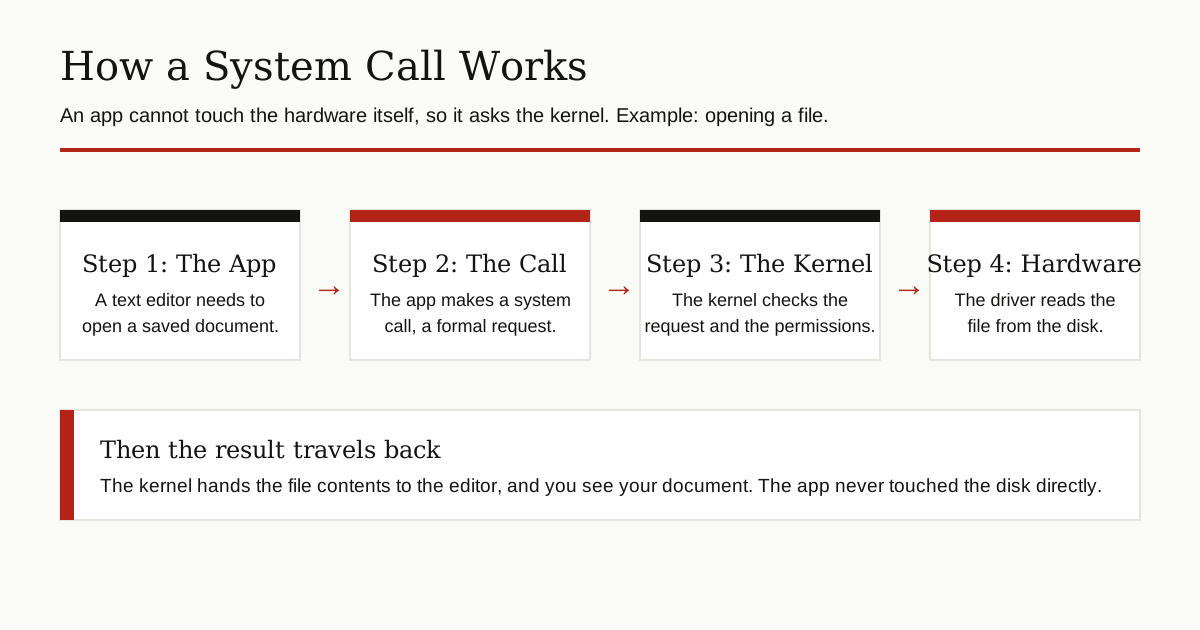
A system call is a controlled request from an app to the kernel. Familiar examples are the calls to open, read and write a file. Here is the journey of one request, step by step:
- You click a document in your text editor, and the editor needs the file from the disk.
- The editor makes a system call. In practice, it usually calls a ready made library function, and the library makes the call on its behalf.
- The kernel checks the request. Is this app allowed to read this file?
- If the answer is yes, the kernel asks the disk driver to fetch the data.
- The kernel hands the file contents back to the editor, and the document appears on your screen.
Even programs that run inside managed environments depend on this same path. Software hosted by an application client container, for example, still reaches files, memory and networks only because the kernel underneath answers its calls. There is no way around the front desk.
Kernel Mode vs User Mode
Modern processors can run code in different modes, which are levels of trust. Two of them matter for this story.
User mode is where your apps run. Code in user mode is boxed in. Each app gets its own private memory space, it cannot see or change another app’s data, and it cannot touch the hardware or the kernel’s memory at all. If an app crashes in user mode, only the app dies. Everything else keeps running.
Kernel mode is where the kernel itself and many drivers run. Code in kernel mode has complete access to all memory and all hardware. That power is necessary, but it comes with real risk: everything in kernel mode shares one space, so a single faulty driver can corrupt data or crash the entire system.
Microsoft’s Windows documentation describes the same split: kernel mode code can access any part of the system, while user mode processes are isolated from the system and from each other, so they cannot interfere with these resources.

Why keep the wall at all? For safety and security. A buggy app is annoying; a buggy app with full access to the machine would be a disaster. A malicious app is boxed in the same way: it can knock on the front desk, but it cannot walk into the boiler room. The processor switches between the two modes whenever a system call happens, which is happening constantly, all day long.
The Main Types of Kernel
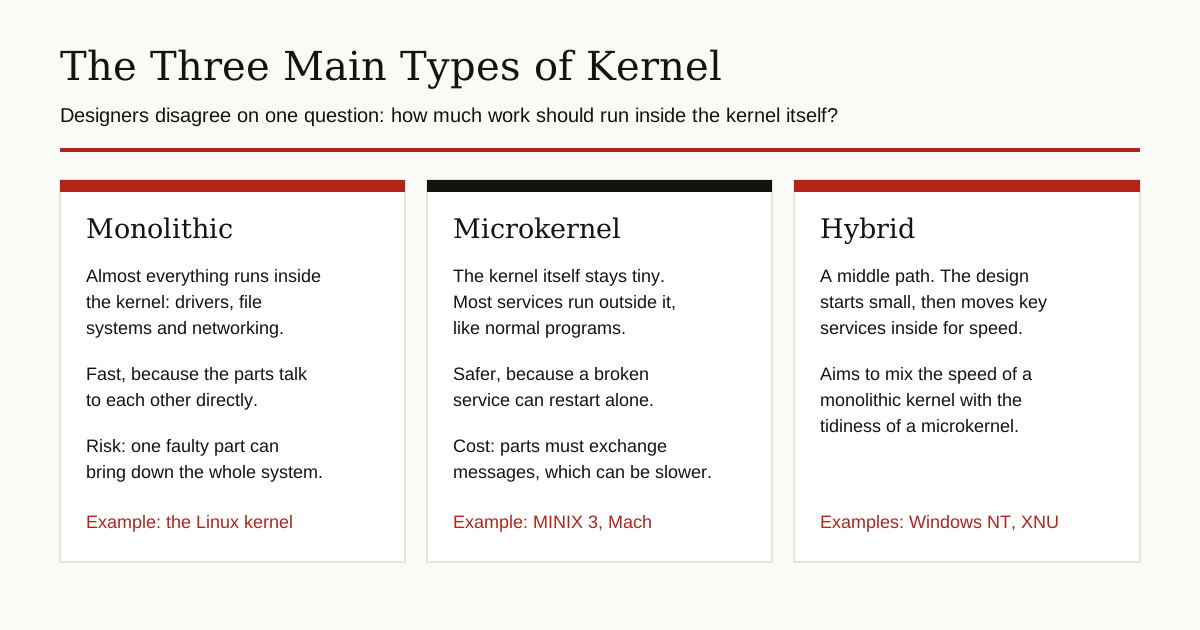
Kernel designers have argued for decades about one question: how much work should run inside the kernel itself? Three answers became famous.
Monolithic Kernels: Everything Under One Roof
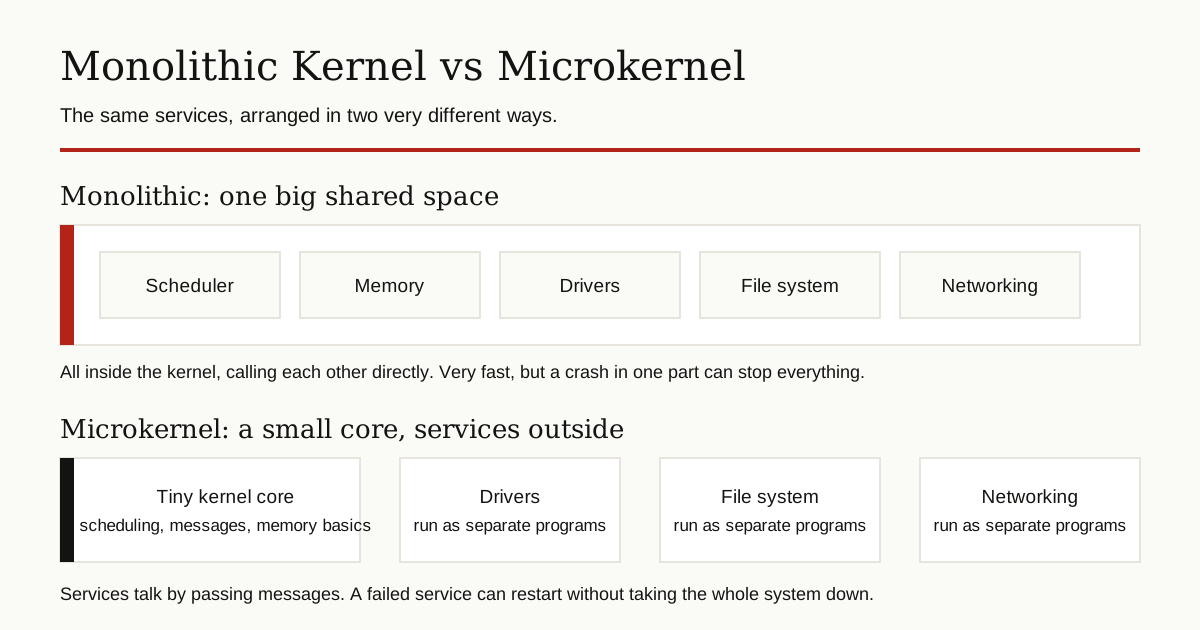
In a monolithic kernel, almost all services run inside the kernel in one shared space: drivers, file systems, networking and scheduling together. Because the parts can call each other directly, like coworkers in one room, a monolithic kernel is fast.
The most famous example is the Linux kernel, which powers Android phones, most servers and all kinds of small devices. Linux is also modular, which means extra parts, such as a driver for new hardware, can be loaded while the system runs. The official Linux kernel documentation describes a project that began in 1991 and now runs on everything from pocket sized music players to the largest supercomputers in existence.
The weakness of the design matches its strength: since everything shares one space, a serious bug in any inside part can bring the whole system down.
Microkernels: Keep the Core Tiny
A microkernel takes the opposite path. The kernel itself does only the bare minimum: basic scheduling, basic memory handling, and passing messages between programs. Drivers, file systems and networking run outside the kernel as separate programs.
If one of those outside services fails, it can often be restarted on its own, without rebooting the machine. That makes microkernel systems tidy and resilient. The cost is speed: the parts talk by passing messages back and forth, and all that messaging adds overhead. MINIX 3, a system built for teaching and reliability, is the classic microkernel example, and Mach, developed at Carnegie Mellon University, is another famous one.
Hybrid Kernels: The Middle Path
A hybrid kernel starts with the microkernel idea, then moves some important services back inside the kernel to win back speed. It tries to keep the tidiness of the small design without giving up the performance of the big one.
You probably use two hybrid kernels every day. Microsoft’s Windows NT family, the line behind every modern version of Windows, uses a hybrid design. Apple’s kernel is called XNU, short for “X is Not Unix”. XNU combines the Mach microkernel with parts of the BSD system, and it runs inside macOS, iOS and Apple’s other platforms.
What Happens When You Turn On Your Computer
The kernel also stars in the first seconds of your machine’s day. Booting, in simple steps:
- Power on. Built in software on the motherboard, called firmware, wakes up and checks that the hardware works.
- The bootloader runs. This is a tiny starter program whose only job is to find the kernel and load it into memory.
- The kernel takes over. It sets up memory, detects the connected devices, loads the drivers and prepares the file system.
- The first program starts. The kernel launches the first normal program, known as init, which starts the rest of the system’s services.
- You log in. The login screen appears, and from here on the kernel quietly manages everything you do.
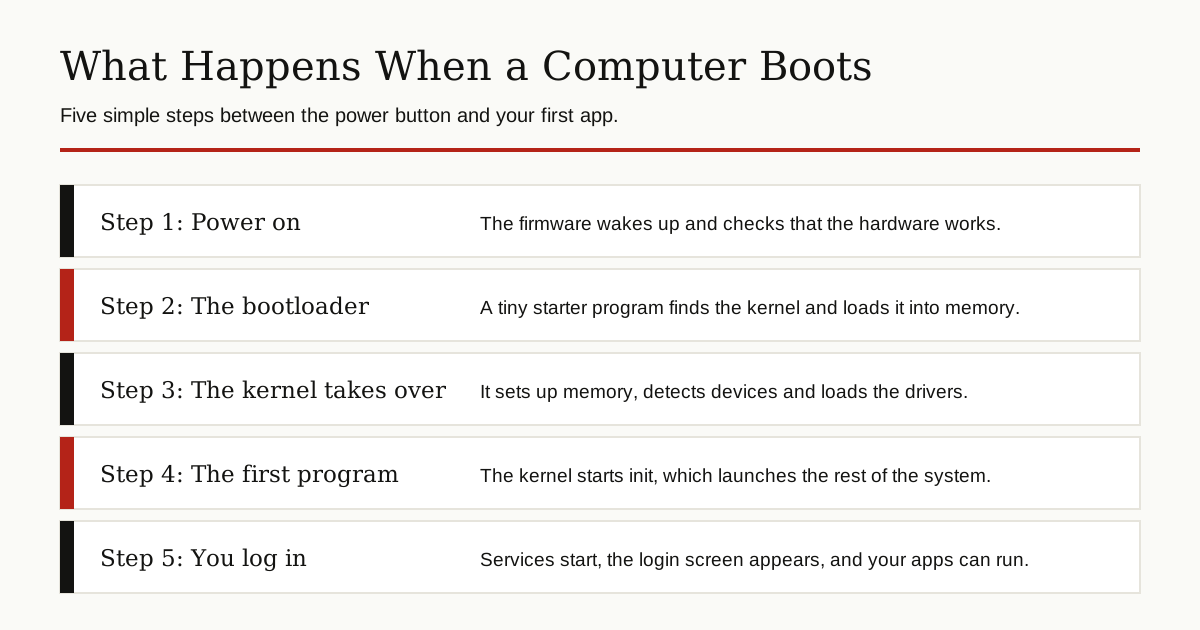
Notice the pattern: the kernel is one of the first programs loaded after the bootloader, and it handles the rest of startup itself. Every app you will ever open runs because the kernel finished this routine first.
Why the Kernel Matters for Security and Stability
Because the kernel is the gatekeeper, it is also the guard. Every file read, every camera request and every network connection passes its checks. That is why operating system updates so often include kernel fixes, and why an attacker who finds a hole in the kernel has effectively found the keys to the whole building. Keeping the kernel patched is one of the most important security habits there is.
The kernel also decides how stable and how fast your machine feels. Good scheduling and memory decisions make a modest computer feel smooth; poor ones make a powerful machine stutter. And nothing escapes this rule, even in the cloud: every server in a distributed system runs its own kernel, managing that machine’s hardware for the programs on it.
The Bottom Line
So, what is a kernel? It is the core of the operating system: the program that sits between your apps and the hardware, schedules the processor, guards the memory, runs the drivers and file system, and answers every request through system calls. It works in a protected mode your apps cannot enter, it arrives in three main designs (monolithic, microkernel and hybrid), and it is the reason one crashed app is a small annoyance instead of a dead computer.
You will never see the kernel on your screen, and that is exactly the point. It does its best work invisibly. Keep learning with our other software development guides, where we explain the building blocks of modern computing in the same plain English way.