Every team already collaborates. People ask questions, share files, argue about designs and chase deadlines all day long. The real question is where that work lives. If it hides in inboxes, private chats and one person’s memory, the team slows down every time someone is away, busy or new.
Team collaboration tools are the apps that give this work a shared home. The trouble is that shopping for them usually starts with brand names and feature lists, which is backwards. Start instead with the jobs your team needs done. There are five of them, and almost every tool on the market exists to do one or two of them well.
This guide walks through the five jobs, names the well-known tools for each in plain words, and then covers the part most buying guides skip: how to choose, and the simple working agreements that decide whether any tool actually helps. It sits alongside our wider guide to productivity tools for individuals; this one is about the team as a whole.
Start With the Job, Not the Brand
A collaboration tool is not one thing. It is at least five different things wearing one label, and confusing them is how teams end up holding meetings in a chat app and tracking projects in a spreadsheet of screenshots.
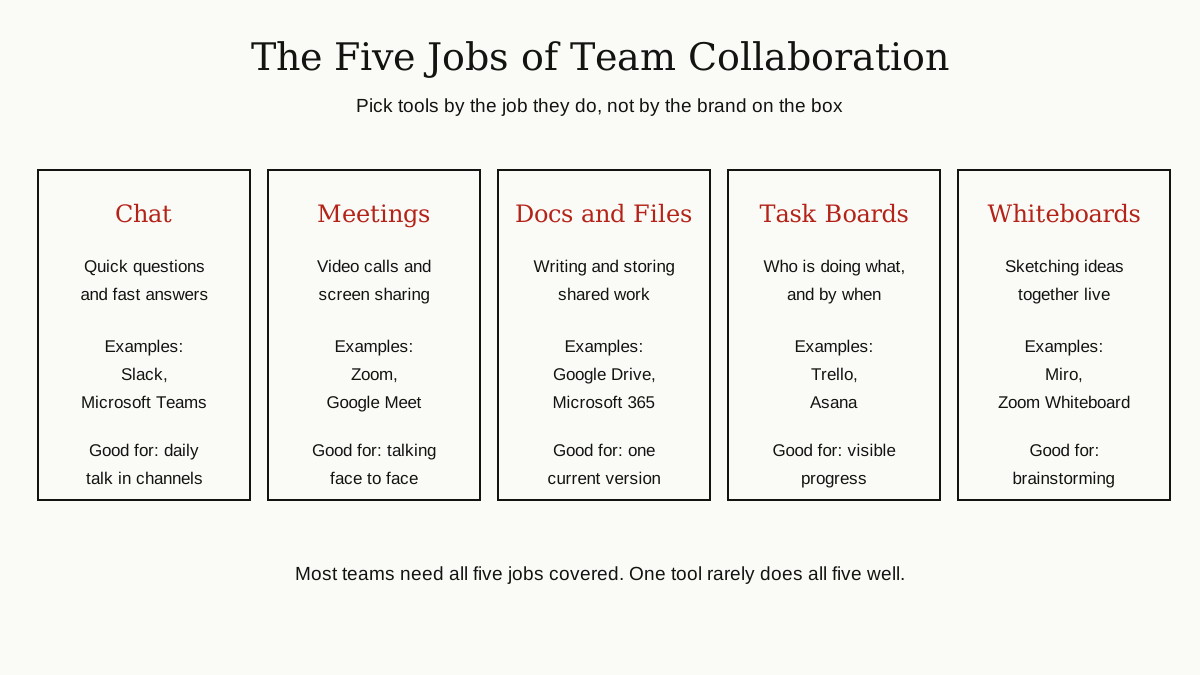
Here are the five jobs:
- Team chat for quick questions and fast, informal talk
- Video meetings for face to face conversation and screen sharing
- Shared documents and files so everyone works on one current version
- Task and project boards so the team can see who is doing what, and by when
- Whiteboards for sketching ideas together while they are still rough
Judge every product against this list. A tool that is brilliant at one job and silent about the others is not a complete answer, and that is fine, as long as you know which jobs it covers and which it leaves to something else.
Job 1: Team Chat and Quick Questions
Chat is where the small stuff lives: the two minute question, the quick link, the “is this ready yet?” Instead of email threads that fork and die, chat tools organize talk into channels, one per team, project or topic, so a conversation has a place and a history that new members can read later.
Slack, the best known example, is built around exactly that idea: channels for open team talk, direct messages for private ones, and quick voice or video huddles when typing is too slow. Microsoft Teams takes a similar shape, bundling chat with meetings and files, which we will meet again below. Both also connect to hundreds of other apps, so alerts from your other tools can land where the team already reads.
What to look for in a chat tool is simple. Search that actually finds old messages. Threads, so one busy channel can hold several conversations without trampling each other. And honest controls for muting, because a chat tool nobody can quiet down becomes a noise machine within a month.
Job 2: Video Meetings
Some things should be said face to face: the delicate feedback, the kickoff, the argument that text keeps making worse. Video meeting tools carry those conversations, plus screen sharing, which is still the fastest way to show a problem instead of describing it.
Zoom built its name on meetings that simply work, and its platform has since grown to include team chat and a whiteboard. Google Meet plays the same role inside Google Workspace, one click from the calendar invite. Microsoft Teams covers meetings as part of its wider bundle of chat, calling and files.
Underneath all of them sits older engineering worth knowing about: group video used to depend on a piece of hardware called a multipoint control unit, which mixed everyone’s video into one stream. Our explainer on the multipoint control unit covers how that bridge worked, and why modern cloud tools quietly replaced it. For buyers today, the practical checks are duller but more useful: Does it start fast for guests outside your company? Does recording and transcription work the way your team expects? Does it fit the calendar you already use?
Job 3: Shared Documents and Files
The third job is memory. Documents, spreadsheets, slides and files need one home where the current version is obvious, several people can edit at once, and last month’s draft cannot be mistaken for the real thing.
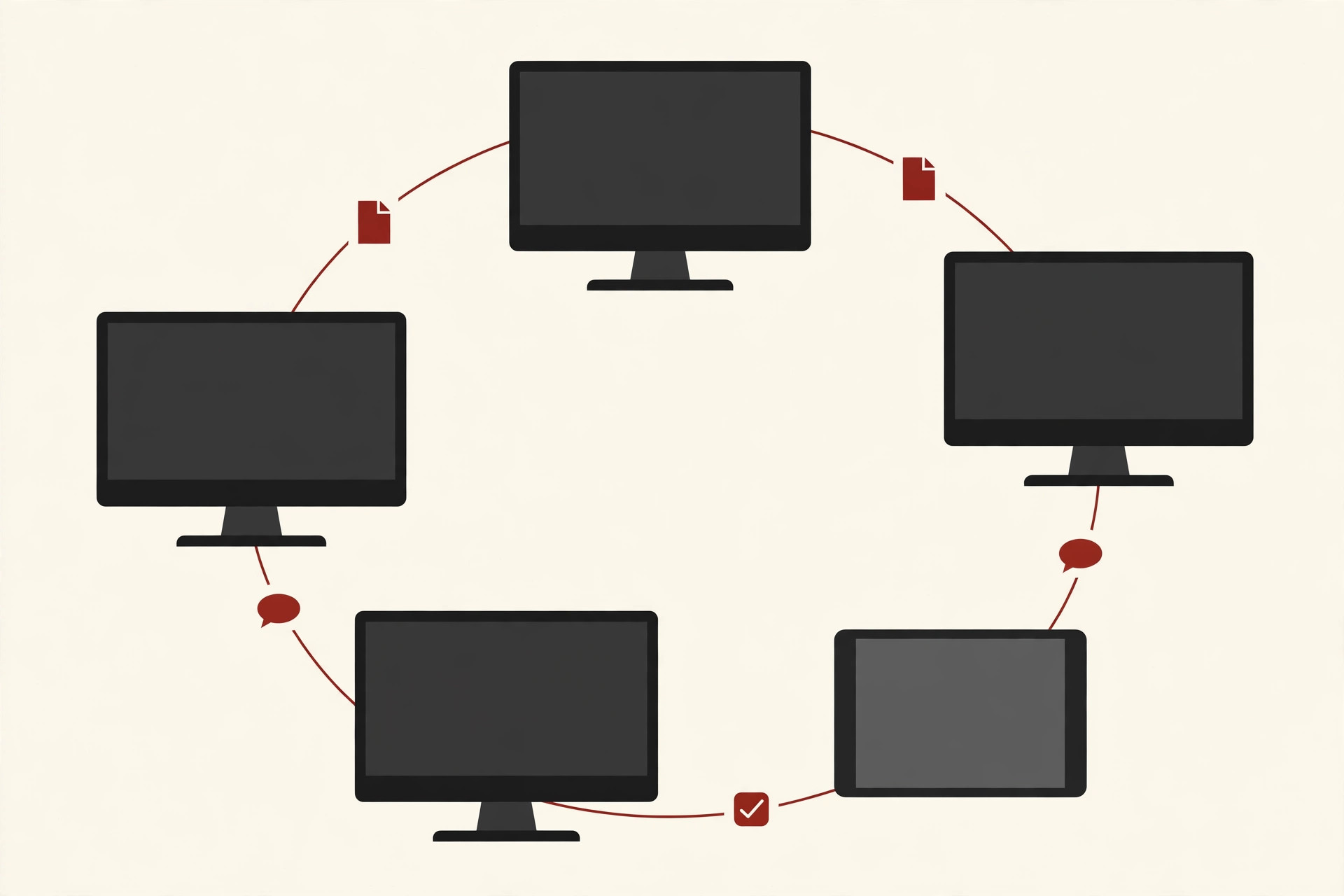
Google Workspace covers this job with Drive for storage and Docs, Sheets and Slides for editing, all tied to Gmail and Meet. Microsoft 365 answers with OneDrive, Word, Excel and PowerPoint, tied to Teams and Outlook. Notion takes a different angle, mixing documents, notes and team wikis in one workspace, which suits teams whose files are mostly written knowledge rather than spreadsheets.
Whichever you pick, the features that matter are boring and vital: version history, so mistakes can be undone; sharing links with clear permissions, so the right people can edit and everyone else can only view; and search that finds the document by what it says, not only by its name.
Job 4: Task and Project Boards
Chat is where work gets discussed. Boards are where it gets tracked. A task board shows every piece of work as a card with an owner and a due date, moving across simple columns such as To Do, Doing and Done. At a glance, the whole team can see what is moving, what is stuck and what is waiting on them.
Trello is the friendly face of this idea: boards, lists and cards you can learn in an afternoon. Asana goes deeper, adding timelines, workloads and reporting for teams running many projects at once. Both connect back to chat tools, so a card can be shared in a channel and discussed where the team already talks.
Boards deserve a guide of their own, and our walkthrough of project management tools goes further into planning features, timelines and reporting. The short version for collaboration purposes: if your team’s status updates happen in chat, they vanish. If they happen on a board, anyone can check the work without interrupting the worker.
Job 5: Whiteboards and Brainstorming
The last job is the messiest: thinking together before anyone knows the answer. Digital whiteboards give a team an endless canvas for sticky notes, diagrams and rough sketches, with everyone drawing at the same time.
Miro is the specialist here, a big shared canvas built for workshops, planning sessions and mapping ideas. Zoom includes a whiteboard inside its platform, and similar boards now appear inside most meeting and suite products, which tells you how central this job has become. A whiteboard earns its place when a team plans, designs or untangles a process together. It is not where finished work should live; once the session ends, the decisions need to move into a document or onto the task board, or they will be lost in the scribbles.
How to Choose: Five Questions
With the jobs clear, choosing gets calmer. Work through these five questions before you open a single pricing page.
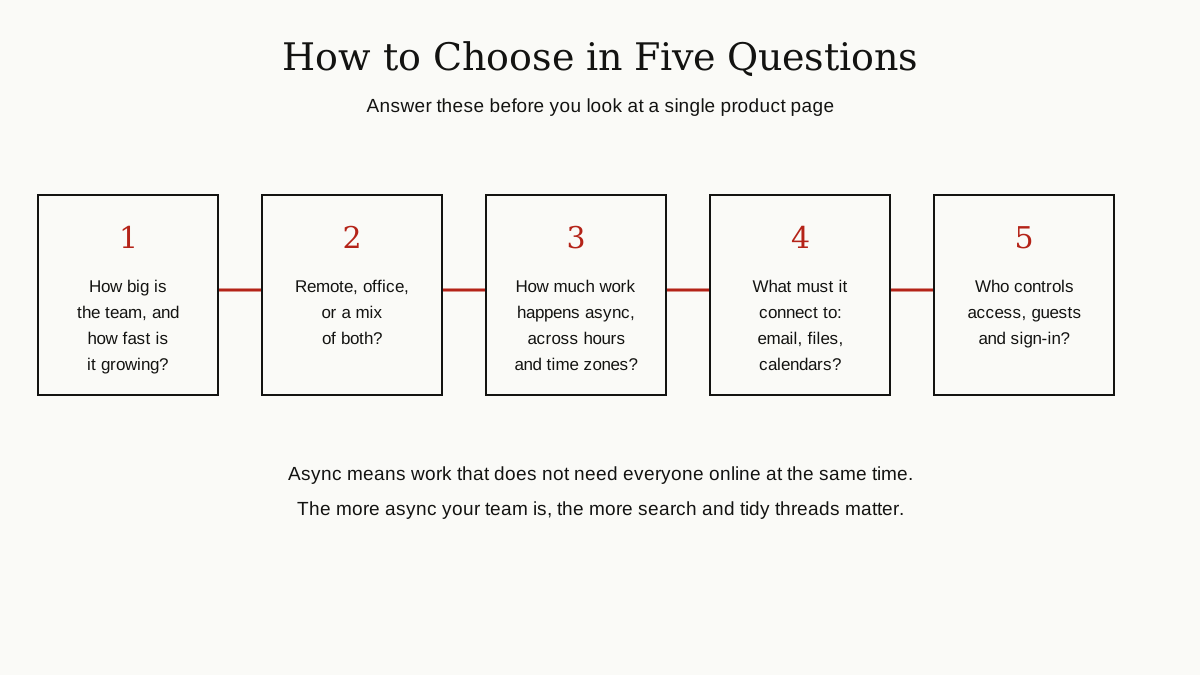
- How big is the team, and how fast is it growing? A five person team can run on almost anything. A team doubling every year needs tools with real admin controls and room to grow.
- Remote, office, or a mix? Office teams lean on meetings and chat. Remote teams live or die by what is written down, so documents, boards and search matter more.
- How much work is async? Async, short for asynchronous, means work that does not need everyone online at the same moment. Teams spread across time zones need tidy threads and searchable history, because a question asked at 6 p.m. may be answered at 6 a.m.
- What must it connect to? Email, calendars, file storage and the specialist tools your team already uses. A tool that cannot share files with your existing storage creates a second, competing home for work.
- Who controls access? Someone must be able to add people, remove people who leave, and set what guests can see. This sounds like IT detail. It is actually the difference between a tool the company runs and a tool that runs away from the company.

Admin and Security Basics, in Plain Words
Two terms in this area are worth translating. Guest access means letting someone outside your company, a client or a freelancer, into selected channels or boards without giving them the keys to everything. Check that guests can be limited to exactly the spaces they need.
Single sign-on, often shortened to SSO, means your team signs in to every tool with one company account, the same login they use for email. One password to protect, and one account to switch off when someone leaves. Most established tools offer it on their business tiers; the point for a buyer is simply to confirm it exists before the team grows into needing it.
One Suite or Best of Breed?
Eventually every team faces the same fork in the road. Buy one suite, or assemble best of breed tools, meaning the strongest separate pick for each job?
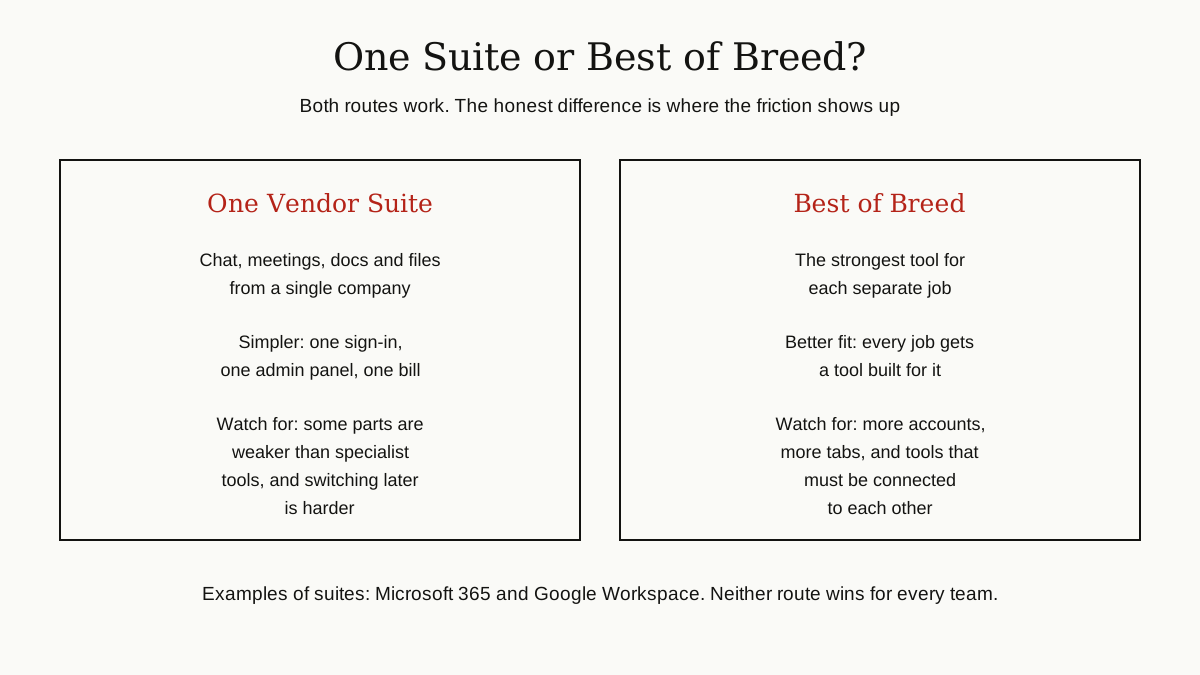
A suite, such as Microsoft 365 or Google Workspace, gives you chat, meetings, documents and storage from one vendor. One sign-in, one admin panel, one relationship. The trade is that some parts of a suite are merely good where a specialist tool is excellent; the built-in board or whiteboard may feel thin next to a dedicated product.
Best of breed flips the trade. Every job gets a tool built for it, and each one is usually a pleasure to use. The cost is more accounts to manage, more tabs open, and real work connecting the tools so a file, a task and a conversation can find each other.
There is no winner here, and any guide that crowns one is selling something. Small and mid-sized teams often start with a suite and add a specialist only where the suite genuinely hurts. Larger teams more often mix both. Decide by where your team feels friction today, not by which diagram looks cleaner.
Working Agreements: The Part That Actually Fixes Collaboration
Here is the uncomfortable truth this whole guide has been walking toward: most collaboration problems are not tool problems. They are agreement problems. The same five apps can feel calm on one team and chaotic on the next, and the difference is a handful of shared rules.
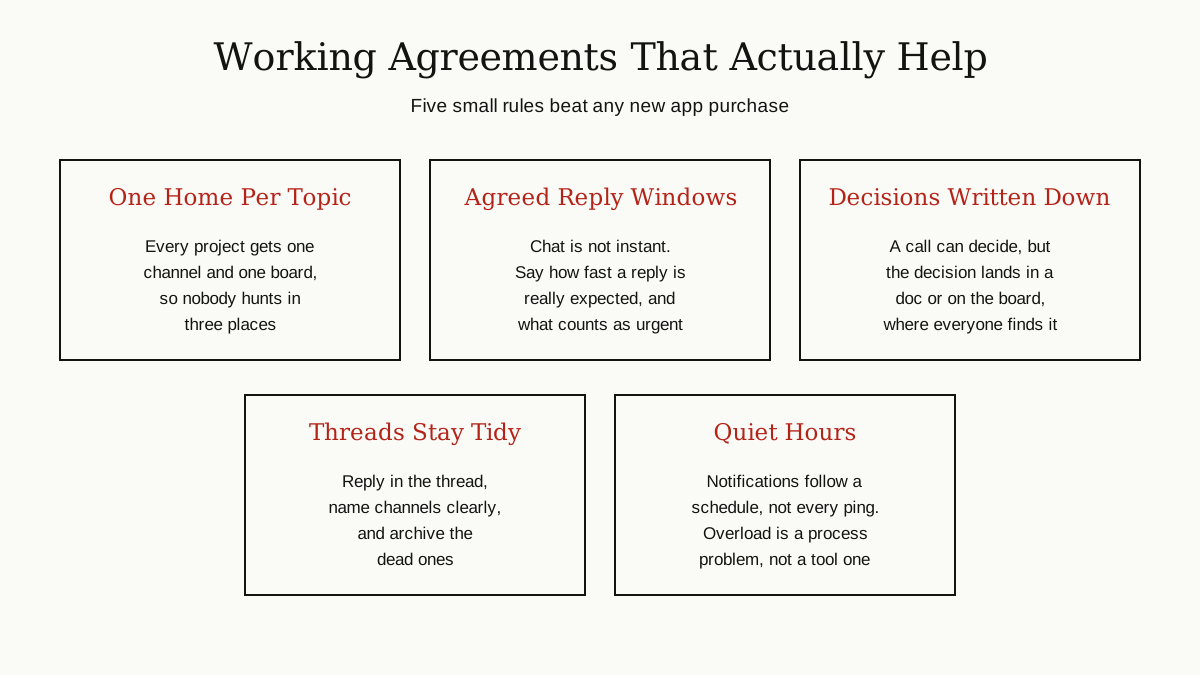
- One home per topic. Every project gets one channel and one board. The moment updates spread across chat, email and a stray document, nobody knows where the truth is.
- A map for messages. Agree which tool carries which kind of message, and half the confusion disappears on day one.
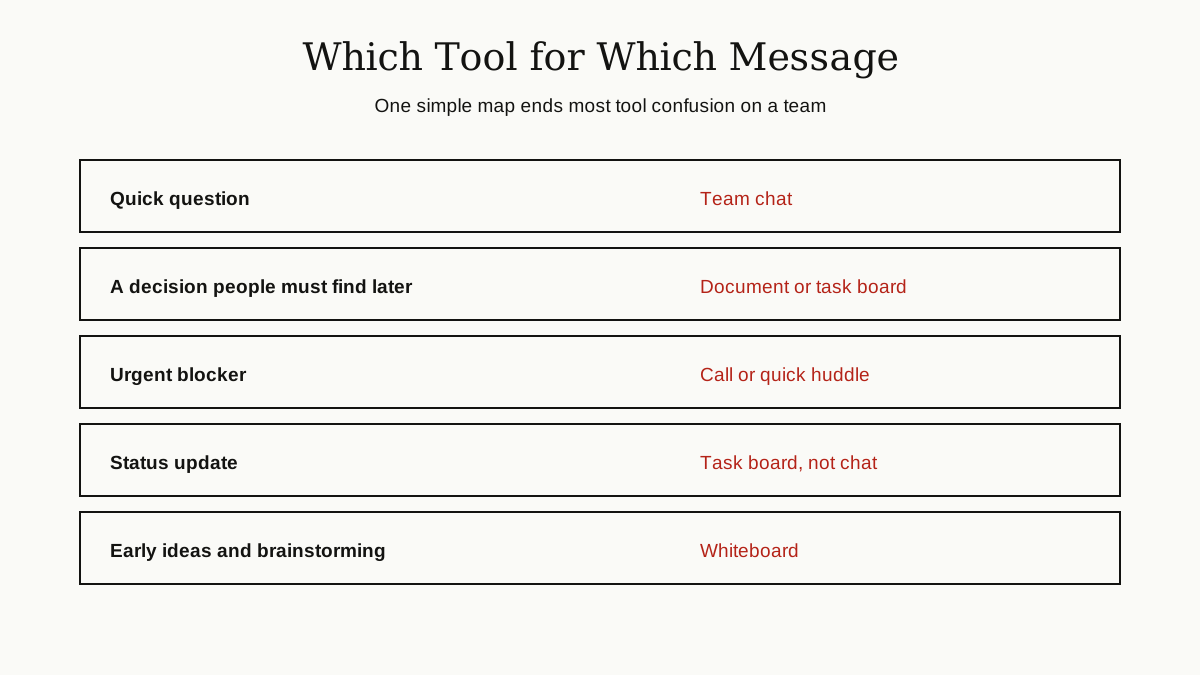
- Reply windows, stated out loud. Chat feels urgent only because nobody said otherwise. Agree that chat answers are expected within a few working hours, not a few minutes, and that real emergencies mean a call. Half of notification stress is just an unstated expectation.
- Decisions get written down. Calls and huddles are great for deciding and terrible for remembering. Whatever was decided goes into a document or onto the board before the day ends, in words a person who was not there can follow.
- Notifications on a schedule. Every modern tool can mute channels, pause alerts after hours and save pings for threads you follow. Turn those settings into a team norm, and say clearly that nobody is expected to answer at night. Notification overload is a process problem, not a tool problem; no new app fixes a culture that pings at midnight.
The Bottom Line
Team collaboration tools do five jobs: chat, meetings, documents and files, task boards, and whiteboards. Name the jobs first, answer the five choosing questions honestly, and pick a suite, specialists, or a mix that covers your team’s real friction. Then do the unglamorous part: agree where each kind of message lives, how fast replies are expected, and where decisions get written down.
Get the jobs and the agreements right, and the specific brands matter far less than the sales pages suggest. For more guides like this one, browse the business productivity category.