Every company answers the same questions over and over. How do I reset my password? Where is my invoice? What is the refund policy? When those answers live in one person’s inbox, or worse, in one person’s head, everyone waits. Customers wait for a reply. New employees wait for a training session. Support agents wait for the one colleague who knows.
Knowledge base software exists to end that waiting. It gives your answers one home: a searchable library that people can use on their own, at any hour. This guide explains what it is, what it actually does, which features matter, how the well-known tools differ by type, and the honest truth about free options. No rankings, no prices, and no hype.
What Is a Knowledge Base?
A knowledge base is a library of written answers, organized so people can find them fast. Instead of asking a person, a reader types a question into a search box or browses categories, and lands on an article that explains the answer in plain steps.
Zendesk, whose help center tools are built around this idea, describes a knowledge base as a central source of information that helps customers and employees find answers about a company’s products, services, or processes. That definition is a good one, because it names both audiences. A knowledge base can face outward, toward your customers, or inward, toward your own team. Many companies quietly run both.
The software part matters more than it sounds. A shared folder of documents is not a knowledge base, because nobody can search it properly, nobody knows which file is current, and nobody can see which questions readers failed to find. Knowledge base software adds the search box, the tidy article pages, the categories, and the reports that turn a pile of documents into a living library.
The Two Jobs: Help Centers and Team Wikis
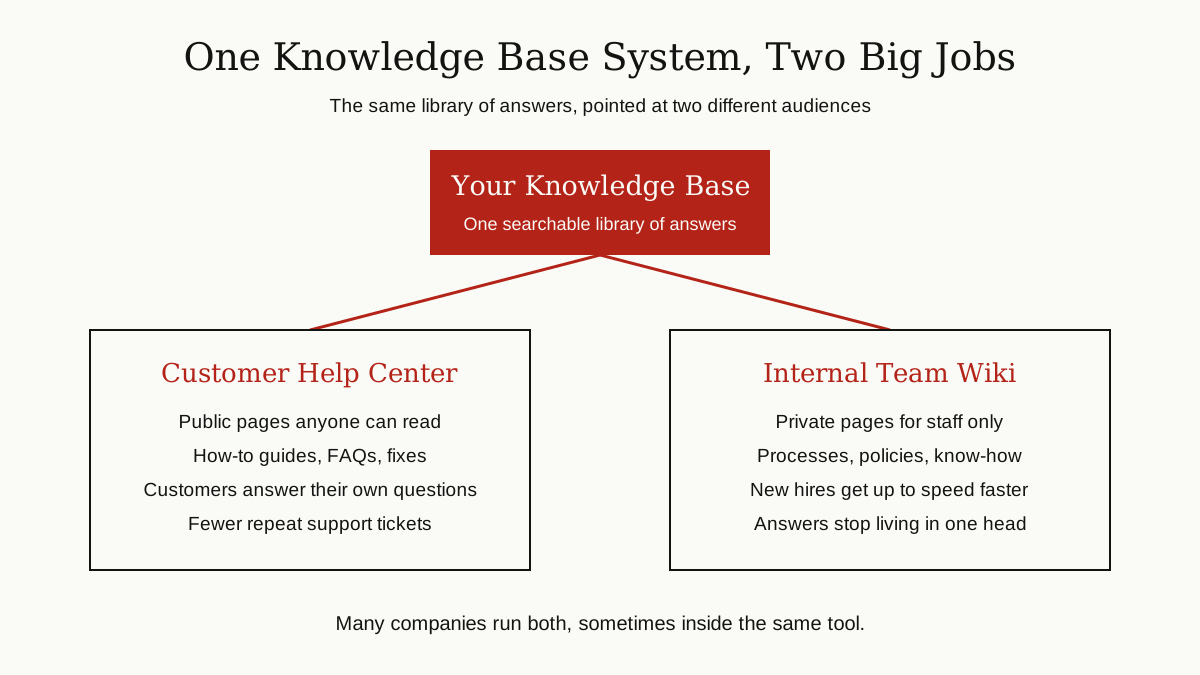
Almost every knowledge base is doing one of two jobs, and it helps to know which one you need before you look at any tool.
Job One: The Customer Help Center
This is the public face. A customer with a problem visits your help center, searches, and fixes the problem without contacting you. Support teams call this deflecting a ticket, which simply means a question got answered before it became an email or a chat someone had to staff.
A good help center holds how-to guides, troubleshooting steps, policy pages, and the same practical content you would find in good user manuals, broken into short articles. It works around the clock, including the hours when your team is asleep, and it gives every customer the same correct answer instead of three slightly different ones.

Job Two: The Internal Team Wiki
This is the private face. An internal wiki stores how your company does things: processes, policies, project notes, onboarding guides, and the hard-won know-how that usually walks out the door when an employee leaves.
New hires feel this job first. Instead of shadowing a busy colleague for every small question, they search the wiki and help themselves. Teams also use the internal base to store their technical documentation, so product answers and process answers live in one searchable place instead of five scattered tools.
The internal job has a quieter benefit too: it protects the company from forgetfulness. Every business has a handful of things that only one person knows, like why a report is built a certain way or which supplier to call when the usual one fails. Written down in the wiki, that knowledge survives holidays, sick days, and resignations.
Knowledge Base Software vs Knowledge Management Software
You will see both labels everywhere, and vendors swap them freely, so here is the simple version.
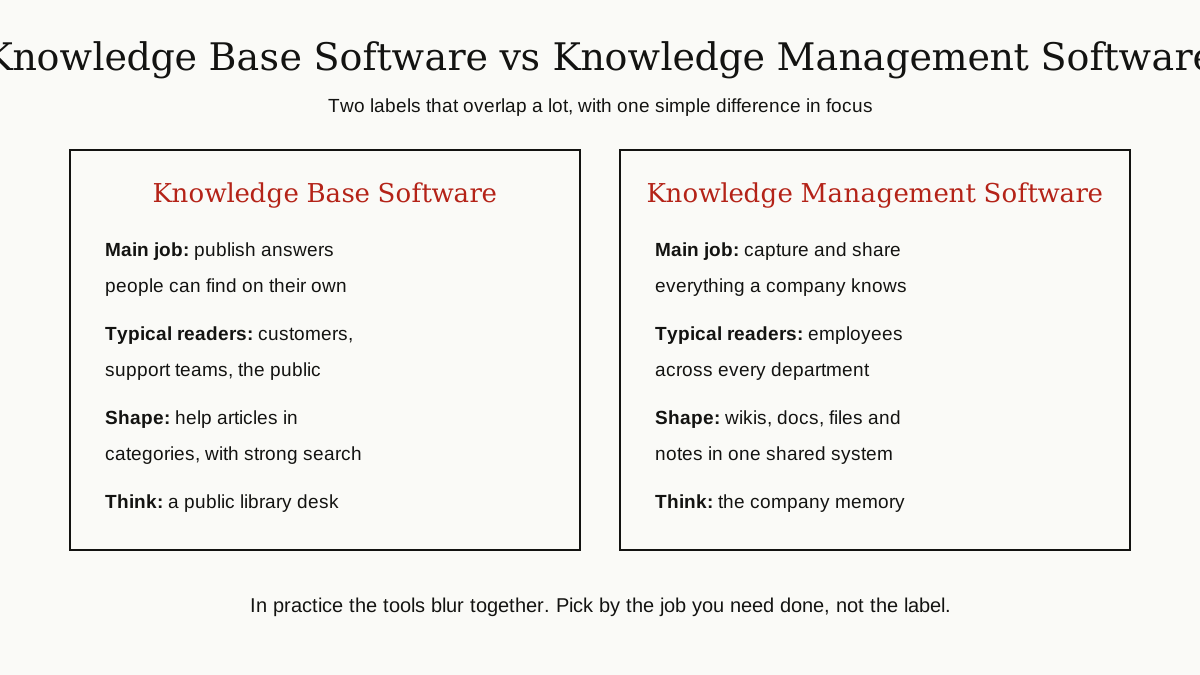
Knowledge base software is about publishing. Its center of gravity is the article: written once, organized into categories, and found through search by customers or staff. Help centers are the classic example.
Knowledge management software is about the wider habit of capturing what a company knows. That includes articles, but also meeting notes, files, decisions, and expertise that starts out trapped in people’s heads. Atlassian frames knowledge management as the process that keeps a knowledge base accurate, findable, and in use, which is a useful way to see it: the knowledge base is the shelf, and knowledge management is everything you do to keep the shelf stocked and tidy.
In practice the tools blur together. Plenty of products sold as knowledge management software contain a perfectly good article library, and plenty of knowledge base tools handle internal docs too. The label matters far less than the job in front of you.
The Features That Actually Matter
Feature lists run for pages, but six features decide whether people will use your knowledge base or quietly go back to asking around.
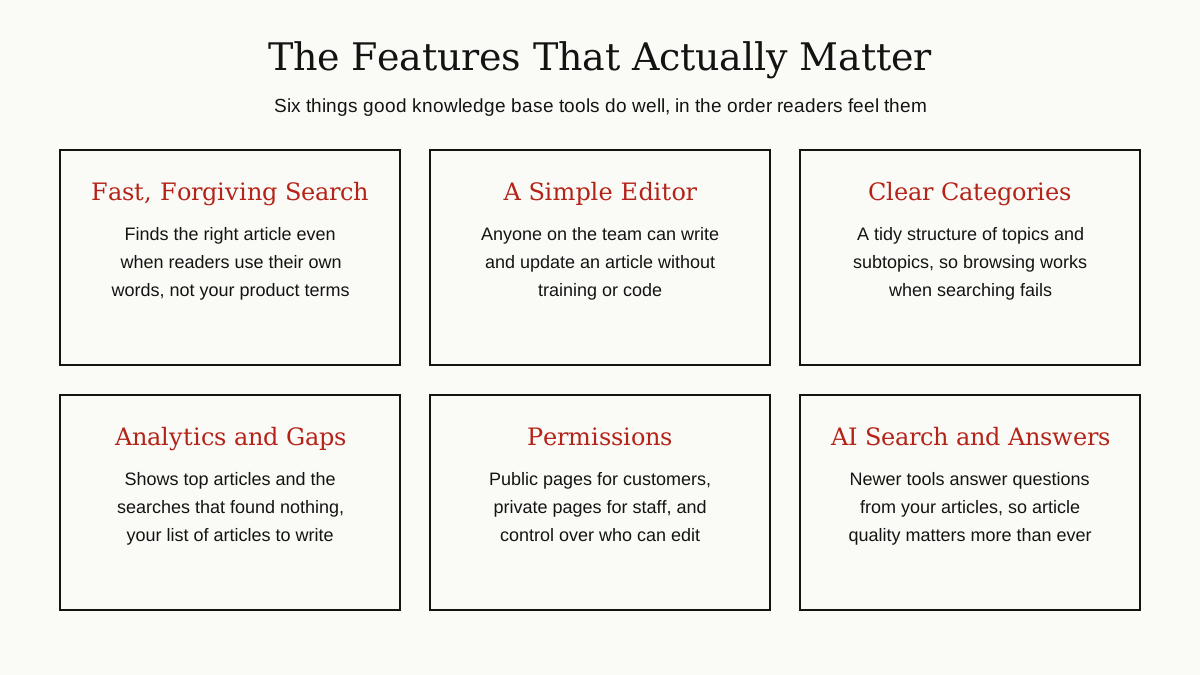
- Search that forgives. Readers search in their own words, not your product’s vocabulary. Good search still finds the right article, ranks the best answer first, and suggests articles as the reader types.
- An editor anyone can use. If writing an article needs training or code, articles stop getting written. The best editor feels like a simple document: headings, steps, screenshots, done.
- Clear categories. Search fails sometimes, and browsing takes over. A shallow, obvious structure of topics beats a clever deep one.
- Analytics that show the gaps. The most valuable report is the list of searches that found nothing. Those failed searches are your writing list: real questions, in readers’ own words, that nobody has answered yet.
- Permissions. Public answers for customers, private pages for staff, and control over who can publish. One tool often holds both audiences, separated by permissions.
- AI search and answers, in plain terms. Many tools now answer questions in a sentence or two, drawn from your articles, instead of only listing links. This can be genuinely helpful, but it reads your articles exactly as written. Outdated or muddled articles produce outdated or muddled answers, which is one more reason the writing still matters.
Notice what is not on the list: themes, logos, and decorative extras. Readers forgive a plain design. They never forgive a wrong answer or a search box that finds nothing.
The Main Types of Tools, With Examples
Rather than a ranked list, here is the honest map of the market, by type. Every tool named below is well established, and each one is described by the job it is known for.

Help Center Tools Built Into Support Platforms
These grow out of customer support software, so the knowledge base sits next to the ticket inbox. Zendesk offers a help center product (long called Guide) for customer self-service articles, connected to its support tickets. Intercom pairs its helpdesk with a help center and a central Knowledge Hub that feeds its human agents and its AI agent, Fin. Help Scout includes a knowledge base product called Docs, designed to be set up without code, with reports that show failed searches. Pick this type when your main job is customer support and your articles and tickets should live together.
Internal Wiki and Workspace Tools
These start from the team, not the ticket. Notion is a workspace where teams build wikis and docs with strong search and page verification, so readers can trust that a page is current; its wiki product page shows the shape of it. Confluence, from Atlassian, is a team wiki widely used for internal documentation, and it also powers the knowledge bases behind Atlassian’s service desk product. Pick this type when the main job is internal know-how and your readers are employees.
Dedicated Knowledge Base Tools
These do one thing: build and run a knowledge base, often for product documentation and help sites. Document360 is a clear example, built specifically for knowledge bases and documentation, with authoring, search, and analytics aimed at that single job. Pick this type when the knowledge base itself is the product you care about, not a side feature of a bigger platform.
Open Source and Self-Hosted Tools
Open source wiki and knowledge base projects, such as BookStack and DokuWiki, can be installed on your own server at no license cost. In exchange, your team handles installation, updates, backups, and security. Pick this type when you have technical hands available and want full control over your data and your setup.
How to Choose, Step by Step
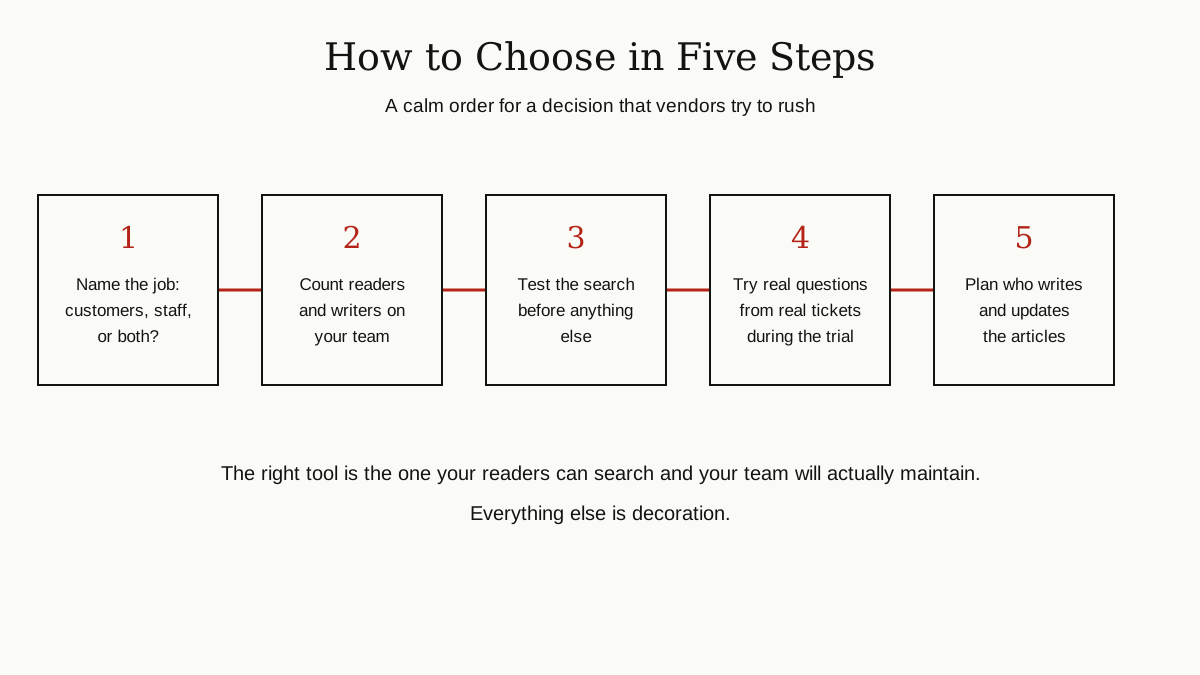
- Name the job first. Customer help center, internal wiki, or both? This one answer removes half the market from your list.
- Count your people. How many readers, and how many writers? Team size decides which plan shapes fit, and whether you need careful permissions from day one.
- Test the search, not the homepage. During any trial, type in the ten questions your customers or new hires ask most, in their words, and see what comes back.
- Write one real article in the editor. If drafting and updating feel heavy, your team will avoid the tool, and an unused tool is worth nothing.
- Check the exits and the upkeep. Can you export your articles if you leave? Who on your team will own updates? A tool that fits into the productivity tools your team already uses daily will be opened far more often than a separate island.
The Free Question, Answered Honestly
People searching for free knowledge base software usually want a straight answer, so here it is. Yes, free options exist, and no, none of them is magic.
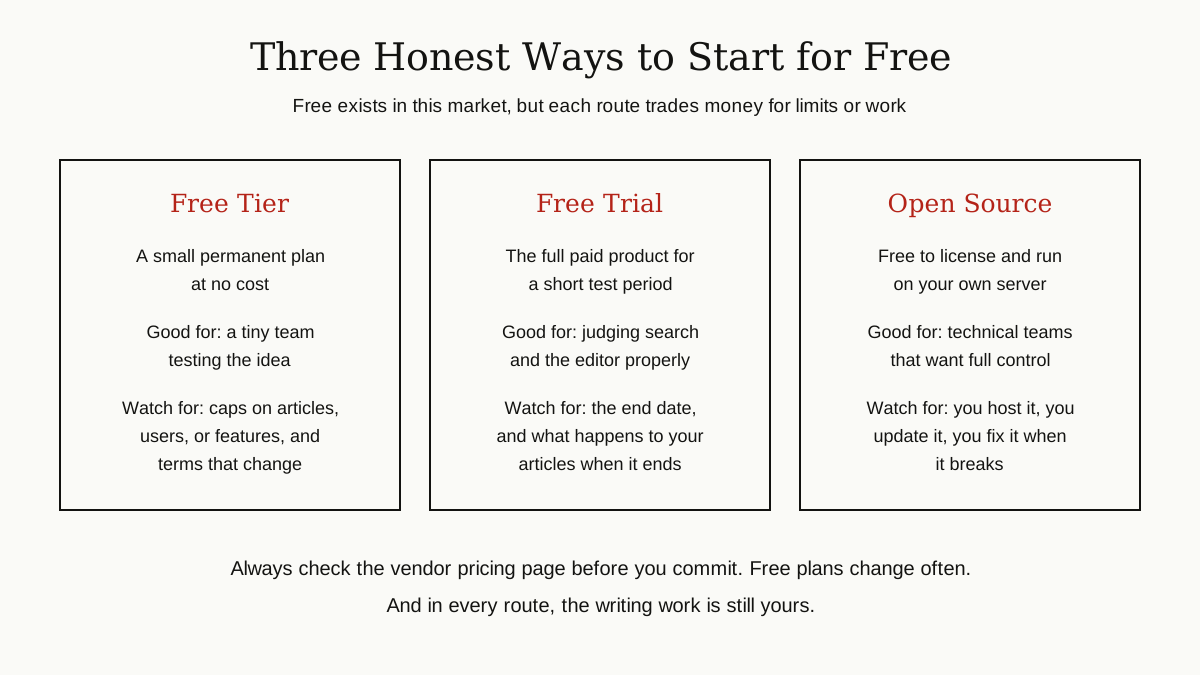
Some paid tools offer a free plan. These are real but small: expect limits on the number of articles, authors, or features, and expect the limits and terms to change over time. Some tools offer a free trial instead, which is the full product for a short period. A trial is the better way to judge search quality and the editor, but note the end date, and check what happens to your articles when it closes.
Open source is the third route, and the only one that is free in the lasting sense. The license costs nothing. Your time does. Hosting, updates, and fixes land on your team’s desk, which is a fair trade for technical teams and a heavy one for everyone else.

Whichever route you take, read the vendor’s current pricing page yourself before committing. Free tiers in this market change quietly and often, and any article, including this one, ages faster than a pricing page does.
The Work Nobody Sells You
Here is the part of the sales pitch that never appears on a pricing page: software does not write the knowledge base. People do.
Someone has to turn the answers in your support inbox into clear articles. Someone has to fix the article when the product changes, because an outdated help page is worse than none: it gives a wrong answer with total confidence. Someone has to read those failed-search reports and write the missing pieces. AI features can draft and suggest, but a person still has to check that the answer is true.
Plan for that work and the tool almost does not matter. Skip it, and the finest knowledge base software becomes an empty library within a year. The honest budget for a knowledge base is mostly hours, not licenses.
A simple rhythm keeps it manageable. When a support agent solves a new problem, the fix becomes a short article before the ticket closes. Once a month, someone reads the failed-search report and writes the top missing answers. Once a quarter, the oldest articles get a quick check against the current product. None of this is glamorous, and all of it is the difference between a library people trust and one they quietly stop opening.
The Bottom Line
A knowledge base is a library of answers, and knowledge base software is what makes that library searchable, tidy, and measurable. Decide which job you need, customer help center, internal wiki, or both. Judge tools by their search, their editor, and their gap reports. Treat free options with clear eyes, and budget the writing work from day one.
Get those things right, and the specific brand on the box becomes the least important part of the decision. For more guides like this one, browse the business productivity category.