Search any app store for productivity tools and you will find thousands of apps, all promising the same thing: a calmer, more organized work life. A week later, most people have three new apps on their phone, a to-do list split across two of them, and the same messy desk they started with.
The tools are rarely the problem. The problem is how we shop for them. We ask “what is the best app?” when the better question is “what job do I actually need done?” A task manager cannot fix a focus problem, and a focus app cannot organize your notes. Each tool is good at one job.
This guide sorts productivity tools by the job they do: capturing tasks, storing notes, planning time, protecting focus, and removing repeat work, plus the quiet basics of files and passwords. For each job, you will find what the tool really does, well-known examples, and how to pick without collecting apps you will never open.
What Are Productivity Tools?
A productivity tool is any app or program that helps you plan work, remember things, protect your attention, or skip steps you repeat. That is a wide shelf, so it helps to stop thinking of productivity tools as one single category.
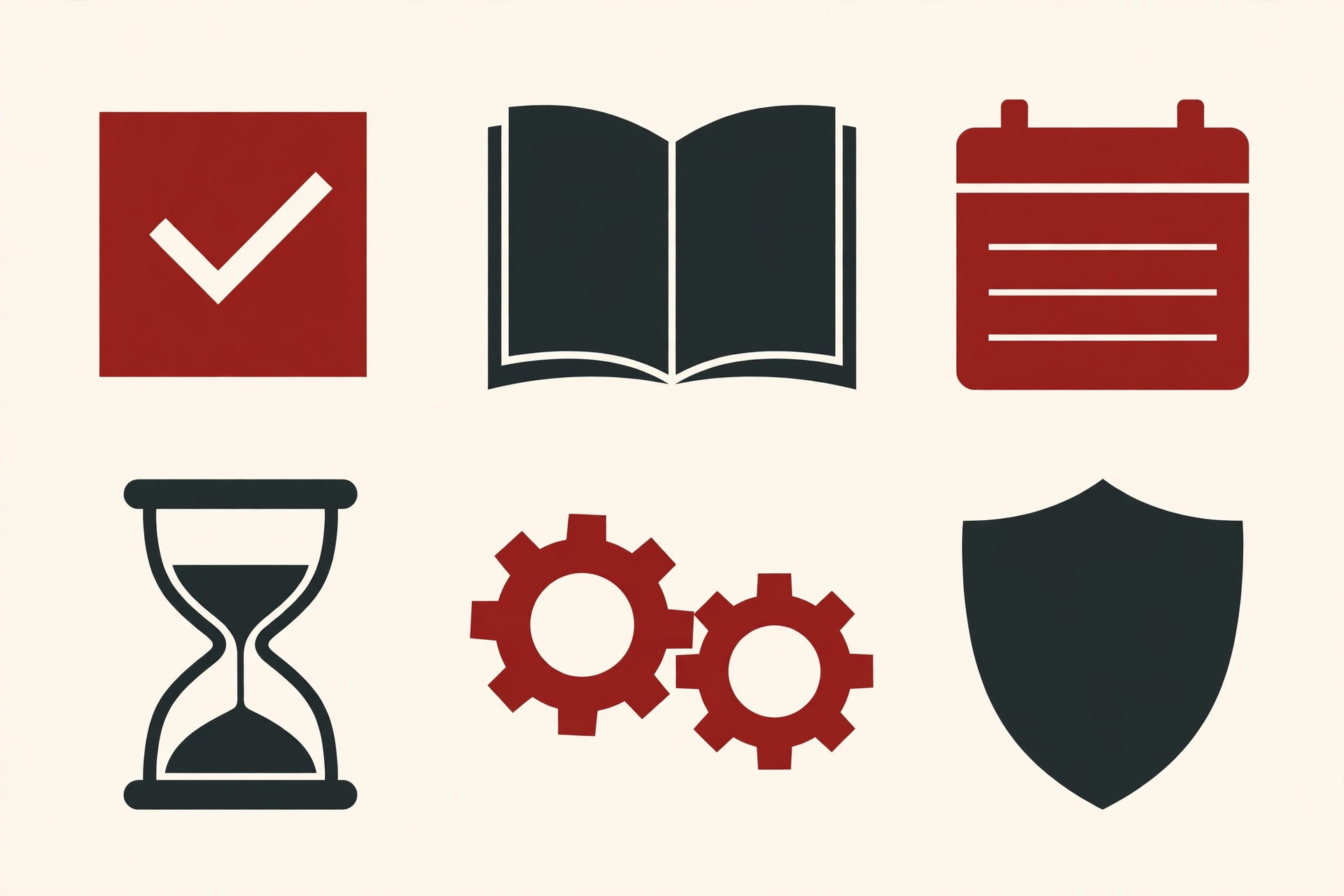
Nobody buys “tools” in general. You buy a hammer for nails and a wrench for bolts. Software works the same way: the job comes first, the app comes second. Once you see the six jobs below, most buying decisions become easy, because you stop comparing apps that were never rivals in the first place.
One more thing is worth saying early. Almost every tool below has a free version that covers the basics well, and the free version is the right place to start. Paid plans usually add team features, bigger limits, and extras. Start free, and upgrade only when you hit a limit that actually hurts.
Job 1: Capturing and Organizing Tasks
A task manager is the notebook your brain wishes it had. Its job is simple: catch every task the moment you think of it, hold it safely, and show you the right one at the right time. If tasks live only in your head, some of them will quietly fall out. A task manager makes sure they do not.
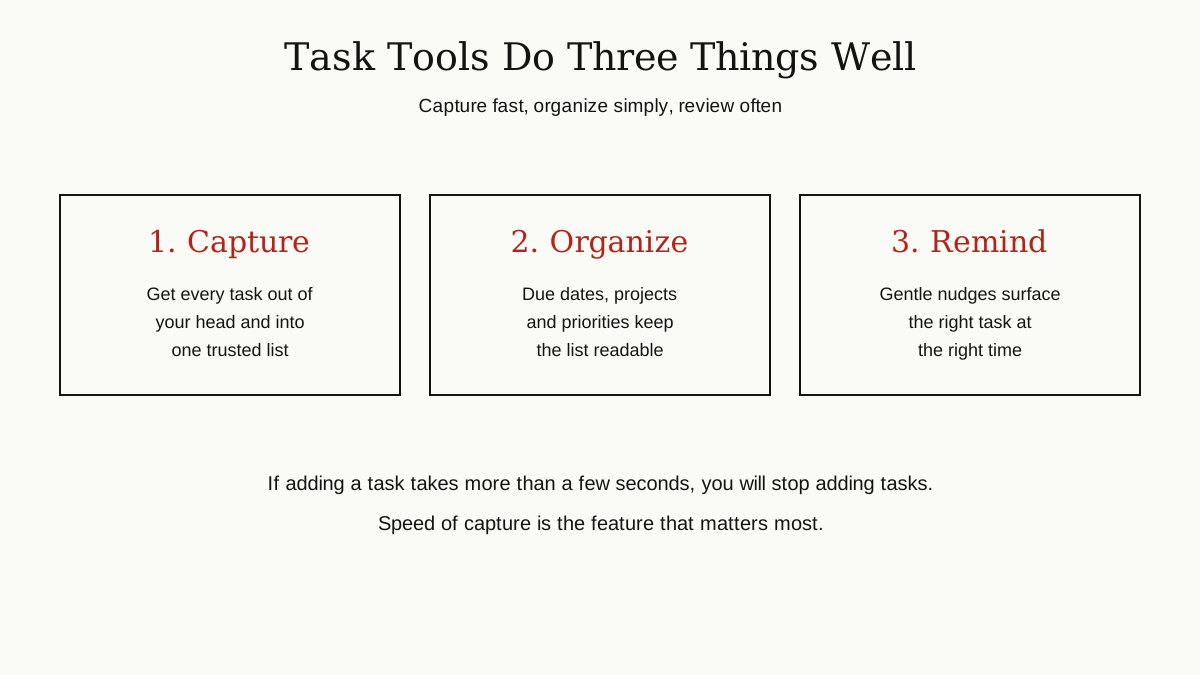
Two well-known examples show the range. Todoist is a clean to-do list app that lets you type tasks in plain language, like “call the bank tomorrow at 9,” and files them under the right day and project. It runs on phone, tablet, watch, computer, and the web, and the basic version is free. TickTick does the same core job and adds a built-in calendar view and a Pomodoro timer, a focus timer we will meet again below.
What matters most is speed. Adding a task should take seconds, from any device, or you will stop doing it. After speed, look for due dates, simple projects or lists, and reminders you can trust. Fancy features can wait.
One style difference is worth knowing. Some task managers are pure lists: fast, plain, and proud of it. Others, like TickTick, fold in a calendar view and habit tracking, which suits people who like to plan the whole day in one place. If you already keep a separate calendar you trust, the pure list is usually the cleaner choice. If your tasks and your schedule live apart and keep colliding, the combined style can end the collision.
Job 2: Notes and Knowledge
Tasks are what you must do. Notes are what you must remember: meeting decisions, ideas, instructions, links, and the thousand small facts that work runs on. A notes tool gives all of that one searchable home, so “where did I write that?” stops being a daily question.
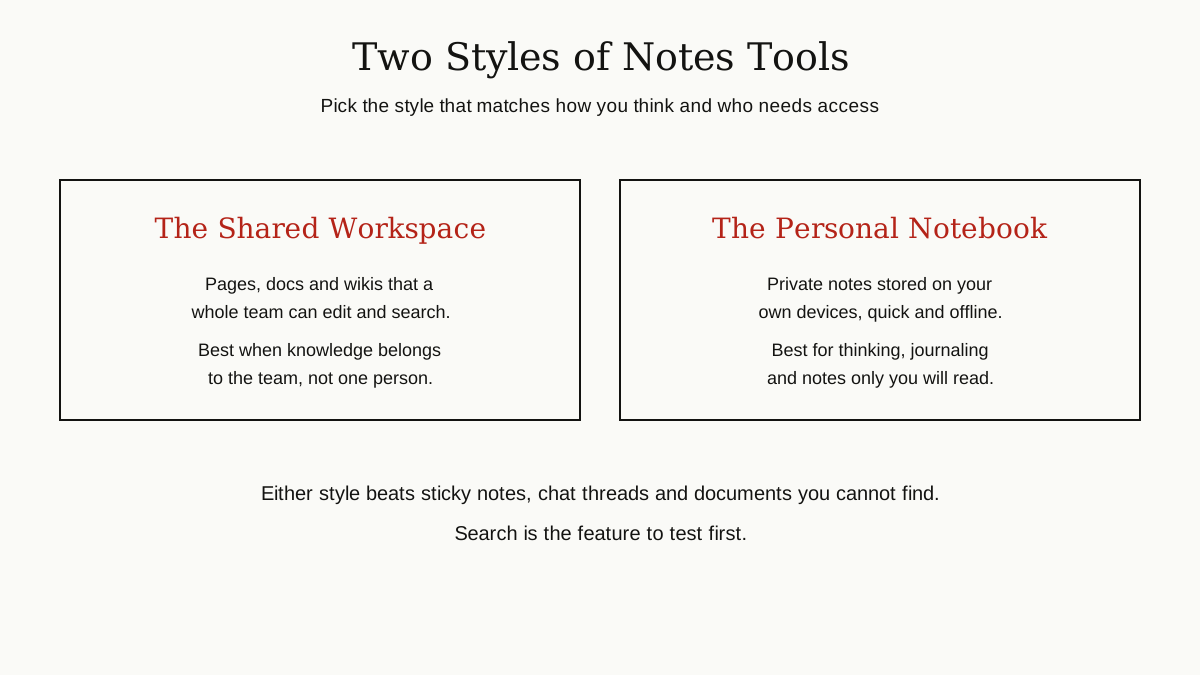
The two common styles are the shared workspace and the personal notebook. Notion is the workspace style: pages and documents that a whole team can edit, organize, and search together, often used as the company wiki. Obsidian is the notebook style: a free app that stores your notes as plain files on your own devices, links them together like a small personal Wikipedia, and works offline. Neither style is better. Teams that share knowledge lean toward the workspace; people who think alone in their notes lean toward the notebook.
Test one thing before anything else: search. A notes app earns its keep on the day it finds a six-month-old note in two seconds.
Where people go wrong is treating the notes app like a junk drawer. Dumping everything in with no structure works for about a month, then the search results turn into noise. A light touch is enough: a few clear folders or notebooks, one for each area of your work, and titles written the way you would search for them later. Your future self is the reader you are writing every note for.
Job 3: Calendar and Scheduling
A task list says what needs doing. A calendar says when it will happen, and the calendar is the only one of the two that respects reality. There are only so many hours in a day, and a calendar makes that limit visible before you promise too much.
For most people, the calendar that comes with their email account is enough. Google Calendar, for example, handles events, reminders, and calendars shared with family or teammates, and it stays in sync across every device you own. The extra tool worth knowing is the scheduling link: instead of trading a chain of emails to find a meeting time, you share a page that shows your free times, and the other person picks one. It removes a whole category of small, annoying messages.
One habit makes this job pay off: when a task really matters, give it a time slot on the calendar, not just a line on a list. Work with a time attached is far more likely to happen.
Job 4: Focus and Blocking Distractions
Focus tools do the least glamorous job on this list, and for many people the most valuable one. They protect your attention while you work, mostly by making distractions harder to reach.
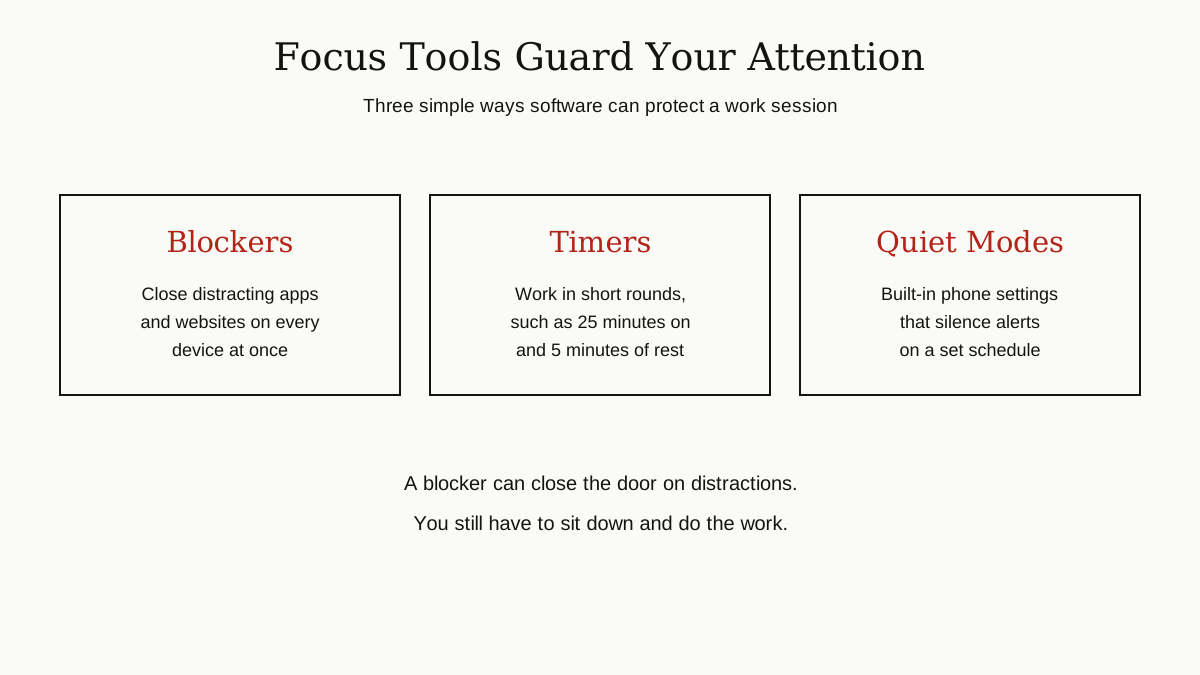
There are three kinds. Blocking apps such as Freedom hide distracting apps and websites across your phone and computer at the same time, on a schedule you set in advance. Timers, such as the Pomodoro timer built into TickTick, split work into short rounds, often 25 minutes of focus followed by a short break, which makes getting started feel easier. And every modern phone already has a quiet mode that silences alerts during set hours, free and built in.
A blocker cannot make you care about the work. But it can remove the easy exits, and that is often enough. Our separate guide on how to focus goes deeper on the habits that pair well with these tools.
Job 5: Automating Repeat Work
Some work is not hard, just repeated: copying form replies into a spreadsheet, saving email attachments to a folder, sending the same reminder every week. Automation tools exist to take that kind of work off your plate.
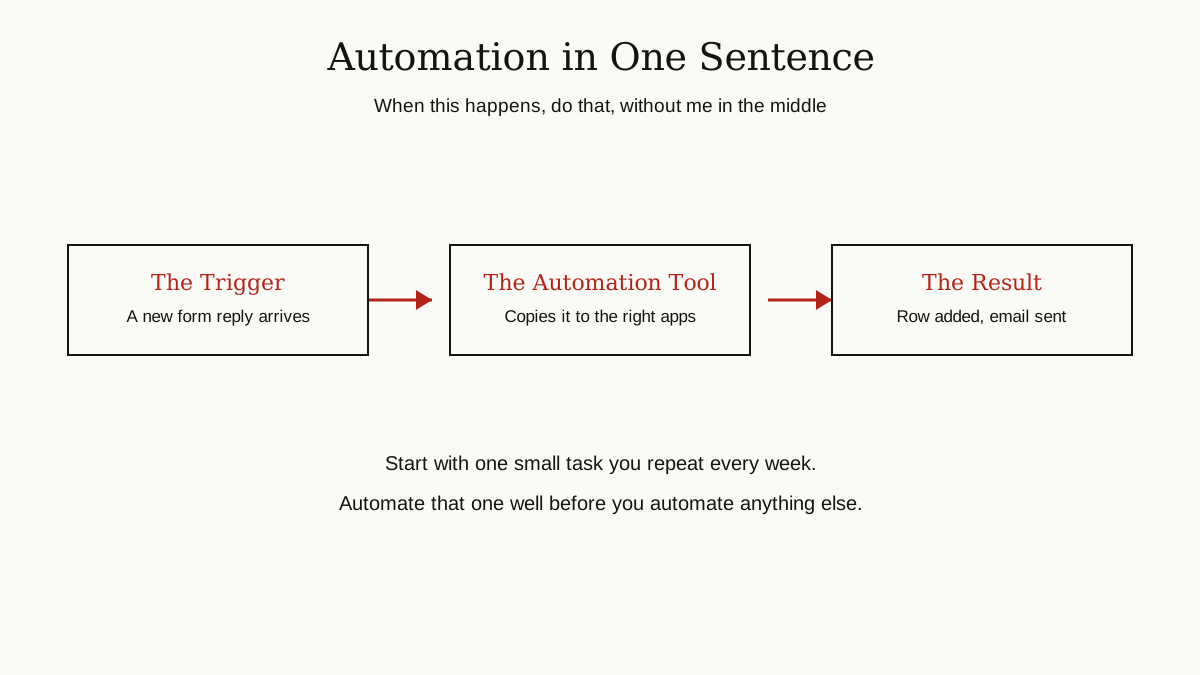
They all work on a simple pattern: when something happens in one app, do something in another. Zapier is the best-known example. It connects more than 9,000 apps, and you build small rules, called Zaps, such as “when a new form reply arrives, add a row to my spreadsheet and send me a message.” Make does the same job with a visual canvas where you draw the steps instead. Both offer free plans with limits, which are plenty for your first few rules.
A few everyday examples show the pattern. When an invoice is paid, add the payment to your bookkeeping sheet. When a meeting is booked, create the video call link and email the guest without touching anything. When a new file lands in a shared folder, post a note in the team chat. None of these rules is impressive on its own. Together, they return the small, scattered minutes that otherwise leak out of every week.
Start small. Pick the one task you repeat every week, automate only that, and live with it for a while. People who try to automate everything at once usually build a machine that nobody understands, including themselves.
Job 6: Files and Passwords, the Quiet Basics
Two basic tools rarely make productivity lists, because they are not exciting. They still save more frustration than most apps on this page.
First, cloud file storage: one folder that syncs across your phone and computer, so the file you need is never stuck “on the other machine.” Use the storage that comes with the account you already have, and set it up once. Second, a password manager: it remembers a different strong password for every account, so you only have to remember one, the one that unlocks the manager. While you are at it, turn on two-step verification, the extra code on top of your password, for your important accounts.
Neither tool will ever trend on social media. Both quietly prevent your worst days.
How to Choose Without Collecting Apps
Most searches for the best productivity tools end in a ranked list, and most ranked lists skip the only question that matters: best for which job, and for whom? A tool that is perfect for a sales team can be completely wrong for a student. Choose by job, in this order:
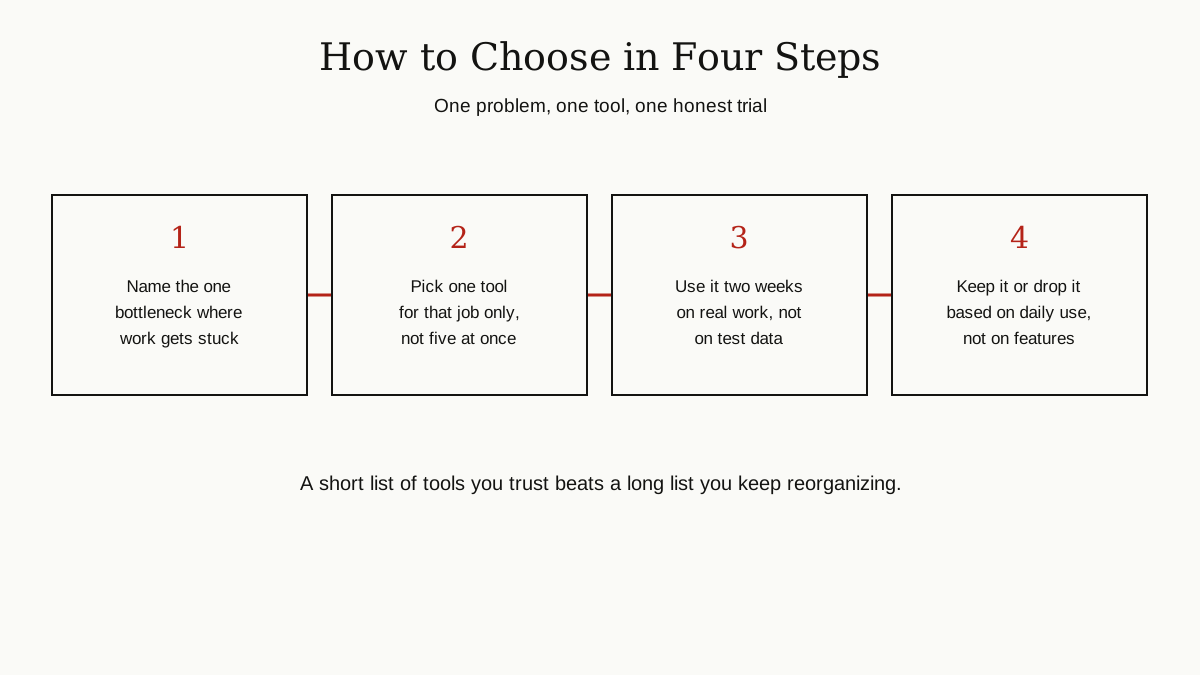
- Name your bottleneck. Where does work actually get stuck: forgotten tasks, lost notes, double-booked days, constant phone checks, or copy and paste chores? Pick the one that costs you the most.
- Pick one tool for that job. Not three finalists to compare for a month. One.
- Check it runs everywhere you work. A task app that lives only on your phone will fail you at your desk. Sync across devices is not a luxury; it is the job.
- Use the free version for two weeks of real work. Real tasks, real days. If you still open it daily at the end, it has earned its place. If not, delete it and try the other name on your list.
When the job is not yours alone but a whole team’s, the tools change shape: shared boards and project plans replace personal lists. That is where our guides to team collaboration tools and project management tools pick up the story.
The Honest Truth: A List of Apps Is Not a System
Here is the part the app stores will not tell you. Tool overload is real. Every new app brings a new inbox to check, new settings to learn, and new places where a task can hide. Downloading ten productivity tools can leave you less organized than one notebook did.
What actually makes people productive is boring: a short list of trusted tools, a capture habit (everything goes into the list the moment it appears), and a weekly review, fifteen quiet minutes to look at the week ahead, clear the stale tasks, and choose what matters most. That weekly review does more than any feature ever shipped. App hopping, switching tools every month in search of a better one, resets your habits each time and keeps a real system from ever forming.
If you take one idea from this page, take this one: start with three tools at most. One for tasks, one for notes, one calendar. Add a fourth, for focus or automation, only when a real problem asks for it.
The Bottom Line
Productivity tools are not magic, and they are not complicated. Each one does a single job: hold your tasks, keep your notes findable, guard your time, block your distractions, or quietly repeat your chores. Pick one tool per job, start with the free versions, and let simple habits do the rest.
For more guides like this one, browse the business productivity category.