Every project starts out tidy. Then the tasks scatter. Some live in email threads, some in chat messages, some in a spreadsheet nobody updates, and the rest live in one person’s head, right up until that person goes on vacation.
Project management tools exist to end that scatter. They give a project one shared home where every task has an owner, a deadline, and a visible status, so anyone on the team can answer three questions in seconds: What are we doing? Who is doing it? When is it due?
This guide explains what project management tools actually do, the four main types, honest examples of each type, how to choose between them, and how to make a new tool stick once you pick one. One promise before we start: there is no ranking here, and no winner at the end, because the right tool depends entirely on how your team works.
What Project Management Tools Actually Do
Strip away the marketing and every project management tool does the same core job: it holds the plan where the whole team can see it. In practice, that means six things.
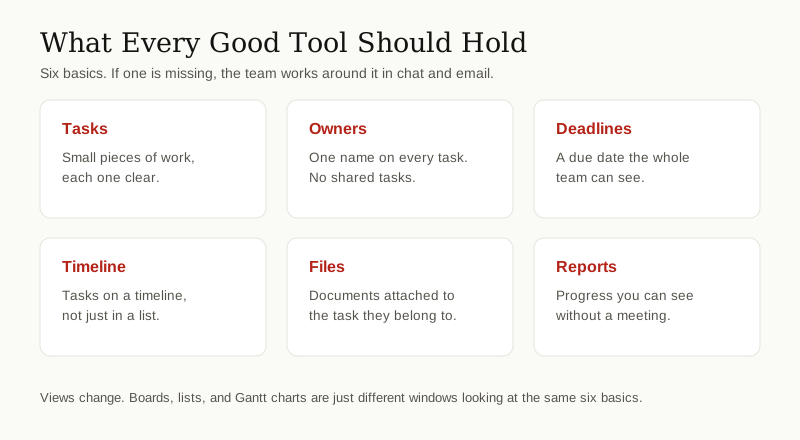
- Tasks with owners and deadlines. Work is broken into small tasks, and each task gets one owner and one due date. Asana puts it plainly on its project management page: tasks are bite-size pieces of work with clear owners and due dates, organized inside one shared hub.
- More than one view of the same work. A Kanban board shows work as cards in columns, one column per stage, so you can see what is waiting, what is moving, and what is done. A Gantt chart shows the same work as bars on a timeline, so you can see when each task starts, how long it runs, and what overlaps.
- Dependencies. Some tasks cannot start until others finish. Tools let you mark that link, and the good ones shift the later dates automatically when an early task slips.
- Workload views. A simple picture of who has too much on their plate and who has room, visible before the overload turns into a missed deadline.
- Files and comments in context. The brief, the design file, and the discussion sit on the task itself, not buried in someone’s inbox.
- Progress reports. Dashboards and status updates built from the task list itself, so progress becomes something you look at, not something you chase people for in a meeting.
- Reminders that chase for you. When a due date gets close, the tool nudges the owner on its own. It is a quiet feature, but it replaces a surprising amount of a manager’s week: no more walking around asking who is still on track.
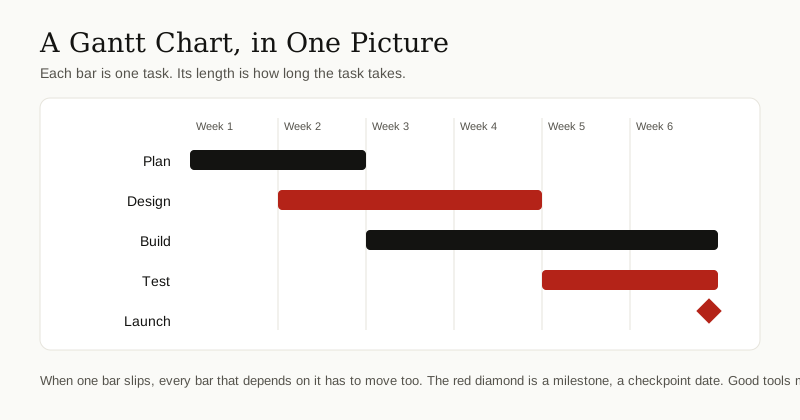
None of this is magic. It is a shared, current, honest list. The real product of every project management tool is visibility. A spreadsheet can hold a task list too, but it cannot remind an owner, redraw a timeline when a date moves, or show a manager the whole project at a glance. That difference is the entire reason these tools exist as their own category of software.
The 4 Types of Project Management Tools
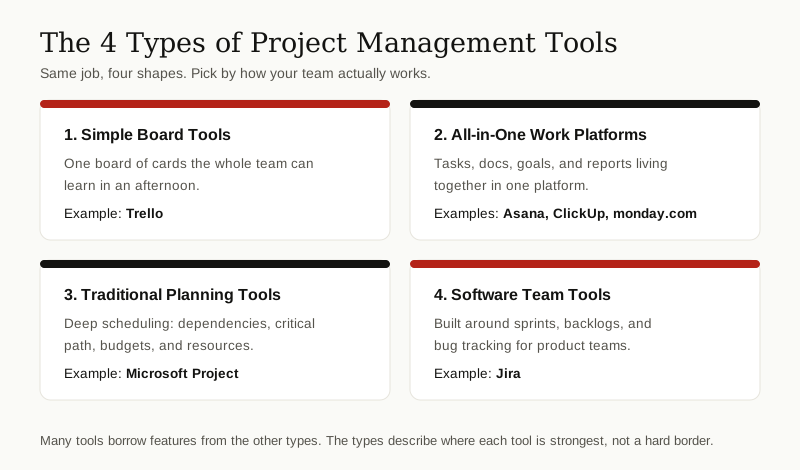
Almost every tool you will meet belongs to one of four families. The families differ in how much structure they assume about your work, and in who they were originally built for.
1. Simple Board Tools
The simplest tools are digital versions of sticky notes on a wall. You get a board, columns called lists, and cards you drag from one list to the next as work moves forward.
Trello is the classic example. A Trello card can hold a description, a checklist, a due date, labels, attached files, and the people responsible, and the whole board reads at a glance. Atlassian, the company behind Trello, describes its boards as a visual way for teams to organize projects, and that is exactly the appeal: a brand new teammate can understand the board in minutes, with no training session.
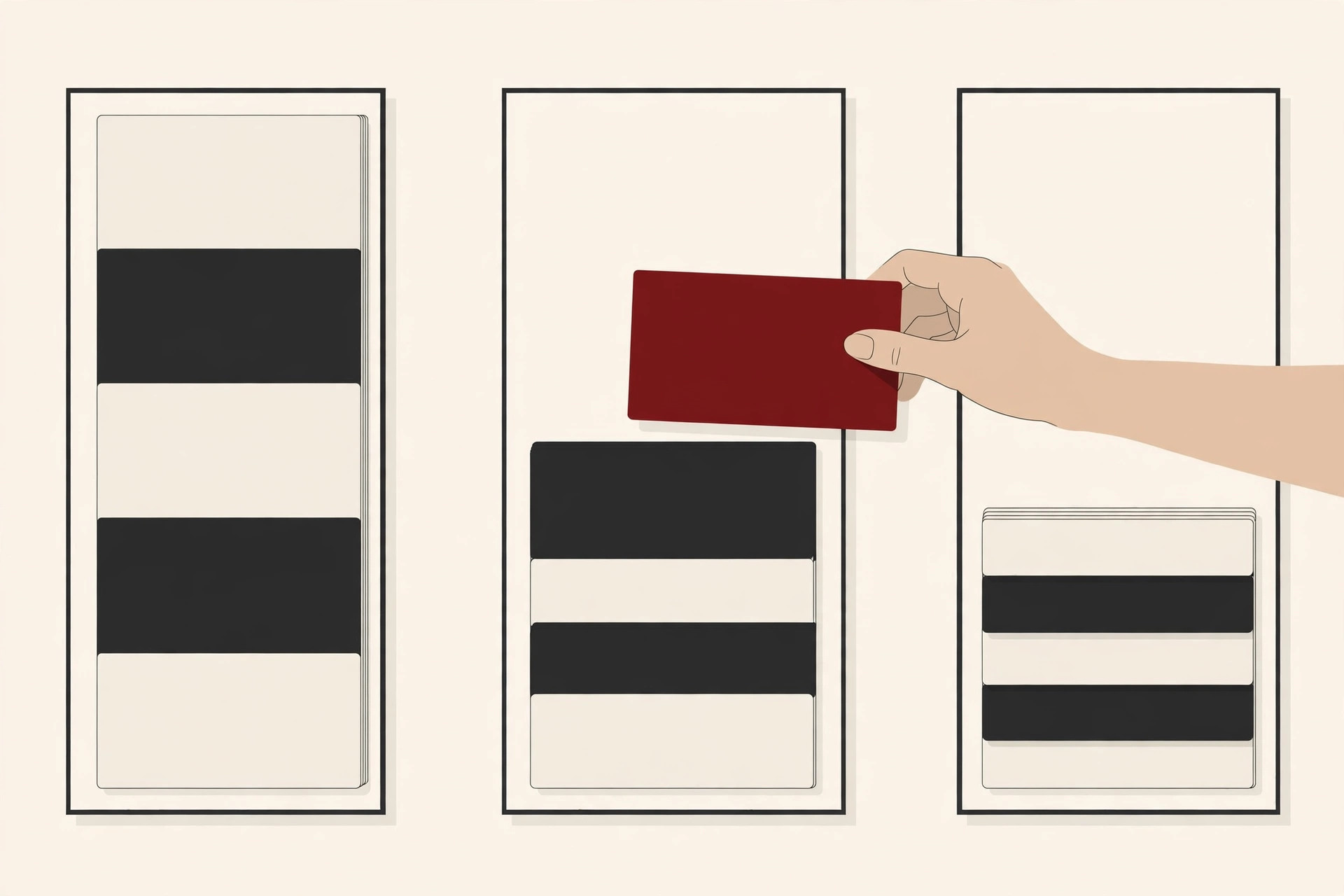
Board tools shine for small teams and flowing work: editorial calendars, hiring pipelines, event planning, support requests. Their honest limit is depth. Reporting is basic, linked tasks and workload planning are thin, and a project with two hundred interdependent tasks will outgrow a single board fairly quickly.
2. All-in-One Work Platforms
The second family tries to hold everything in one place: tasks, documents, goals, dashboards, and automation, all inside a single platform.
Asana is a leading example. One project can be viewed as a list, a board, a calendar, a timeline, or a Gantt chart, and it is the same tasks in every view. Its higher plans add portfolios that watch many projects at once, plus workload views for balancing people. ClickUp takes the same all-in-one idea and adds built-in docs, chat, goals, and time tracking. monday.com builds its platform around visual boards with dashboards and automations that each team shapes to its own process.
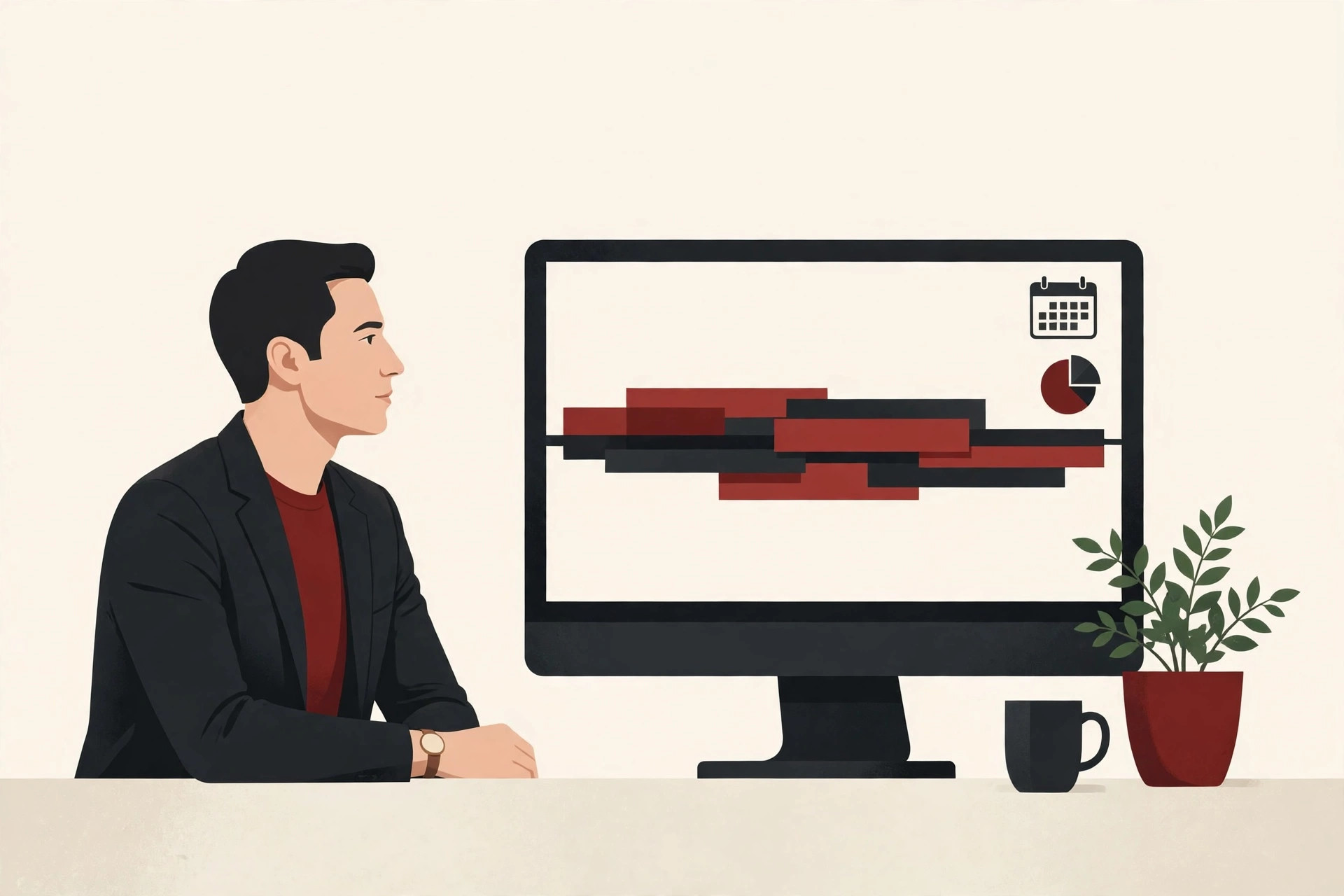
Automation is the other selling point this family shares. All three platforms let you build simple rules: when a task reaches a certain stage, assign it to the next person; when a due date moves, notify the project lead. Set up well, those rules quietly remove the copy, paste, and chase work that fills a coordinator’s day.
These platforms fit mixed teams best: marketing, operations, and product all planning in one shared place. The honest trade-off is weight. More features mean more setup choices, more settings, and a longer learning curve. A five-person team may use only a tenth of what the platform can do, and still pay the full cost in learning time.
3. Traditional Planning Tools
The third family comes from the world of construction and engineering, where a plan is a precise schedule and being wrong by a week costs real money.
Microsoft Project is the long-standing name here. It is built for detailed scheduling: tasks with dependencies, people and equipment assigned as resources, baselines that record the original plan, and the critical path, which is the chain of linked tasks that decides the project’s finish date. If one task on that chain slips, the whole project slips with it. That precision is why big builds and complex engineering programs still run on tools like this one.
One honest note: this corner of the market is shifting. Microsoft’s own Project page now says that Project for the web is becoming part of Microsoft Planner, its lighter planning app, while the desktop version of Project continues as the heavy scheduling tool.
For a normal office project, that kind of power is usually overkill, and the learning curve is real. But when dates, budgets, and resources must be exact, nothing simpler will do the job.
4. Software Team Tools
The fourth family was built for people who ship software.
Jira, made by Atlassian, organizes work as issues: features, bugs, and tasks that move across a board from backlog to done. Teams plan in sprints, short fixed cycles of work, often two weeks long, and track releases and bugs with detailed reports. In Atlassian’s product lineup, Jira is presented today as a planning and tracking tool for every kind of team, not just developers.
That last point deserves honesty. Jira grew up as a developer’s tool, and its words and setup still feel that way. Software teams feel right at home in it. Many non-technical teams find it powerful but heavy, the way you would find a race car heavy on a grocery run. If your team does not ship software, it is usually smarter to try the simpler families first.
How to Choose the Right Tool
Work through five questions, in this order.
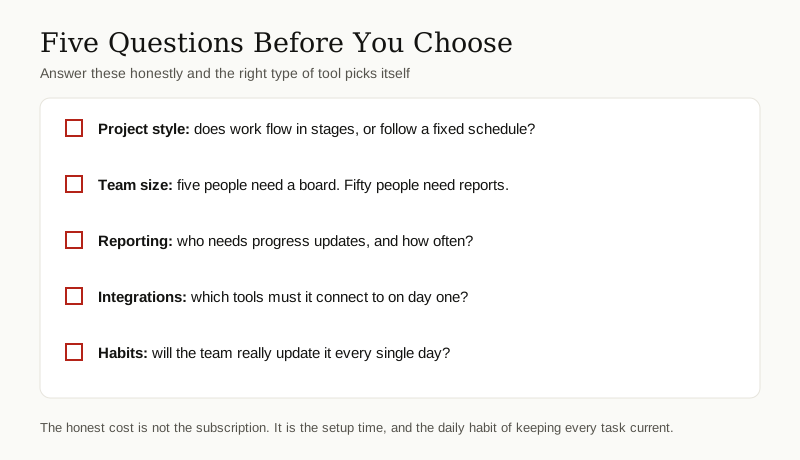
How does your work move? If tasks flow through stages in no fixed order, a board fits naturally. If the schedule is fixed and tasks depend on each other in a chain, you need timeline and dependency features from day one.
How big is the team, really? Five people can run a project on one shared board. Fifty people across several departments need portfolios, permissions, and proper reports, which pushes you toward the platform family.
Who needs progress reports? If a manager or a client expects a status view every week, choose a tool whose dashboards answer them without anyone building a slide deck by hand.
What must it connect to? List the tools your team already lives in: chat, file storage, calendar, email. A project tool that cannot connect to them becomes one more island. Asana, for example, advertises integrations with more than 270 other apps, and every major platform makes a similar claim, so check your own specific tools by name before you commit.
What will it cost beyond money? Every tool charges twice: once in subscription fees, and once in setup time and new daily habits. Budget honestly for both, because the second bill is the one that sinks most rollouts.
If your project still starts life as a document, our guide to project planning templates shows the sections a good plan needs. The tool you choose should hold those same sections, just alive and shared instead of frozen inside a file.
Start free, and start small. Most tools named in this guide offer a free plan or a free trial, and the free versions are genuinely enough to learn whether a style fits your team. Jira has a free plan for small teams, Asana offers a free trial, and Trello’s basic boards are free to use. Pay only when a limit starts hurting, not before.
Finally, test with real work. Run one live project in your top choice for two weeks before rolling it out to everyone. A tool that survives real deadlines and real teammates has earned the rollout.
Making the Tool Stick: Adoption Advice
Most project management tools do not fail on features. They fail in week three, when people quietly drift back to chat messages and memory. Three habits prevent that.
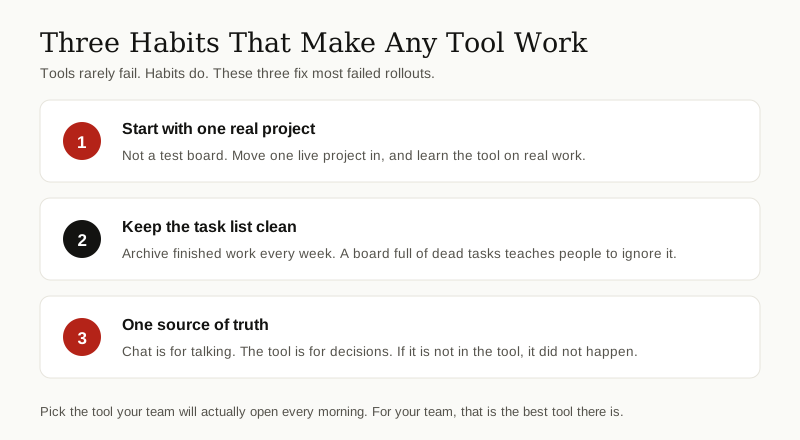
Start with one real project. Not a demo board, and not a migration of everything you have ever planned, all at once. Move one live project in, with its real tasks and real deadlines, and let the team learn the tool on work that actually matters.
Keep the task list clean. Small tasks, one owner each, a due date on everything. Archive finished work every week. A board covered in dead tasks teaches people to stop looking at it, and a tool nobody looks at is just rent.
Make it the one source of truth. Talk wherever you like, but decisions land in the tool: the task gets updated, the date gets changed, the file gets attached. This is where a project tool meets your wider team collaboration tools: chat is for conversation, and the project tool is for commitments. If it is not in the tool, it is not decided.
One last habit ties the three together: give the tool an owner. One named person who archives old projects, merges duplicate tasks, and reminds the team when updates go stale. Tools do not maintain themselves, and fifteen minutes of housekeeping a week is what keeps a good board from slowly turning back into the scatter it replaced.
Used this way, the project tool stops being one more app in your pile of productivity tools and becomes the place the rest of the pile points to.
The Honest Bottom Line
Here is the truth no vendor puts on its homepage: a project management tool does not manage anything. It holds the plan still so that people can manage the project. The teams that succeed with these tools are not the ones with the fanciest software. They are the ones where every task has one owner, every deadline is honest, and the board gets updated before the meeting, not after it.
So choose by fit, not by fame. The best project management tools are not the most famous ones. They are the ones your team will actually open every morning.
For more guides like this one, browse the business productivity category.