Every project begins the same way: a big goal, a blank page, and a mild sense of panic. Someone has to turn “we should really do this” into who does what, by when, and for how much money.
That turning point is the project plan. And the fastest way to write a good one is to not start from a blank page at all. Project planning templates give you the structure that experienced project managers use, with every important section already in place. You just fill in your project.
This guide walks you through a good template section by section, shows you a filled-in example, and gives you a small template you can copy today. It also helps you decide between a spreadsheet template and a full project tool, honestly, because both are right for different jobs.
What Is a Project Plan, and Why Use a Template?
A project plan is one document that answers six basic questions about a piece of work: What are we doing? Why? Who does each part? By when? What will it cost? And what could go wrong?
A schedule is only one part of that. Many people use “project plan” to mean just a timeline, but a real plan also covers scope, budget, risks, and how the team will communicate. If the timeline slips, the plan is where you look to understand why, and what it affects.
A template is simply that document with the sections pre-built and waiting. As Microsoft explains in its Planner help pages, ready-made templates give you a head start when creating a new plan, instead of forcing you to build the structure from nothing. The same idea works everywhere: the template remembers the boring structural questions, so your brain is free for the decisions that are actually unique to your project.
What Good Project Planning Templates Include
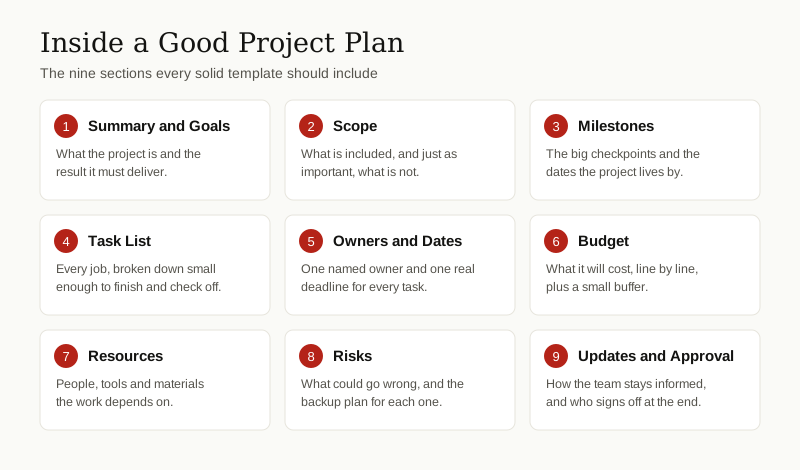
Templates differ in style, but the good ones all contain the same nine building blocks. Here is each one, what goes in it, and how to fill it in well.
1. Project Summary and Goals
Start with a short paragraph anyone can read in under a minute: what the project is, who it is for, and when it should be done. Then state the goal in one clear sentence, ideally with a number in it. “Launch the new website” is a wish. “Launch the new website by June 1 and grow signups by 20 percent in the first quarter” is a goal, because you can check whether it happened.
Atlassian’s own project plan template asks for exactly this: the objective summarized in one sentence, plus the key outcomes that will show success. It is a good habit whoever made your template.
2. Scope, and What Is NOT Included
Scope means the boundaries of the project: everything the team has agreed to deliver. Write two lists. The first is what is included. The second, just as important, is what is not included this time.
That second list feels negative, but it protects you. Most project pain comes from extra requests that sneak in quietly after the plan is approved, a problem often called scope creep. A written not-included list lets you point at the plan and say, kindly, “that is phase two.” Atlassian’s template even splits scope into three buckets: must have, nice to have, and not in scope. Steal that idea for any template you use.
3. Milestones and Timeline
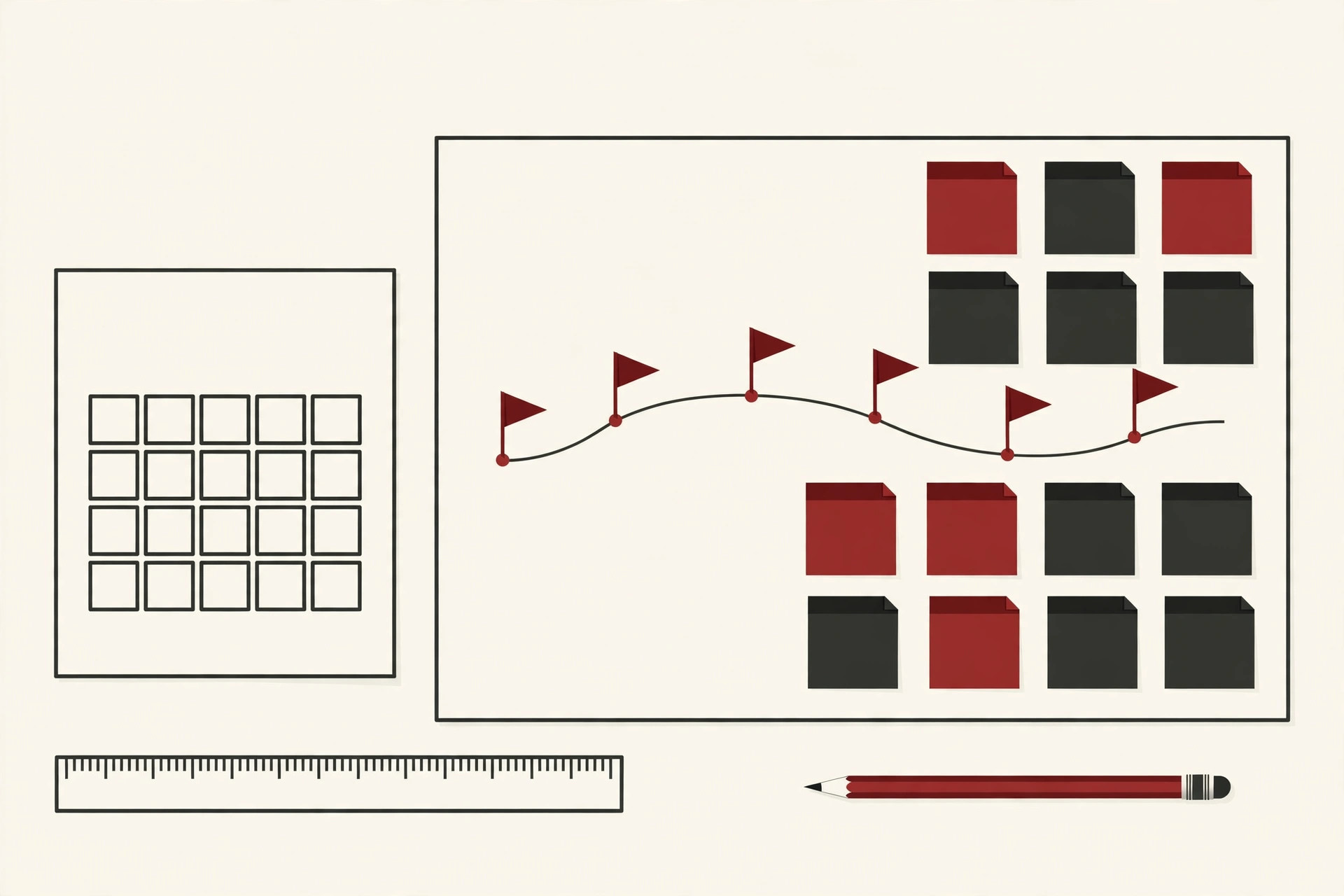
A milestone is a checkpoint that marks real progress: “lease signed,” “design approved,” “first version live.” Milestones have no length of their own. They are the diamonds on the timeline, the dates everyone is aiming at.
Below the milestones sits the timeline itself: the phases of the project in order, with start and end dates. Keep the timeline at phase level here. The detailed day-by-day work belongs in the task list, which comes next.
4. Task List With Owners and Deadlines
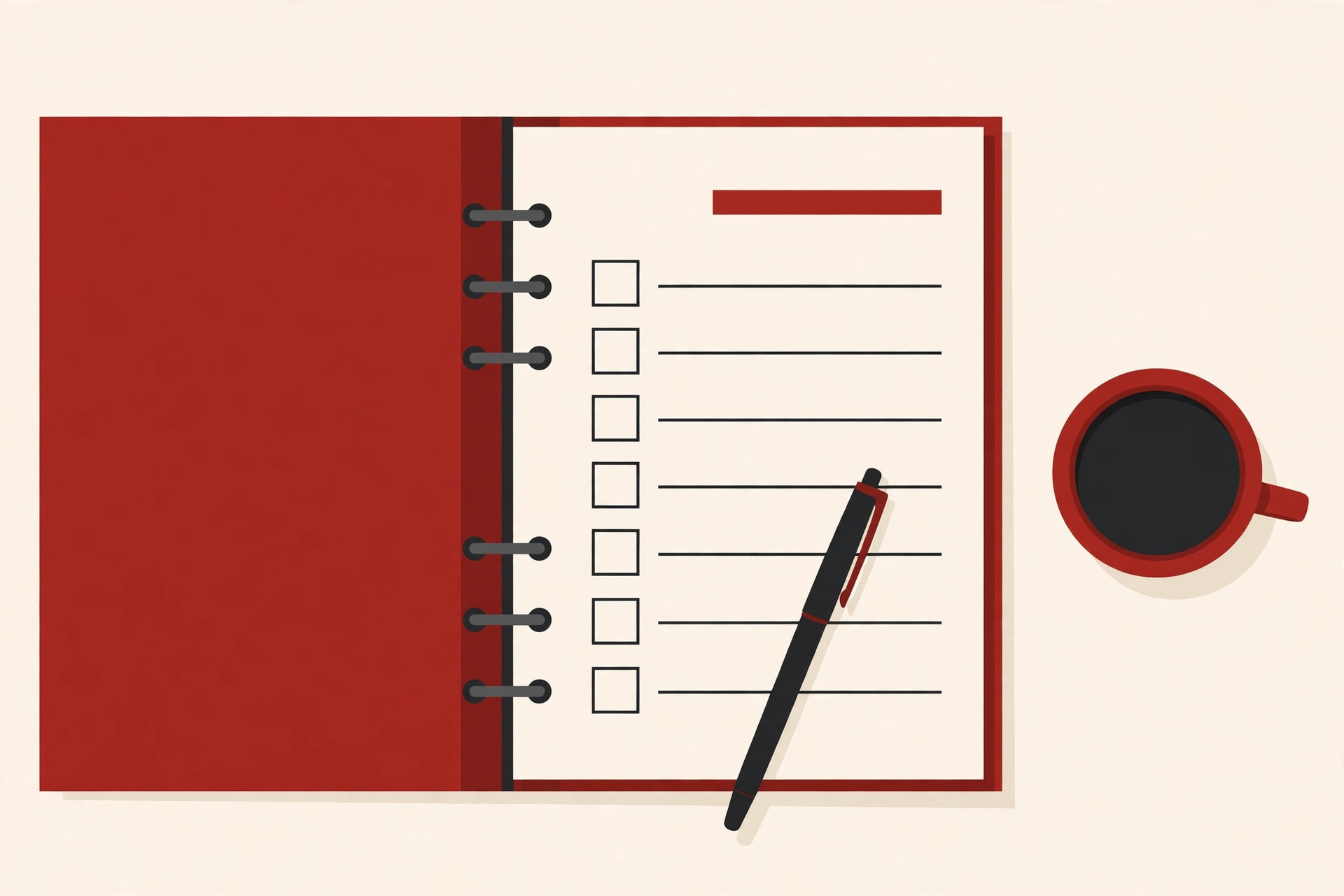
This is the working heart of the plan. Break the project into tasks small enough that each one can be finished and checked off, then give every task four things: a clear name, one owner, a start date, and a due date. Many templates add a status column too.
You can see this pattern in Smartsheet’s guide to building a project schedule in Excel, where each task row carries a number, a name, an assignee, and start and end dates, with the duration calculated for you and a status drop-down of Not Started, In Progress, or Complete. Simple columns, but they answer the only questions that matter during the project: who, what, and when.
One rule matters more than any other here: one task, one owner. “The marketing team” is not an owner. A name is.
5. Budget
List the expected costs line by line: people, tools, materials, outside help, fees. Then add a small buffer on top for surprises, because there will be surprises. A budget with no buffer is a budget that will be wrong in a very specific, stressful way.
You do not need accounting software for this section. A simple table of items and estimated costs, with a total, is enough for most projects. What matters is that the number exists before spending starts, not after.
6. Resources
Resources are everything the work depends on besides money: the people and their time, the software and equipment, rooms, access, and approvals from other teams. Write down who or what you need, and when you need it.
This section catches quiet disasters early. If the one designer you need is on leave during your busiest week, it is far better to learn that from the plan in week one than from an empty chair in week five.
7. Risks and Assumptions
A risk is something that could go wrong. For each serious risk, write one line on what you will do if it happens. That backup plan, written while everyone is calm, is worth more than a week of panic later.
Assumptions are the close cousins of risks: things you are treating as true without proof. “The supplier delivers within two weeks” is an assumption. Writing assumptions down matters because when one turns out to be false, you can find every date and cost it was holding up.
8. Communication Plan
Decide in advance how the project will talk to itself. Who gets updates, how often, and where: a short weekly email, a standing meeting, a shared channel. Also decide where decisions get written down. Verbal decisions evaporate; the same discipline that makes good meeting minutes valuable applies here. If it is not written, it will be remembered three different ways.
Keep this section short on purpose. One weekly update that actually happens beats an elaborate reporting system that dies by week three.
9. Approval
End the template with an approval block: who signs off on the plan, and what exactly they are approving. This sounds formal, but it is really a fairness device. It proves the goals, budget, and deadline were agreed before the work started, so nobody can quietly move the target later. When something big changes, this is also where the change gets recorded and approved again.
A Filled-In Example
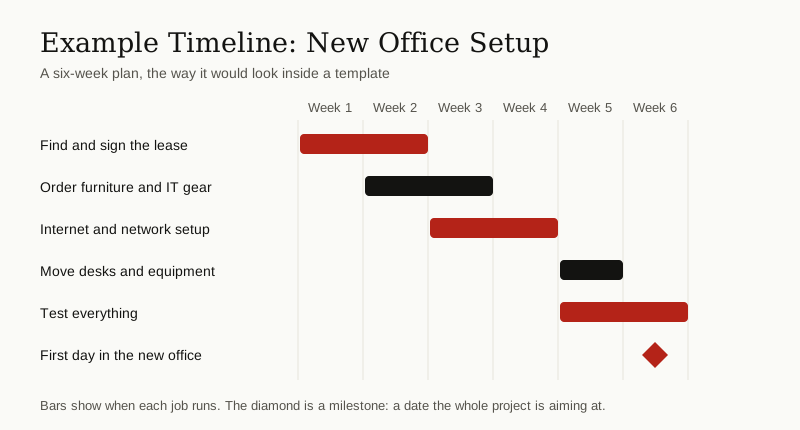
Sections are easier to understand when you see one filled in. Below is a small example. It is fictional, but it is shaped exactly like the plans real teams write.
Example project: New Office Setup
- Summary and goal: Move our 12-person team into a new office by October 1, with zero working days lost to the move.
- In scope: Signing the lease, ordering furniture and computers, setting up internet and phones, moving everything over one weekend.
- Not in scope: Hiring new staff, rebranding, or redesigning the company website. Those are separate projects.
- Milestones: Lease signed by week 2. Furniture and gear delivered by week 4. Move completed by week 6.
- Budget: $18,000 in total, including a $1,500 buffer for surprises.
- Top risk: The internet provider installs late. Backup plan: rent mobile hotspots for the first week so work can continue.
- Owner: Sarah, the operations manager, approves spending up to the budget. Anything above it needs the founder’s sign-off.
Notice how much clarity fits in eight short lines. Anyone joining this project can read that block and understand the job in two minutes. That is what project planning templates are for.
The Copy-Ready Mini Template
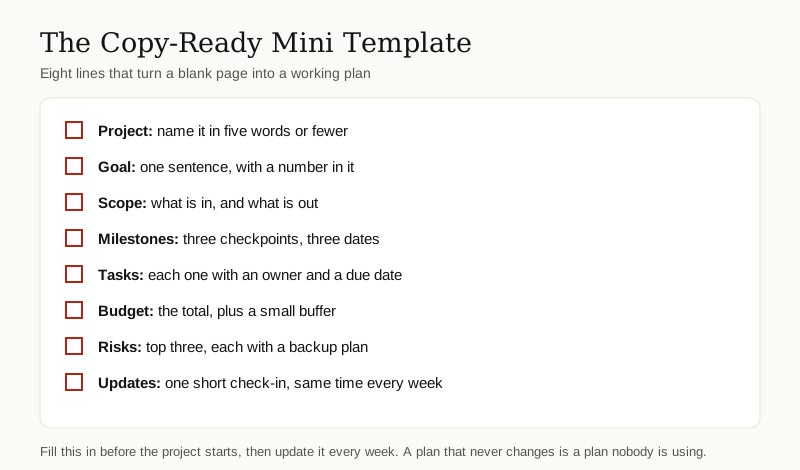
If a full document feels like too much, start with this compact version. Copy the table into a document or spreadsheet and fill in the right column. It covers the essentials and takes about twenty minutes.
| Section | What to write |
|---|---|
| Project name | Five words or fewer |
| Goal | One sentence, with a number in it |
| Scope: in | The work you have agreed to deliver |
| Scope: out | What is not included this time |
| Milestones | Three checkpoints, each with a date |
| Tasks | Each task with one owner and a due date |
| Budget | The total, plus a small buffer |
| Risks | Your top three, each with a backup plan |
| Updates | One short check-in, same time every week |
| Approved by | The name of the person who signs off |
Excel and Google Sheets Templates vs Project Tools
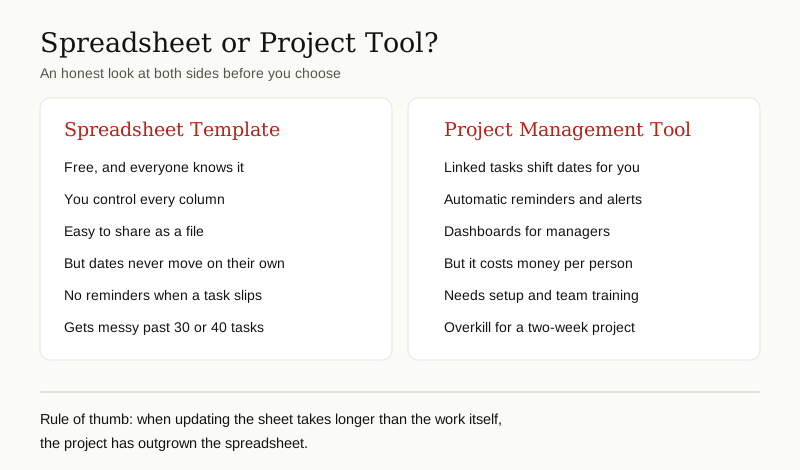
Most project planning templates live in one of two homes: a spreadsheet or a dedicated project tool. Both are legitimate. The honest answer is that spreadsheets are fine until the project outgrows them, and you can feel the moment it happens.
A spreadsheet template, in Excel or Google Sheets, is free, familiar, and completely under your control. You can add any column you like, and sharing is as simple as sending a file or a link. Google Sheets even has a built-in template gallery with a Project management section, so you can start from a timeline layout instead of a blank grid. For a small team running a short project, this is genuinely enough.
The cracks appear as the project grows. In a spreadsheet, dates do not move on their own. When task A slips by three days, nothing warns you that tasks B, C, and D are now wrong too. Nobody gets a reminder. Five people editing creates five opinions about which version is current. Past a few dozen tasks with real dependencies between them, keeping the sheet accurate starts to take longer than the work it describes.
That is the point where dedicated project management tools earn their cost. Tasks are linked, so a slipped date pushes the dependent work automatically. Owners get reminders. Managers get a dashboard instead of a meeting. The tradeoff is real, though: tools cost money per person, they need setup, and the team has to learn them. For a two-week project with three people, that is overkill, and a template inside the productivity tools you already use will serve you better.
A useful rule of thumb: one team, a simple timeline, tasks that mostly stand alone? Stay in the spreadsheet. Several teams, linked tasks, dates that change every week? Move to a tool, and take your template with you, because the sections stay the same either way.
Where to Get Good Templates
You do not need to buy a template to get a good one. The safest sources are the official galleries of the tools you already have:
- Microsoft: Planner includes ready-made templates for common plan types, and Excel has a template gallery with project timelines and planning layouts.
- Google Sheets: Open the template gallery and look under Project management for timeline and Gantt-style templates you can copy and edit.
- Atlassian: Its template pages show how project plans are structured inside tools like Jira and Confluence. As Atlassian puts it, a planning template can be as simple as a pre-built spreadsheet or as complete as a full software platform, and the benefits are the same either way.
- Smartsheet: Its library includes free downloadable templates, including Excel project schedules with the task, owner, and status columns already built.
One warning: skip the random file-download sites that promise free templates. Their files are often outdated, badly formatted, or worse. Stick to the official galleries above, where the template comes from the company that makes the tool.

Common Mistakes to Avoid
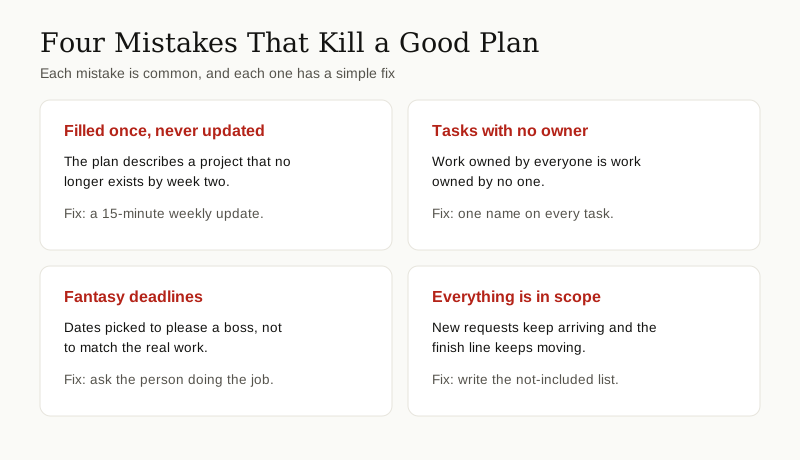
Even a great template fails in predictable ways. Watch for these four.
Filled once, never updated. The most common failure of all. The plan is written for the kickoff meeting, then real life happens and the document is never touched again. By week three it describes a project that no longer exists. Fix: a fifteen-minute weekly update, owned by one person, at the same time every week.
Tasks with no owner. A task assigned to “the team” will be done by nobody, because everyone assumes someone else has it. Fix: one name on every task, no exceptions, even for tiny jobs.
Fantasy deadlines. Dates chosen to sound good in a meeting rather than to match the work. The person doing the task usually knows how long it takes, so ask them before the date goes in the plan. A deadline nobody believes in is just a lie the whole team has agreed to tell.
No not-included list. If the scope section has no boundaries, every new idea becomes part of the project and the finish line keeps moving. Fix: write the out list when you write the in list, while everyone still agrees.
Final Thoughts
Project planning templates do not make a project succeed. People do that. What a template does is make sure the important questions get asked before the work starts, while the answers are still cheap: what exactly are we building, what is not included, who owns each piece, what could go wrong, and who agreed to all of this.
Start with the mini template above. Fill it in before your next project begins, update it every week, and let it grow only when the project demands more. That simple habit will put your plans ahead of most.
For more guides like this one, browse the business productivity category.