If you searched for how to turn off Google AI, you are in good company. The AI summary at the top of Google now answers many questions before you click a single link, and plenty of people want the old list of websites back. Others want to stop the Gemini chatbot from saving their chats, or to remove the AI buttons that keep appearing in Chrome and Gmail.
Here is the honest part first. “Google AI” is not one product with one switch. It is a group of features spread across Search, the Gemini app, Chrome, and Gmail, and each one has its own controls in a different place. There is no master button that turns all of it off.
The good news: you can control most of it. You can hide the AI answers in Search, stop Gemini from keeping your chat history, and switch off the main AI extras in Chrome and Gmail. This guide shows how to turn off Google AI feature by feature, with plain steps you can follow in a few minutes.
What “Google AI” Actually Means
When people say they want to turn off Google AI, they usually mean one of these four things:
- AI Overviews: the AI written summary that appears at the top of many Google searches.
- Gemini: Google’s standalone chatbot, found at gemini.google.com, in its own phone app, and as the built in assistant on many Android phones.
- Gemini in Chrome: the Ask Gemini button and other AI tools inside the Chrome browser, such as writing help.
- Smart features in Gmail and Workspace: Help me write, email summaries, and smart replies in Gmail, Docs, and other Google apps.
All of these run on machine learning models that read and write text, a field called natural language processing. AI has also reached image search: point your camera at a plant or a product and Google Lens will name it, as we explain in our guide to how AI visual search works.
Each feature below gets its own section, so you can fix only the parts that bother you.
How to Turn Off Google AI Overviews on a Computer
Start with the feature most people mean. Google is open about this one: AI Overviews are a core part of Search, like the knowledge panels on the side of the page, and there is no setting that switches them off. Google’s own AI Overviews help page says features like this cannot be turned off.
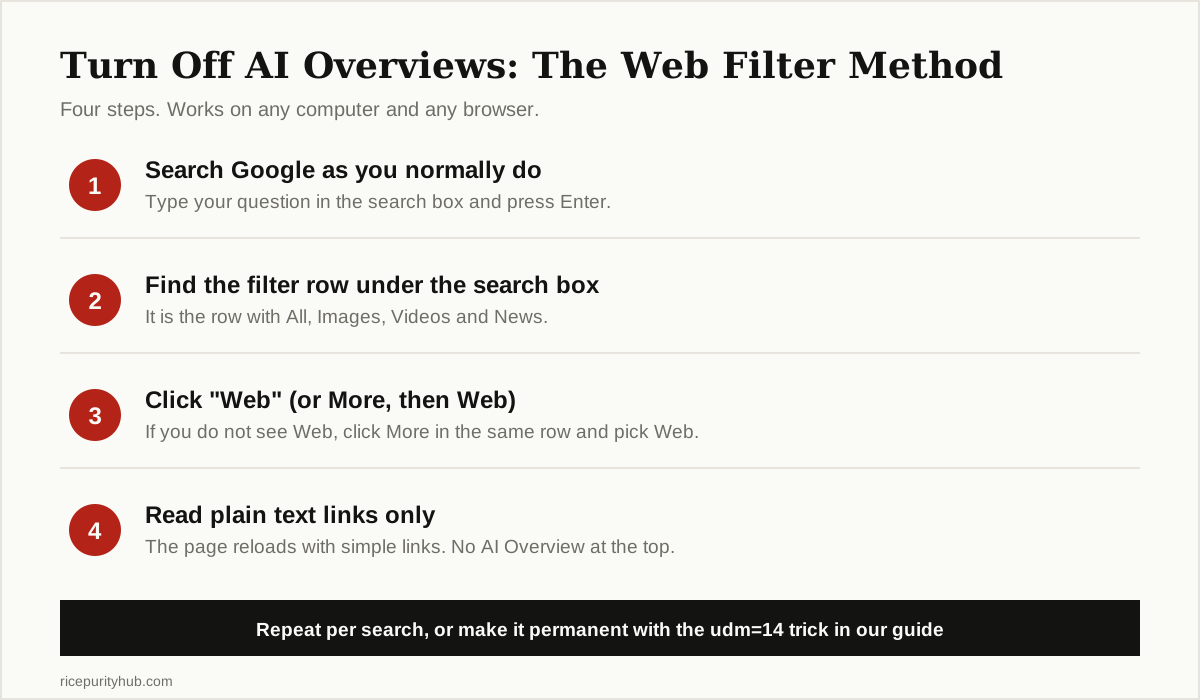
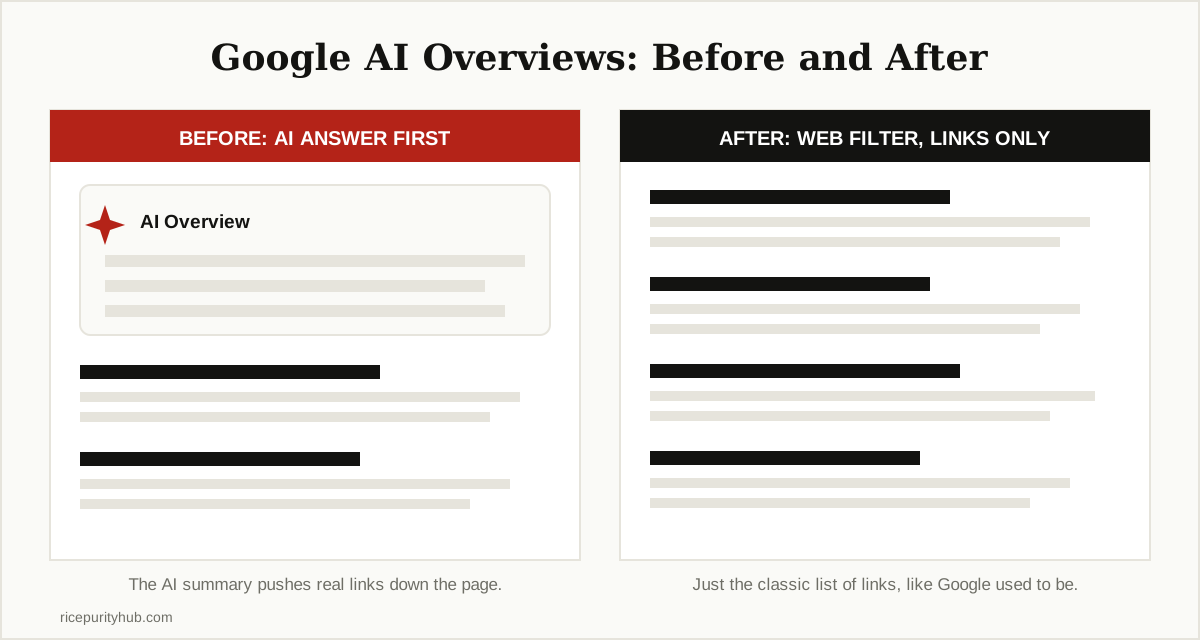
What Google does offer is the Web filter. It is a view of your results that shows only text based links, with no AI Overview, no video boxes, and no shopping panels. Here is how to use it:
- Go to google.com and run a search, just like you normally would.
- Look at the row of filters under the search box. It reads All, Images, Videos, News, and more.
- Click Web. If you do not see it, click More in the same row, then click Web.
- The page reloads as a simple list of links. The AI summary is gone.
This works in any browser, on Windows, Mac, and Linux. The one catch is that Google does not remember your choice. You have to click Web again for the next search. Keep reading, because there is a way to make this view your default.
How to Turn Off Google AI Overviews on Your Phone
The same Web filter works on your phone, in the Google app and in a mobile browser:
- Open the Google app, or open google.com in your phone browser, and run a search.
- Under the search box, swipe the filter row sideways until you see Web, then tap it. On some phones you tap More first, then Web.
- Your results reload as plain links, with no AI summary at the top.
One more phone setting is worth checking. If you joined any AI experiments in Search Labs, they stay on until you leave them:
- Open the Google app and tap your profile picture, or tap the Labs flask icon if you see one.
- Open Search Labs (on some versions it is under Settings).
- Turn off any AI experiments you do not want, such as AI Mode tests or Audio Overviews.
Be aware that Labs only controls experiments. Normal AI Overviews are part of standard Search, so even with every Labs experiment off, the summary can still appear. The Web filter is still the reliable step on a phone.

The Web Filter Trick That Sticks: udm=14
Clicking Web on every search gets old fast. Luckily, the Web view has its own code in the web address: udm=14. If you add that code to a Google search address, the results open in the Web view right away. In Chrome, you can build that into a custom search engine once, and then forget about it:
- Open Chrome, click the three dots in the top right corner, and choose Settings.
- Click Search engine, then Manage search engines and site search.
- Scroll to Site search and click Add.
- In the name box, type Google Web. In the shortcut box, type web.
- In the URL box, paste this exactly:
https://www.google.com/search?q=%s&udm=14 - Click Add or Save, then click the three dots next to your new entry and choose Make default.
From now on, searches typed in Chrome’s address bar open the clean Web view, with no AI Overview. To be clear about what this is: the Web filter is an official Google feature, but using udm=14 as a permanent default is a workaround, not a Google setting. It works today, and Google could change it one day. If you use Firefox or another browser, the simple version of the same trick is to run one search, click Web, and bookmark that results page as your search starting point.
How to Turn Off Google AI in the Gemini App
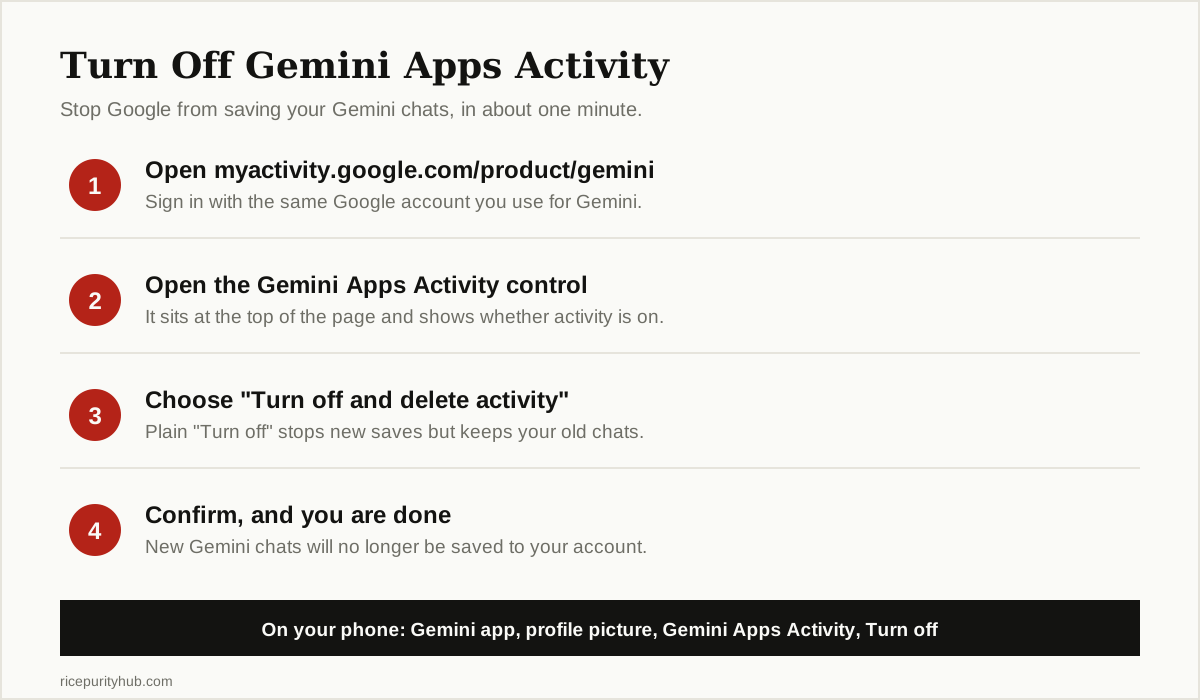
Search is only half of the story. If you use the Gemini chatbot, Google saves your conversations to your account by default, and can use them to improve its AI. The control for this is called Gemini Apps Activity, and turning it off takes about a minute:
- In a browser, go to myactivity.google.com/product/gemini and sign in with the account you use for Gemini.
- At the top of the page, open the Gemini Apps Activity control. It shows whether activity is currently on.
- Choose Turn off and delete activity if you want your saved chats removed too. Choose plain Turn off if you only want to stop future saving.
- Confirm your choice. New Gemini chats will no longer be saved to your account.
On a phone, the same control lives inside the Gemini app: open the app, tap your profile picture, tap Gemini Apps Activity, then turn it off. Google’s Gemini Apps Activity help page covers both routes. One detail worth knowing: Google says chats can be kept for up to 72 hours even with activity off, so the service can run and stay safe. They are not added to your saved history.
If you barely use Gemini, you can go further. On iPhone, delete the Gemini app like any other app. On Android, where Gemini often comes preinstalled, open Settings, then Apps, then Default apps, then Digital assistant app, and switch your assistant to Google Assistant or None where your phone allows it. Gemini can stay installed but will stop answering when you hold the power button or swipe from the corner.
AI Writing Help in Chrome and Gmail
The last places Google AI shows up are the browser and your inbox. Both have real off switches.
In Chrome:
- Open Chrome, click the three dots, and open Settings.
- Click AI innovations in the left menu. You can also type
chrome://settings/aiin the address bar. - Open Gemini in Chrome and turn off Show Gemini at the top of the browser. The Ask Gemini button disappears.
- Go back to the AI innovations page and review the other features listed there, such as Help me write, and turn off any you do not want.
- If your version lists On-device AI, turning it off also deletes the local AI model Chrome downloaded to your computer.
Menu names vary a little between Chrome versions and countries, so if your page looks slightly different, Google’s Gemini in Chrome guide on Chrome Help tracks the current layout.

In Gmail:
- Open Gmail on a computer, click the gear icon, then click See all settings.
- Stay on the General tab and scroll to Smart features.
- Uncheck the box next to Turn on smart features in Gmail, Chat, and Meet.
- If you use a work or school account and see an option to Manage Workspace smart feature settings, open it and turn off the Gemini features there as well.
- Scroll to the bottom and click Save Changes.
Know the trade off before you do this: turning off smart features also removes Smart Compose and Smart Reply. Your normal spelling and grammar checks are separate settings, and those stay on.
Quick Summary: What You Can and Cannot Turn Off
| Feature | Where it lives | Can you fully turn it off? |
|---|---|---|
| AI Overviews | Google Search | No. Use the Web filter, or make it your default with udm=14 |
| Gemini chat history | Gemini app and web | Yes. Turn off Gemini Apps Activity |
| Gemini assistant | Android phones | Mostly. Change the default assistant or remove the app |
| Gemini in Chrome | Chrome Settings, AI innovations | Yes. Hide the button and turn off the AI features |
| Help me write | Chrome, Gmail, Docs | Yes. Turn it off in each app’s settings |
| Smart features in Gmail | Gmail Settings, General | Yes. You also lose Smart Compose and Smart Reply |
The Honest Limits
A fair guide should end with what these steps cannot do:
- There is no master switch. Google has not built one control for all of its AI, and based on its help pages, it does not plan to. Each feature must be handled where it lives.
- AI Overviews cannot be removed at the source. The Web filter hides them from your view, per search or by default with the trick above, but the feature itself stays part of Search.
- Browser extensions are only a screen trick. Add ons that promise to remove AI Overviews usually just hide the summary box on your screen. The AI still runs, and the box often comes back after an update.
- Work and school accounts are different. If your Google account comes from an employer or a school, an admin may control Gemini and smart features for everyone, and some switches will be locked or missing.
- Settings move. Google renames menus and adds new AI features during the year, so a switch can change places after an update. If a step above does not match your screen, check the same setting under your profile picture or account settings.
- Adding “-ai” to a search is not a fix. This popular tip only removes pages that contain the letters ai from your results. It does not reliably stop the AI Overview from appearing.
If you want a search engine with no Google AI at all, the only complete answer today is to use a different search engine. For everyone who wants to stay with Google, the steps above get you as close as Google allows.
The Bottom Line
You cannot delete Google AI from Google, and anyone who promises a single magic switch is not being straight with you. But you are far from stuck. Set the Web view as your default and your searches look like classic Google again. Turn off Gemini Apps Activity and the chatbot stops keeping your conversations. Spend two minutes in Chrome and Gmail settings and the AI buttons and writing help calm down too.
Want to understand the tech behind the answers you are switching off? Browse more plain English guides in our AI, ML and Data Science section, where we explain how these systems work without the jargon.