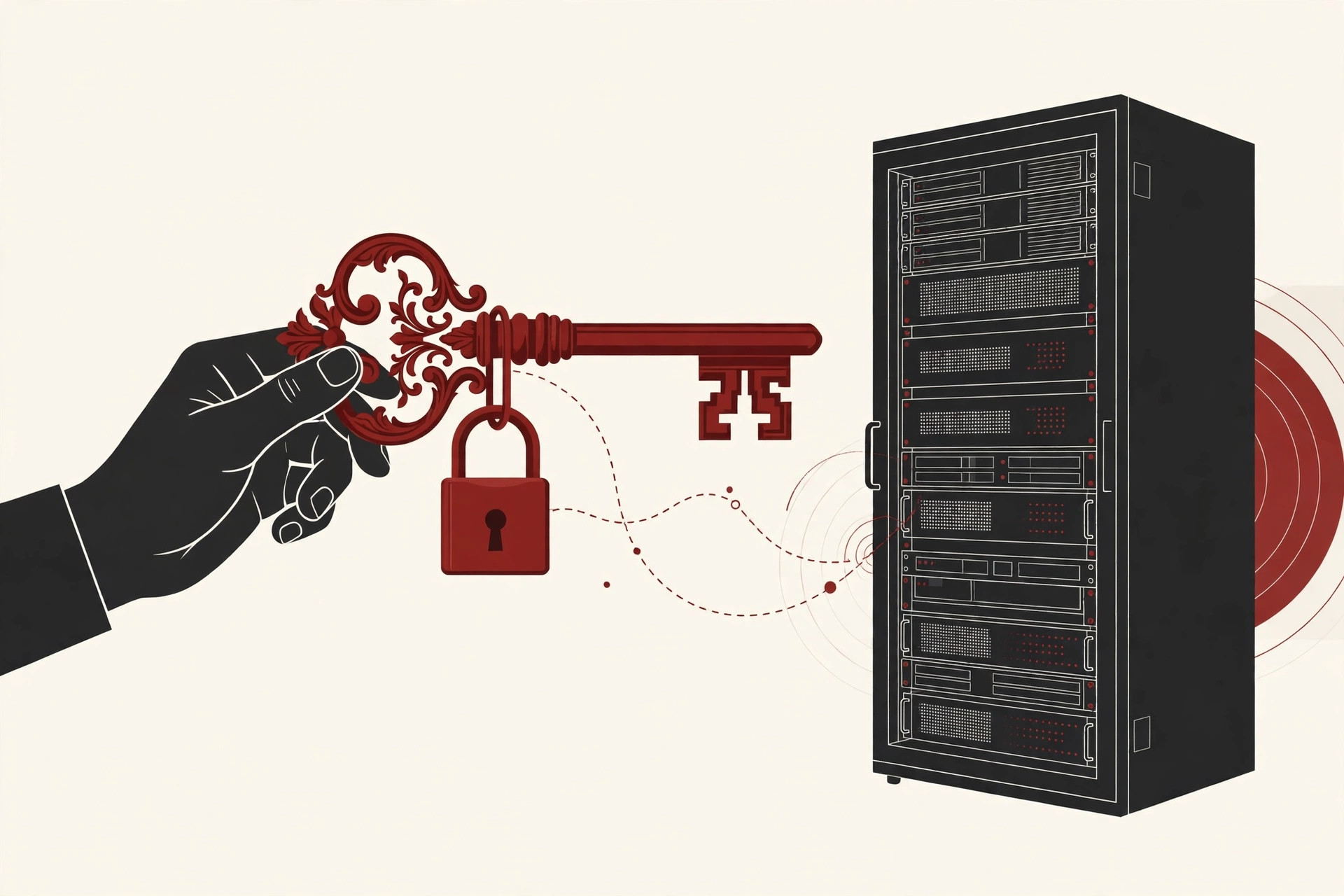
Sooner or later, every developer meets the words “SSH key”. GitHub asks for one in its settings. A cloud provider asks for one when you create a server. A new job hands you a laptop and tells you to “add your key”.
If you have nodded along while quietly wondering what is an ssh key in the first place, this guide is for you. Below, you will learn what SSH is, what the two halves of a key pair do, how a key login actually works step by step, and the handful of safety rules that keep the whole system strong. No math degree needed.
First, What Is SSH?
SSH stands for Secure Shell. It is a protocol, meaning an agreed set of rules, for logging in to another computer over a network and working on it as if you were sitting in front of it. You get a text window, called a terminal, and everything you type travels across the network in encrypted form, scrambled so that anyone listening in between sees only noise.
That encryption is the whole point. Older tools such as telnet sent usernames and passwords as plain readable text, which the Ubuntu OpenSSH documentation points out made them unsafe on any network you did not fully control. SSH replaced those tools because it protects the connection from the start.
Servers, network gear, and cloud machines are usually managed over SSH. And the most common way to prove who you are during that login is not a password. It is an SSH key.
What Is an SSH Key?
An SSH key is a digital credential used to prove your identity when you log in over SSH. The SSH Academy at ssh.com describes it as an access credential in the SSH protocol, similar in purpose to a username and password, but built from cryptography instead of a word you memorized.
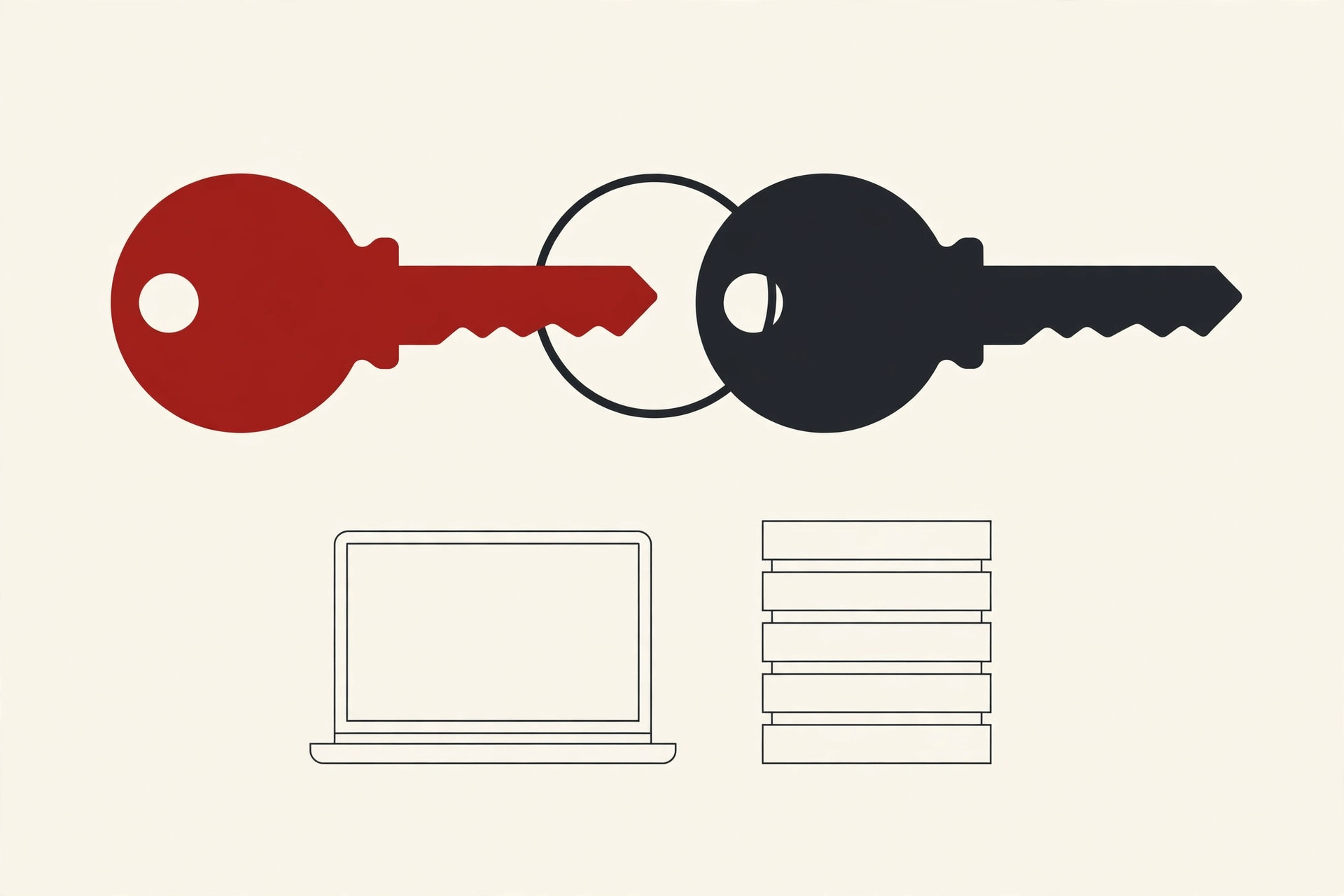
The key idea, in both senses, is that an SSH key is never a single file. It is a matched pair of two files created together:
- A public key, which you copy onto the server or service you want to reach.
- A private key, which stays on your own computer and is never shared with anyone.
The two halves are linked by math. Data tied to one half can only be matched by the other half, and neither half can be worked out from the other in any realistic amount of time. That simple split, one half shared freely and one half kept secret, is what makes the whole system work.
Public Key vs Private Key: The Padlock and the Key
The clearest way to picture the pair is a padlock and its key.
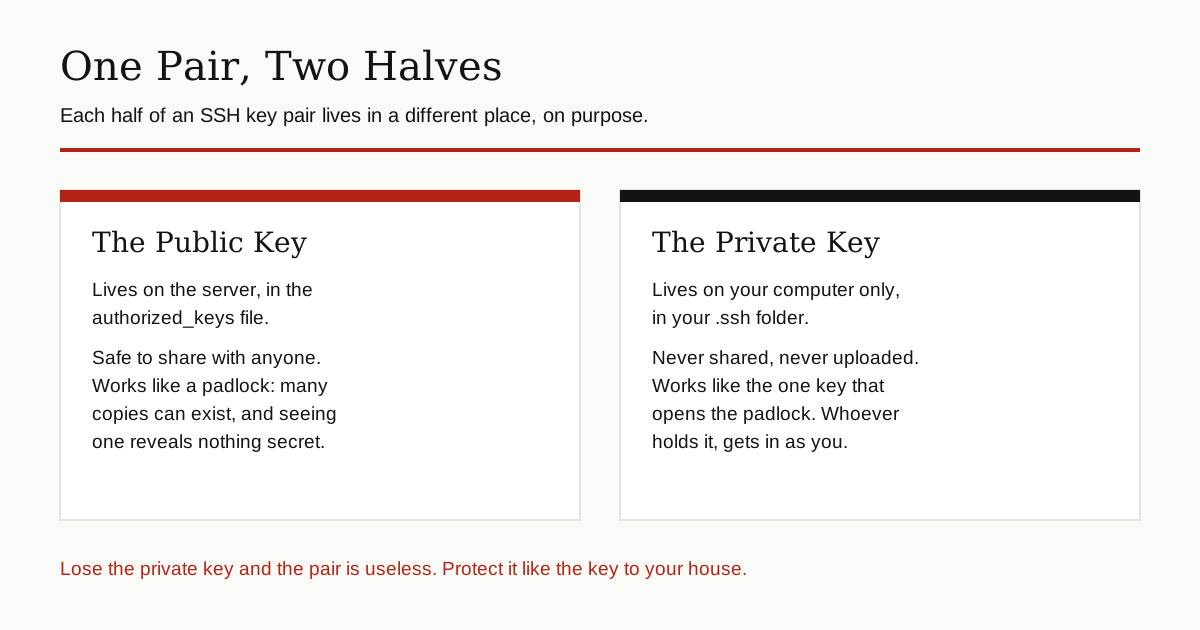
The public key works like a padlock. You can hand out copies of the padlock to anyone, and post it in public, because a padlock by itself reveals nothing about the key that opens it. On a server, your public key is stored in a file called authorized_keys, inside a folder named .ssh in your account. That file is simply the list of padlocks the server trusts.
The private key works like the one physical key that opens those padlocks. It lives on your computer, usually in your own .ssh folder with a name like id_ed25519. Whoever holds that file can open every padlock made for it, which means they can log in as you. That is why the private key is treated like the key to your house: it never gets emailed, uploaded, or pasted into a chat.

One helpful detail: because the public key is safe to share, you can use the same public key in many places. Add it to a server, to GitHub, and to a cloud account, and the single private key on your laptop answers for all of them.
How SSH Key Login Works, Step by Step
Here is what happens in the few seconds after you type a command like ssh user@server and press Enter.
Step 1: You connect and offer a key. Your computer contacts the server and says, in effect, “I would like to log in with this public key.” Nothing secret has been sent.
Step 2: The server checks its list. The server looks in its authorized_keys file. If your public key is not there, the login stops. If it is there, the server moves to a test.
Step 3: The server sets a challenge. The server creates a fresh, one-time piece of data for this login attempt and asks your computer to sign it with the private key. This works like a signature check at a bank: the server is not asking for your secret, it is asking for proof that only the real key holder can produce.
Step 4: Your computer signs, and the server verifies. Your private key signs the challenge on your own machine. The private key itself never travels. The server then checks the signature using the stored public key. If the signature matches, the server knows the visitor holds the matching private key, and lets you in.
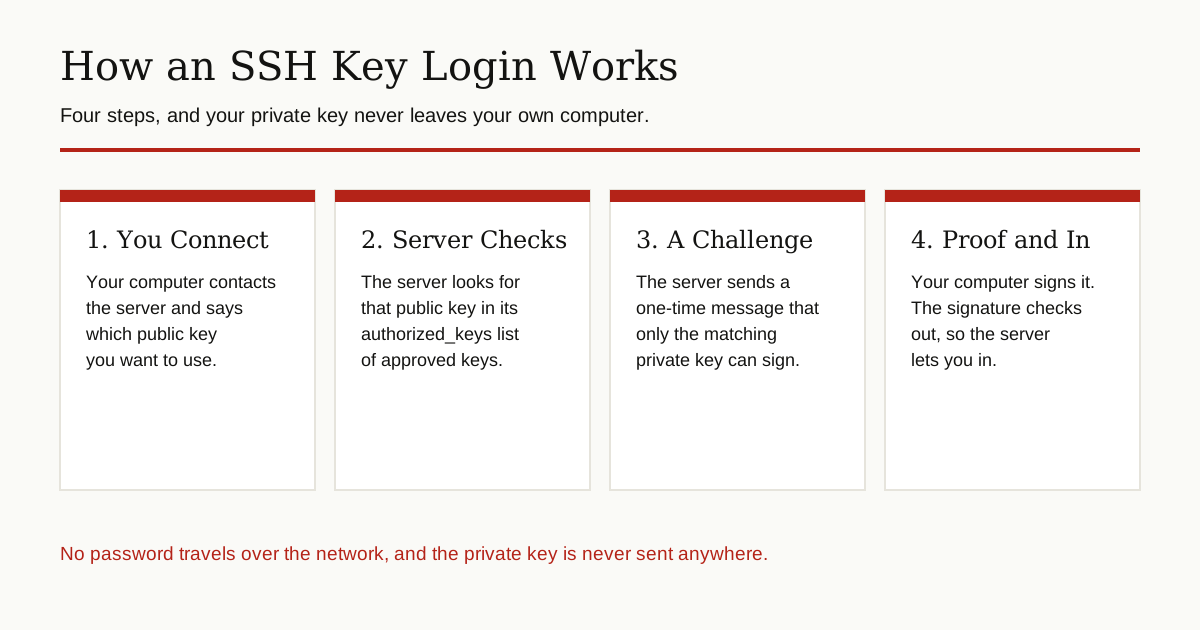
Two things are worth noticing. First, no password crosses the network at any point. Second, the proof cannot be reused: the challenge is created fresh for each login, so a copied signature from yesterday is worthless today. Behind the scenes, the server side of this conversation is handled by a background service called sshd, which runs on the server under the care of its operating system’s kernel, the core program that runs the whole machine.
Why Keys Are Stronger Than Passwords
Passwords fail in familiar ways. People pick short ones, reuse them across sites, and type them into fake pages that look real. Attackers also run automated tools that try thousands of common passwords against internet-facing servers, hoping one account used something weak.
An SSH key removes most of that risk:
- It cannot be guessed. A key is a very long string of math, not a word a human picked. Trying every possibility is not realistic.
- Nothing secret travels. With a password, the secret itself crosses the network at login. With a key, only a one-time signature crosses, and it proves nothing beyond that single login.
- It cannot be phished the same way. There is no key-shaped secret to type into a fake login page. The private key never leaves your computer in the first place.
- It is easy to cancel. If a laptop is lost, you delete one line, its public key, from the server. Every other device keeps working. A shared password, by contrast, has to be changed everywhere at once.
Keys also make life easier, which is why busy teams adopt them. Scripts and backup tools can log in with a key when no human is around to type a password, and developers can connect to GitHub over SSH without entering credentials on every visit.
How to Create an SSH Key With ssh-keygen
Now that the question of what is an ssh key is answered, here is the practical part. Creating a pair takes one command. The tool is called ssh-keygen, and it comes with the SSH software on Mac, Linux, and modern Windows. Open a terminal and run:
ssh-keygen -t ed25519 -C "your_email@example.com"The -t ed25519 part picks the key type, and the email is just a label so you can recognize the key later. The tool then asks two questions:
- Where to save the key. Press Enter to accept the default location. You will get two files:
id_ed25519, the private key, andid_ed25519.pub, the public key. - A passphrase. Type a strong one. The next section explains why this matters.
After that, you give the public key to the service you want to reach. On your own server, a helper tool does the copying for you:
ssh-copy-id user@your-serverThat command appends your public key to the server’s authorized_keys file, exactly the spot the Ubuntu documentation describes. On GitHub, you instead paste the contents of the .pub file into the SSH keys section of your account settings. In both cases, notice what moved: only the public half. The private key stayed home.

Passphrases and the SSH Agent
A passphrase is a password that locks the private key file itself. Even if someone copies the file from your laptop, they cannot use it without the passphrase. GitHub’s documentation strongly recommends one, and it costs you little.
Typing it at every login would get old, so SSH includes a helper called the ssh-agent. You unlock your key once with ssh-add, and the agent holds it in memory for that session and answers login challenges for you. You get the safety of a locked key file with the comfort of not typing the passphrase a hundred times a day.
Where SSH Keys Are Used
Once you know what to look for, you will see SSH keys everywhere in technical work.
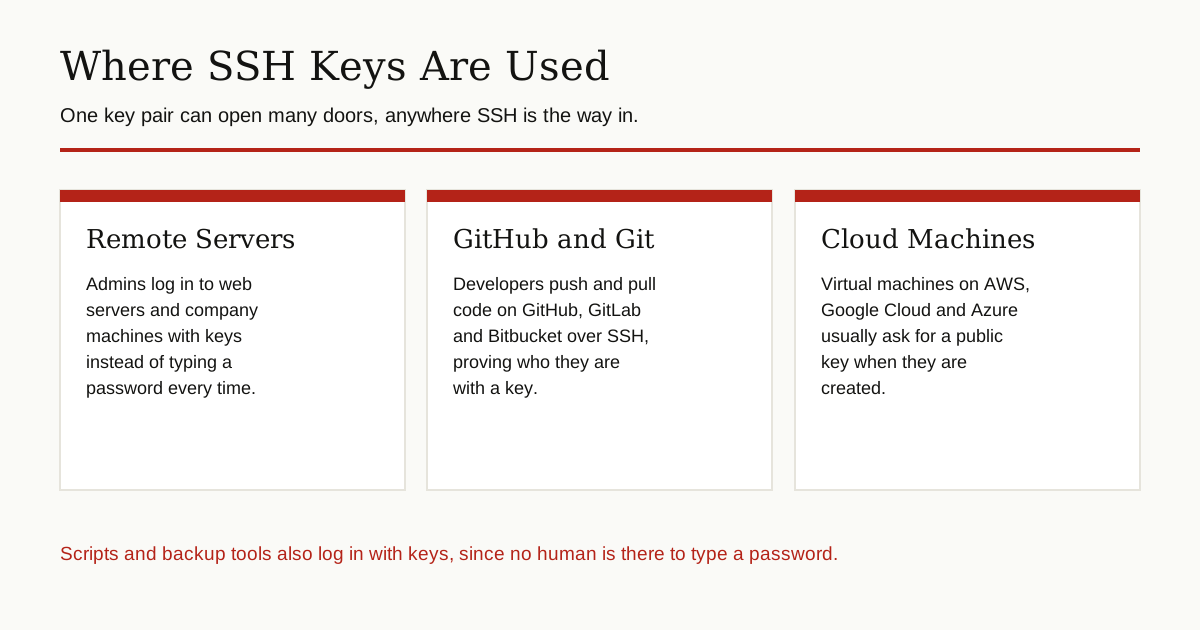
- Remote servers. System administrators log in to company servers and web servers with keys, often with password login turned off entirely.
- Git hosting. GitHub, GitLab, and Bitbucket all accept SSH keys, so developers can push and pull code without a password prompt each time.
- Cloud virtual machines. When you create a virtual machine on AWS, Google Cloud, or Azure, the setup usually asks for a public key. That key is your way in from the first boot.
- Automation. Backup jobs, deployment pipelines, and file transfer tools log in with keys because no person is present to type anything.
Common SSH Key Types, in Brief
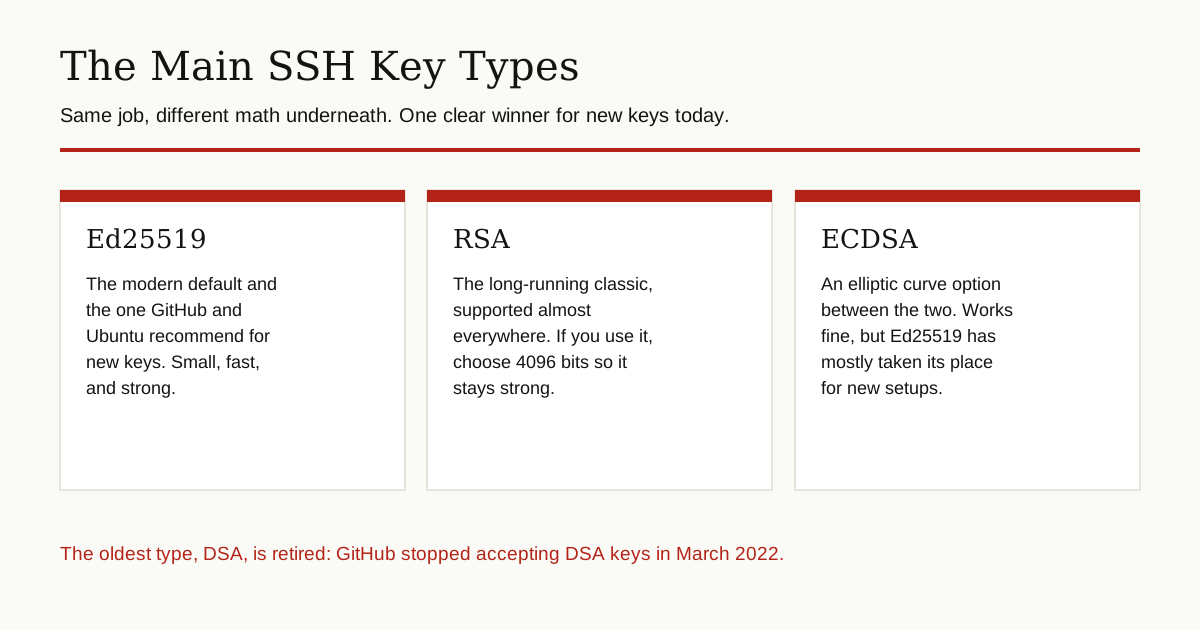
Keys come in a few types, named after the math they use. For a new key today, the advice from both GitHub and Ubuntu is the same: choose Ed25519. It is a modern elliptic curve design that is small, fast, and strong, and it is the default recommendation in current documentation.
RSA is the long-running classic and still works everywhere. It is the right fallback for very old systems that do not understand Ed25519, and if you use it, GitHub’s guide creates it at 4096 bits, the size that keeps it strong.
ECDSA is another elliptic curve option you may meet in older setups. It works fine, but Ed25519 has mostly taken its place for new keys. The oldest type, DSA, is retired: GitHub stopped accepting new DSA keys in March 2022, so if you ever find one, replace it.
SSH Key Safety Rules
An SSH key is only as strong as the habits around it. These four rules cover almost every real-world key problem.
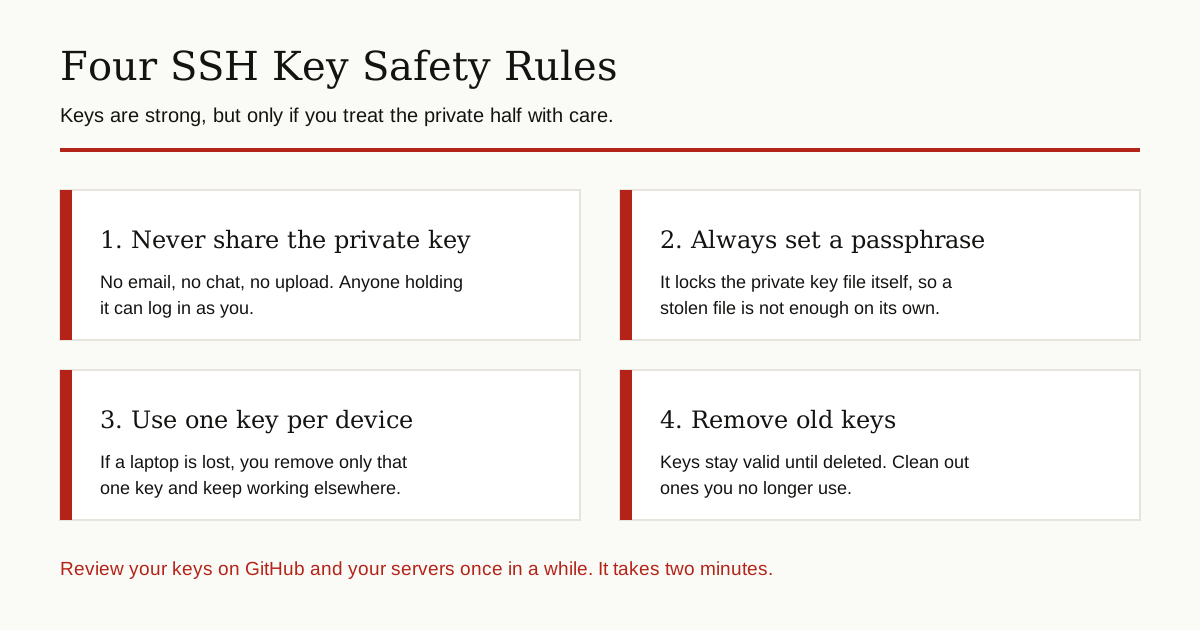
- Never share the private key. Not with a coworker, not with support, not in a screenshot. If a private key ever does leak, treat it like a lost house key: remove its public half everywhere and make a new pair.
- Always use a passphrase. It is the lock on the key itself, and the ssh-agent makes it painless.
- Use one key per device. Your laptop and your office desktop each get their own pair. Lose one device, and you remove one public key instead of locking yourself out everywhere.
- Remove old keys. Unlike a password prompt, a public key sitting in
authorized_keysstays valid until someone deletes it. Old laptops, old jobs, and old servers leave keys behind. Review the list now and then, on your servers and in your GitHub settings, and delete what you no longer use. GitHub even removes keys that have not been used for a year, as a safety net.
SSH Keys in the Bigger Picture
SSH keys are one member of a larger family of ideas for proving identity with math instead of shared secrets. The same public and private key thinking sits underneath the public key infrastructure that secures websites, email, and company networks with certificates. Many teams also layer their defenses, reaching servers only through virtual private networks first and then using SSH keys for the login itself, so an attacker would need to defeat both.
For most beginners, though, the practical picture is simpler. One small pair of files replaces a password you had to remember, type, and worry about. The public half can travel anywhere. The private half stays with you, guarded by a passphrase. Understand that split, and you have the full answer to what is an ssh key.
For more guides like this one, browse our cybersecurity and networking category.