Everyone knows Ctrl+Z. You delete a paragraph by accident, your fingers fly to undo, and the text comes back. But undo has a partner that far fewer people know: redo, the shortcut that brings back something you undid, for those moments when you press undo one time too many and watch good work disappear.
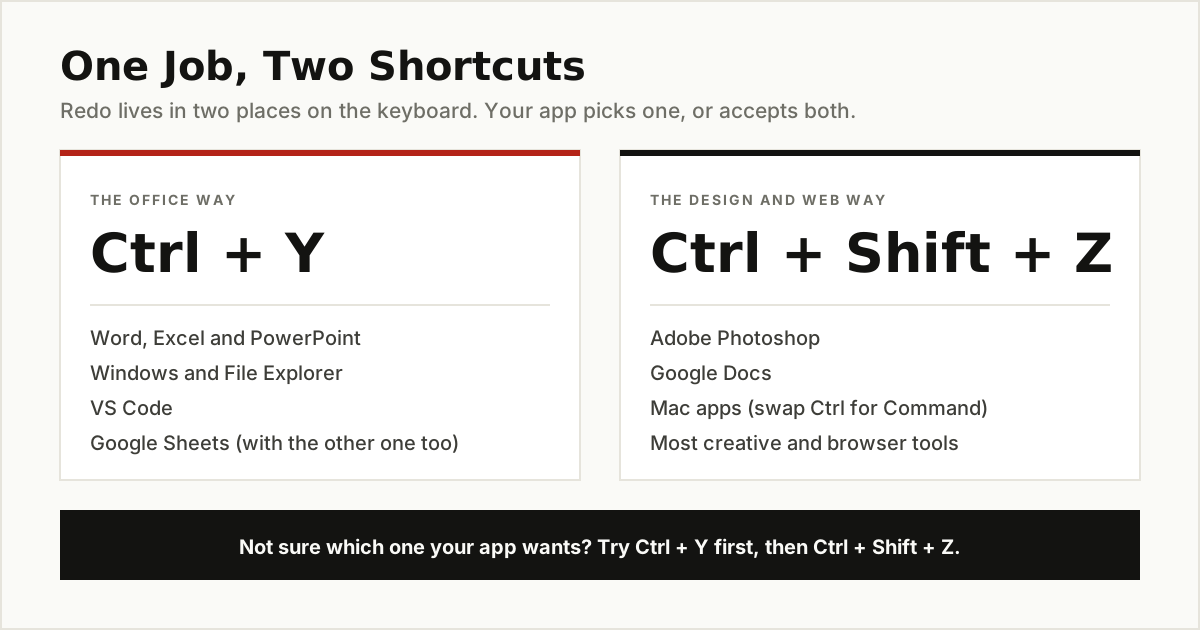
So, what is the keyboard shortcut for redo? Here is the annoying truth: there are two of them, and different apps picked different sides. Half the software world uses Ctrl+Y. The other half uses Ctrl+Shift+Z. Press the wrong one and nothing happens, which is why so many people assume redo does not exist.
This guide settles it. You will learn which redo hotkey each major app uses, why the two shortcuts exist, why redo is sometimes greyed out, and how to redo on a Mac, an iPhone, and an Android phone. Small keyboard habits like this are the cheapest productivity tools you will ever pick up: they cost nothing and pay you back every day.
The Short Answer: Two Shortcuts, Not One
If you only remember one thing, remember this split:
- Ctrl+Y is the classic Windows redo shortcut. Microsoft built its apps around it, and a long list of Windows software followed. It also covers general Windows actions, like redoing a file move in File Explorer.
- Ctrl+Shift+Z is the redo key in most Google and Adobe apps, and it is the standard pattern on Mac computers, where it becomes Command+Shift+Z.
Plenty of apps accept both. Google Sheets, for example, takes Ctrl+Y and Ctrl+Shift+Z, so you can press whichever one your fingers remember. When you land in a new app and do not know its rule, try Ctrl+Y first on Windows, then Ctrl+Shift+Z. One of the two works almost everywhere.
Why two shortcuts at all? Blame history. Ctrl+Shift+Z grew out of a simple idea: undo is Ctrl+Z, so redo should be undo plus one more key, the Shift key. Ctrl+Y came from the other direction. In the early Windows days, Y was free, easy to reach, and close to Z on the keyboard, so Microsoft made it the redo key for Office and Windows itself. Neither side ever gave in, so both survived. Linux apps, by the way, follow the same split: some use Ctrl+Y, many use Ctrl+Shift+Z, and plenty accept both.
Whichever key your app uses, the Edit menu is your safety net. Open it right after an undo and you will see the Redo command written out in full, often with the action named, such as Redo Typing or Redo Paste. If the command is missing or greyed out there too, the app truly has nothing to redo, and no shortcut in this guide will change that.
Here is the full set of pairs on one chart:
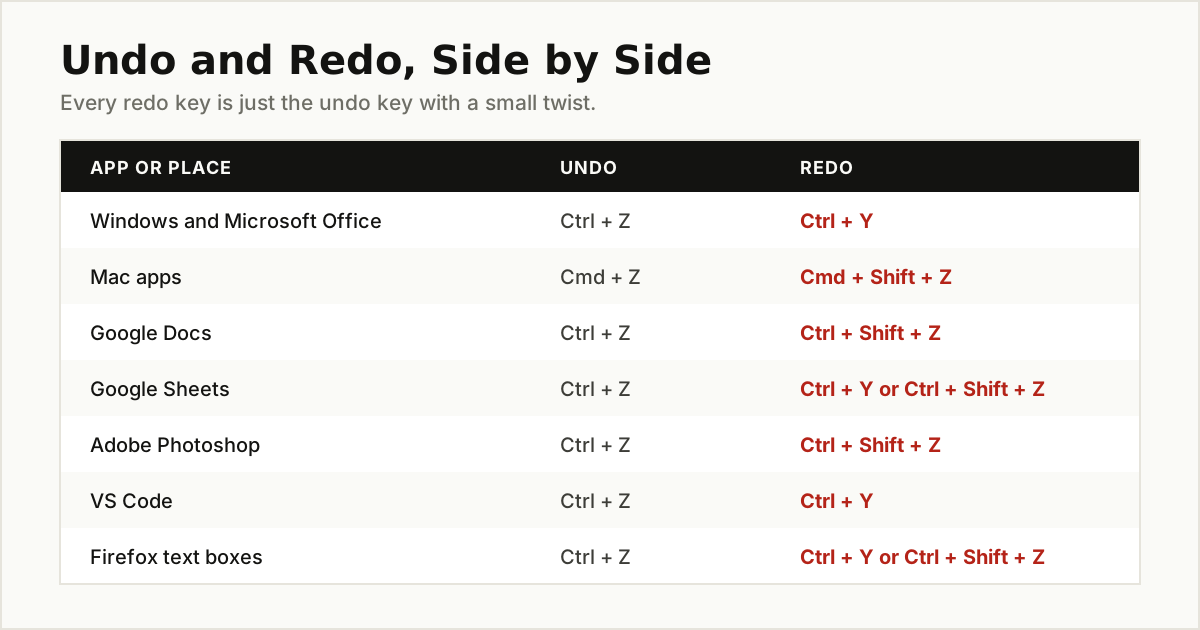
Redo Shortcut Keys, App by App
Now the detail. This table gives the redo shortcut for the apps people ask about most. Every entry below was checked against the maker’s own support pages, because shortcut lists on random websites are often years out of date.
| App | Undo | Redo on Windows | Redo on Mac |
|---|---|---|---|
| Microsoft Word | Ctrl+Z | Ctrl+Y (or F4) | Command+Shift+Z |
| Microsoft Excel | Ctrl+Z | Ctrl+Y (or F4) | Command+Shift+Z |
| Microsoft PowerPoint | Ctrl+Z | Ctrl+Y (or F4) | Command+Shift+Z |
| Google Docs | Ctrl+Z | Ctrl+Shift+Z | Command+Shift+Z |
| Google Sheets | Ctrl+Z | Ctrl+Y or Ctrl+Shift+Z | Command+Y or Command+Shift+Z |
| Adobe Photoshop | Ctrl+Z | Ctrl+Shift+Z | Command+Shift+Z |
| VS Code | Ctrl+Z | Ctrl+Y | Command+Shift+Z |
| Windows File Explorer | Ctrl+Z | Ctrl+Y | n/a |
| Firefox (in text boxes) | Ctrl+Z | Ctrl+Y or Ctrl+Shift+Z | Command+Shift+Z |
Microsoft Word, Excel, and PowerPoint. All three Office apps use Ctrl+Y, and Microsoft Support lists F4 as an alternative on Windows. Microsoft’s Windows shortcut list gives Ctrl+Y the same job across the system, which is why it also redoes file actions in File Explorer: undo a file move with Ctrl+Z, then redo it with Ctrl+Y. On a Mac, Office follows the Mac rule below instead. One F4 warning, straight from Microsoft’s page: on many laptops the F keys double as brightness and volume controls, so if F4 does nothing, hold the Fn key (or press F-Lock) and try again. Ctrl+Y has no such problem, which is one more reason to make it your default.
Google Docs and Google Sheets. Here is the twist most guides get wrong. In Google’s own shortcut list for Docs, Redo on a Windows computer is Ctrl+Shift+Z, full stop. Sheets is friendlier: Google lists Ctrl+Y, Ctrl+Shift+Z, and even F4 as redo keys. So if you switch between Docs and Sheets all day, train your fingers on Ctrl+Shift+Z, because it works in both.
Adobe Photoshop. Photoshop is a Ctrl+Shift+Z app, and it is the famous trap: in Photoshop, Ctrl+Y does not redo anything. Adobe gives that key to Proof Colors, a preview of how your picture will look in print. Photoshop also has a long memory trick worth knowing. Since the October 2018 release, Ctrl+Z steps back through many edits instead of just toggling the last one, and Ctrl+Shift+Z steps forward again.
VS Code and browsers. Coders get Ctrl+Y on Windows and Command+Shift+Z on Mac in VS Code. In web browsers, the page you are using usually makes the rules: a text box in Firefox accepts both Ctrl+Y and Ctrl+Shift+Z, according to Mozilla’s shortcut list, while web apps like Docs and Gmail follow their own app rules from the table above.
Redo Is Not Repeat (and Office Knows It)
Here is a secret hiding inside the Office apps. When you have not undone anything, the Redo button in Word and Excel quietly changes its name to Repeat, and Ctrl+Y changes its job with it. Instead of bringing back an undone action, it does your last action again.
Say you make one row bold in Excel and wish the next five rows were bold too. Select each row and press Ctrl+Y (or F4), and the formatting repeats. The same trick re-applies a font color in Word, inserts another row in a table, or pastes the same formatting in PowerPoint. Microsoft counts redo and repeat as one combined command, which is why the support page covers both in a single breath.
Google Docs quietly proves the same point from the other side: its shortcut list files Ctrl+Y under “Repeat last action,” not under Redo. So the next time someone tells you Ctrl+Y is only for redo, you will know it leads a double life.
How Undo and Redo Actually Work: The Pile
Once you see the picture behind these keys, every rule in this guide makes sense. Apps keep your actions in a pile, like a stack of plates. The most recent action always sits on top.
- Undo lifts the top plate off the pile.
- Redo puts that plate back, exactly where it was.
- Press undo five times and you lift five plates. Redo can put back all five, in the same order, one press at a time.
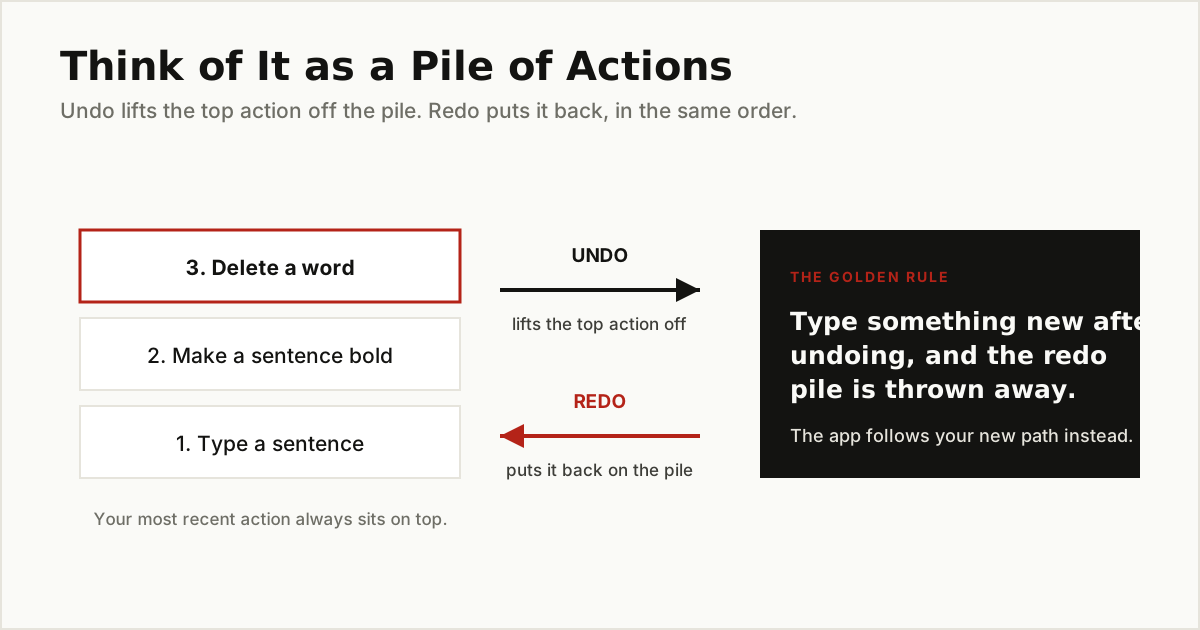
The catch is at the top of the pile. If you undo two actions and then type something new, that new action becomes the top plate, and the two plates you lifted are thrown away. There is no way back to them. This is called a branch: the moment you do something new, your history takes a new path, and the old future is gone. It is the single most common reason redo “stops working,” and now you know it is not a bug. It is how the pile works.
Why the Redo Shortcut Sometimes Does Nothing
So you pressed the right key and nothing happened. Before you blame the keyboard, run through the usual suspects:
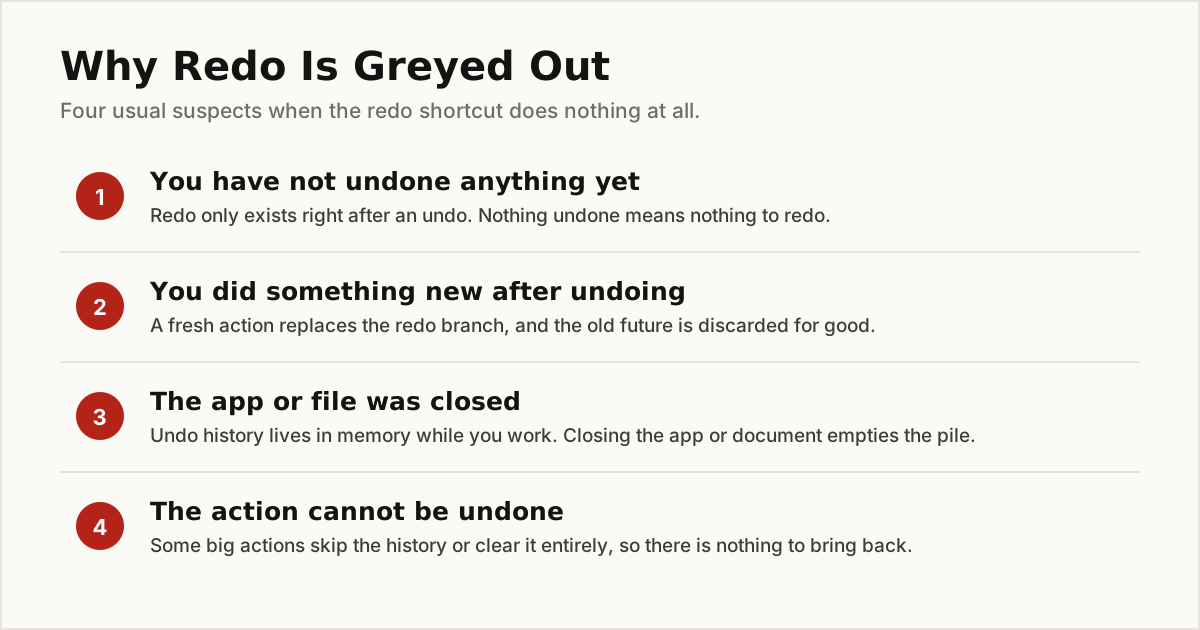
- You never undid anything. Redo is not a general “do it again” key in most apps (Office’s Repeat mode is the exception). If the undo pile was never touched, redo has nothing to work with, and the Redo button stays grey.
- You did something new after undoing. As the pile picture shows, a fresh action discards the redo branch. This catches everyone sooner or later.
- The history got wiped. Closing the app or the document clears the pile, because undo history lives in memory while you work. Some heavy actions clear it too: running a macro in Excel, for example, wipes the undo history completely, and Photoshop empties its History panel when you close a document.
- The action cannot be undone at all. Sending an email, printing, and saving over a file in some older programs never enter the pile, so there is nothing to undo or redo.
The practical lesson: if redo matters to you, use it right away, before you touch anything else. And for work you cannot afford to lose, save a copy under a new name before big experiments. No shortcut beats a spare copy.
Want to learn your main app’s rule in ten seconds? Open a blank document, type one word, and press Ctrl+Z to make it vanish. Now press Ctrl+Y. If the word comes back, you are in Ctrl+Y country. If nothing happens, undo once more and press Ctrl+Shift+Z instead. Whichever key brings the word back is the redo shortcut for that app, and now it is in your fingers for good.
Redo on a Mac
Mac users get the simplest rule of all: Command+Shift+Z. Apple’s official Mac shortcut list puts it right next to Command+Z for undo, and nearly every Mac app follows it, from TextEdit and Pages to Photoshop and VS Code. Think of it as undo with the Shift key added, and you will never forget it.
The one thing Mac users should not expect is a plain Command+Y. That key belongs to the Windows tradition. A few cross-platform apps, Google Sheets among them, accept Command+Y as a bonus, but Command+Shift+Z is the key that works across the whole Mac. If an app offers both, that is a gift, not the rule.
Redo on Phones and Tablets
Touchscreens have no Ctrl key, so phones redo with gestures instead.
iPhone and iPad. Apple gives you three ways to undo and redo typing, in the apps that support them:
- Shake the device. A small box pops up offering Undo Typing. Shake again after undoing and the box offers Redo Typing. It looks silly and works fine. If it keeps triggering by accident, you can turn it off under Settings, Accessibility, Touch, Shake to Undo.
- Swipe with three fingers. Swipe three fingers to the left to undo, and to the right to redo. This is the fastest method once it is in your fingers, and it works on both iPhone and iPad.
- Tap with three fingers. One three-finger tap opens a small editing bar at the top of the screen with undo and redo arrows, plus cut, copy, and paste.
On an iPad with a real keyboard attached, forget the gestures: Command+Z and Command+Shift+Z work just like on a Mac. On the iPad’s on-screen keyboard, undo and redo arrows also sit at the top left of the keyboard in many Apple apps.
Android. There is no universal Android redo shortcut, and anyone who tells you otherwise is guessing. Each app decides for itself. Many apps, including Google Docs, put curved undo and redo arrows at the top of the screen while you edit. Others hide undo inside a menu, and some offer no redo at all. If you undo something in an Android app and cannot find redo, check the top toolbar and the three-dot menu before assuming your work is gone.
The Bottom Line
Redo has two homes: Ctrl+Y in the Microsoft and Windows world, and Ctrl+Shift+Z in the Google, Adobe, and Mac world, with friendly apps like Google Sheets and Firefox accepting both. Learn the one your main apps use, remember that redo only lives right after an undo, and never do anything new between undoing and redoing. That is the whole skill.
If tiny keyboard knowledge is your thing, you may also enjoy the story behind how many spaces is a tab, and our guide to how to focus when the screen is full of distractions. For more everyday tips like these, browse the tips and tricks category.