You restarted your LG phone, and instead of your home screen you got a short, serious message: “Enter password to unlock,” with “30/30 attempts remaining” counted out below it. Your first instinct might be to start trying passwords. Please do not, at least not yet.
This screen is not a normal lock screen, and the counter underneath it is not decoration. This guide explains what the screen is, why every attempt matters, how to get in safely if you still know the password, and what your real options are if you have forgotten it.
What This Screen Actually Is
The message comes from a feature called Secure Startup, found on many LG Android phones. When Secure Startup is on, the phone asks for your password right after you switch it on, before Android itself starts. It uses the same password, PIN or pattern as your screen lock.
The reason is encryption. Everything stored on the phone, your photos, messages, apps and accounts, is scrambled so it cannot be read by anyone who does not know the password. Your password is the key that unscrambles it. Until you type the correct one, the phone literally cannot read its own storage, so it waits at this screen and can do nothing else.
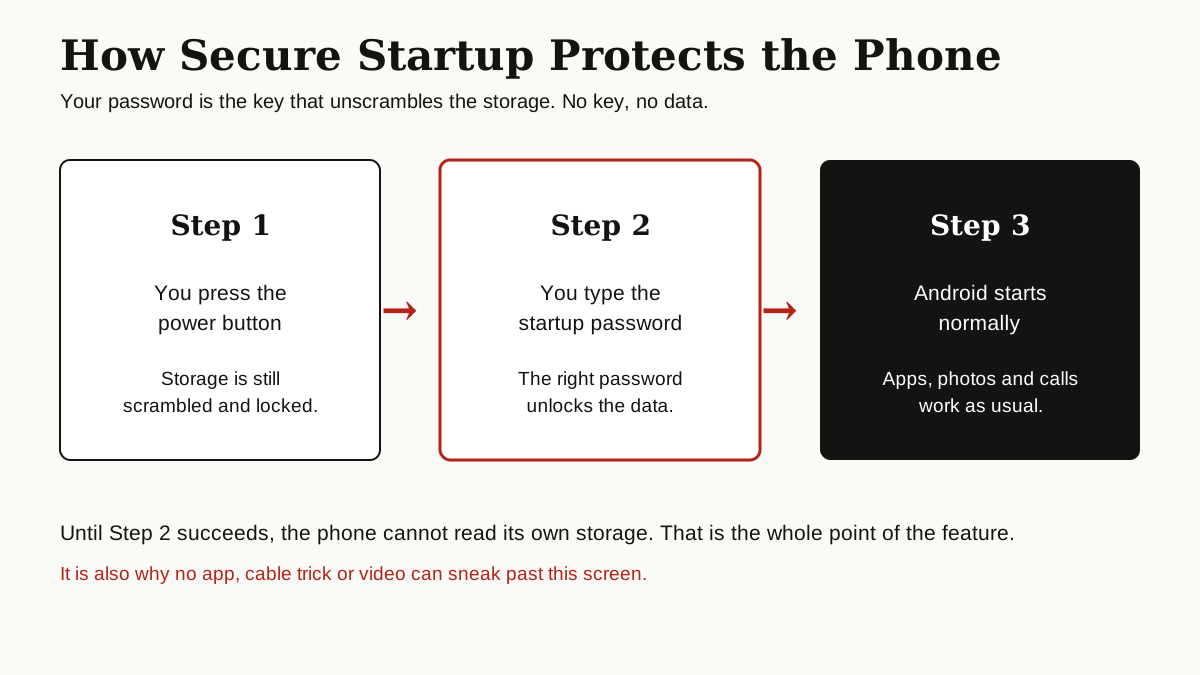
You are seeing it now because the phone restarted. A system update, a battery that ran completely flat, or someone turning the phone off and on again is enough. Secure Startup asks for the password after every restart, by design.
Two lookalikes are worth ruling out. This is not your SIM PIN: the SIM PIN unlocks your mobile service, is usually four digits, and does not wipe anything when you get it wrong. It is also not your normal lock screen, even though it uses the same password. The lock screen appears after Android has started. This screen appears before it, which is why none of the usual lock screen options, like a fingerprint, are offered here.
Secure Startup is part of what is often called android secure startup protection, and it is genuinely good security. If your phone were lost or stolen, this screen is what stands between a stranger and everything on it. The problem only starts when the password is forgotten, because the feature cannot tell the owner apart from a thief.
The Counter: Why Guessing Is Dangerous
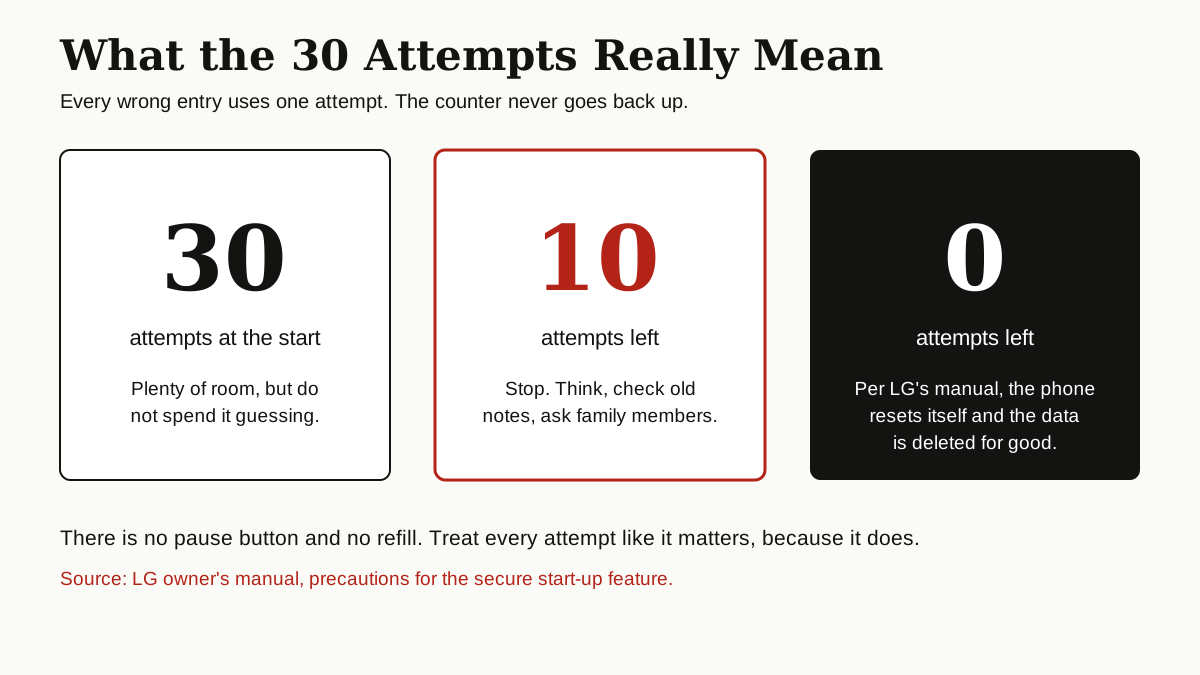
The number on the screen is a countdown of your remaining tries. It starts at 30 out of 30. Every wrong entry uses one up, and the counter never refills.
Here is the part most people miss. In its owner’s manuals, under “Precautions for the secure start-up feature,” LG warns that if you enter the screen lock password incorrectly more than the specified number of times, the device automatically resets itself, and the encrypted data and your personal information are deleted automatically and cannot be restored. The same manual says plainly that if you forget your decryption password, you cannot restore the encrypted data and personal information.
Read that again: the last wrong guess does not just lock you out. It wipes the phone. So every hopeful guess, every “maybe it was this one,” spends one of your attempts and brings the wipe one step closer. Thirty attempts sounds like a lot. It goes very fast when a family is passing the phone around trying birthdays.
If You Still Remember the Password, Enter It Carefully
If you know the password, or think you do, slow down and give yourself the best chance:
- Type it slowly, one character at a time. Most password fields briefly show each character as you type it. Watch them, and check each one before moving on.
- Check the keyboard layout. If the keyboard language changed, the same taps can produce different characters, especially for symbols. A password typed on the wrong layout looks right and fails.
- Mind capitals and symbols. Passwords are case sensitive. A first letter that the keyboard quietly capitalised, or a symbol that sits on a different key than you remember, is enough to fail.
- Try your current screen lock password first. Secure Startup uses your screen lock password. If you changed it recently, the newest one is the right starting point.
- Make a written list before you type. If you have several candidate passwords, write them all on paper first, put them in order of how likely they are, and work down the list calmly. Do not rely on memory in the moment.
- Stop while you still have attempts left. If the counter drops under 10 and you are still not in, stop typing. Think, check old notes, messages or password records, and ask anyone who might know it. The attempts will still be there tomorrow.

One more tip: never hand the phone to children or curious friends “to have a try.” Each of their guesses costs exactly as much as yours.
What Happens When the Attempts Run Out
If the counter reaches zero, the phone does what LG’s manual describes: it resets itself to factory settings. The password goes with everything else, and the phone can be set up again from scratch, but the data that was on it is gone for good.
What exactly is lost, and what survives:
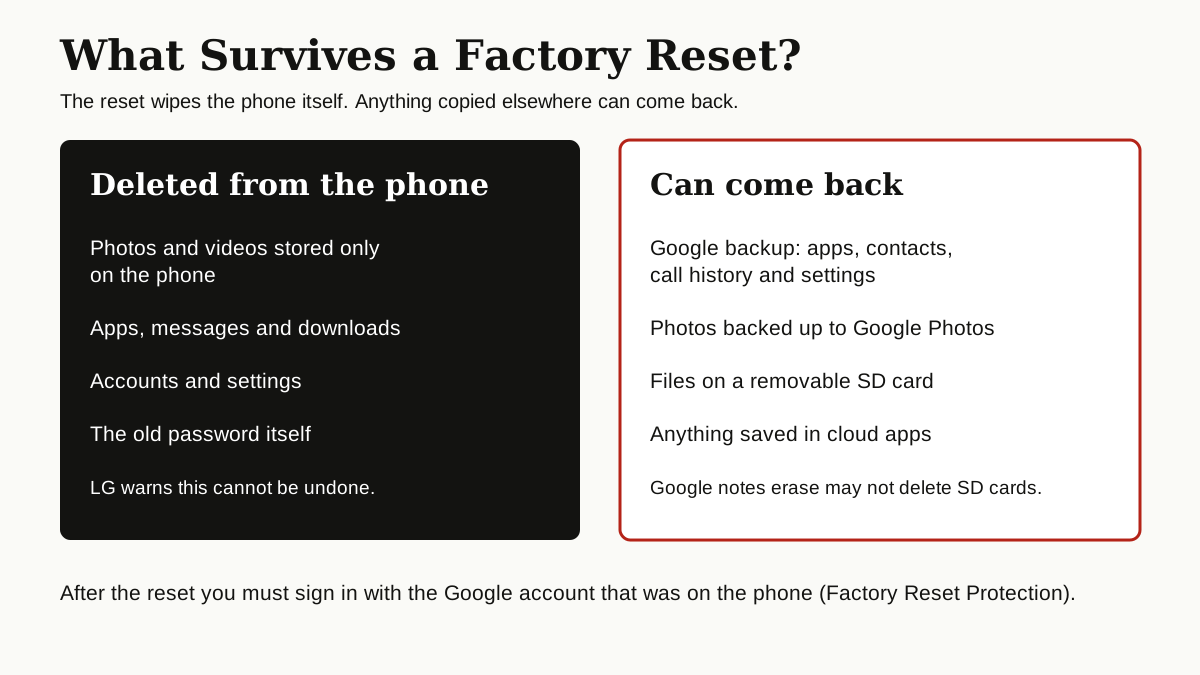
- Lost: everything stored only on the phone. Photos and videos that were never backed up, downloaded files, app data, messages stored locally, and all settings.
- Restorable: anything backed up to your Google account. During setup, signing in offers to restore backed up apps, contacts, call history and settings, and photos return if they were backed up to Google Photos.
- Usually untouched: files on a removable SD card. Google itself notes that even its remote erase may not delete SD cards. One warning: if you set the card up as extra internal storage, it was encrypted together with the phone, so it will no longer be readable after the reset.
There is one more screen waiting after the reset. During setup, the phone asks you to verify the Google account that was on it before, a Google feature called Factory Reset Protection. Google’s device protection page explains that after a reset done with the buttons or remotely, you must unlock the screen or enter the Google Account password that was on the device, and that if you cannot give this information during setup, you will not be able to use the device at all. So make sure you know that Google account’s password too.
Forgot the Password? Your Honest Options
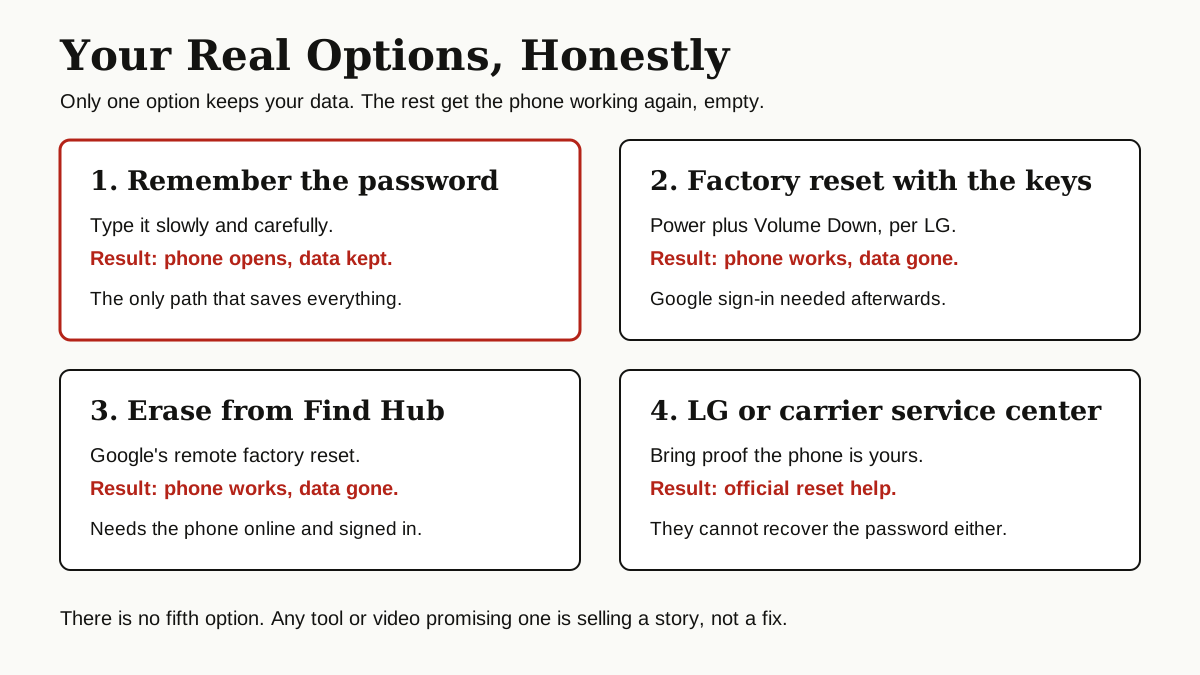
This is the part where many websites start promising tricks. Here is the honest version: on an encrypted Secure Startup phone, there is no trick, code, cable or app that opens the phone and keeps the data. That is not LG being awkward. It is how encryption works. Your password is the only key, and the phone was built to destroy the data rather than open up without it.
Your real options are these:
Option 1: Factory reset with the phone’s buttons. This is LG’s own documented route. LG’s official hard reset guide gives these steps:
- Turn the phone off.
- Press and hold the Power/Lock key and the Volume Down key at the same time.
- When the Factory data reset screen appears, release both keys.
- Use the volume keys to highlight Factory data reset, then press the Power/Lock key to confirm.
- Highlight Yes and press the Power/Lock key once more to confirm.
- The phone performs the factory reset.
LG warns that a hard reset deletes all user apps, user data and DRM licenses, so treat it as the last resort. Small details vary between models, but the shape of the process is the same.
Option 2: Erase the phone from Google Find Hub. If the phone is switched on, connected to mobile data or Wi-Fi, signed in to your Google account and has Find Hub turned on, you can reset it remotely. As Google’s Find Hub help page describes, you open Find Hub on another device or in a browser, select the phone, open Settings and choose Factory reset. Google states that these steps permanently delete all data on the device, though they may not delete SD cards. If the phone never gets back online, the command cannot reach it, and the button reset above is the reliable route.
Option 3: An LG or carrier service center. Take the phone, plus proof it is yours, such as the purchase receipt and your ID, to an authorised service center or your carrier’s store. They can help you reset it through official channels. Be clear about one thing: they cannot recover the password or the data either. Nobody can.
One special case: if you bought the phone second hand and it is asking for a password you never set, contact the seller before doing anything else. It is their password the phone wants, and even after a reset, Factory Reset Protection will ask for their Google account during setup. A legitimate seller can enter the password or remove the phone from their account. A seller who refuses tells you something important about the phone.
Why Paid “Bypass” Tools Cannot Help You Here
Search for “secure startup lg bypass” and you will find pages and videos promising to remove this screen with no data loss, usually for a fee. Before you pay anyone or download anything, understand what such tools would have to do: unscramble encrypted storage without the password. A program on your computer cannot do that. What many of these tools actually do, at best, is trigger the same factory reset you can do free with the buttons. At worst, they install malware on your computer, which is why the habits in our guide to computer virus prevention matter here too.
Some “unlock services” go further and ask you to type your Google account details into their page to “verify ownership.” That is a classic phishing setup, the same pattern described in our article on AI driven phishing attacks targeting Gmail users. Hand over those details and you can lose the account as well as the phone.

The rule is simple: if a tool or video promises to defeat this screen and keep your photos, it is promising something the phone was designed to make impossible.
How to Avoid This Next Time
Once you are back in, spend ten minutes making sure this never hurts again:
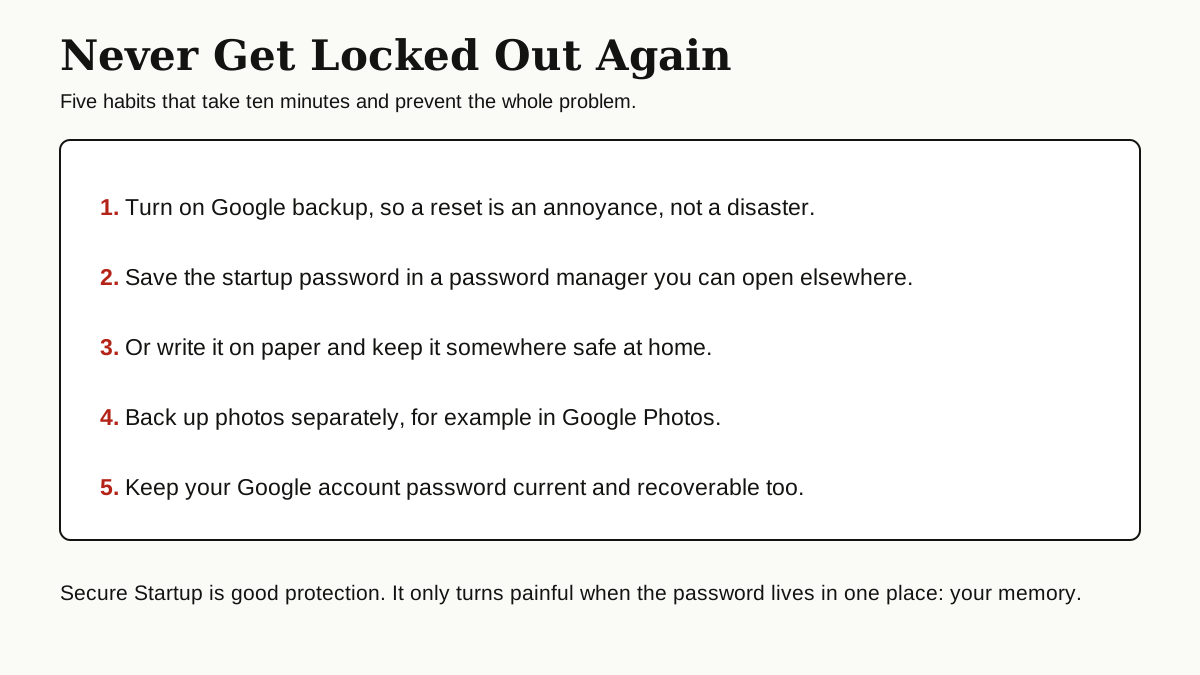
- Turn on Google backup. With a recent backup, even a full reset becomes an afternoon of restoring instead of a loss.
- Store the password somewhere you can reach. A password manager you can open on another device is ideal. A note on paper, kept somewhere safe at home, also works. LG’s own manual advises keeping your screen lock passwords noted separately, and this is exactly why.
- Back up photos on their own. Google Photos or another cloud copy means your pictures do not live and die with one phone. Keeping copies in more than one place, as covered in our guide to cloud storage alternatives, is the cheapest insurance there is.
- Keep your Google account recoverable. After any reset, Factory Reset Protection asks for that account. Keep its password current and its recovery phone number and email up to date.
- Restart your phone now and then. A restart every few weeks means you type the startup password regularly, so it stays familiar instead of becoming a yearly surprise.
The Bottom Line
The “enter password to unlock 30 30 attempts remaining” screen is your LG phone protecting itself exactly as it was designed to. The counter is real, the wipe at the end of it is real, and there is no shortcut around the encryption, whatever the bypass videos claim.
If you know the password, slow down and type it carefully. If you do not, your honest choices are a factory reset with the buttons, an erase from Find Hub, or help from a service center with proof of ownership, and then restoring whatever your backups hold.
For more plain-English phone fixes and explainers like this one, browse the tips and tricks category.