Almost everyone starts with the cloud storage that came with their phone, their laptop or their email account. It is already there, it already works, and for a while it asks nothing of you. Then one day the storage warning appears, or a news story makes you wonder who can actually see your files, and you start searching for cloud storage alternatives.
The tricky part is that the alternatives are not six versions of the same thing. They are six different ideas, and each one suits a different kind of person. This guide sorts cloud storage alternatives by type instead of ranking them, because there is no honest single winner. One note before we start: prices and plans in this market change constantly, so this guide does not print prices. Always check the official pricing page of a service before you decide.
Why People Look for Cloud Storage Alternatives
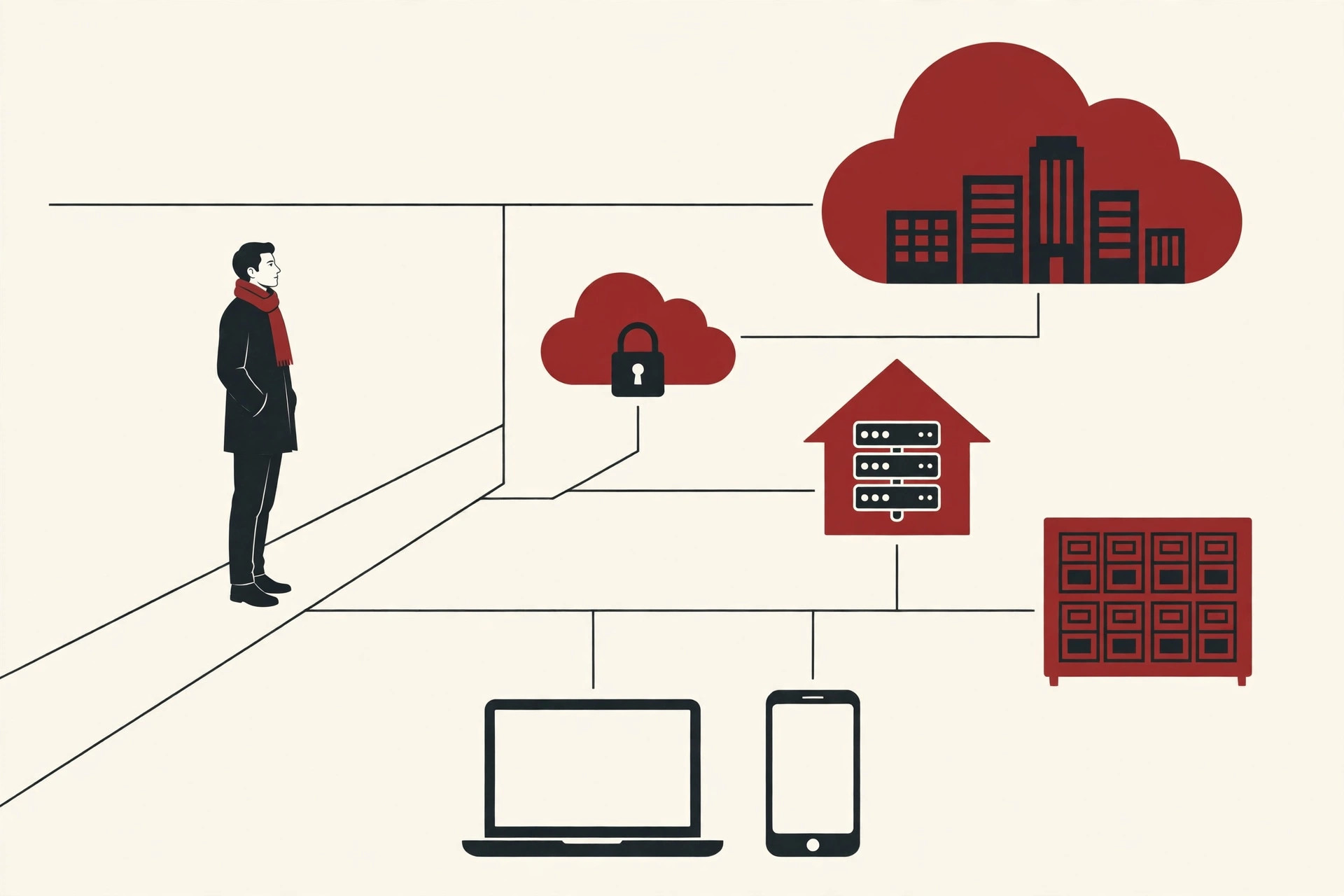
People rarely switch cloud storage for fun. Something pushes them, and the push usually falls into one of four groups.
Privacy worries. Your files on a normal cloud service sit on a company’s computers, and in most cases the company is technically able to look at them. Many people are fine with that. Others are not comfortable with the idea of photos, tax documents and personal letters being scanned, indexed or used to train AI tools. Whether or not a given company does these things, wanting a setup where it cannot is a reasonable wish.
Cost as files grow. The free tier feels generous until a few years of phone photos and videos fill it. Then the monthly bill starts, and it grows with every upgrade in camera quality. Over years, storage is one of those quiet subscriptions that never stops.
Lock-in. The longer your files live in one company’s system, the harder leaving becomes. Shared links point to that service. Your photos sit in its special library. Your documents use its formats and its apps. Leaving starts to feel like moving house, so many people never do it.
Wanting control. Some people simply like knowing where their data physically is and who can touch it. In companies, the same concern appears in a bigger, more formal shape, as rules about where data may live and who may access it, which is the world of data governance frameworks.
The Six Types at a Glance
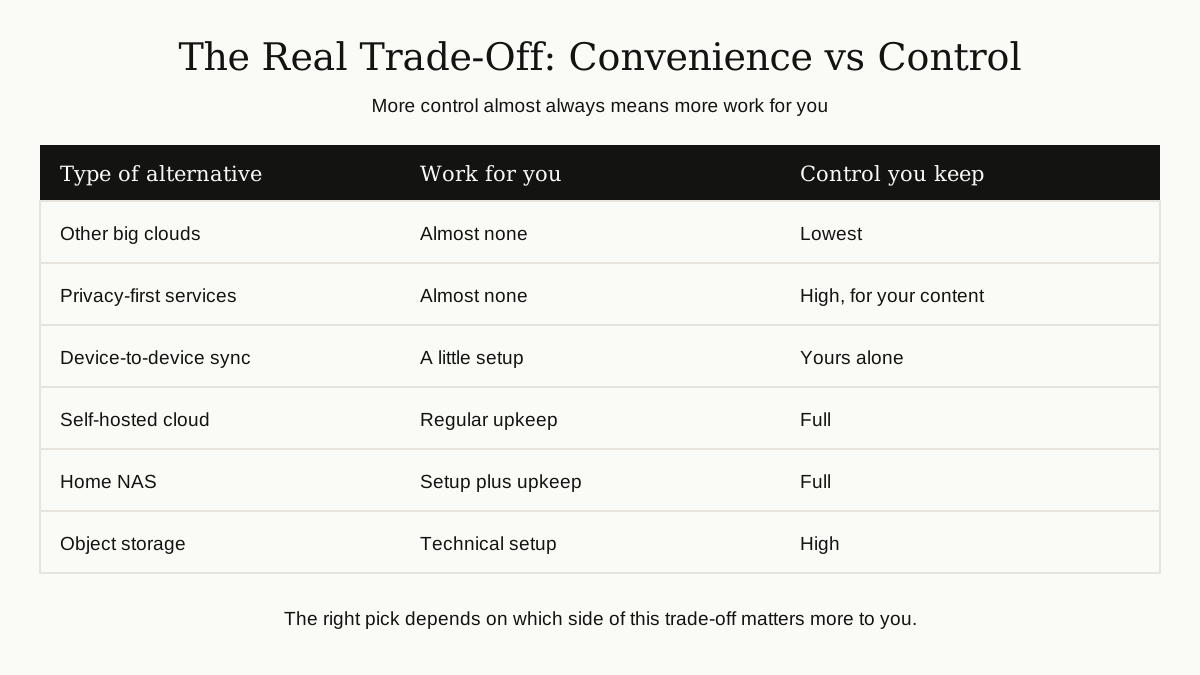
Here is the map for the rest of this guide. Six types of cloud storage alternatives, from the smallest change you can make to the biggest.
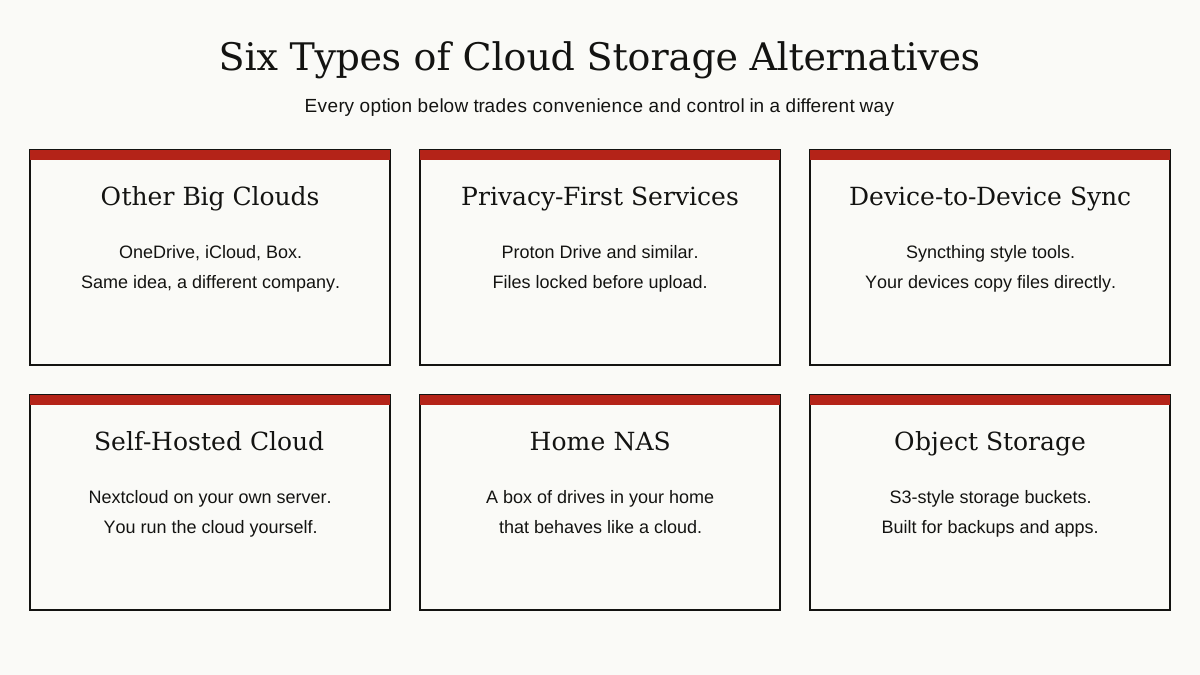
Type 1: Other Big Consumer Clouds
The simplest alternative of all is a different big company. If your problem is not the cloud model itself but the fit with your devices, this type solves it with almost no effort.
Microsoft OneDrive is built into Windows and works hand in hand with Microsoft 365, so Word and Excel files feel at home there. Apple iCloud, with iCloud Drive, is the natural home for iPhone and Mac users, quietly backing up photos and files across Apple devices. Box aims more at businesses, with secure file sharing and a long list of compliance features for regulated industries.
Be honest with yourself about what this type does and does not change. You get a better fit for your devices and your office apps, and moving is usually painless. But the basic deal stays the same: your files live on a company’s servers, under its rules, at its prices. If your real worry is privacy or lock-in, this type swaps the landlord without changing the lease.
Best for: people whose only complaint is ecosystem fit. Watch out for: expecting a privacy improvement that this type does not offer.
Type 2: Privacy-First Cloud Services
This type keeps the convenience of a normal cloud service but changes the most important rule: the company cannot read your files.
The idea behind it is end-to-end encryption. Your files are scrambled, or encrypted, on your own device before they are uploaded, using a key that only you hold. The company stores the scrambled data. If anyone else gets it, including the company itself, it looks like noise. Services built this way are often called zero knowledge, because the provider knows nothing about what you stored.
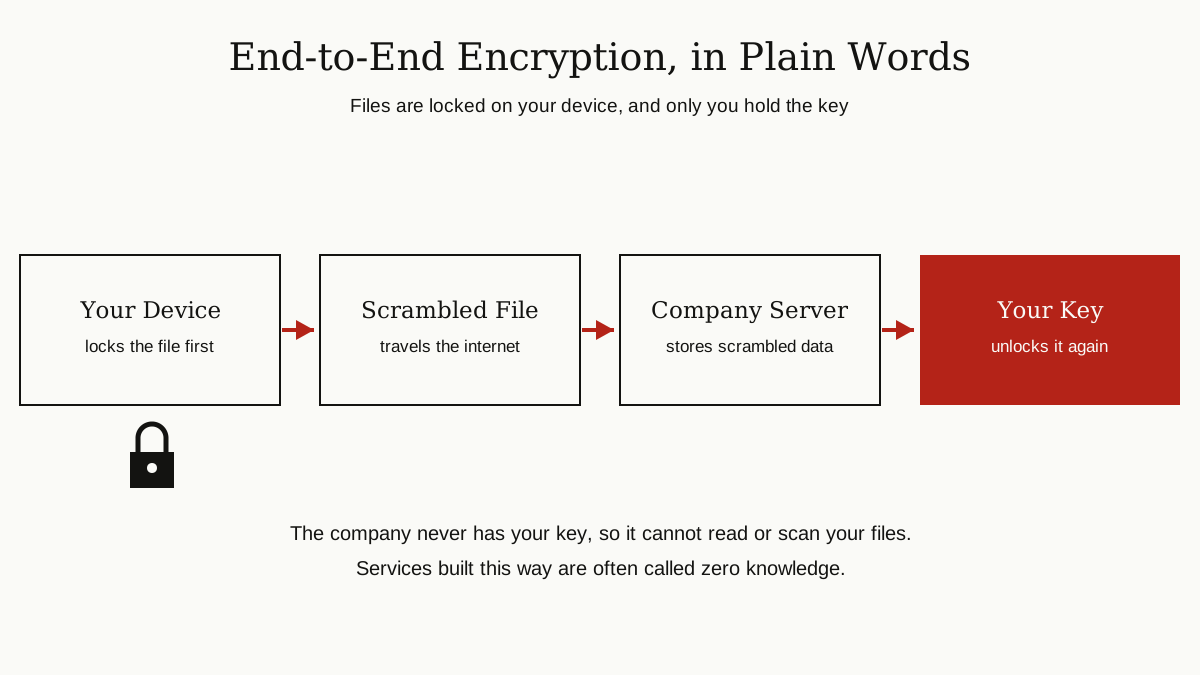
The best known name here is Proton Drive, from the Swiss company behind Proton Mail. Files, and even file names, are encrypted on your device before upload, so not even Proton can open them. The service is based in Switzerland, and its apps are open source and independently audited, which means outside experts can check the claims. It works on Windows, Mac, Android, iPhone and the web, with photo backup and document editing, much like a mainstream drive.
The trade-offs are real, and they come directly from the design. Because the company cannot see your content, some fancy features that depend on scanning files are limited or slower to arrive. And since the company holds no key to your data, losing your password and recovery details is a much bigger deal than with a normal service. Keep your recovery information somewhere safe.
Best for: people who want mainstream convenience without giving a company readable copies of their files. Watch out for: password recovery, which is limited by design.
Type 3: Sync Tools That Skip the Cloud Company
This type asks a simple question: if your laptop and your phone both have the files, why does a copy need to sit on a company’s server at all?
Tools in this family copy files directly between your own devices. The leading example is Syncthing, a free and open source program that synchronizes files between two or more computers in real time. Your data stays on your machines, the connections are encrypted, and there is no central server holding your files. You choose which folders sync to which devices, and changes appear everywhere within moments when the devices are online.
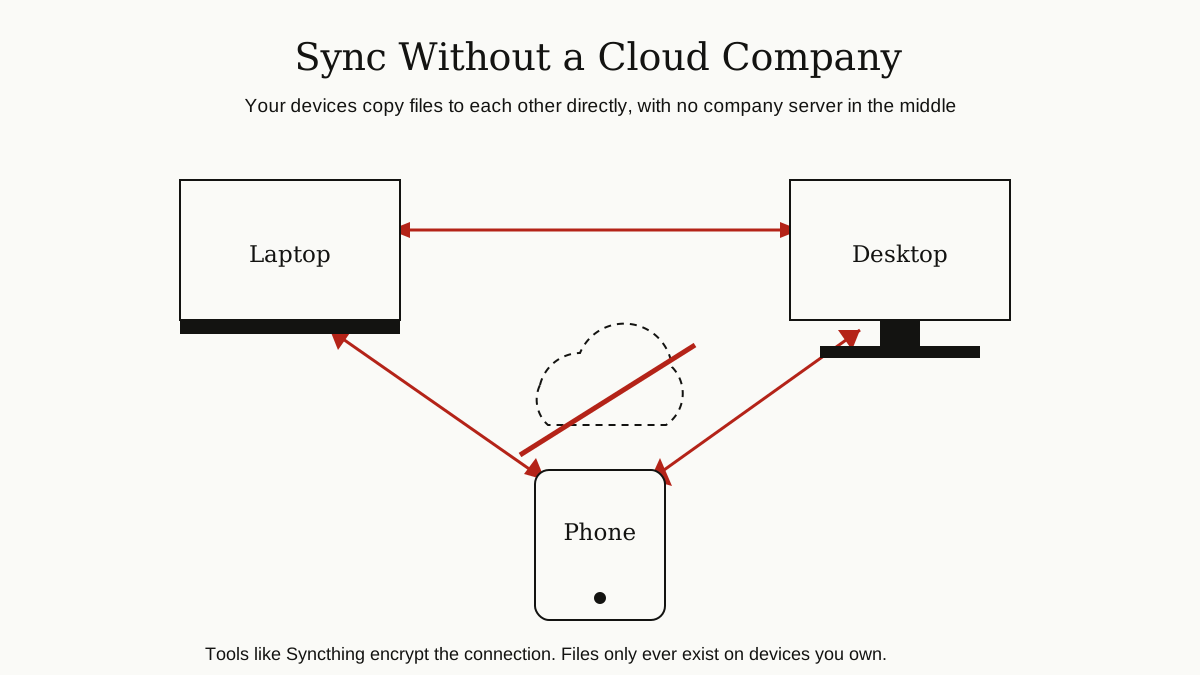
The strengths are obvious: no subscription, no company holding your data, and it works well even on a home network. The limits are just as important. There is no cloud copy, so if every device is off or away, nothing syncs until one returns. And sync is not backup. If you delete a file on one device, the deletion syncs too, unless you turn on the versioning options these tools offer. Many careful users pair a sync tool with a real backup somewhere.
Best for: people who mainly move files between their own computers. Watch out for: treating sync as your only backup.
Type 4: Self-Hosted Cloud Storage
Self-hosting means you run the cloud yourself. The software lives on a computer you own, perhaps a small home server, an old desktop or a rented server, and your files never leave it unless you say so.
The famous name here is Nextcloud. It is free, open source software that gives you file storage and sync that will feel familiar to anyone who has used a mainstream drive, plus extras like calendars, contacts, photo galleries and collaborative document editing. Nextcloud says it scales from a tiny Raspberry Pi in a home to huge installations at universities and governments, and the same software serves both. Many home users install it with Docker containerization, which keeps the setup tidy and easier to move later.
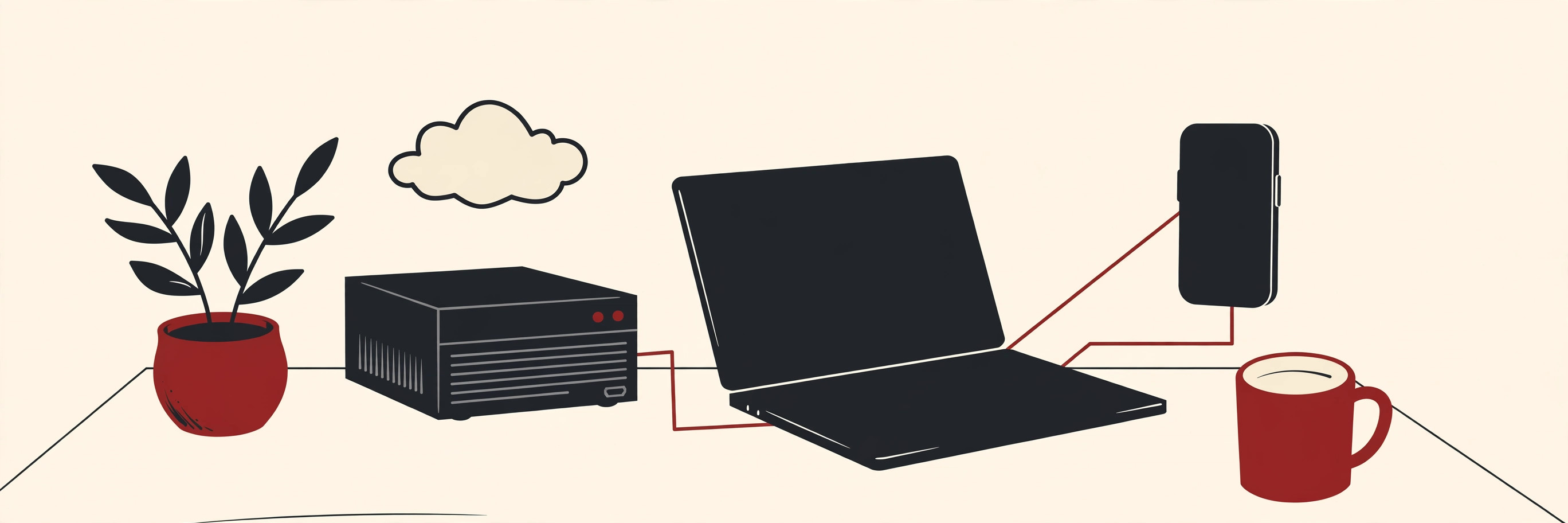
The trade-off is the sharpest of any type in this guide. The control is total: your server, your rules, no subscription, and storage grows by adding drives, not by upgrading a plan. But you become the IT department. Updates, security patches, broken hard drives and backups of the server itself are all your job now. For a hobbyist, that is part of the fun. For everyone else, it is the honest reason to pick a different type.
Best for: technical users and privacy-focused families who enjoy running a small system. Watch out for: the upkeep, which never fully goes away.
Type 5: A Home NAS, the Do-It-Yourself Cloud
A NAS, short for network attached storage, is a small box with one or more hard drives inside that plugs into your home router. Every device in the house can reach it, and most NAS boxes also offer secure access from outside the home, which makes them feel like a private cloud that happens to live in your hallway.
Well known brands such as Synology and QNAP sell ready-made boxes with friendly software, phone apps for photo backup, media streaming for your TV, and automatic backups of your computers. Compared with self-hosting raw software, a NAS is the packaged version of the same idea: you buy hardware once, and the drives inside decide how much space you have.
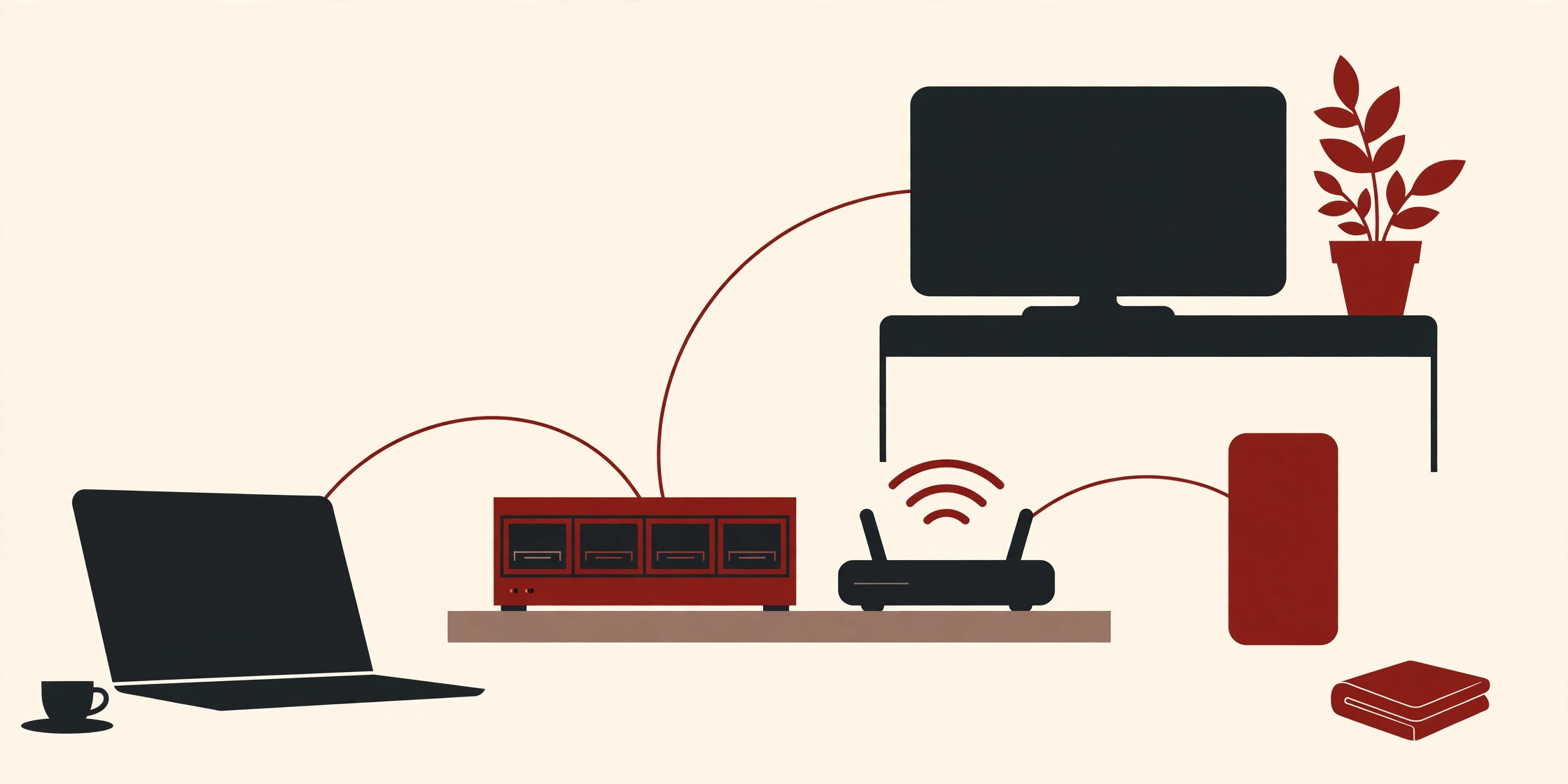
The honest risks are about place and hardware. A NAS in one home is one copy of your data in one building, so a fire, flood or theft can take it all. Sensible owners keep a second copy somewhere else, often an external drive stored with family or a cheap cloud backup of the most important folders. Drives also wear out over the years, though NAS software warns you and lets you swap a failing drive when you use its protection modes.
Best for: households with lots of photos and video who want one big shared home store. Watch out for: the single-location risk, and drive failures over time.
Type 6: Object Storage, for Technical Users and Backups
The last type is not really a place to browse your files. It is raw storage that software talks to, and it powers a surprising amount of the internet.
In object storage, files are stored as objects, each one placed in a container called a bucket and given its own address. There are no real folders, just labels and addresses that apps use to fetch exactly what they need. Amazon S3 is the famous example, built for everything from backups and archives to the data behind large apps, and many other providers offer storage that speaks the same S3 language.
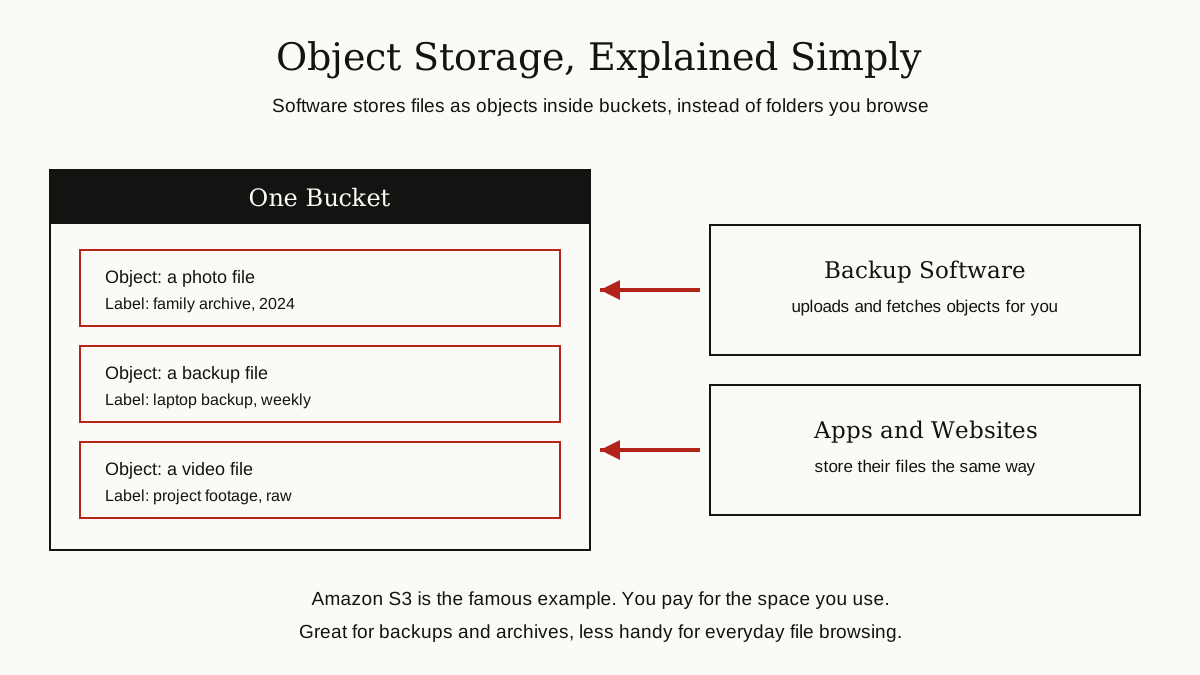
For a normal person, the practical use is backup. Popular backup programs can send encrypted copies of your files into object storage, where space is usually cheap and you pay for what you use. It is a poor home for daily file browsing, since you need software between you and your files, and small request fees can apply on some services. But as a second copy of everything, sitting far from your house, it is hard to beat. If you build your own stack, storage choices like these sit next to the database choices on the server side, which our database optimization guide looks at from the performance side.
Best for: technical users, and anyone who wants an inexpensive off-site backup target. Watch out for: it is storage for software, not a friendly drive for daily use.
How to Choose, and How to Switch
Start with your real reason. If it is fit with your devices, Type 1 is enough. If it is privacy with the least effort, look at Type 2. If your files mostly move between your own machines, Type 3 is elegant. If you want full control and accept the work, choose Type 4 or Type 5. And whatever else you pick, Type 6 makes a strong second copy.
When you switch, move like someone defusing a bomb: slowly, and checking twice. Export or download everything first. Move one folder or one library at a time, and open a few files on the other side to prove they arrived whole. Keep the old account running until the new one has survived a few weeks of real use. And keep a backup that is separate from both during the move, because moving day is exactly when mistakes happen.
Wrapping Up
Cloud storage alternatives are not a ladder with one winner at the top. They are a set of trade-offs between convenience and control, between paying with money and paying with your own time. The best choice is the one that matches your actual reason for leaving: privacy, cost, lock-in or control, and the amount of upkeep you will honestly do.
Pick the type that fits, move carefully, and keep a second copy somewhere no matter what. Your files deserve more thought than the default they arrived with.
For more guides like this one, browse the data, cloud and databases category.