Every developer knows this sentence: “But it works on my machine.” The app runs perfectly on the laptop where it was built, then breaks on a teammate’s computer or on the live server, because some small setting, library or version is different there.
Docker containerization exists to kill that problem. Instead of installing your app and hoping the machine underneath matches, you pack the app together with everything it needs into one tidy box. That box then runs the same way everywhere.
This guide explains docker containerization in plain English: what a container is, how Docker works, the few words you actually need to know, and the honest limits nobody mentions in the sales pitch.
What Is a Container?
A container is a package that holds an application plus everything the application needs to run: its code, the libraries it depends on, and its settings. Nothing is left to chance or borrowed from the machine underneath.
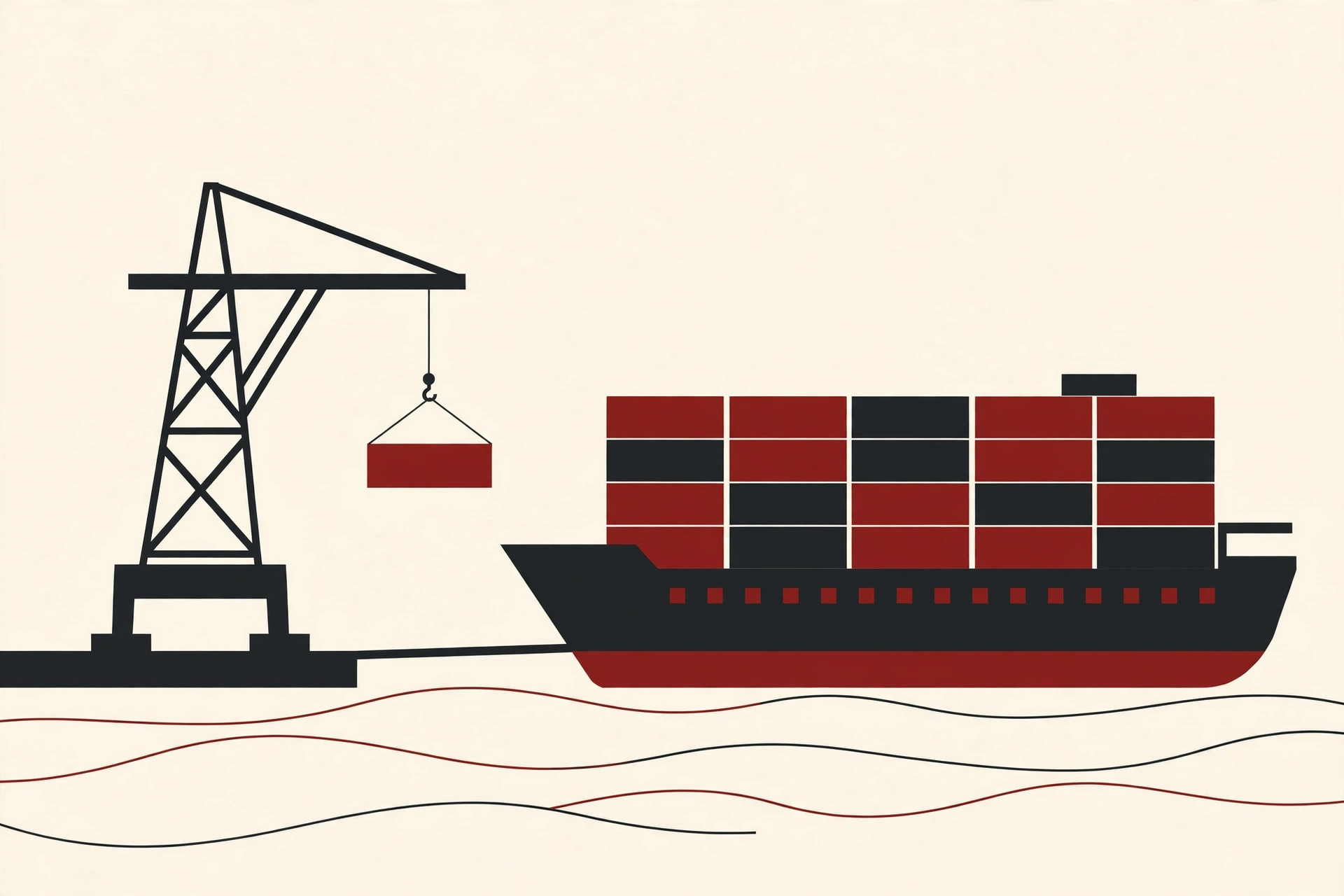
The idea is borrowed from shipping. Before standard shipping containers, loading a ship was chaos, because every item had a different shape and size. The standard steel box fixed that. Any crane, truck or ship in the world can handle the same box, no matter what is inside it. Software containers copy that trick. The box is standard, so any computer with Docker can pick it up and run it.
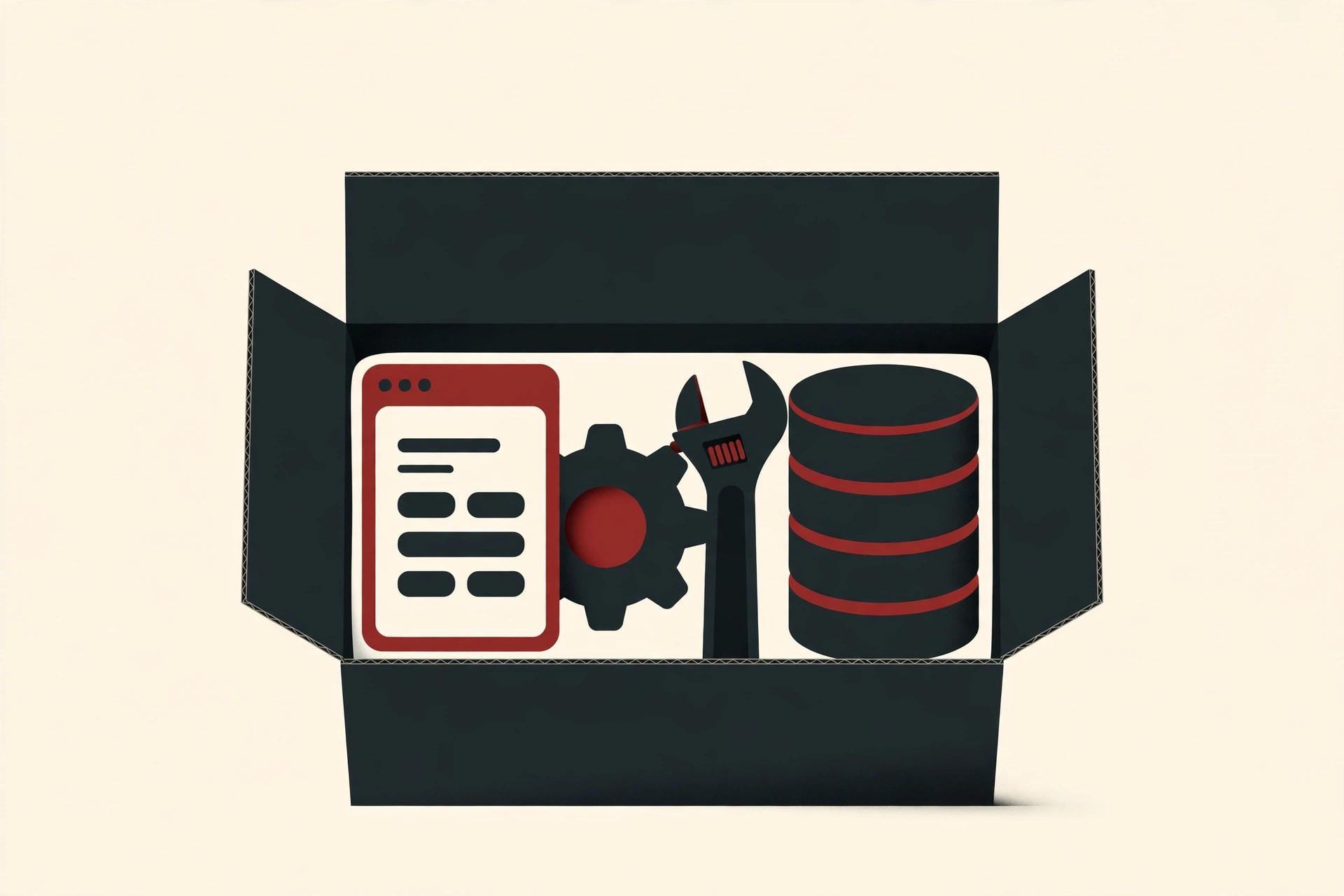
Docker’s own documentation puts it this way: containers are isolated processes for each part of your app. Your website, your API and your database can each live in their own container, separated from each other and from the rest of the machine. Each container is self contained, so deleting one does not disturb the others, and the container that runs on your machine will work the same way in a data center or in the cloud.
An app inside a container cannot see the whole computer. Docker uses a Linux kernel feature called namespaces to give every container its own private view of the system, like its own room in a shared house. The container feels like a machine of its own, but it is really just a well separated process.
How Docker Works
Docker describes itself as an open platform for developing, shipping and running applications. Two pieces do most of the work:
- The Docker client is the part you type commands into, such as
docker run. - The Docker daemon is the background worker that actually builds, starts and manages your containers. The client simply tells the daemon what to do.
The everyday flow has four steps. You write a short recipe file, Docker builds a package from it, you can share that package through an online warehouse, and anyone can then run it as a container.
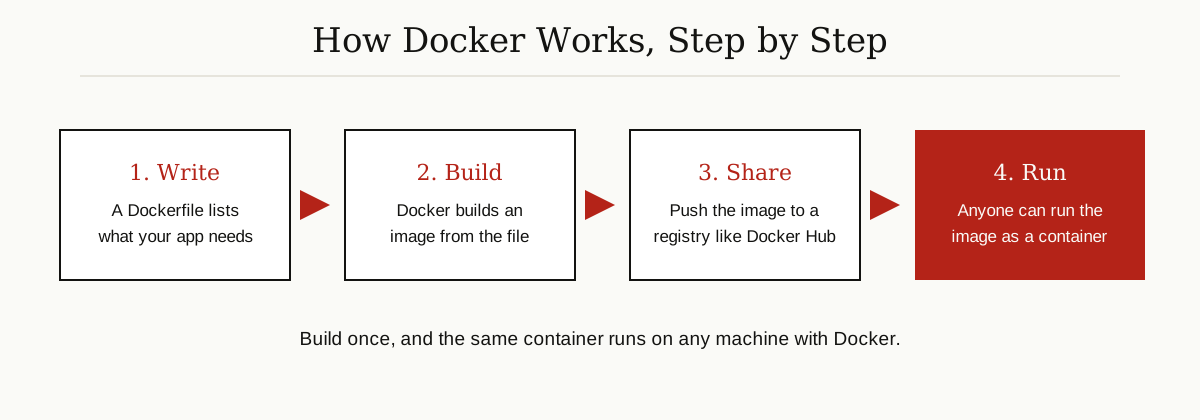
That is the whole loop. Build the package once, and the exact same container runs on your laptop, on a test server and in production. No more guessing which difference broke the app this time.
Containers vs Virtual Machines
Containers are often compared with virtual machines, and the difference matters, so here it is in one clear picture.
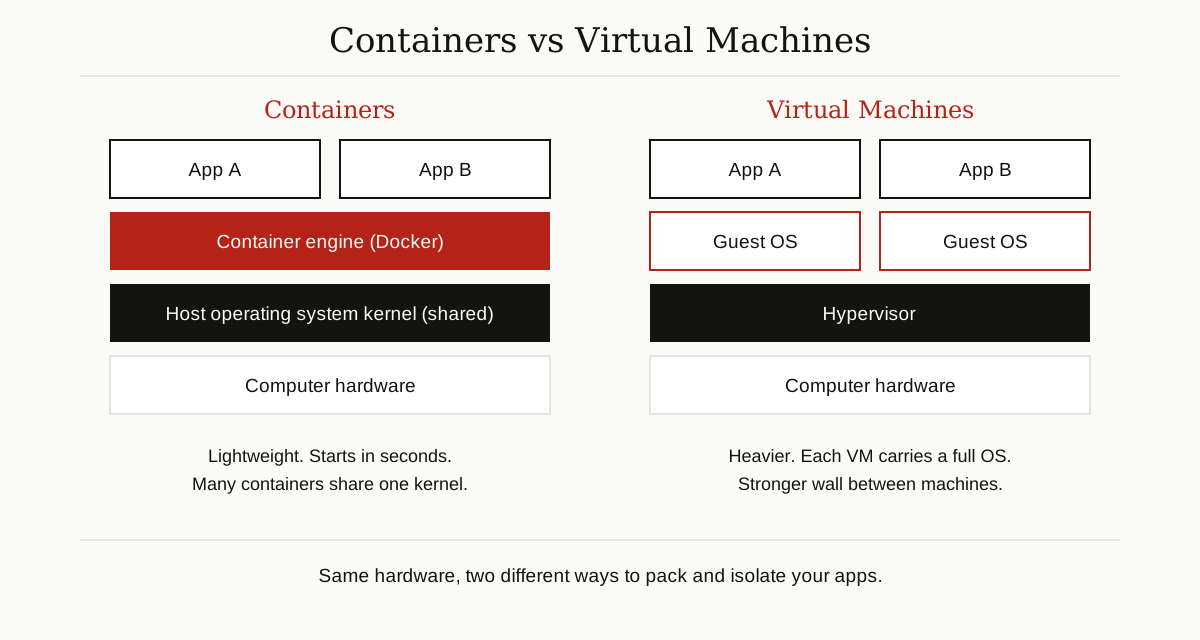
A virtual machine is a whole pretend computer. It carries a complete guest operating system, with its own kernel, its own drivers and its own everything. That makes it heavy: a virtual machine can take minutes to start and eats a large share of memory and disk just to exist.
A container skips the pretend computer. All containers on a machine share the host operating system’s kernel, and each container only packs the app and its files. If that sentence sounds abstract, our plain English guide to what a kernel is explains the kernel’s job first. The result here is simple: containers are small, they start in seconds, and one ordinary server can run many of them side by side.
The trade offs are honest ones:
- Speed and size: containers win easily. They start fast and waste almost nothing on overhead.
- Strength of the wall: virtual machines win. A separate kernel and a full guest system make a stronger barrier, which matters for running strangers’ workloads.
- Flexibility: a virtual machine can run a completely different operating system than its host. A Linux container, by contrast, always needs a Linux kernel underneath.
That is why the two are often used together. Cloud companies rent out virtual machines, and teams then run many containers inside each one.
The Docker Words You Actually Need
Docker has a handful of key words. Learn these six and you can follow almost any tutorial.
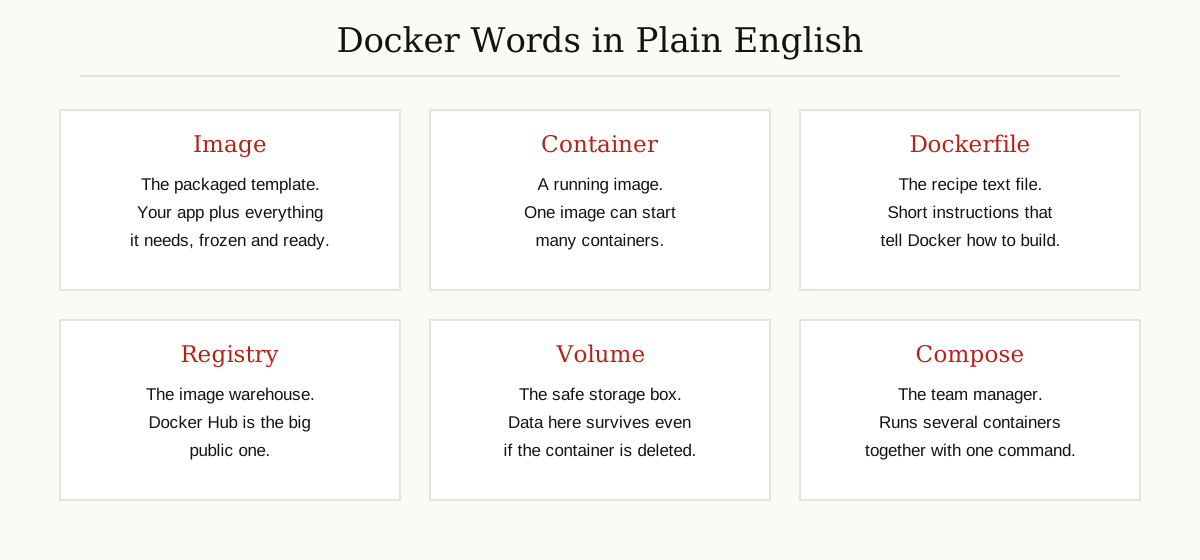
Image. The packaged template. An image holds your app and everything it needs, frozen and ready. Images are read only, meaning they never change while they run. Think of an image as a class in programming or a mold in a factory.
Container. A running image. One image can be started many times, giving you many identical containers, just as one mold can pour many identical parts.
Dockerfile. The recipe. A Dockerfile is a short text file that lists the steps to build an image: start from this base, copy these files, run this command. Each step becomes a layer in the image, stacked like sheets of glass.

Layers are a clever trick. When you change one line of your Dockerfile and rebuild, Docker only rebuilds the layers that changed, which keeps builds fast and images small.
Registry and Docker Hub. A registry is a warehouse where images are stored and shared. Docker Hub is the big public registry, and Docker looks there by default when you ask for an image. Teams can also run private registries for their own images.
Volume. The safe storage box for data. When a container is deleted, its own files disappear with it. A volume is storage managed by Docker that lives outside the container, so data stored there survives. Docker’s documentation calls volumes the preferred way to keep data created by containers.
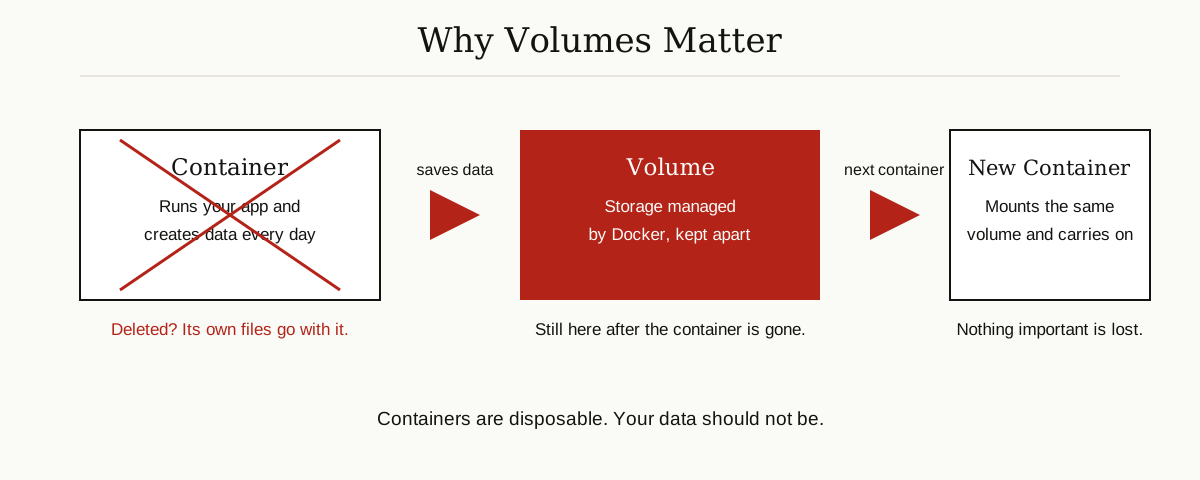
Volumes matter most for databases, where losing the data means losing everything. If you want to see how that idea grows up, read our guide to multitenant database containers, where many customers share database setups built on containers.
Docker Compose. The team manager. Real apps rarely live in one container, so Compose lets you describe a whole set of containers in a single file and start them all with one command. More on Compose below.
A Tiny Dockerfile, and Three Commands
Here is a complete, working Dockerfile for a small Python app. It is only four lines:
FROM python:3.12-slim
WORKDIR /app
COPY . .
CMD ["python", "app.py"]
Line by line:
FROM python:3.12-slimstarts from an official ready-made Python image, so you never install Python by hand.WORKDIR /appsets the working folder inside the image.COPY . .copies your app files into that folder.CMD ["python", "app.py"]is the command that runs when a container starts.
Three commands cover most of daily Docker life:
docker build -t my-app .
docker run my-app
docker ps
docker build -t my-app .builds an image from the Dockerfile in the current folder and names it my-app.docker run my-appstarts a container from that image.docker pslists the containers currently running, which is how you check that everything is alive.
That is genuinely most of it. Everything else in Docker is detail built on these same ideas.
Docker Compose: Running a Whole App at Once
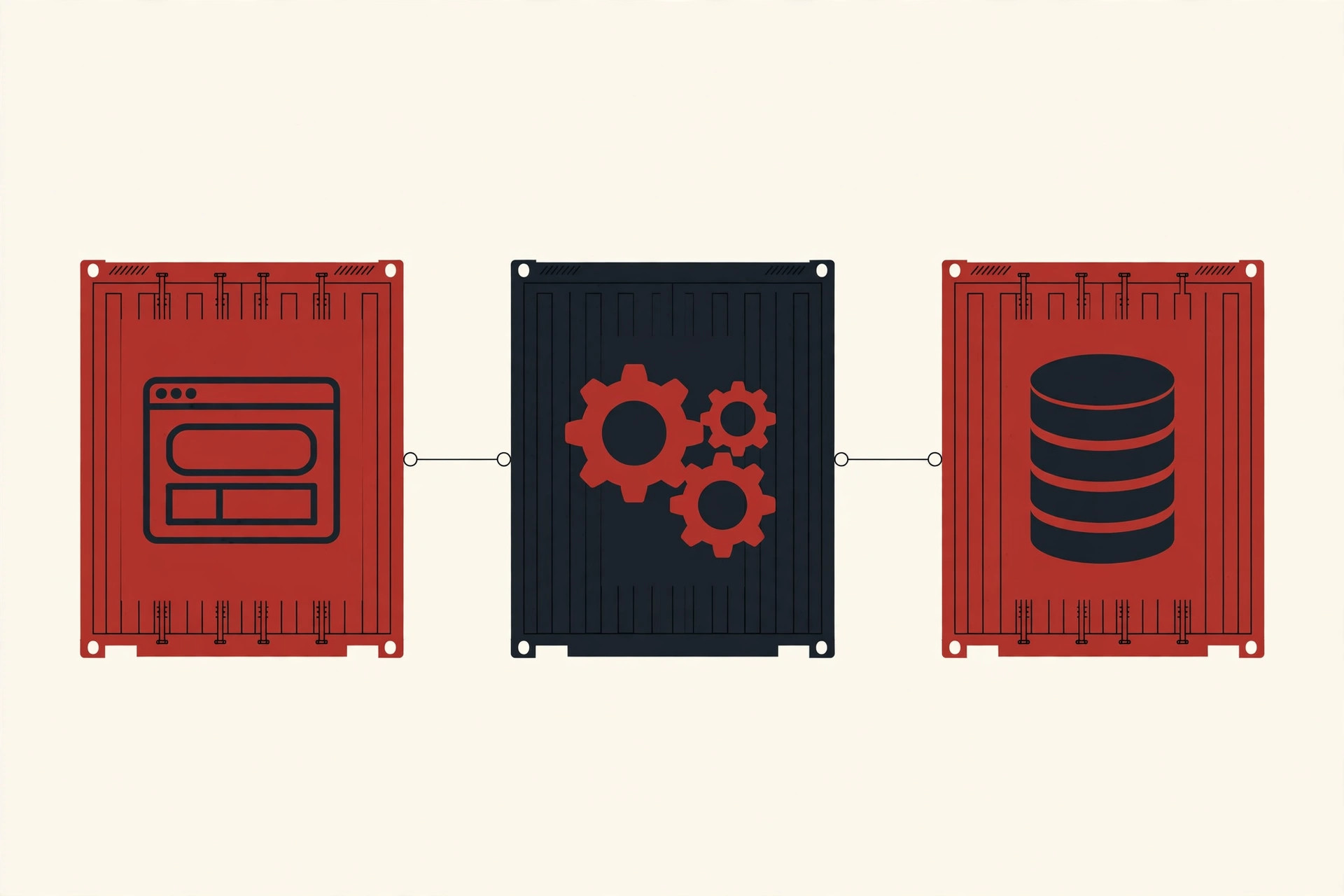
Most real applications are a team, not a solo act: a web frontend, an API behind it, and a database behind that. Starting three containers by hand, in the right order, with the right connections, gets old fast.
Docker Compose solves this. You describe all the containers, their networks and their volumes in one YAML file, and a single command, docker compose up, creates and starts the whole set. Stop everything with the same tool. Developers love it because a new teammate can clone the project and launch the entire system, database included, in minutes.
Compose is also where containerized databases become an everyday tool rather than a special project. And once a database is part of your daily work, keeping it quick and healthy matters too, which is exactly what our database optimization guide covers.
Why Developers Love Containers
The popularity of docker containerization is not hype. It solves real daily pain:
- The environment problem disappears. The same container runs on the laptop, the test server and production, so “works on my machine” stops being an excuse.
- Onboarding takes minutes. A new developer installs Docker, pulls the images and is working. No afternoon spent installing matching versions of five tools.
- Startup is fast. Containers begin in seconds, so testing ideas and scaling up during busy periods is easy.
- Machines get used properly. Because containers are light, one server can host many apps that would each have demanded their own virtual machine.
- Experiments are safe. Try a risky upgrade inside a container. If it breaks, delete the container and nothing else on the machine even noticed.
One App, Three Machines: A Quick Walkthrough
Here is what docker containerization looks like on an ordinary working day. In the morning, a developer builds the app on her laptop and runs it in a container. It starts in seconds, with the exact libraries the app needs and nothing left over from her other projects.
At lunch, she shares the image with the team. The automated test system pulls the same image and runs the full test suite against it, in the same sealed environment. No test fails mysteriously because the test server happens to run a different version of something.
In the evening, the very same image is pushed to production. The container that goes live is not a rebuild or a copy. It is the identical package that passed the tests that afternoon. That sameness is the entire point: one package, tested once, running everywhere, with no surprises hiding in the gap between machines.
The Honest Limits of Containers
Containers are wonderful, but they are not magic, and three limits deserve plain words.
A container is not a security wall by itself. Containers are well isolated, and Docker works hard on that isolation. But all containers on a machine share one kernel, so a serious flaw in that shared kernel could, in theory, affect every container on the host. For truly untrusted code, teams often add virtual machines or extra security layers around containers instead of trusting containers alone.
Linux and Windows containers are different families. Most containers in the world are Linux containers, and a container must match the kernel family of its host: Linux containers need a Linux kernel underneath, Windows containers run on Windows. This is why Docker Desktop on a Windows or Mac computer quietly sets up a Linux environment behind the scenes. It works smoothly, but it is worth knowing the matching is happening.
Containers do not fix a badly designed app. If the application itself is slow, tangled or buggy, putting it in a container gives you a slow, tangled or buggy app that is now beautifully packaged. Containerization fixes delivery and consistency problems. It does not fix design problems.
Docker and Kubernetes: Who Does What
Sooner or later, every Docker learner asks where Kubernetes fits. The short answer: they are partners, not rivals.
Docker is about one machine: build an image, run containers, manage them. Kubernetes is an orchestrator, a fleet manager for containers across many machines. It watches the whole fleet, restarts containers that fail, spreads work evenly and adds or removes copies as demand changes.
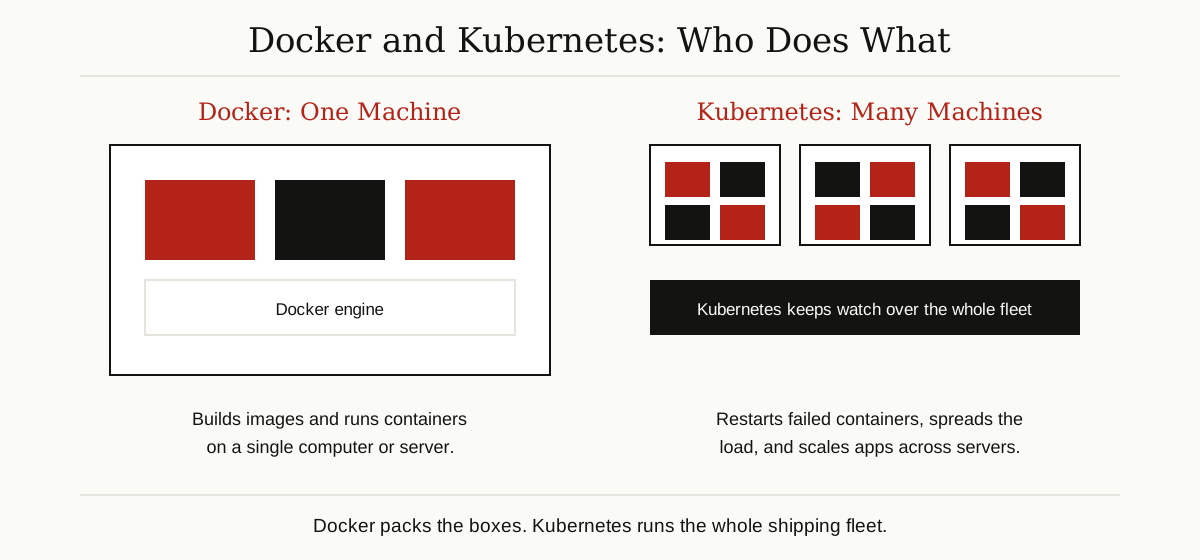
A useful way to remember it: Docker packs the boxes, Kubernetes runs the shipping fleet. Most people learn Docker first, get comfortable, and only add Kubernetes when they outgrow a handful of machines.
The Short Version
Docker containerization packs an app with everything it needs into a container, a standard box that runs the same on any machine with Docker. Images are the frozen packages, containers are the running copies, a Dockerfile is the recipe, and registries like Docker Hub are the warehouses. Containers beat virtual machines on speed and size because they share the host kernel, while virtual machines still offer the stronger wall. Add volumes for data that must survive and Compose for multi container apps, and you have the complete picture.
Keep going with our other Data, Cloud and Databases guides, where we explain databases, cloud tools and the systems behind them in the same plain English.