Nobody plans to get a computer virus. It usually arrives quietly, inside a downloaded file, an email attachment, or a program that looked harmless. By the time the PC slows down or strange pop-ups appear, the damage is already done.
The good news is that computer virus prevention is not complicated, and it is not expensive. You do not need to be a security expert. You need a handful of steady habits, most of which take a few minutes to set up and then run on their own. This guide walks through them in plain English, for home PCs and small office machines alike.
What Is a Computer Virus, and How Is It Different From Malware?
People use the words virus and malware as if they mean the same thing. They are close, but not identical.
Malware is the big family name. It means malicious software, any program built to harm your computer, steal your information, or make money for a criminal.
A virus is one member of that family. Like a flu virus, it attaches itself to a clean file or program. When you open or share that file, the virus spreads to other files and other computers. Microsoft puts it simply in its own safety guides: your PC needs protection against viruses and other malware, because a virus is just one kind of bad software among many.
Knowing the family helps, because different members behave in different ways:
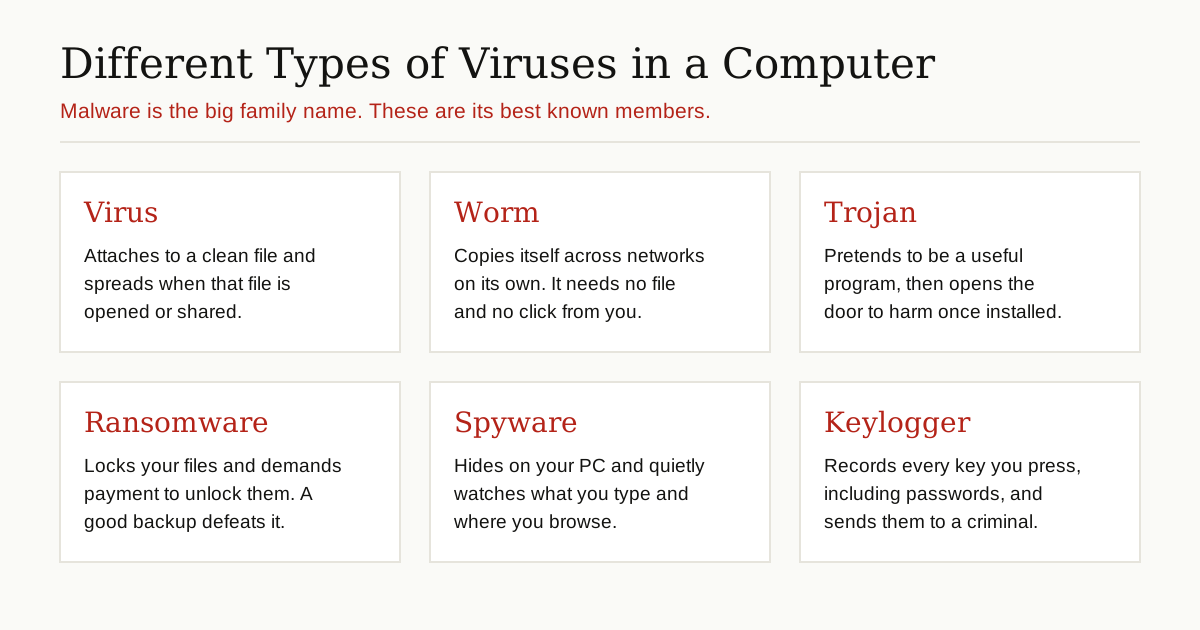
The prevention steps below protect you against the whole family, not just classic viruses.
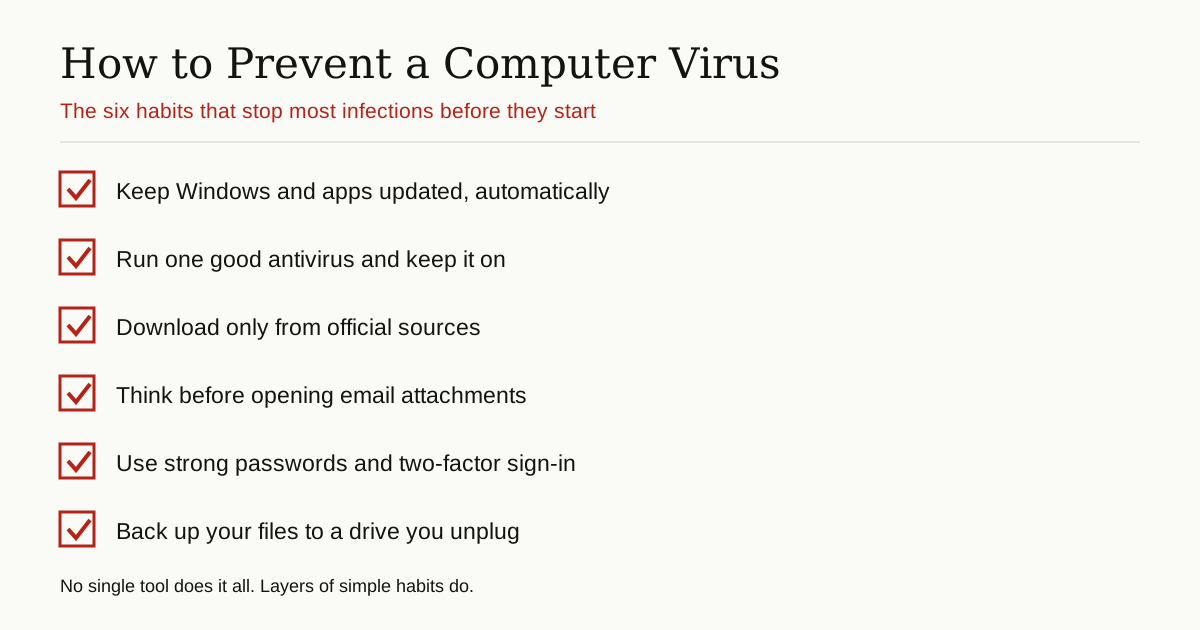
The Prevention Playbook at a Glance
Here is the whole approach on one page. None of it is technical, and all of it is standard computer virus prevention practice that Microsoft, CISA, and the FTC recommend in their own guides. The steps that follow explain each item in detail.
Step 1: Keep Windows and Your Apps Updated
Software updates are not just new features. Most of them quietly fix security holes, the weak spots that viruses use to slip in. A PC that skips updates is a house with a window left open.
Turn on automatic updates for Windows, your web browser, and your everyday apps, then let them install. The United States cybersecurity agency, CISA, puts updating software at the top of its four core steps for staying safe online, alongside strong passwords, multifactor authentication, and reporting phishing. When an update asks for a restart, do it the same day instead of postponing it for a week.
Step 2: Use One Good Antivirus and Keep It On
Antivirus software is your full-time guard. It checks files as they arrive, watches programs as they run, and blocks known threats before they can settle in.
If your PC runs Windows, you already own a solid guard. Microsoft Defender Antivirus is built into Windows, costs nothing extra, and updates itself through Windows Update. Microsoft’s guide to protecting your PC from viruses starts with exactly this advice: install an anti-malware app and keep it up to date. If you ever see a busy process named Antimalware Service Executable in Task Manager, that is Defender doing this scanning work in the background.
Two rules matter here:
- Run only one antivirus at a time. Microsoft warns that two anti-malware apps fighting over the same files can slow your system down or make it unstable. When you install a different antivirus, Defender politely turns itself off. Let it.
- Leave Tamper Protection on. This Windows setting stops viruses from switching off your security settings, which is one of the first things malware tries to do.
What if you want more than the built-in option? Reputable paid antivirus suites add extras like web filtering and family controls. Free third-party tools also exist, but download them only from the maker’s own website, a point the next step explains.
Step 3: Download Software the Safe Way
A huge share of infections begin with a download that looked fine. That is why careful downloading is one of the most powerful forms of computer virus prevention there is. Protect yourself with three habits:
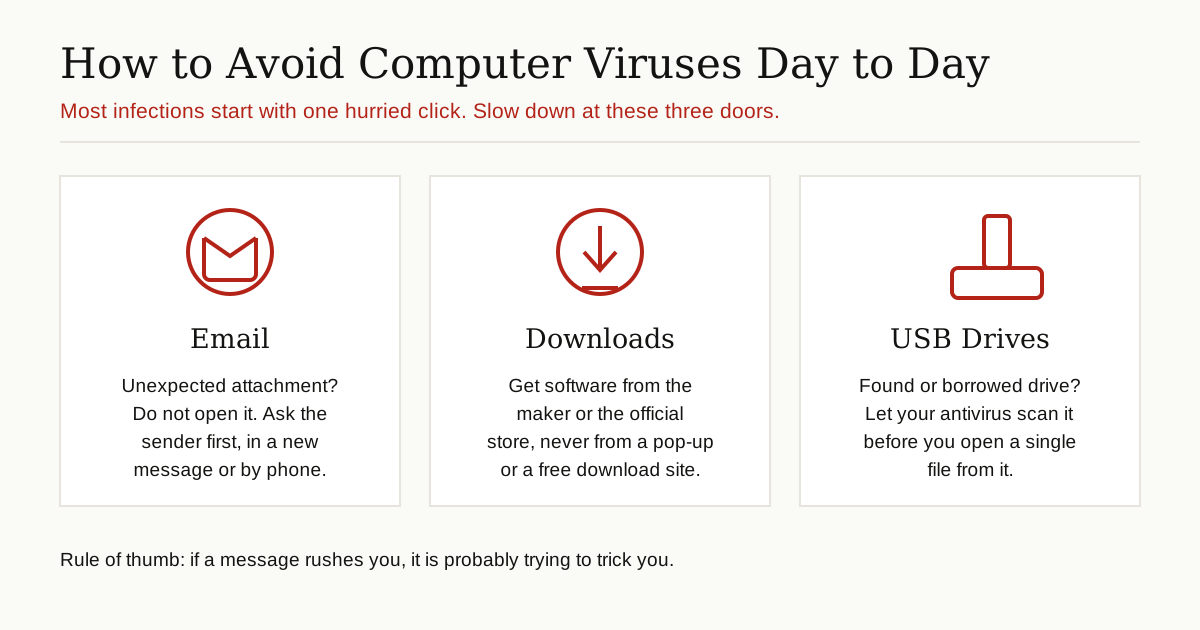
- Go to the source. Get programs from the maker’s official website or the official app store, never from a random free download site that bundles extra junk into the installer.
- Respect the warnings. When Windows SmartScreen tells you an app is unrecognized, stop and think. SmartScreen checks the reputation of downloads and warns you about risky ones. Windows also checks the digital signature on software, a certificate system backed by public key infrastructure, to confirm who really published the file.
- Skip cracked software. Pirated programs and key generators are classic hiding places for viruses, because nobody checks them and nobody complains when they misbehave.
Step 4: Be Careful With Email and Attachments
Email is still the delivery truck for viruses. Microsoft’s guidance is blunt: many viruses arrive attached to email messages and spread the moment you open the attachment.
So slow down. Do not open an attachment you were not expecting, even if it seems to come from a friend or your bank, because criminals fake sender names every day. If an invoice, receipt, or report surprises you, contact the sender through a separate message or a phone call and ask if they really sent it. Be just as careful with links: hover over them to see where they truly lead, and type important website addresses yourself instead of clicking.
Step 5: Use Strong Passwords and Two-Factor Sign-In
Computer virus prevention is not only about blocking bad files. A stolen password hands a criminal the keys, and infected PCs are often used to steal exactly those keys.
Follow the pattern CISA recommends: passwords that are long, random, and different for every account. CISA suggests at least 16 characters, and a password manager to create and remember them for you. Then turn on two-factor authentication (also called multifactor authentication) wherever it is offered, starting with email, banking, and social media. A code from your phone means a stolen password alone is not enough to get in.
Step 6: Keep Your Firewall On and Your Wi-Fi Locked
A firewall is the wall between your PC and the open internet. It watches the data coming in and going out and blocks connections you never asked for. Windows Firewall is built in and normally on by default. Check that it stays on, especially if you ever uninstall old security software, because Microsoft notes your PC is unprotected in the gap until a firewall and antivirus are running again.
Give the same care to your home or office Wi-Fi: a strong router password, and the newest security standard your router offers. On public Wi-Fi at a cafe or airport, avoid banking, and consider a virtual private network, which wraps your connection in a private tunnel that strangers on the same network cannot peek into.
Step 7: Back Up Your Files, the Step That Beats Ransomware
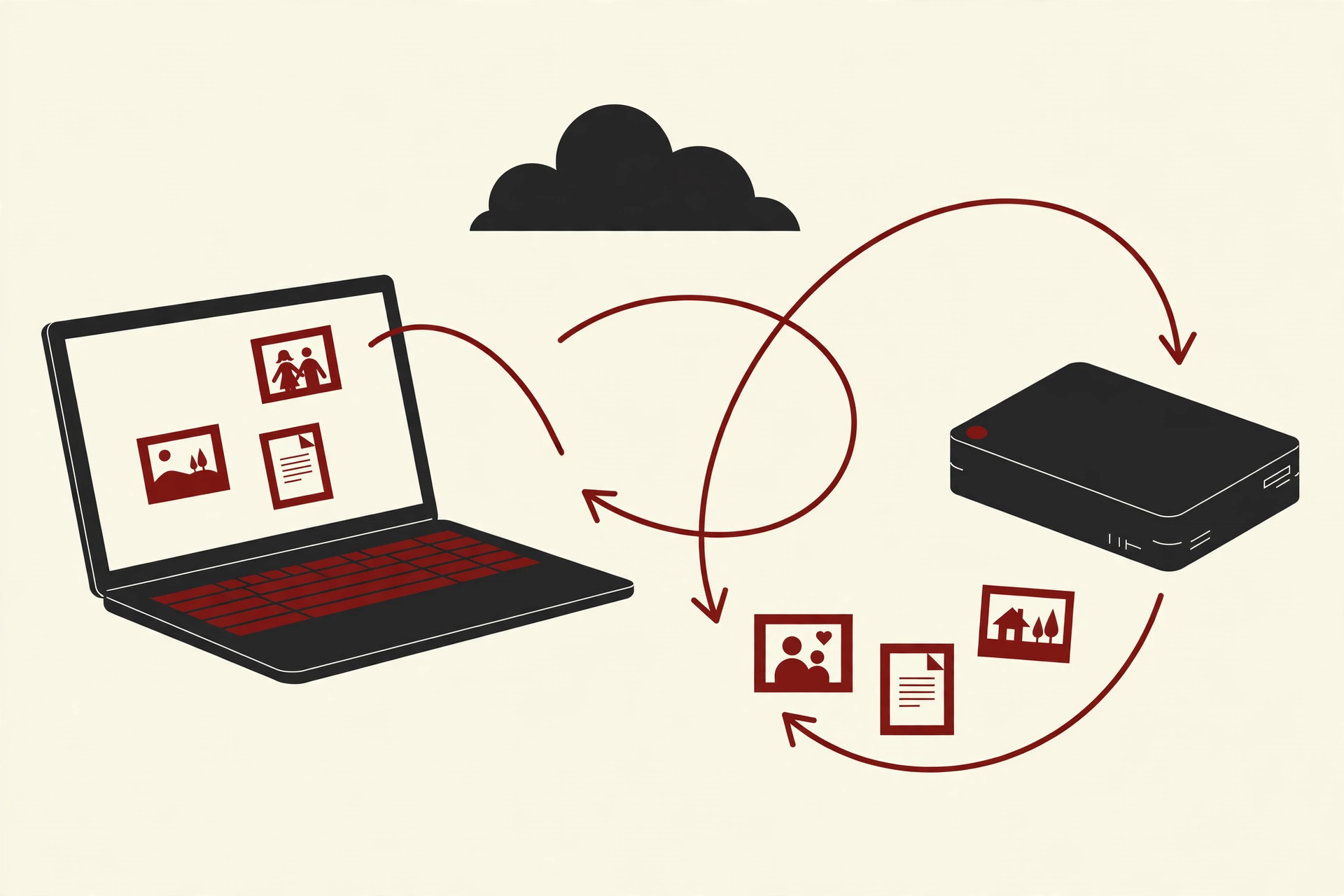
Ransomware is the malware that locks your files and demands payment to unlock them. It is frightening, unless you have a backup. With a clean copy of your photos, documents, and work files stored somewhere else, a locked PC becomes an inconvenience instead of a disaster. You wipe the machine, restore your files, and move on without paying anyone.
The Federal Trade Commission (FTC) gives the same core advice to small businesses: back up important data regularly, and keep the backup on a drive or service that is not always connected to your network. An external drive you plug in, copy to, and unplug is a simple and strong setup. The FTC also notes that law enforcement does not recommend paying ransoms, and paying never guarantees your files come back. A backup removes the whole dilemma.
Step 8: Treat USB Drives With Care
USB drives travel from computer to computer, and a virus can travel with them. Do not plug in a drive you found, and be careful even with borrowed ones. Let your antivirus scan any new drive before you open files from it, and never let a stranger’s drive run programs on your office PC.
Beware of Fake Antivirus Scams
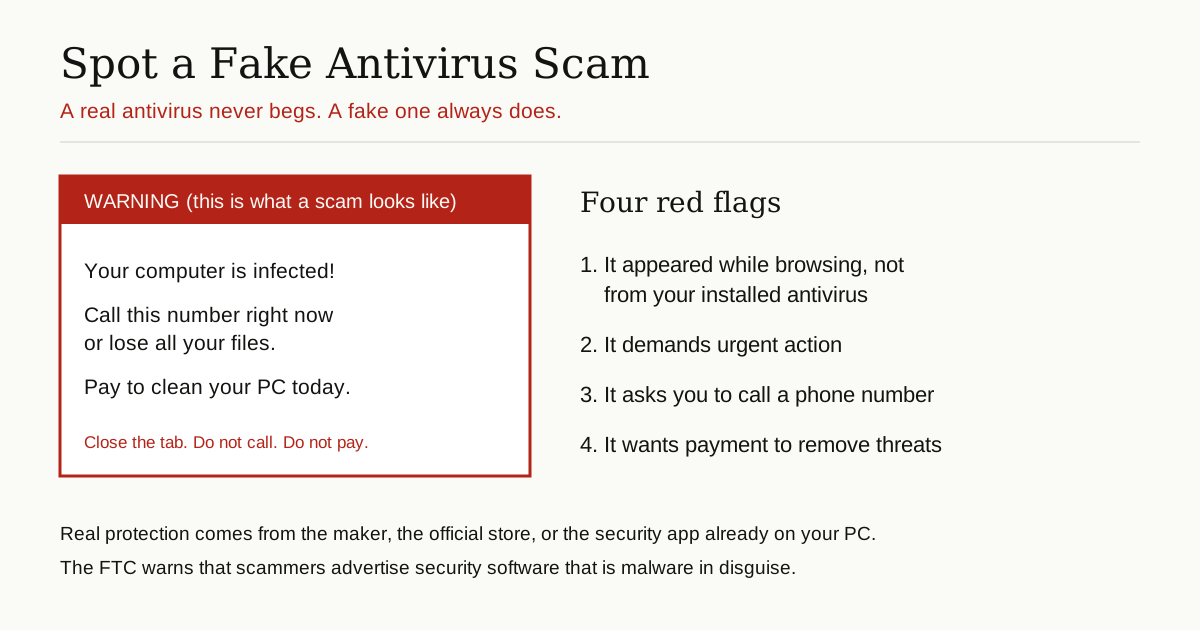
Here is a nasty trick worth its own section. You are browsing the web when a loud warning fills the screen: your computer is infected, call this number now, pay for an urgent cleanup. It looks official. It is not.
This is a fake antivirus scam. The warning is just a web page or a rogue program pretending to protect you. The FTC warns about this directly in its consumer advice: scammers advertise security software that is malware in disguise. Calling the number leads to a fake support agent who wants your money, your card details, or remote access to your PC.
Real antivirus software behaves very differently. It reports quietly inside its own app, it never demands instant payment through a pop-up, and it never asks you to phone a stranger. If a warning rushes you, it is lying to you. Close the tab, then open your real antivirus yourself and run a scan for peace of mind.
Signs Your PC May Already Have a Virus
Computer virus prevention is the goal, but no shield is perfect. It helps to know the symptoms of an infection that slipped through:
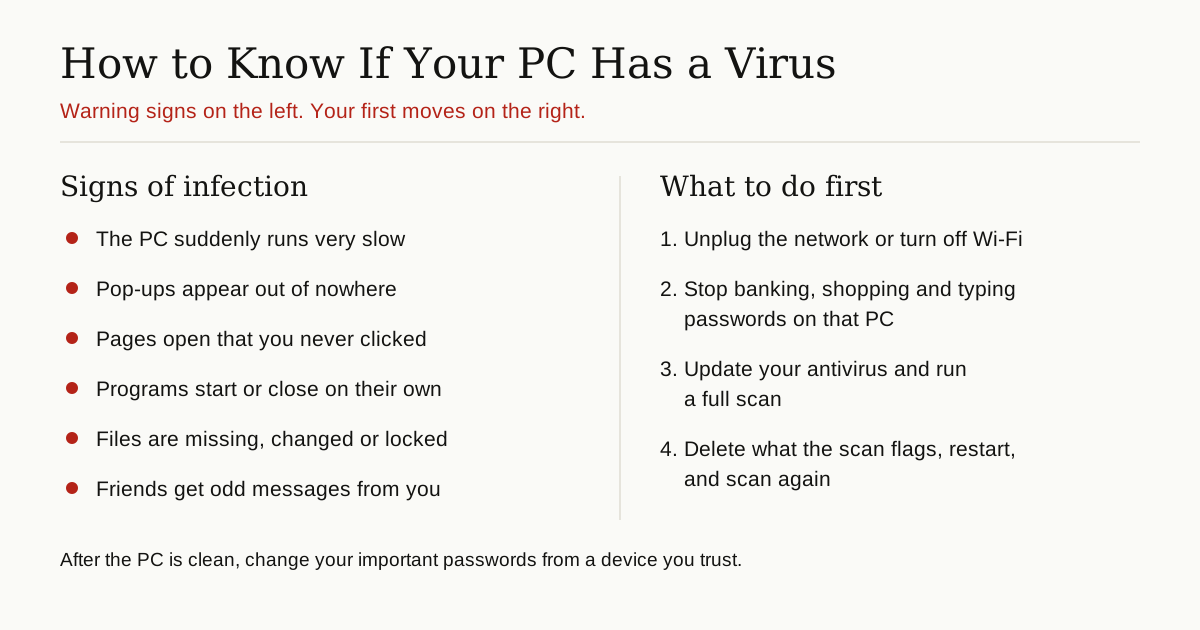
- The PC becomes suddenly slow, or the fan runs hard when you are doing nothing.
- Pop-ups and new browser toolbars appear out of nowhere.
- Pages open by themselves, or your homepage changes without permission.
- Programs start, close, or crash on their own.
- Files go missing, get renamed, or refuse to open.
- Friends receive strange messages from your accounts that you never sent.
The FTC describes the same picture: a computer that acts up, runs slow, opens pages you did not click, and shows constant pop-ups has a good chance of being hacked or infected.
If Your PC Is Infected, Do This
- Disconnect. Unplug the network cable or turn off Wi-Fi. This stops the malware from spreading or sending your data out.
- Stop sensitive activity. The FTC is clear on this point: stop shopping, banking, and entering passwords on that computer until it is cleaned and restored.
- Scan with your real antivirus. Update it first if you can, then run a full scan. Delete or quarantine everything it flags, restart, and scan once more.
- Restore if needed. If the machine still misbehaves, restore your files from your backup onto a clean system, or ask a trusted technician for help.
- Change your passwords. Once the PC is clean, change the passwords for your email, bank, and other important accounts, ideally from a device you know is safe.
What Does All This Cost?
Almost nothing. Updates are free. The antivirus built into Windows is free. A password manager has free versions, and an external drive for backups is a one-time purchase that costs less than a single hour of professional virus cleanup, let alone a ransom. Computer virus prevention is one of the cheapest forms of insurance you will ever set up, because the tools are already sitting on your PC waiting to be switched on. The real cost is only a little attention: an hour to set everything up, then a few minutes now and then to confirm it is all still working.
The Bottom Line
Computer virus prevention is not a product you buy once. It is a short list of habits: update everything, run one good antivirus, download from official sources, pause before attachments, use long passwords with two-factor sign-in, keep the firewall on, treat USB drives carefully, and back up your files like you mean it. Set these up once, check them now and then, and your PC becomes a hard target that criminals will pass by for easier ones.
For more guides like this one, browse the cybersecurity and networking category.