Your PC suddenly feels slow. The fan is loud, apps take ages to open, and when you check Task Manager, one process sits at the top of the list using a big slice of your processor: Antimalware Service Executable.
The name sounds alarming, almost like malware itself. It is not. This process belongs to your antivirus, and in most cases it is simply doing its job a little too hard, or for a little too long. The good news is that you rarely need to do anything drastic. This guide explains what the process is, why it sometimes uses high CPU and memory, and the safe fixes, in the order you should try them.
What Is Antimalware Service Executable?
Antimalware Service Executable is the friendly name Task Manager shows for the core process of Microsoft Defender Antivirus. Its real file name is MsMpEng.exe. Microsoft Defender Antivirus is the security program built into Windows 10 and Windows 11, at no extra cost, and you manage it through the Windows Security app.
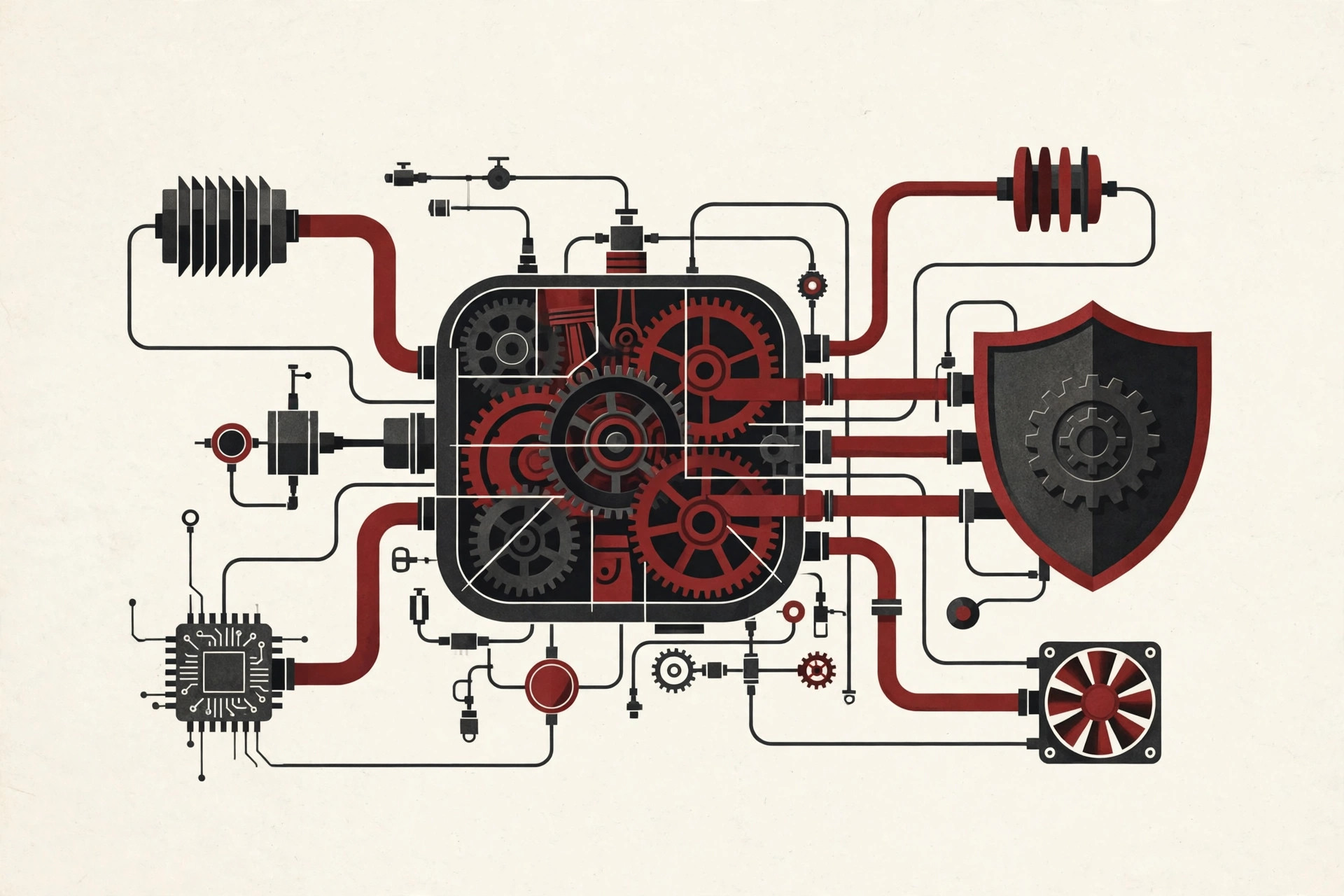
This one process does the heavy lifting of that protection. It runs real-time protection, which means it checks files at the moment you open, download, save or run them. It carries out quick scans and full scans. It also applies security intelligence updates, the small rulebook files that teach Defender about the newest threats. Microsoft itself uses this exact process name in its own performance troubleshooting guide for Microsoft Defender Antivirus, which tells you how normal and expected this process is.
Think of it as the guard at the door of your PC. Every file that comes in gets a quick look from the guard. Most of the time you never notice him. The trouble starts when the queue of things to check gets very long, and the guard starts holding everyone else up. Defender is one important layer of staying safe, and it works best alongside the simple habits in our guide to computer virus prevention.
Why It Sometimes Uses High CPU and Memory
Scanning is reading. To check a file, the process has to open it, look inside it, and compare what it finds against known threats and suspicious behavior. That work costs processor time, and big or complex files cost the most. Here are the usual reasons the numbers climb.
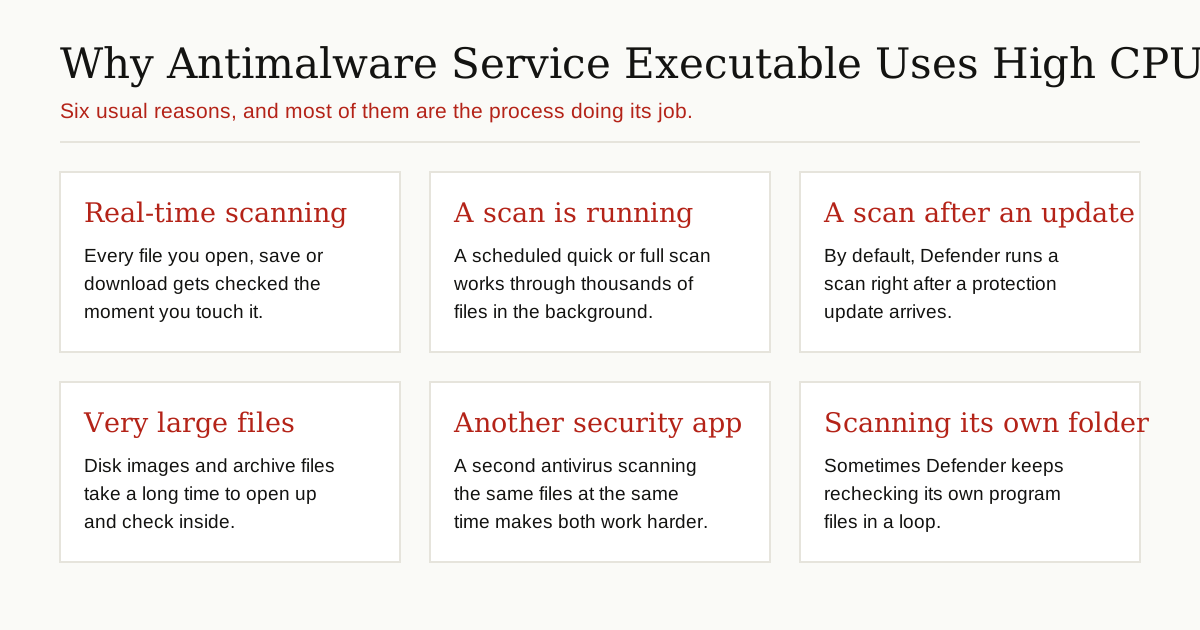
- Real-time protection is busy. Downloading a game, installing software, or copying thousands of small files means thousands of checks, one after another.
- A scheduled scan is running. Defender runs quick scans regularly and can run full scans too. By default on Windows 10 and 11, these scans are set to run during automatic maintenance, while the PC is on but not in use. If the PC was off at that time, the scan may instead greet you when you sit down to work.
- A scan follows an update. Microsoft notes that, by default, Defender also runs a scan right after a security intelligence update arrives, so protection is checked with the freshest rules.
- The files are huge. Disk images, virtual machine files and large archive files take a long time to open up and inspect. Microsoft lists large files like .iso and .vhdx files as a classic cause of long, heavy scans.
- Another security program is fighting it. If a second antivirus or security tool scans the same files at the same time, both programs work much harder. Microsoft calls out conflicts with other security software as a common reason for high usage.
- It keeps scanning its own folder. A quirk often discussed in Microsoft’s support forums: the process can end up rechecking Defender’s own program files again and again, which wastes effort. There is a careful fix for this below.
Memory use climbs for a related reason. During a big scan, the process holds file data and threat information in memory so it can work quickly. You may see its memory use grow while a scan runs, then settle back down once the scan ends. A short spike during a scan is normal. Memory that stays very high for hours, with no scan running, is worth the fixes below.
First, Check Whether a Scan Is Simply Running
Before changing any settings, take ten seconds to check. Open the Windows Security app, go to Virus & threat protection, and look at the Current threats section. As Microsoft’s guide to the Windows Security app explains, this page shows the last scan, how long it took, and lets you start or review scans.
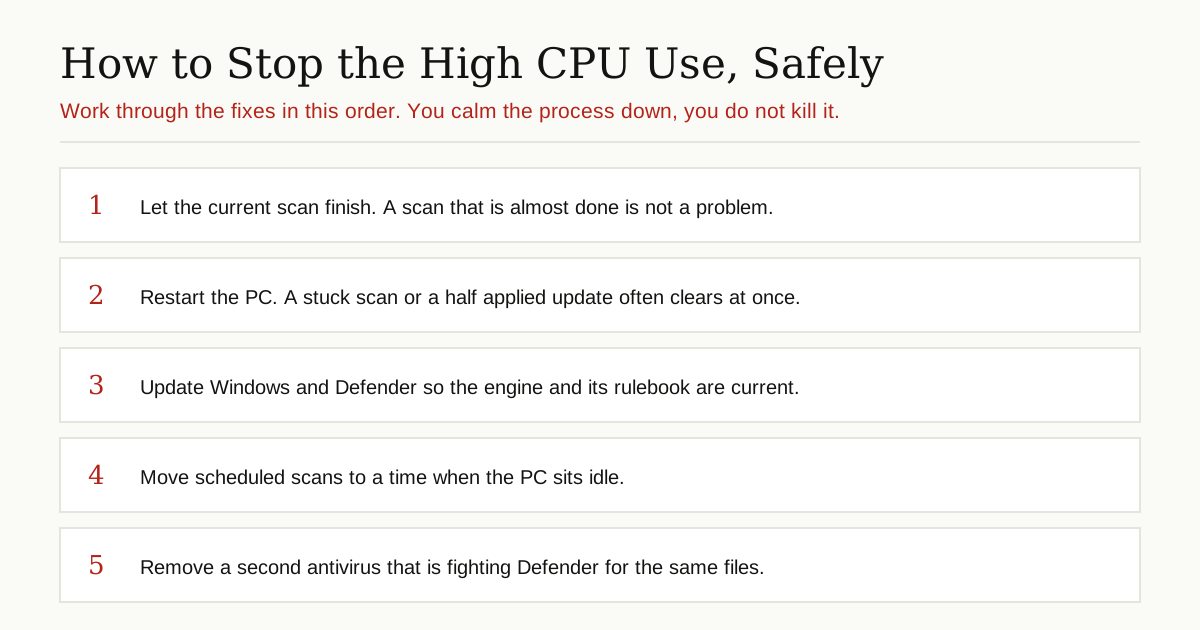
If a scan is running, the kindest fix is to let it finish. A full scan of a large drive can take a while, and stopping it halfway just means it starts again later. If the CPU use drops back to normal when the scan ends, nothing was broken, and you can stop reading here.
Fix 1: Restart Your PC
It sounds too simple, but a restart clears a stuck scan, finishes updates that were waiting in the background, and gives the process a clean start. If the high usage began out of nowhere today, restart before you change anything else.
Fix 2: Update Windows and Defender
An out-of-date engine or an old set of threat rules can make the process work harder than it should, rescanning in ways that newer versions handle better. Updates also arrive several times a day for the threat rules, so a PC that has been offline can have a lot to catch up on.
- Open Settings and run Windows Update, then install everything offered and restart if asked.
- Open the Windows Security app and go to Virus & threat protection.
- Under Virus & threat protection updates, select Check for updates to pull the latest security intelligence right away.
Microsoft delivers these protection updates through Windows Update automatically, but the manual check makes sure you are current today, not tomorrow.
Fix 3: Move Scans to Times When the PC Is Idle
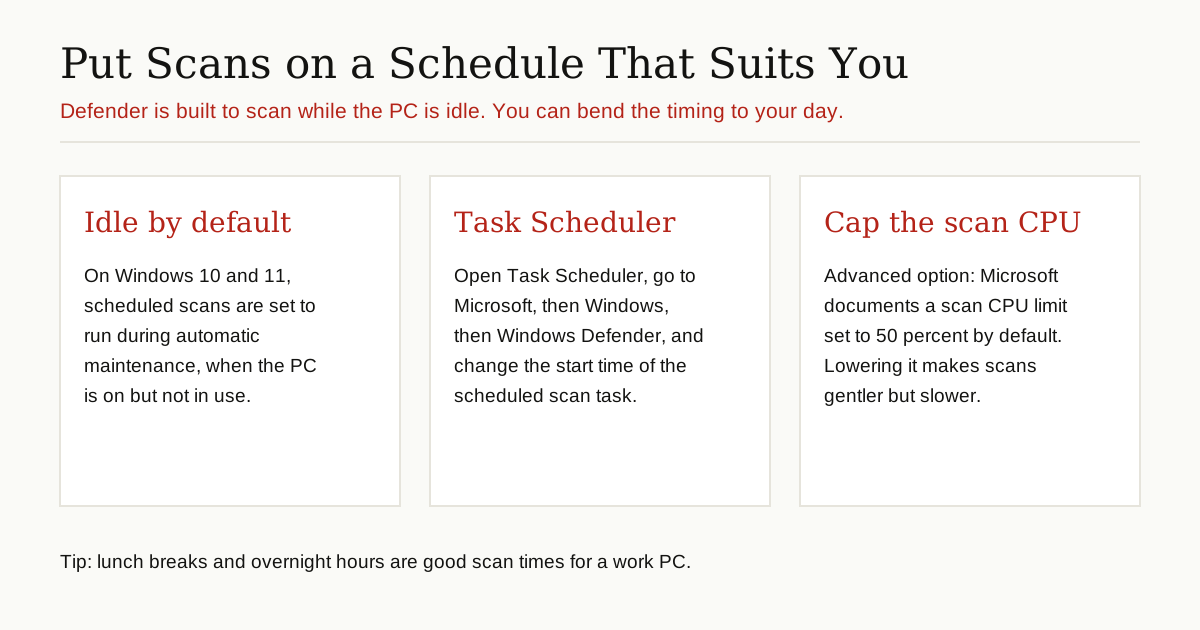
If scans keep landing in the middle of your work, change when the scheduled scan runs. Scheduled scans are meant for quiet moments, and Microsoft’s guide to scheduling scans in Microsoft Defender Antivirus confirms they are built around the idea of running while the machine is not in use.
- Press the Windows key, type Task Scheduler, and open it.
- In the left panel, open Task Scheduler Library, then Microsoft, then Windows, then Windows Defender.
- Double-click Windows Defender Scheduled Scan.
- On the Triggers tab, edit the trigger and pick a time when the PC is on but unused, such as a lunch break or late evening. Save with OK.
One advanced option for confident users: Microsoft documents a limit for the maximum CPU a scan may use, set to 50 percent by default. Lowering it to 20 or 30 percent makes scans gentler, though they take longer. Administrators set it through Group Policy or the Set-MpPreference PowerShell command, so only try this if you are comfortable with those tools.
Fix 4: Stop Defender From Scanning Its Own Folder
If the process seems busy all the time, even when nothing else is happening, it may be stuck rechecking its own files. A fix widely recommended by advisors in Microsoft’s own support forums is to add one narrow exclusion: Defender’s own program folder, so the process stops scanning itself in a loop.
- Open the Windows Security app and go to Virus & threat protection.
- Under Virus & threat protection settings, select Manage settings.
- Scroll to Exclusions and select Add or remove exclusions.
- Select Add an exclusion, choose Folder, and add this path:
C:\ProgramData\Microsoft\Windows Defender
Take Microsoft’s caution seriously here: an exclusion means Defender will no longer check whatever you excluded. That is acceptable for Defender’s own folder, because those files come from Microsoft and the point is to stop a pointless loop. It is not acceptable for your whole drive, your Downloads folder, or random folders a website tells you to exclude. Keep exclusions as few and as narrow as possible.
Fix 5: Check for a Conflict With Another Antivirus
Two bodyguards checking the same guest twice helps nobody. If you installed another antivirus, even a free trial that came with the PC, it may still be running its own real-time scans alongside Defender.
Here is the key fact from Microsoft: if you install a compatible non-Microsoft antivirus, Microsoft Defender Antivirus turns itself off automatically. So if you prefer the other product, install it properly and Defender will step aside on its own, no manual disabling needed. If you prefer Defender, uninstall the other antivirus completely, including its leftover services, and restart. What you should not do is leave two half-active products fighting over the same files.
How to Check the Process Is the Real One
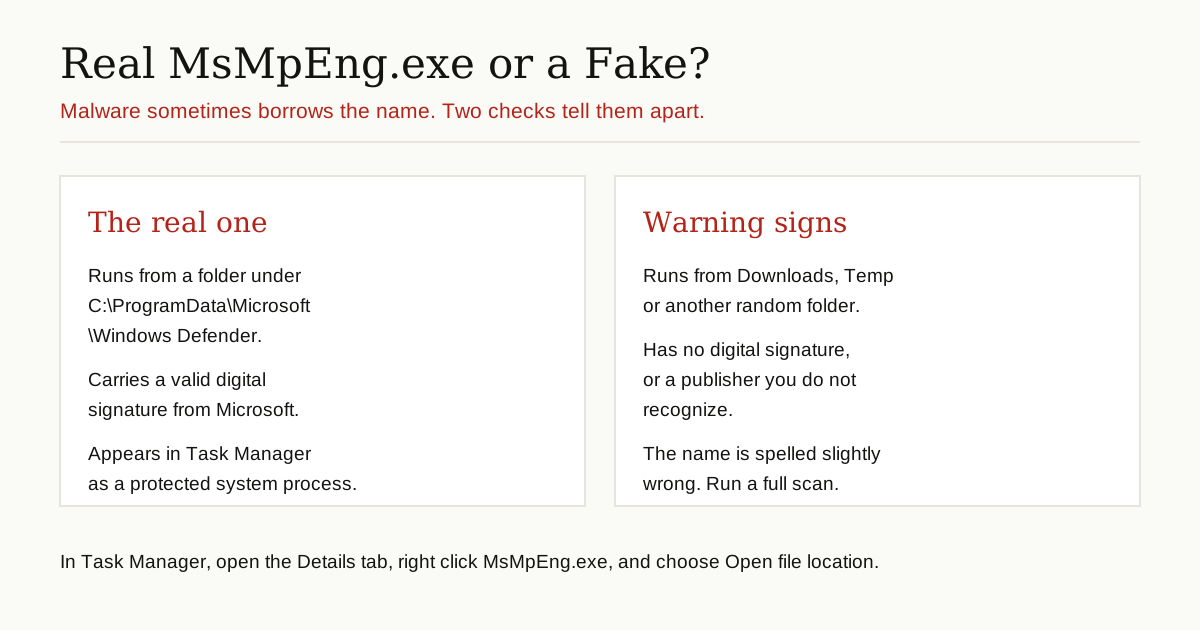
Because the name is trusted, malware sometimes borrows it. A fake MsMpEng.exe is rare, but the check takes one minute and is worth doing once, especially if the high CPU appeared right after installing something new. It is the same caution you should apply to anything that runs quietly in the background, from a random download to a browser agent with broad access to your PC.
- Open Task Manager and go to the Details tab.
- Right-click MsMpEng.exe and choose Open file location.
- The real file lives in a folder under
C:\ProgramData\Microsoft\Windows Defender, in the Platform subfolder on current versions of Windows. - For a second check, right-click the file, open Properties, and look at the Digital Signatures tab. The signer should be Microsoft.
If the file runs from Downloads, a Temp folder or anywhere else unexpected, treat it as suspicious. Run a full scan from Windows Security. If you are still worried, use the Microsoft Defender Antivirus offline scan under Scan options. It restarts the PC and scans before Windows fully loads, which makes it harder for stubborn malware to hide.
What Not to Do
When a PC is slow, the internet offers plenty of bad advice about this process. Avoid all of the following.
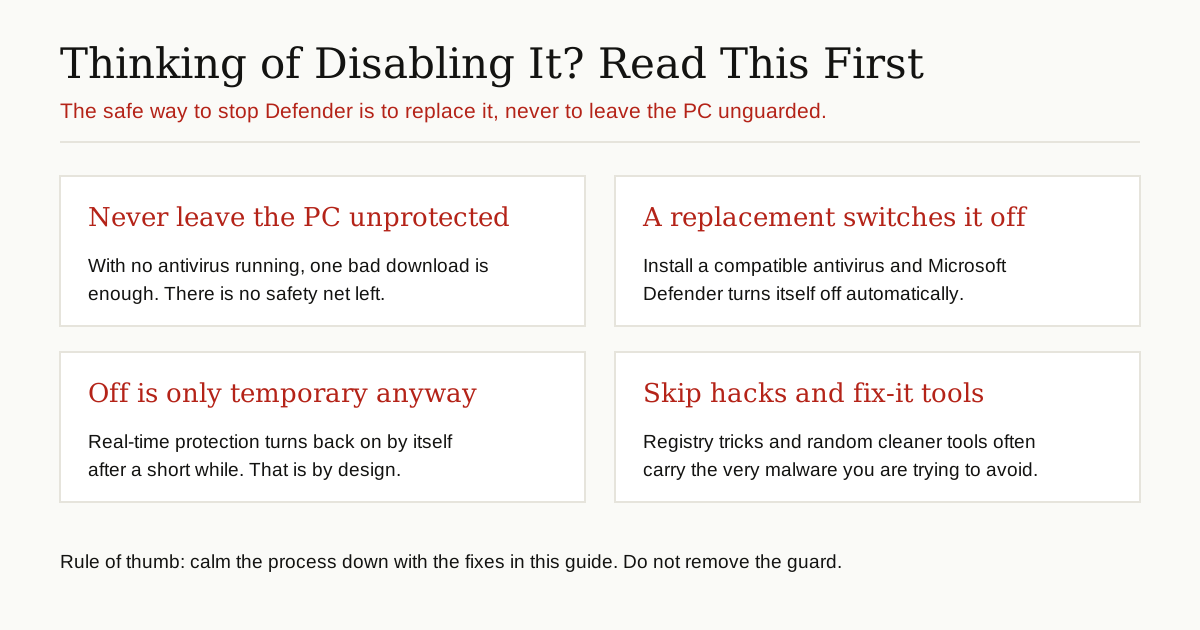
- Do not try to delete MsMpEng.exe or force the service off. It is a protected Windows process, and tamper protection exists specifically to stop apps, including malicious ones, from changing Defender’s settings.
- Do not leave the PC with no antivirus at all. The only safe way to stop Defender is to replace it with another real antivirus, which switches Defender off by itself. Turning real-time protection off is meant to be temporary; Microsoft switches it back on automatically after a short while, and while it is off, files you open are not scanned.
- Do not download one-click fix tools or registry hacks. Pages promising to disable the process forever often bundle the very junk you are trying to avoid, and weakening your defenses is exactly how a PC ends up facing something worse, like the attacks described in our guide on what ransomware is and how it spreads.
- Do not exclude large parts of your drive. An exclusion is a blind spot. One narrow folder, added for a clear reason, is a fix. A whole drive is an open door.
When High Usage Is Normal, and When It Is Not
High usage is normal during a scan, right after a protection update, when you plug in a big external drive, and on the first start after the PC has been off for days. In those cases it should settle within minutes, or at the end of the scan.
It is not normal if the process sits at high CPU for hours every day, no scan is running, and you have already restarted, updated, rescheduled, and removed conflicts. At that point, run a full scan to rule out malware, check the file location as described above, and work through Microsoft’s performance guide linked earlier in this article.
The Bottom Line
Antimalware Service Executable is not the problem in your PC. It is the guard. When it uses too much CPU or memory, it is usually scanning hard, scanning at the wrong time, or fighting another security program for the same files. Let scans finish, keep Windows and Defender updated, move scans to idle hours, keep exclusions narrow, and never leave the machine unprotected. Do those things, and the guard goes back to being invisible, which is exactly what you want.
For more guides like this one, browse the cybersecurity and networking category.