Ask a group of programmers how many spaces is a tab, and you will get a heated argument for a tiny question. One person says 8. Another says 4. A third says 2, and a fourth says the question itself is wrong.
That fourth person is right. The question hides a trick: it assumes a tab is just a bundle of spaces tied together. It is not. A tab is its own character with its own job, and once you see what that job is, the whole debate makes a lot more sense.
The Short Answer
If you need one number to set in your editor right now, use 4. That is the default tab size in VS Code, the most popular code editor, and 4 spaces is what the Python style guide asks for.
But the honest answer to how many spaces is a tab is: it depends. A tab character is always one character. How wide it looks can be anything from 1 to 8 columns, depending on where it starts and which program is drawing it. On an old school terminal, a tab usually looks 8 spaces wide. In a modern editor, it usually looks 4 wide, and plenty of teams set it to 2.
The rest of this guide explains why one little character can have so many widths, what the famous style guides actually say, and how to set your editor so you never have to think about it again.
What a Tab Really Is: The Tab Stop
A tab is not stored as a row of spaces. It is a single character, ASCII code 9, written as \t in code. That character is not really a width at all. It is an instruction: move the cursor to the next tab stop.
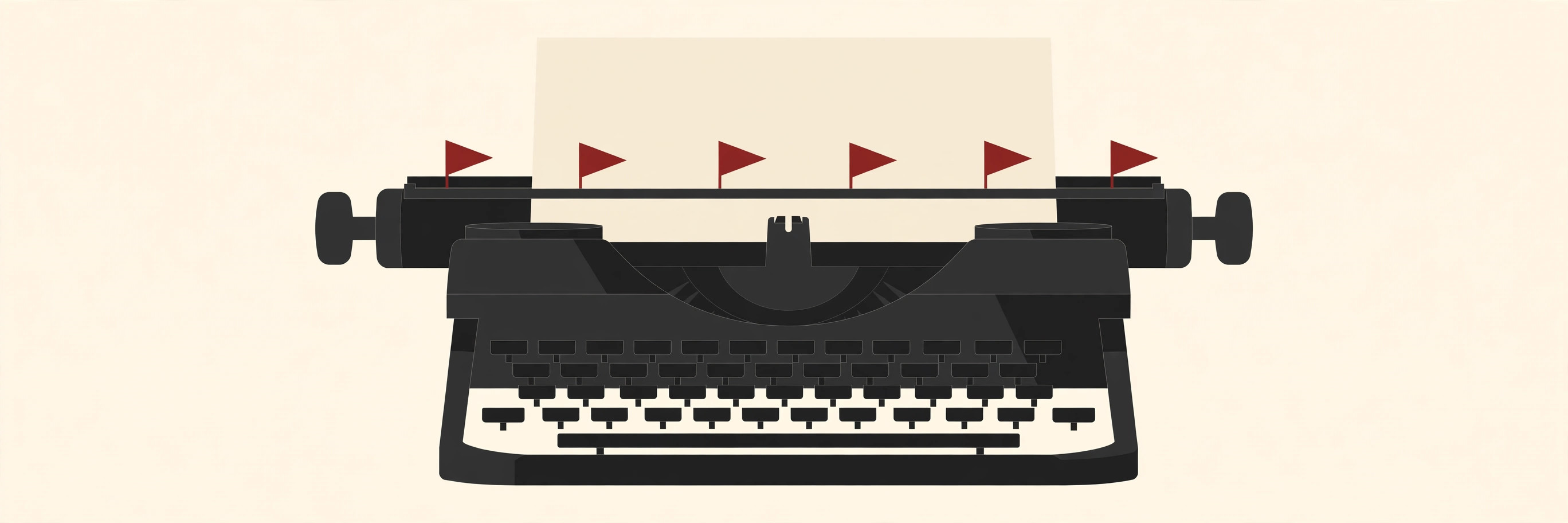
Tab stops are invisible markers placed at regular intervals across the line, like flags planted along a road. When a program meets a tab character, it jumps forward to the next flag and stops there.
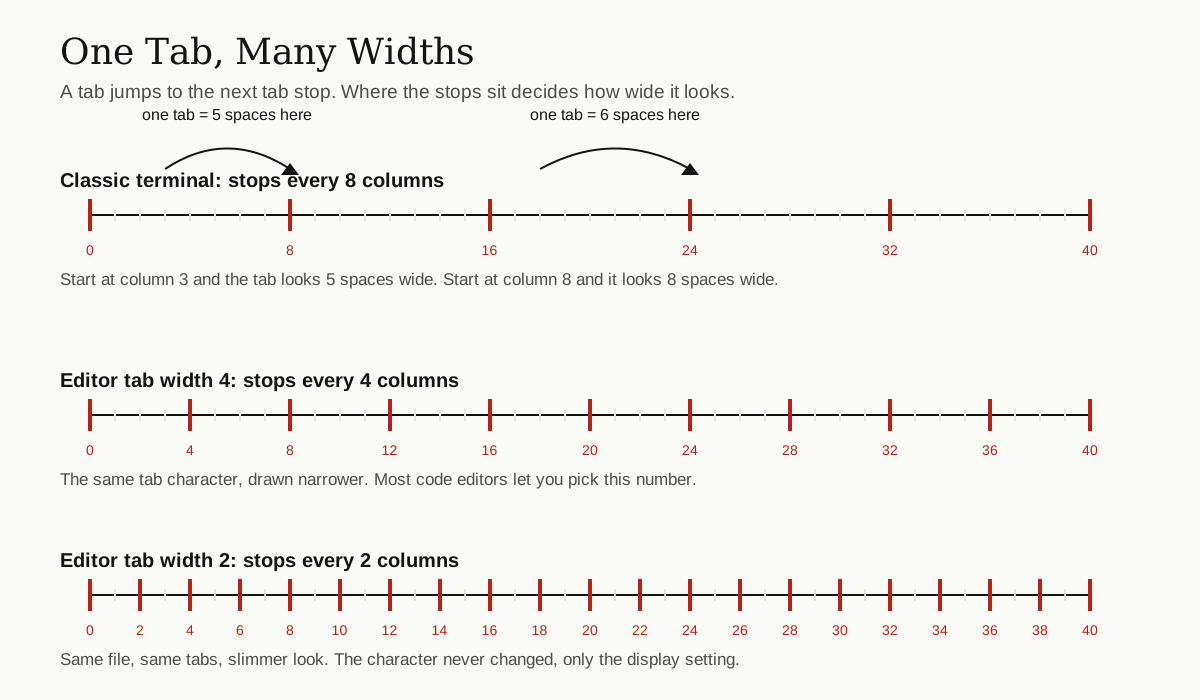
Imagine the stops sit every 8 columns, at positions 8, 16, 24 and so on. Your cursor is at column 3 and hits a tab: it lands on column 8, a jump of 5 spaces. If the cursor is already at column 8, the same tab character jumps to column 16, a full 8 spaces. And if the cursor is at column 9, the jump is 7. One character, three different widths, all in the same line of text.
That is why asking how many spaces in a tab is a bit like asking how long a step is. It depends on where your foot starts and where the next marker sits.
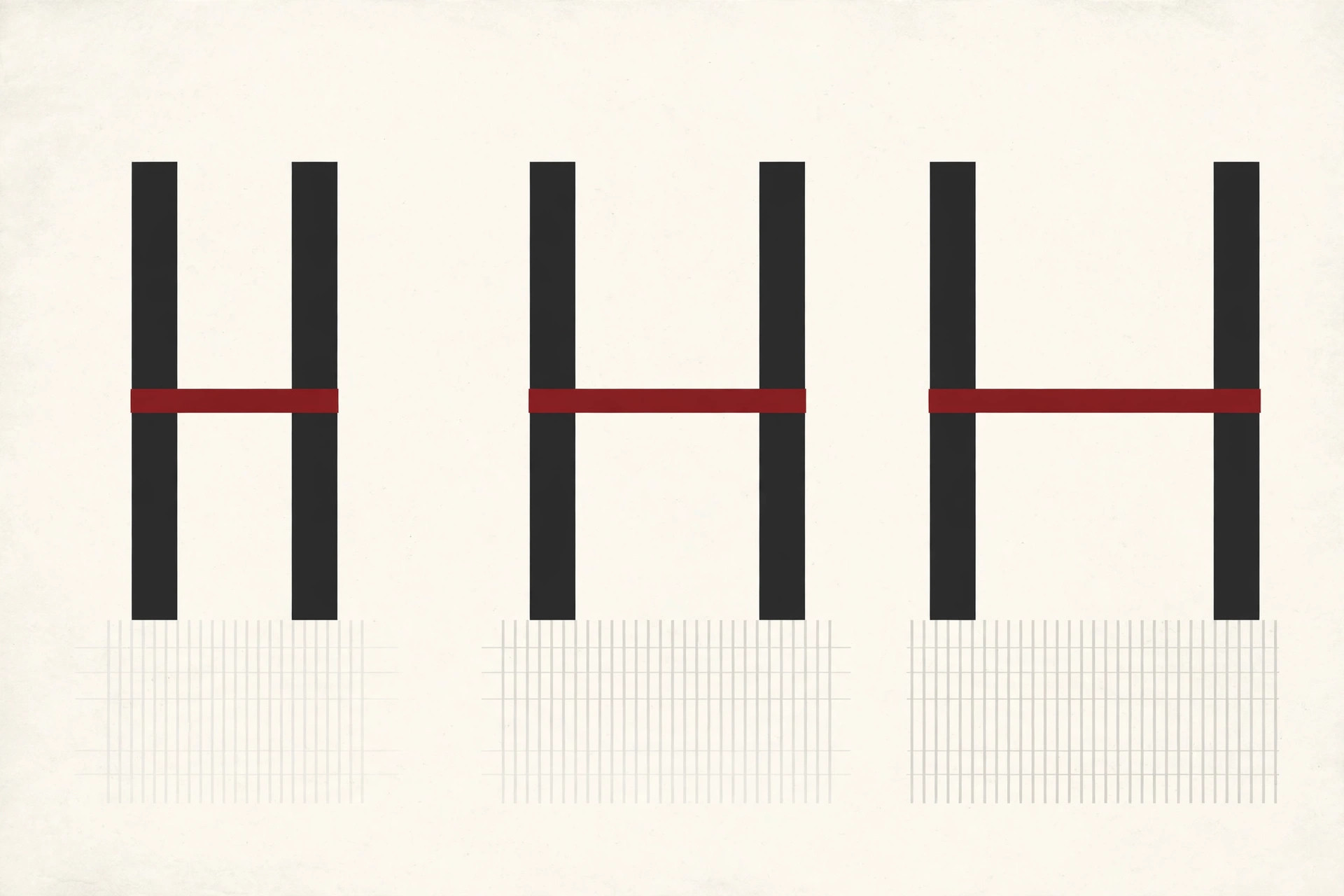
When people talk about tab size or tab width in an editor, they mean the distance between those flags. Set the tab width to 4 and the flags move closer together. Set it to 2 and they get closer still. The character in the file never changes. Only the map of stops does.
A Very Short History: Typewriters, Terminals and the Number 8
The tab key is older than computers. On typewriters, the Tab key slammed the carriage along to the next tab stop, and those stops were small metal pieces the typist could move by hand to line up columns on forms and tables. Early printers copied the idea with their own mechanical stops.
Adjustable stops were fiddly, so fixed stops became the habit, and the industry settled on one every 8 columns. Eight was friendly to early electronics because it is a power of two, which made the counting cheap for the hardware of the day. Fun detail: the normal paragraph indent on a typewriter was five characters, so 8 was never really about typing essays. It came from machines, forms and data.
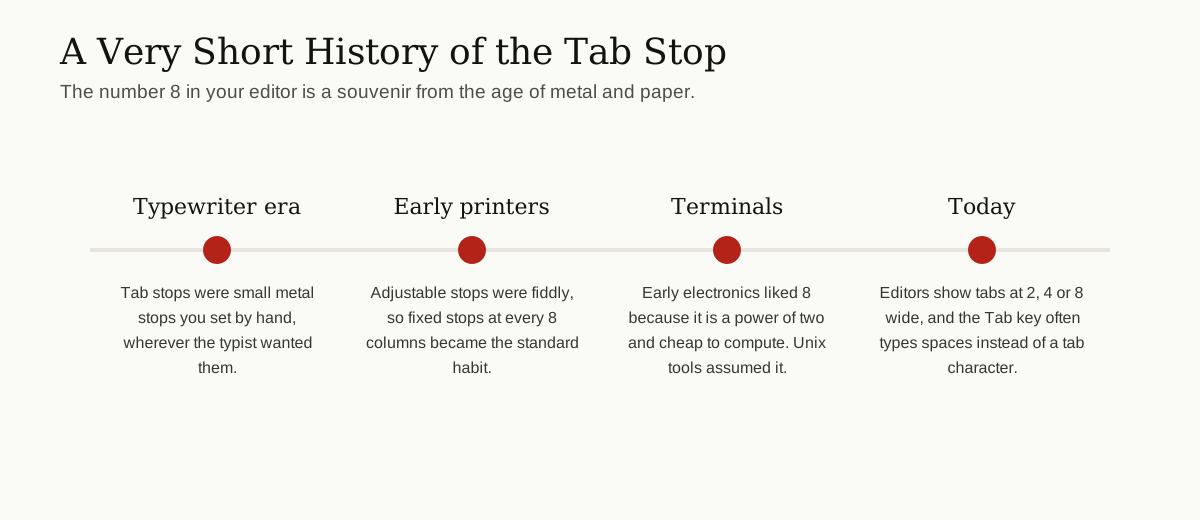
Terminals and early Unix tools inherited the 8 column habit, and it stuck around for decades as the default. When you open a plain terminal today and see wide indentation, you are looking at a souvenir from the age of metal stops and paper forms.
What Editors Do Today
Modern code editors separate two choices that beginners often mix up:
- What the Tab key types. In most editors, pressing Tab inserts spaces, not a tab character. VS Code does this by default through its insertSpaces setting.
- How wide a tab character is drawn. This is the tab size setting. In VS Code it is called editor.tabSize, and its default value is 4.
VS Code also has a detectIndentation setting, turned on by default, which inspects each file you open and quietly matches whatever style that file already uses. That is why the same editor can feel like a 2 space editor in one project and a 4 space editor in another. It is not being random. It is being polite.
So when someone asks how many spaces is a tab in VS Code, the practical answer is 4 for the display width, out of the box. In a terminal, the answer is still usually 8. Neither program is broken. They simply plant their flags in different places.
Tabs vs Spaces: The Friendliest War in Programming
Few style questions have caused as many jokes, memes and sitcom scenes as tabs vs spaces. The TV show Silicon Valley gave the fight a whole storyline, which tells you how deep the feelings run. Under the jokes, both sides have real points.
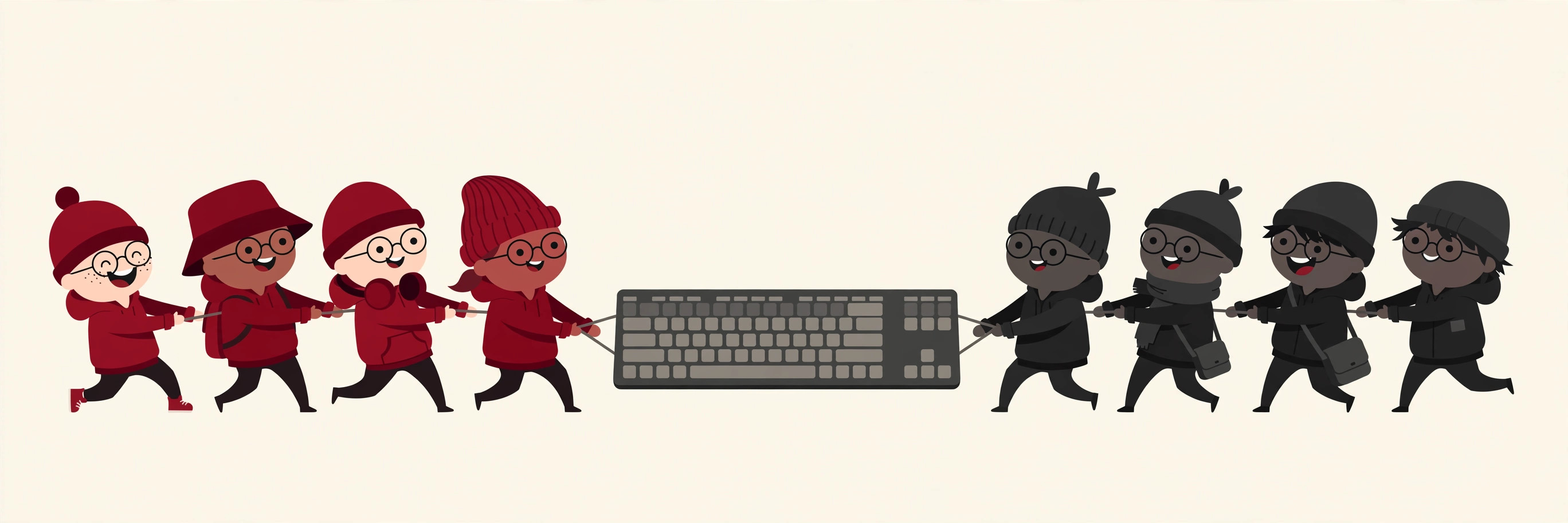
The case for spaces is consistency. Spaces are spaces everywhere. Code indented with spaces looks identical in every editor, every terminal and every web page, because there is no setting that can stretch a space.
The case for tabs is control and size. A file indented with tabs is smaller, since each level costs one character instead of several. And because a tab has no built in width, every reader can choose how wide indentation looks on their own screen.
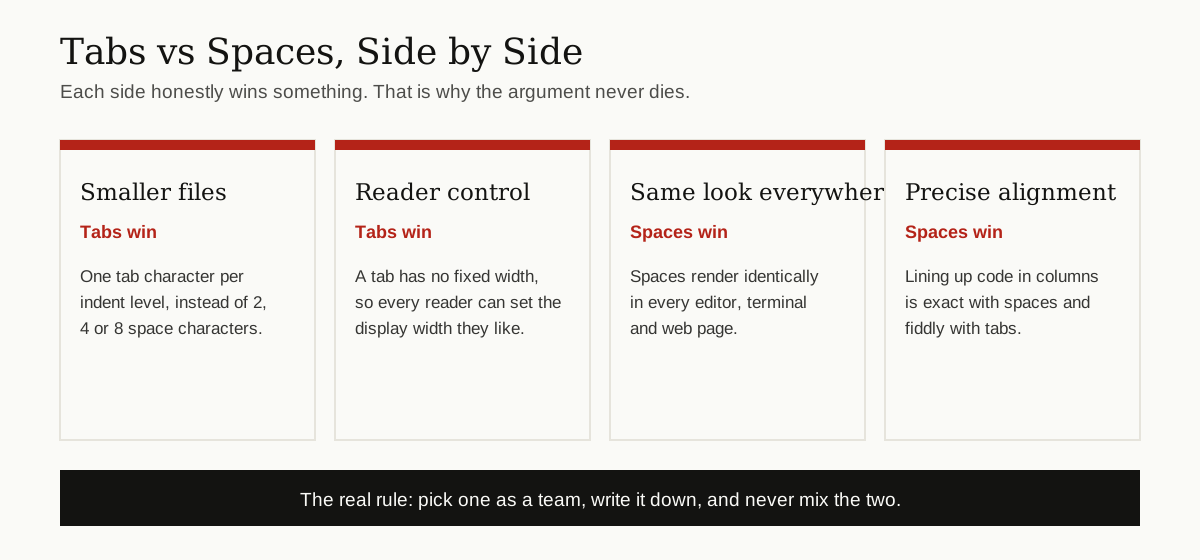
Notice something: both sides are right about different things. Spaces win on identical rendering. Tabs win on personal display. The only choice that truly loses is mixing the two in one file, because then code that looks lined up on one screen falls apart on another.
What the Famous Style Guides Actually Say
When a team cannot agree, it usually borrows a rulebook. Here are the real rules from three of the most quoted guides.
| Style guide | What it says |
|---|---|
| PEP 8, the Python guide | Use 4 spaces per indentation level. Spaces are the preferred method. Tabs are allowed only to stay consistent with code that already uses tabs. Never mix the two. |
| Google style guides (C++, Java, HTML and CSS) | Indent with 2 spaces at a time. Do not use tabs in your code. |
| Linux kernel coding style | Use real tab characters. Tabs are 8 characters wide, so indentations are 8 characters. Spaces are never used for indentation. |
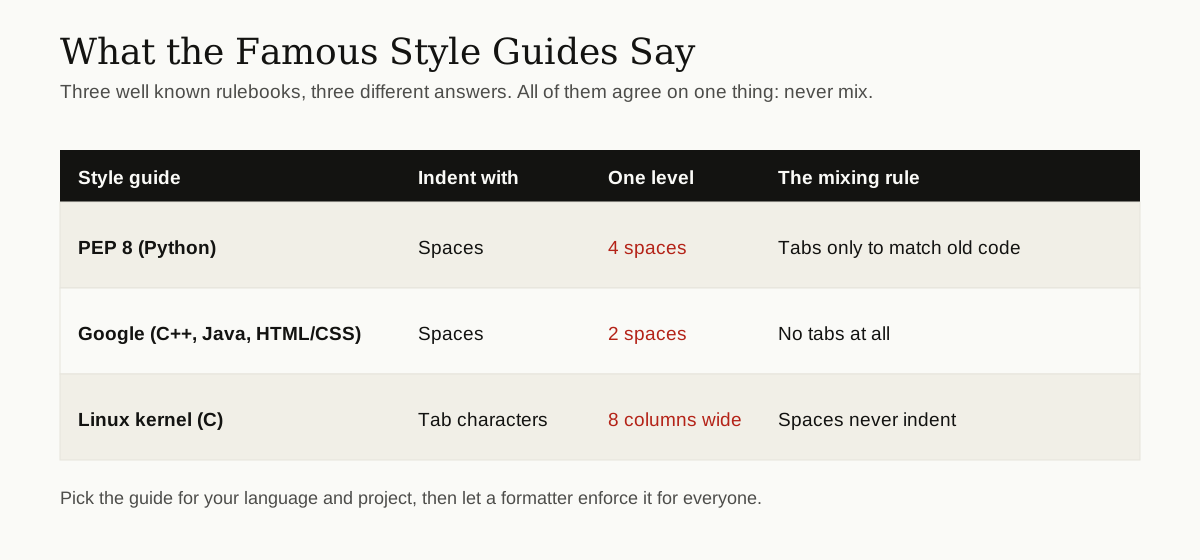
The spread is the lesson. Python says 4 spaces, Google says 2 spaces, and the Linux kernel says real tabs at 8 wide, each for sensible reasons. Many a framework and language community has picked one of these camps, so joining a new project often means inheriting its answer. The one point every guide agrees on is the ban on mixing. Python even enforces it for you: Python 3 raises an error when tabs and spaces are mixed inconsistently in indentation.
The Accessibility Point Nobody Expected
For years the tabs vs spaces fight was treated as pure taste. Then developers started making a point that is hard to argue with: real tabs are kinder to readers who need a different width.
If code is indented with spaces, the author has frozen one width into the file. A reader with low vision who wants big, clear indentation cannot change it without rewriting the file. A reader on a small laptop screen who wants narrow indentation is stuck too. If the same code is indented with tab characters, each reader sets their own tab width in their own editor, and the file works for everyone.
This argument has been raised often in recent developer discussions, and it has quietly moved some teams toward tabs for new projects. It is not a total knockout. Alignment heavy code and quick web previews still tend to look better with spaces. But it turned a joke debate into a real design question: who gets to decide how wide the indent is, the writer or the reader?
Team Rules That End the Debate
Healthy teams settle this question once, write the answer down, and let tools do the policing. Three habits do almost all of the work:
- Pick one style per project. Spaces or tabs, 2 or 4, it matters far less than everyone using the same one.
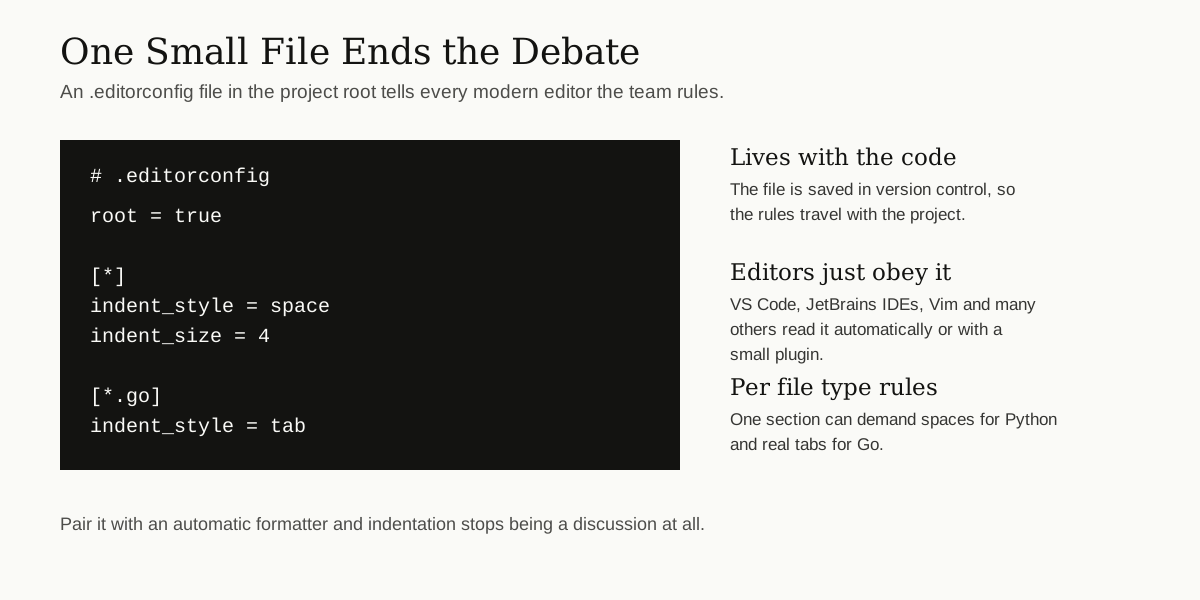
- Write it in an .editorconfig file. This small file sits in the project root and tells every modern editor the indent style and size to use, so a new team member gets the house style automatically.
- Let a formatter run on save. Formatters reformat code to the agreed style every time, which ends most arguments before they start.
There is a second, sneakier reason to be consistent: version control. When indentation changes randomly, every line of a file can look edited even when no code changed, which makes reviews noisy and history hard to read. Our guide to version control systems explains how teams keep that history clean. Consistent whitespace keeps those diffs honest.
How to Change the Setting in Popular Editors
In VS Code, the fastest route is the status bar at the bottom. Click the indentation label, which reads something like “Spaces: 4”, and you can switch between tabs and spaces or convert the file on the spot. For a permanent setup, open Settings and search for tab size. The three settings that matter are editor.tabSize for the display width, editor.insertSpaces for what the Tab key types, and editor.detectIndentation for whether VS Code guesses from each file. You can also set different values per language, so Python files get 4 spaces while another language gets tabs.
Other editors have the same ideas under slightly different names. JetBrains IDEs keep them under Editor, then Code Style. Sublime Text has Indentation options in its command palette. Vim users set them in one line, with options like tabstop, shiftwidth and expandtab. The labels differ, but the two questions are always the same: what does the Tab key type, and how wide does a tab look?
How to Convert Tabs to Spaces (and Back)
Sooner or later you will inherit a file in the wrong style. Converting it is easy, and it is safe as long as you convert the whole file at once and commit the change on its own.
In VS Code, open the Command Palette and run “Convert Indentation to Spaces” or “Convert Indentation to Tabs”. The editor rewrites the leading whitespace of every line using your current tab size setting. On the command line, the classic Unix tool expand turns tabs into spaces, and unexpand does the reverse. Formatters can also normalize a whole project in one pass.
One warning: never convert only part of a file. A half converted file is exactly the mixed indentation that breaks alignment and, in Python, breaks the program itself.
Conclusion
So, how many spaces is a tab? As many as it takes to reach the next tab stop, and not one space more. On a classic terminal the stops sit 8 columns apart. In most editors today a tab is drawn 4 wide, and style guides will tell you to indent with 2 spaces, 4 spaces, or real 8 wide tabs depending on whose code you are writing.
Pick the rule your team and your language community already use, set your editor once, and save your energy for arguments that matter. And if you are thinking about your next role, knowing why your code looks the way it does is a small but real plus; our roundup of the best coding interview books is a good place to keep sharpening. For more plain English explainers like this one, browse the software development category.