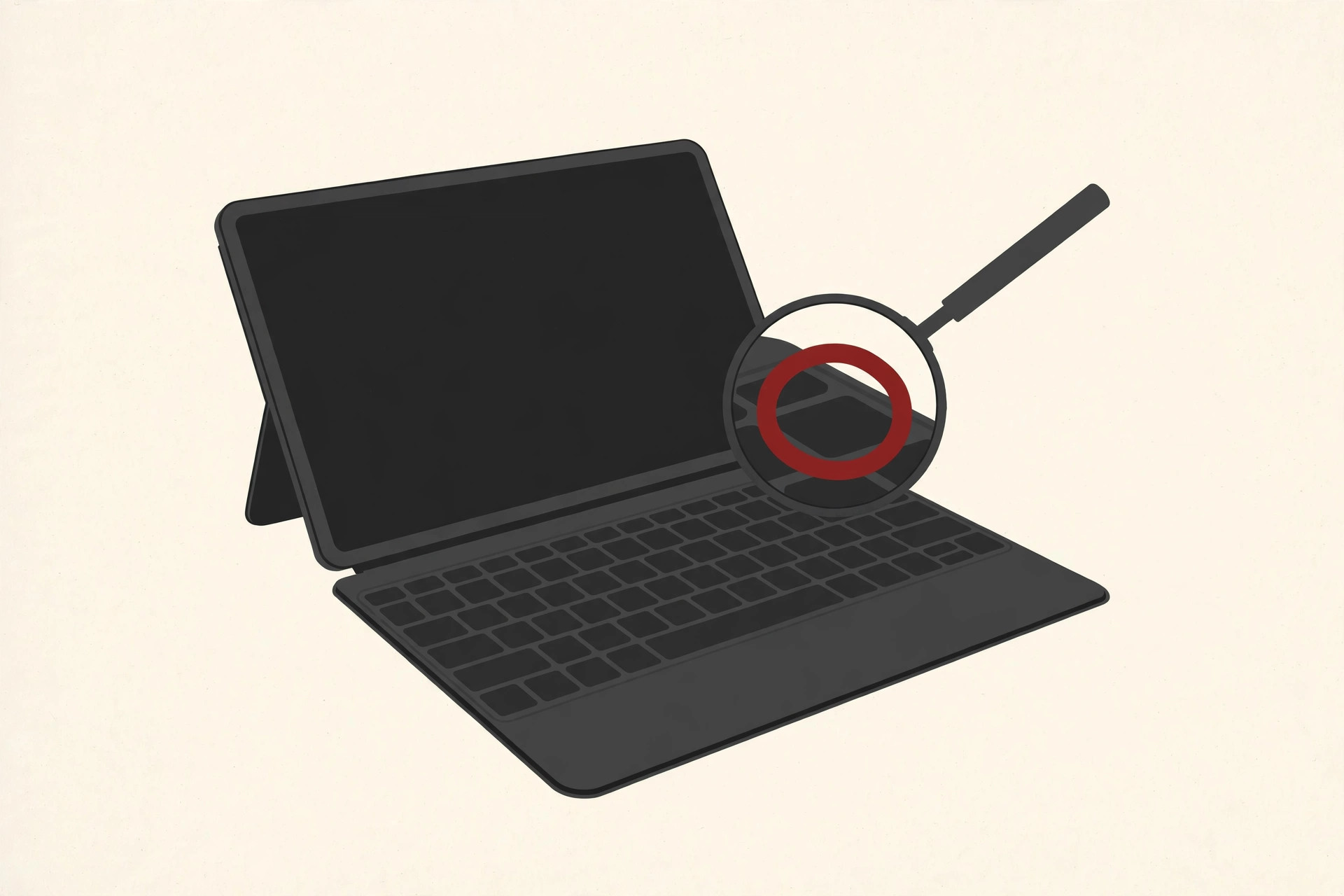
You are staring at the top right corner of your Surface Pro keyboard, hunting for a small key labeled Insert or Ins. Maybe Word just started eating the letters in front of your cursor. Maybe an older program, a terminal window, or a data entry form is asking for the key by name. Either way, the hunt ends the same way: the key is not there, and it never was.
Here is the short version. Surface Pro Type Covers have no Insert key, and Microsoft does not document a hidden key combination that produces one. The good news is that Windows gives you several solid ways around the gap, and one of them takes about ten seconds. This guide walks through all five, from the quick built-in fix to the permanent one.
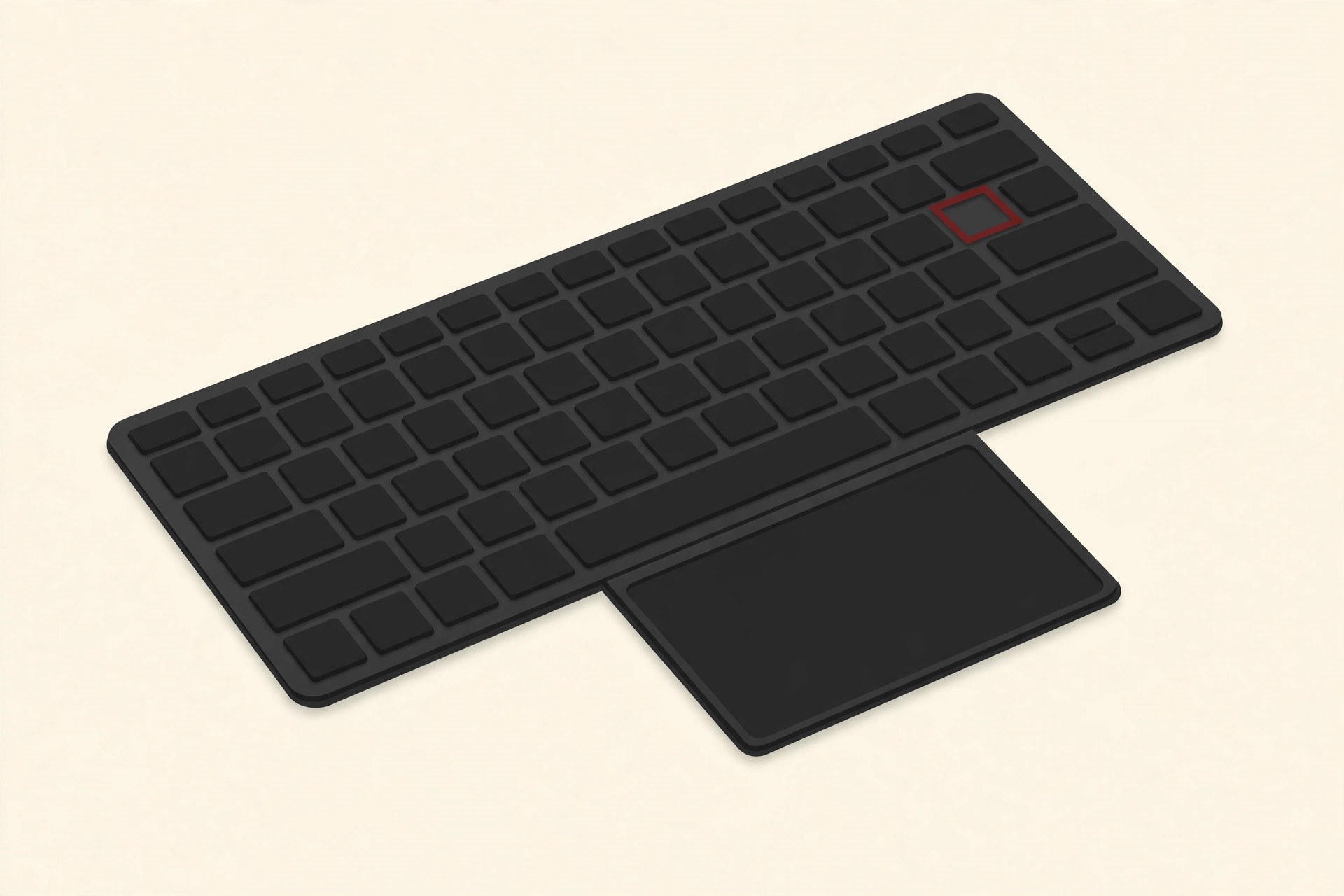
The Honest Answer: There Is No Insert Key to Find
A Type Cover has to fit a full keyboard into the width of a tablet, so something had to go. What went was the six-key editing cluster that sits above the arrow keys on a desktop keyboard: Insert, Home, End, Page Up, Page Down, and Delete. The Type Cover keeps a lone Delete key and drops the rest, which is why your fingers keep landing on empty space.
This is not a case of a key hiding behind a shortcut. Microsoft publishes a support page called “Special keys and function keys for Surface Keyboards or Type Covers” that lists what the extra keys do: microphone mute, volume, keyboard backlight, screen brightness, play and pause, Copilot, search, and Start. Insert is not on the list, in any row, with any modifier.
The Fn key does not rescue it either. On a Surface keyboard, Fn has one documented job: it switches the top row between its special actions (volume, brightness, and so on) and the plain F1 to F12 keys, and pressing it again locks your choice, with a small light on the key to show the state. Microsoft documents no Fn combination for Insert, on any Type Cover generation.
So if a website tells you to press Fn plus some key on your Surface Pro to get Insert, treat it with suspicion. A few other laptop brands really do hide Insert behind an Fn combo, and advice written for those machines gets copied onto Surface pages all the time. On a Surface, you will just toggle your volume or brightness and still have no Insert key.
What the Insert Key Actually Does
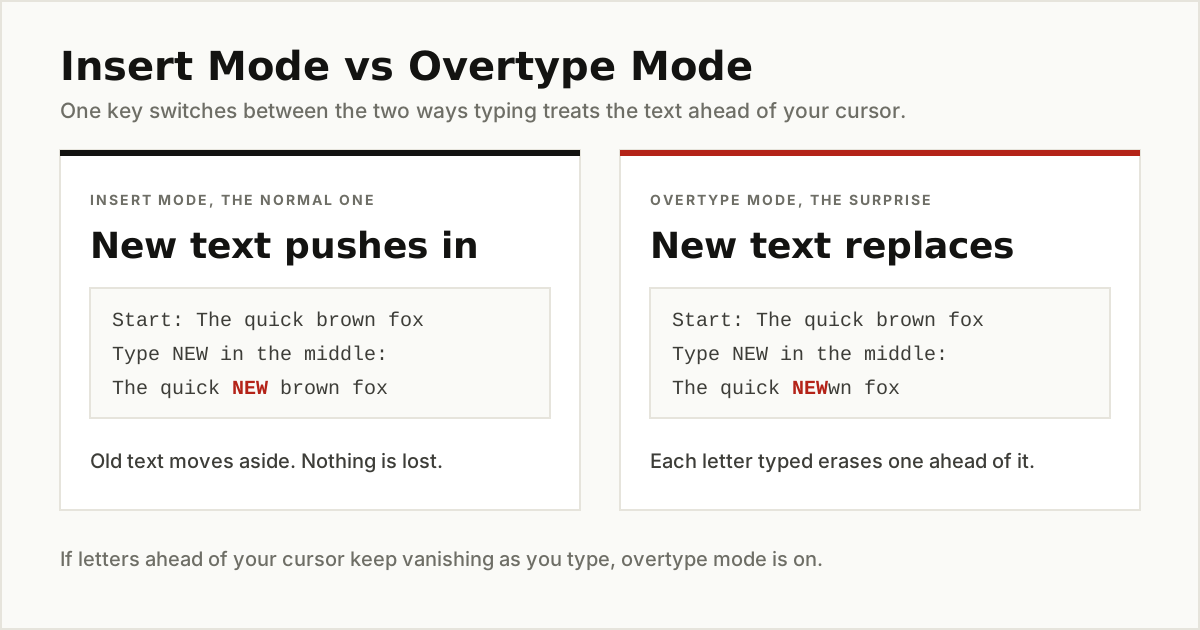
If you have only half an idea what this key is for, you are not alone. Insert switches between the two ways a program can handle typing in the middle of existing text.
- Insert mode is the normal one. You click between two words, type, and the new text pushes the old text to the right. Nothing is lost.
- Overtype mode is the trap. Each letter you type replaces the letter in front of the cursor, so your sentence quietly deletes itself as you write. Older editors showed a small OVR label for this; many people today meet overtype only when it switches on by accident and panic follows.
Most modern apps live happily in insert mode and ignore the key completely. Insert still matters in a few places: older Windows programs and some terminal tools use it to toggle overtype, some data entry systems were built around it, and the old editing shortcuts built on it, like Shift+Insert for paste and Ctrl+Insert for copy, still work in many apps. If a program is telling you to press Insert, one of the five routes below will satisfy it.
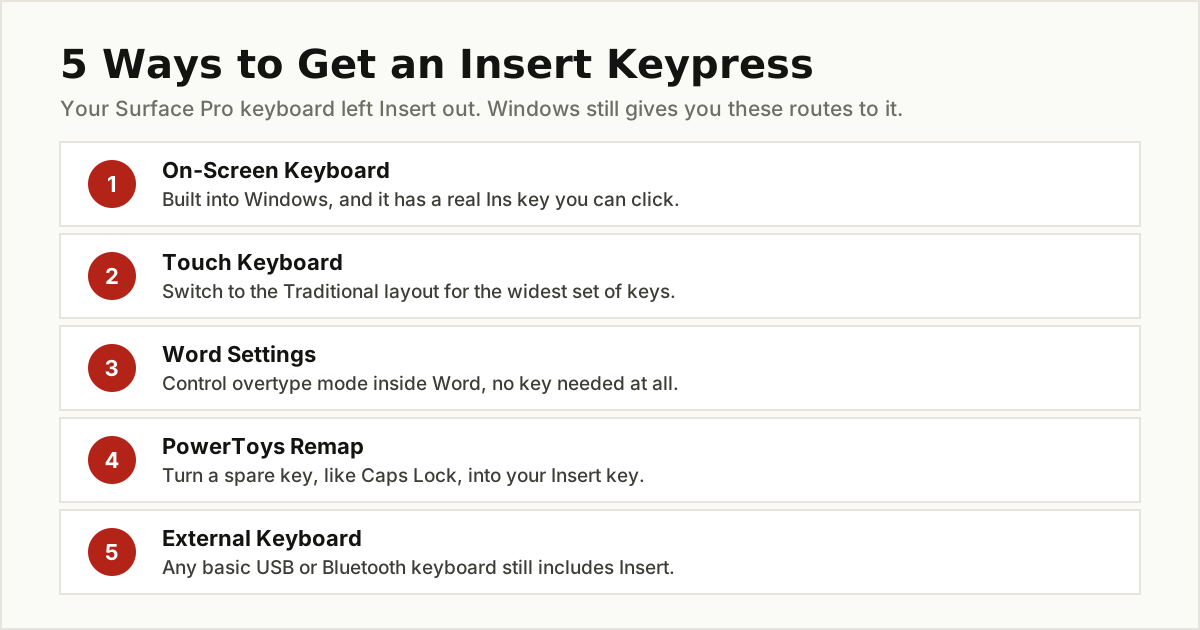
The 5 Ways to Get an Insert Keypress
1. Click Ins on the On-Screen Keyboard
The fastest fix is already inside Windows. The On-Screen Keyboard, often shortened to OSK, is a full keyboard that appears on your display, and unlike the Type Cover it includes an Ins key. Microsoft describes it as showing all the standard keys, and you can use it with a mouse, a pen, or touch. Microsoft’s support page on the On-Screen Keyboard covers the basics.
To open it the settings way:
- Select Start, then Settings.
- Go to Accessibility, then Keyboard.
- Turn on the On-Screen Keyboard toggle.
There are quicker routes once you know them. Press the Windows key + Ctrl + O to open or close it instantly, or press Windows key + R, type osk, and press Enter. If your OSK opens in the small Nav layout, which only carries navigation keys, select the General key on it to switch to the full layout. The Ins key sits in the little cluster above the arrow keys, next to Home. Click it once and it sends a real Insert keypress to whatever app you are using, toggling overtype just like a physical key would.
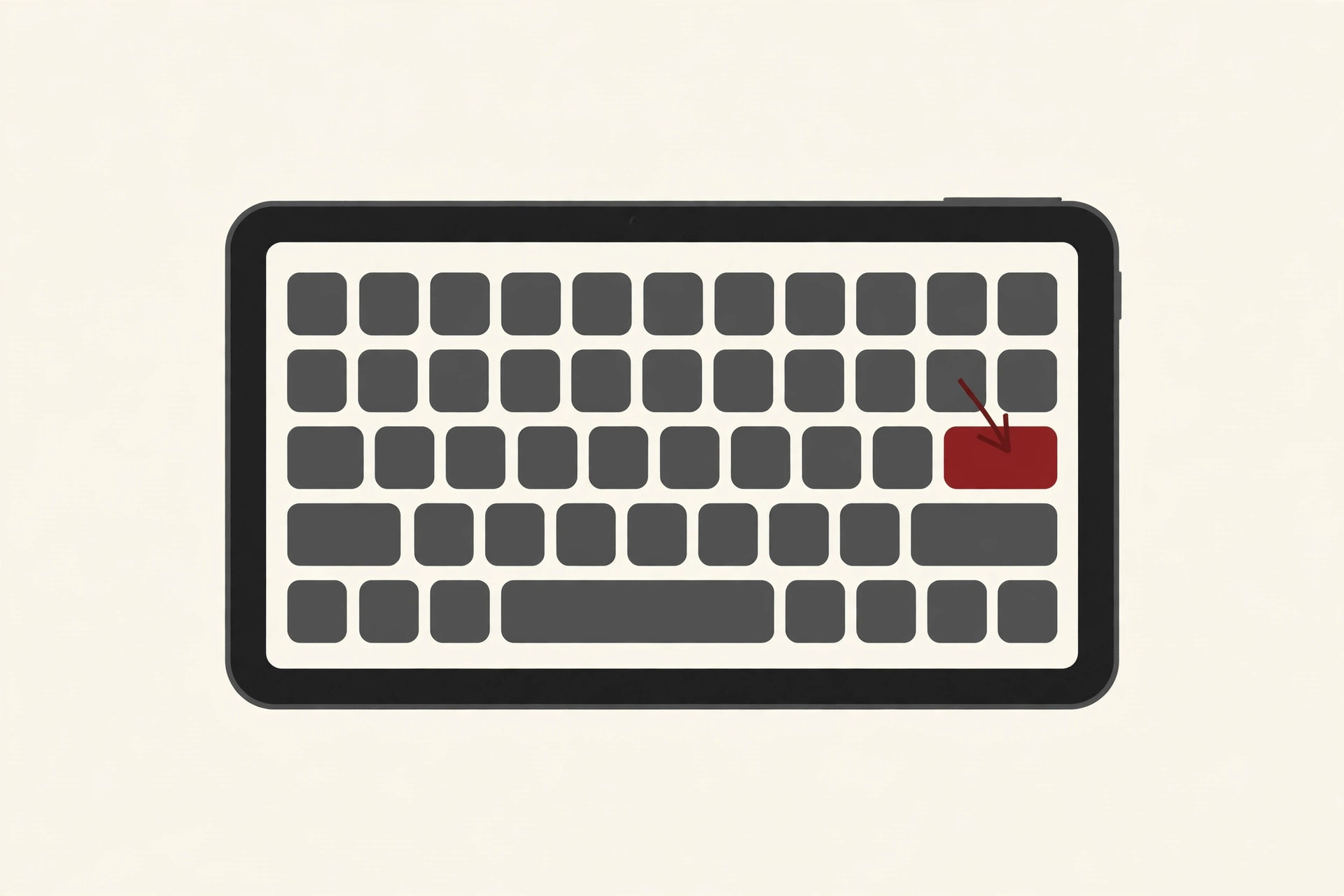
Two small tips. You can shrink the OSK and park it in a corner of the screen while you work, and it stays open until you close it. It even works at the Windows sign-in screen: select the Accessibility button in the lower right corner and choose On-Screen Keyboard. For an occasional Ins press, this method is all most people ever need.
2. Try the Touch Keyboard’s Traditional Layout
When your Type Cover is detached and the Surface is a plain tablet, Windows offers a second on-screen option: the touch keyboard. To keep it one tap away, go to Settings, then Personalization, then Taskbar, open Taskbar corner icons, and turn on Touch keyboard. A small keyboard icon then lives by the clock.
Open it and select the settings icon in its top left corner to switch layouts. The one worth choosing is Traditional, which Microsoft describes as the layout that most replicates a standard external keyboard, with all the functions and an expanded selection of keys.
Be clear-eyed about this one, though. Microsoft does not list an Insert key for the touch keyboard, and its layouts are still trimmed for thumbs, so treat any extra keys you find there as a bonus. If Ins is not in front of you, close it and use the On-Screen Keyboard from method 1, which is the guaranteed route. The touch keyboard is best thought of as the quick typing panel; the OSK is the full tool.
3. In Word, Turn Overtype Off Without Any Key at All
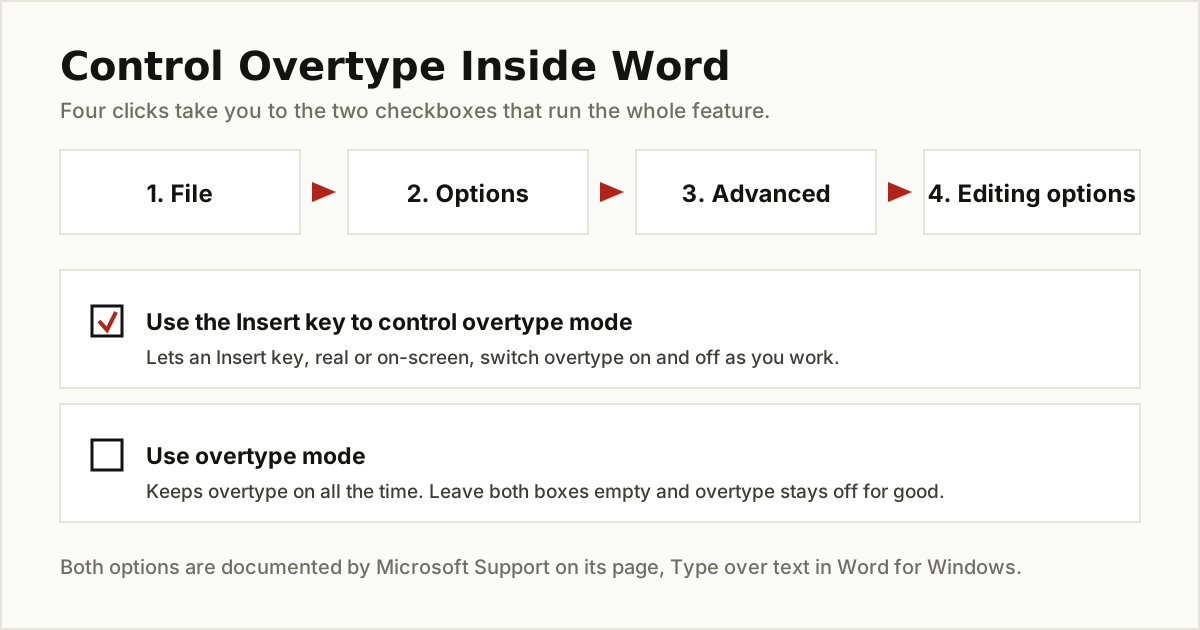
A large share of people searching for this key have exactly one problem: Word is overwriting their text. If that is you, skip the key hunt entirely and fix Word itself. Microsoft Support documents the setting on its page about typing over text:
- In Word, choose File, then Options.
- In the Word Options panel, select Advanced and find Editing options.
- Two checkboxes run the whole feature. Use the Insert key to control overtype mode lets an Insert key switch modes on and off. Use overtype mode keeps overtype on all the time.
To banish overtype for good, clear both boxes and select OK. Word then stays in insert mode no matter what. Leave the first box ticked instead if you want the option of toggling, using the On-Screen Keyboard or a remapped key from the methods around this one. In current versions of Word the Insert key control is off by default, so if your copy is overtyping, an older setting or another program is usually the real culprit.
One more Word trick worth knowing: right-click the status bar at the bottom of the Word window and tick Overtype. A small Insert or Overtype label appears at the bottom left, and clicking that label switches modes directly, no key required.
4. Remap a Spare Key with Microsoft PowerToys
If you need Insert every day, clicking an on-screen key gets old fast. The permanent fix is to give the job to a physical key you never use. Microsoft’s own free utility set, PowerToys, includes a Keyboard Manager built for exactly this. Microsoft’s Keyboard Manager documentation walks through the same steps:
- Install PowerToys from the Microsoft Store and open it.
- Select Keyboard Manager and make sure its toggle is on.
- Select Remap a key, then Add key remapping.
- In the Select column, choose the key you are giving up. Caps Lock is the classic spare: few people use it, and it sits right under your left pinky.
- In the To send column, choose Insert, then select OK.
From then on, that key is your Insert key in every app, applied the moment you press OK, with no restart. PowerToys is one of those free productivity tools that quietly pays for itself in saved annoyance.
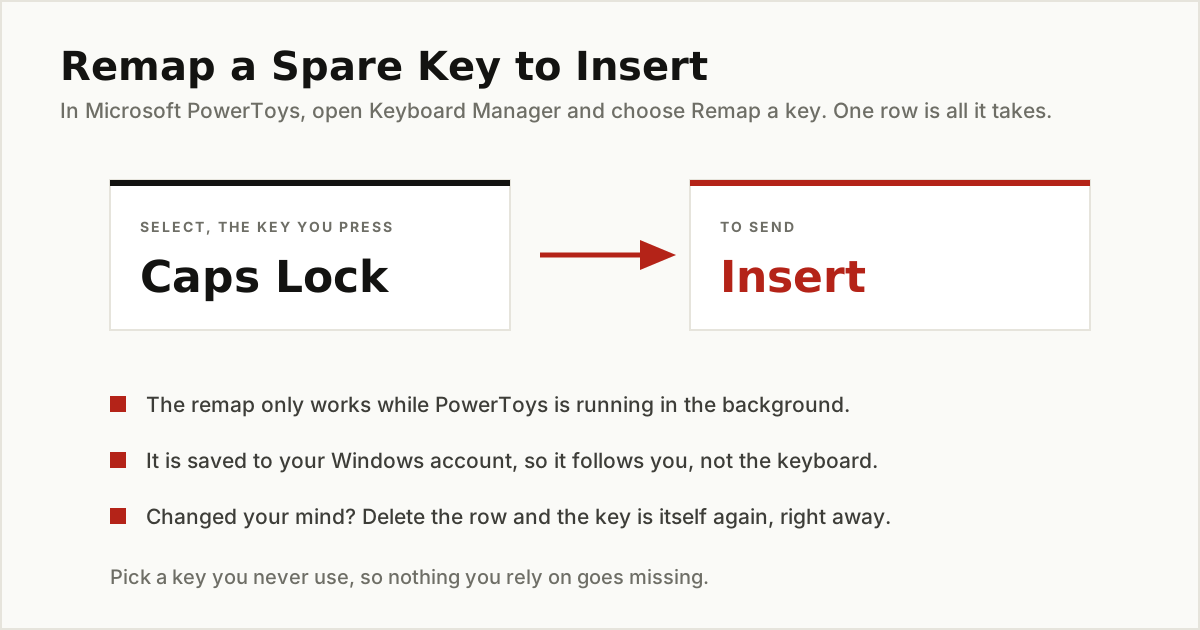
Now the honest warnings, all from Microsoft’s own documentation. The remap only works while PowerToys is running in the background, so if you close PowerToys, your key goes back to normal. The mapping is saved to your Windows account rather than the keyboard, which means it follows you across keyboards on that PC but does nothing for anyone else who signs in. Keyboard Manager also cannot help on the sign-in or password screens, because PowerToys is not running yet at that point. And undoing it is painless: open the same Remap a key window, delete the row, and the key is itself again immediately.
5. Plug In a Keyboard That Has the Key
Sometimes the simplest answer is hardware. Any basic USB or Bluetooth keyboard includes the full editing cluster, Insert included, and full-size boards add a number pad on top. If Insert is woven into your daily work, in terminal sessions, remote desktops, or legacy data entry, a real key beats every workaround in this guide.
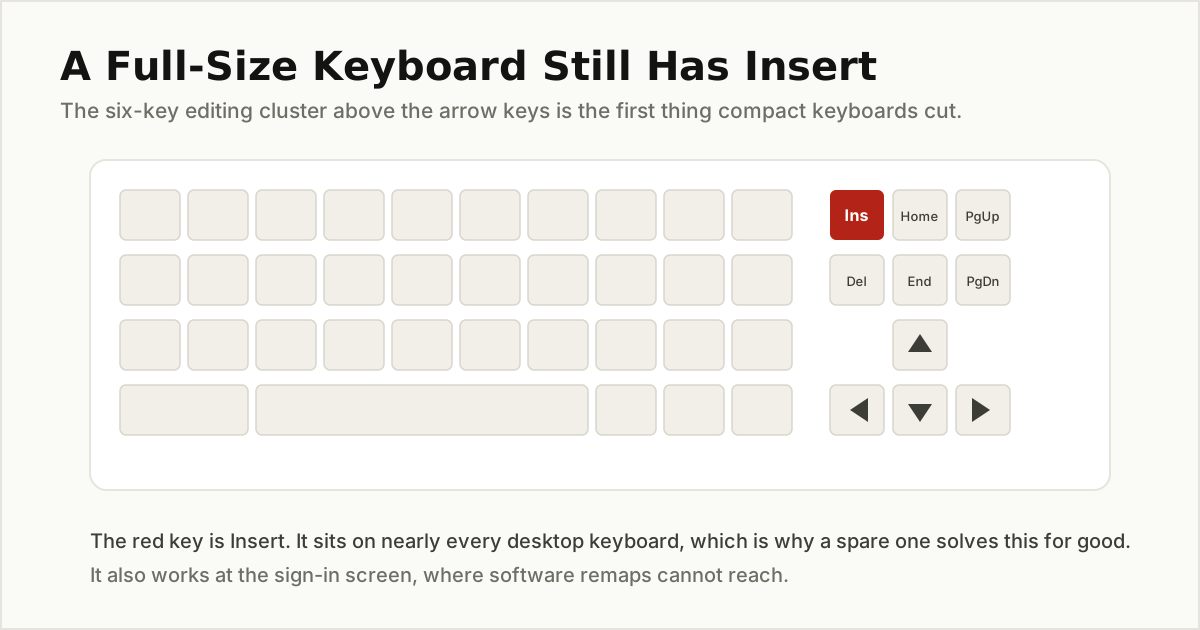
An external keyboard also covers the two gaps the software fixes leave: it works at the sign-in screen, and it works inside every app with no settings at all. Small folding Bluetooth keyboards travel well next to a Surface, and a cheap wired board is a perfectly good desk drawer backup for the one program that refuses to cooperate.
What About Surface Laptop and Surface Book?
The same story, briefly. Microsoft’s keyboard documentation covers Surface Laptop models alongside the Type Covers, and while those keyboards squeeze a few more navigation keys along the top row, Insert is not among them and no Insert combination is documented there either. Surface Book owners are in the same boat with the keyboard base attached, and once the screen is detached it is a tablet, where the two on-screen methods in this guide are the natural answer anyway. All five fixes work unchanged on both lines.
The Bottom Line
There is no Insert key on a Surface Pro, and no secret Fn shortcut waiting to be found, whatever the copied blog posts claim. For a one-off press, open the On-Screen Keyboard with Windows key + Ctrl + O and click Ins. If Word is the whole problem, switch overtype off in Word Options and forget the key exists. If you need Insert daily, remap Caps Lock with PowerToys, and if it is core to your job, keep a small external keyboard nearby.
While you are in keyboard-fixing mode, our guide to the redo shortcut covers the other key combo everyone half-remembers, and how many spaces is a tab settles a classic typing argument. For more everyday fixes like these, browse the tips and tricks category.