Almost everyone searches for pictures the same way: type one or two vague words, scroll, scroll some more, and settle for a photo that is close enough. It does not have to be that slow.
This guide covers image search techniques from both sides of the screen. First, you will learn how to find the exact picture you need in less time: better words, hidden filters, and reverse image search. Then we flip to the other side and show site owners how to get their own images found and ranked. Every technique below is free and works in the tools you already have.
What Is Image Search?
Image search is a search engine built for pictures instead of web pages. You type words into Google Images, and instead of blue links you get a wall of photos, drawings, and diagrams pulled from across the web.
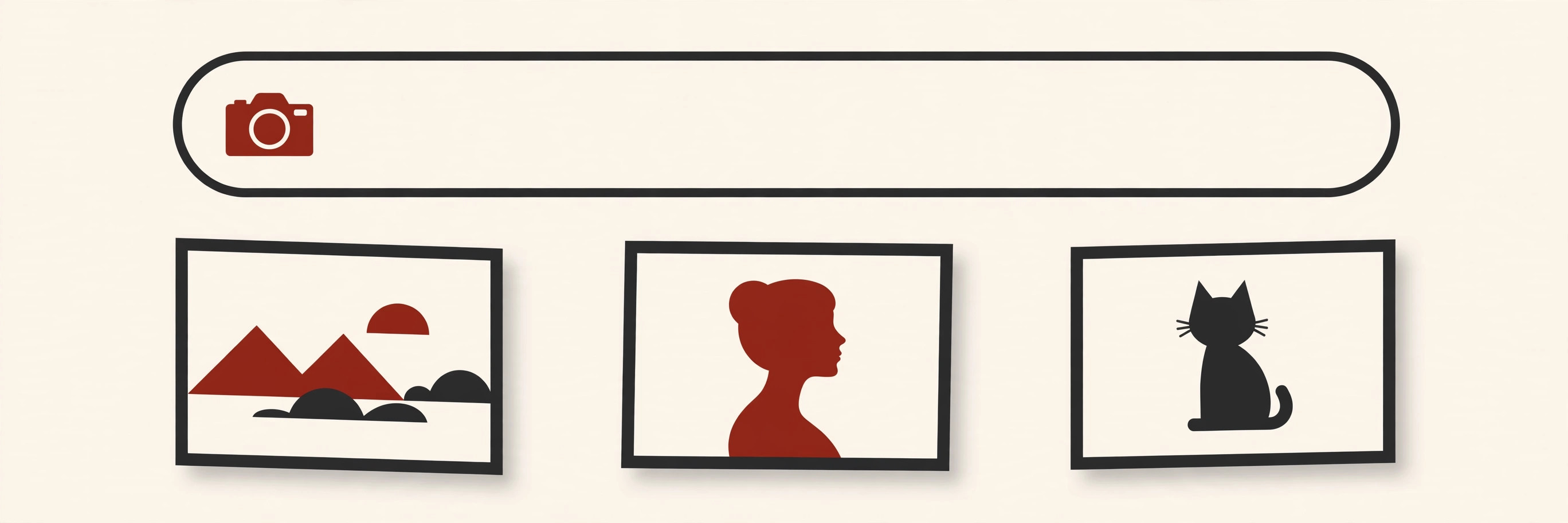
Here is the part most people never hear: image search runs on two engines at once.
- It matches your words to text. Every image online sits on a page surrounded by clues: a file name, a caption, a title, and a short description called alt text. Your search words are matched against all of that text.
- It reads the picture itself. Software called computer vision studies the pixels and works out what the picture shows: a dog, a red car, a beach at sunset. Google says it plainly in its own guide: it uses alt text along with computer vision algorithms and the contents of the page to understand an image.
That picture-reading skill shows up in far more places than search, as our guide to computer vision applications shows. It is also why a single photo can appear for many different searches. The engine is not limited to the words the owner typed.
How Image Algorithms Read a Picture
People often ask about image algorithms as if they were one secret formula. In plain terms, an image algorithm is just the set of rules and programs the search engine uses to decide which pictures match your search and in what order to show them. No secret detail is published, but the three signals it weighs are no mystery:

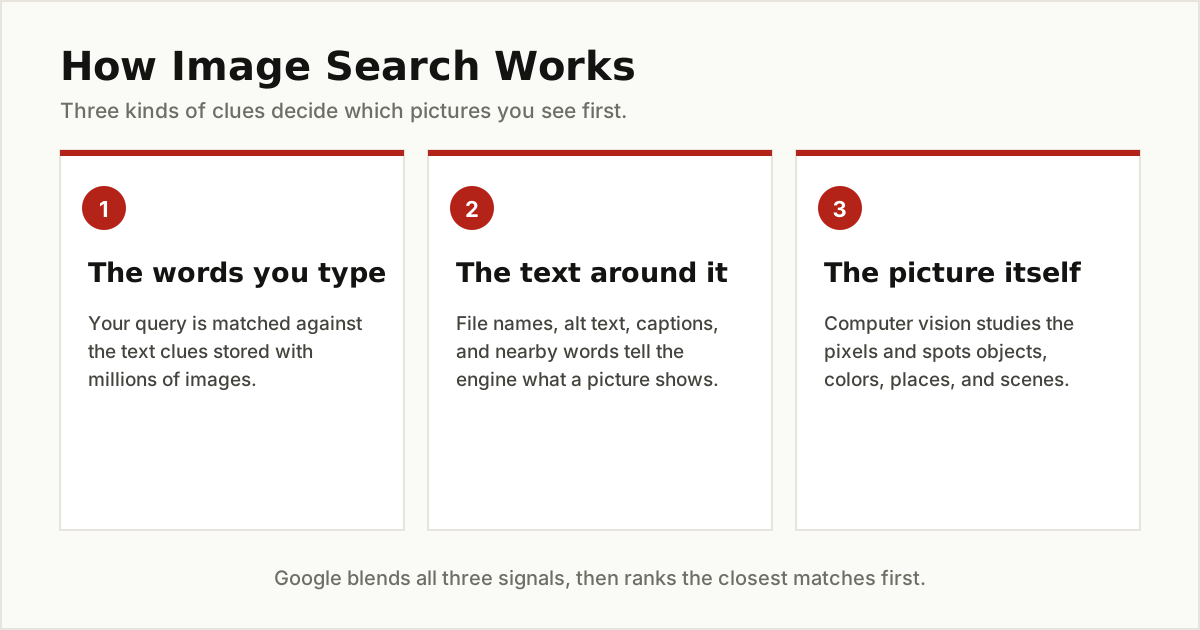
First, it checks the words you typed against the text clues stored with each image. Second, it weighs the page the image lives on, because a photo on a page about golden retrievers is probably a golden retriever. Third, computer vision examines the picture itself and recognizes objects, colors, and scenes.
When the three signals agree, the match is strong. When they clash, for example a picture of a jaguar the animal sitting on a page about Jaguar cars, the page context usually wins. That is why the same photo can rank for one search and vanish for another. It is also the same technology that powers AI visual search, where a photo does the asking instead of words.
Technique 1: Choose Better Words
The fastest image search technique costs nothing: describe the picture better. Search engines cannot read your mind, so the details that make your picture different are the details worth typing.
- Add the deciding detail. “Fox” returns millions of mixed results. “Red fox jumping in snow” tells the engine the animal, the color, and the action, and the results tighten up at once.
- Use quotes for an exact phrase. Searching for a book cover, a movie poster, or words on a sign? Put the phrase in quotation marks, like “pride and prejudice 1995 poster”, so Google looks for those exact words together.
- Add the kind of picture you want. Words like “diagram”, “map”, “poster”, “logo”, or “wallpaper” steer results toward that format instead of photos.
- Change one word at a time. If the results miss, swap a single word rather than starting over. You will see which word was pulling the wrong pictures in.
Technique 2: Filter With the Tools Menu
Of all the image search techniques in this guide, the Tools menu may be the most ignored. After any Google Images search, it opens a row of filters that most people never touch. Google’s guide to narrowing results with filters confirms the full set for image results:
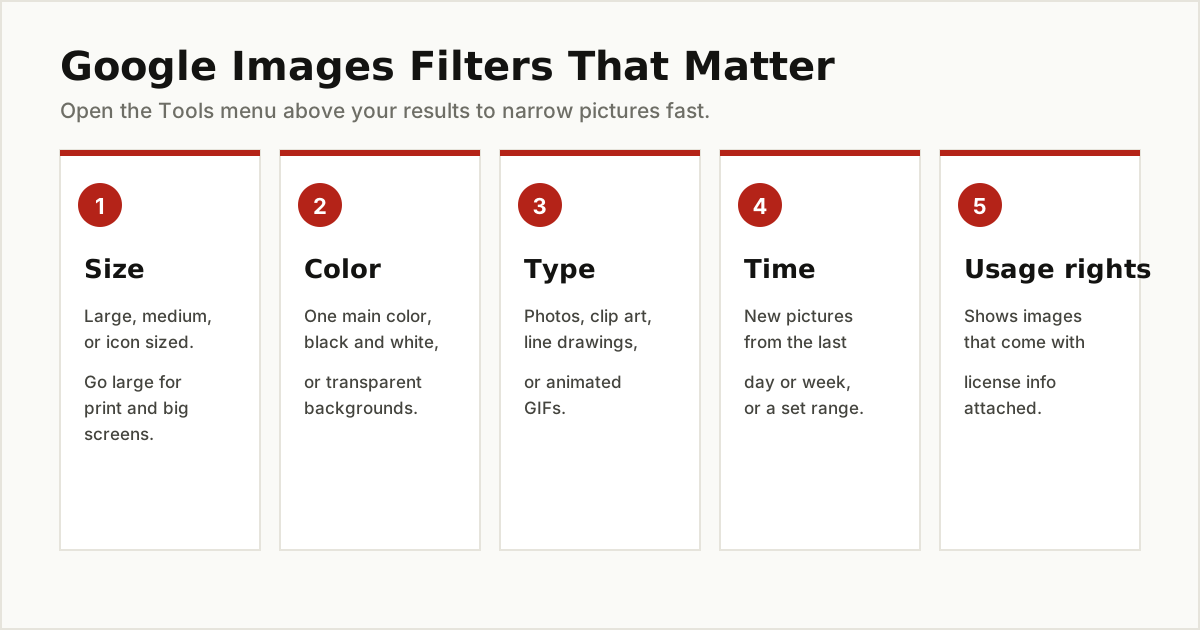
- Size narrows results to large, medium, or icon sized pictures. Choose large when you need a picture for print, a presentation, or a big screen.
- Color finds pictures in one main color, black and white pictures, or pictures with transparent backgrounds, which are gold for design work.
- Type limits results to clip art, line drawings, or animated GIFs, cutting photos out of the mix entirely.
- Time shows recently published pictures or results from a set date range, handy for news and events.
- Usage rights shows only images that carry license information.
One honest warning about that last filter. It is a helpful starting point, not a permission slip. The label comes from license data attached to the image, and it can be wrong or incomplete. The picture still belongs to whoever created it. Before you publish any image you found, open it, read the actual license on the source page, and follow its terms, including giving credit when the license asks for it.
Technique 3: Search Inside One Website
Sometimes you already know where the picture lives: a museum collection, a favorite stock site, a news archive, or a company blog. In that case, skip the site’s own clunky search box and let Google search only that site.
Type the word site, a colon, and the domain, followed by your words, right inside Google Images. For example: site:example.com red bicycle. Google then shows only images it has indexed from that one website.
The site: trick is one of the search operators worth knowing, special words and symbols that make any search sharper. For images it is often the single fastest route to a picture you have seen before.
Reverse Image Search: When the Picture Is the Question
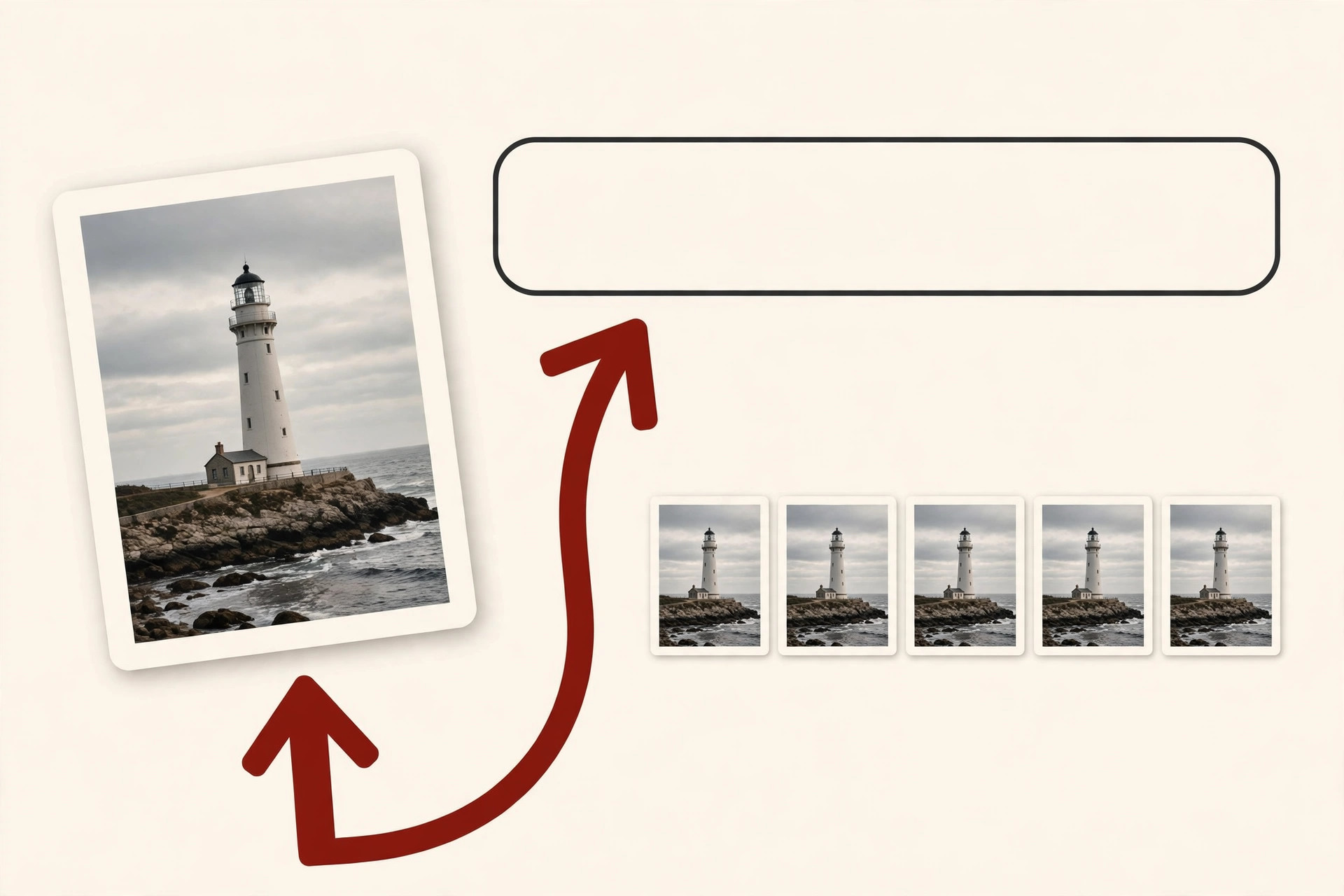
Every image search technique so far starts with words. Reverse image search flips the process: you start with a picture and ask the web about it.
The main tool is Google Lens, and Google’s help page on searching with an image confirms the ways in: upload an image file, drag and drop it onto the search box, paste an image link, or right click any picture in Chrome and choose Search with Google Lens. On a phone, Lens also works straight from the camera. After you upload, you can add words in the “Add to your search” box to narrow what Lens looks for.
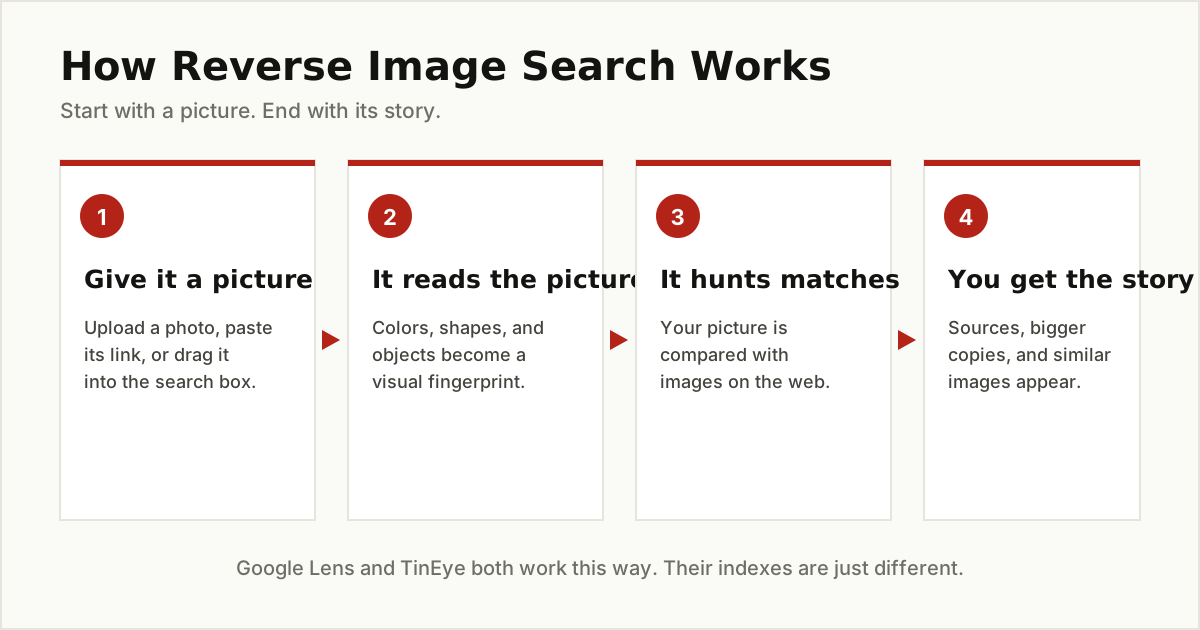
TinEye is worth knowing too. It is a dedicated reverse image search engine, a specialist that does this one job. Where Lens is broad and tries to understand what a picture shows, TinEye focuses on finding copies of the exact image, including copies that were resized, cropped, or slightly edited.
Here is what people honestly use reverse image search for:
- Find the original source. A striking photo keeps getting shared with no credit. A reverse search often leads back to the photographer or the first page that published it.
- Find a bigger, cleaner copy. You have a small, blurry version. Reverse search can turn up the same picture in a larger size for a presentation or print.
- Spot reused photos. A product shot or profile picture that appears under many different names on many sites is a warning sign, and reverse search is how people catch it.
- Track your own photos. Photographers and site owners search their own images to see where they were republished without permission.
Keep the limits in mind as well. No single tool has seen the whole web, so Google Lens and TinEye often return different results for the same picture, and trying both is smart. A match also proves only that a copy exists. It does not prove who owns the rights to the image.
Side Two: How Site Owners Get Their Images Found
Now the other side. If you run a website, Google Images is a free source of visitors that most owners ignore. Google publishes exactly what it wants in its Image SEO best practices, and the advice is refreshingly simple.
Give the File a Real Name
A file name is a clue, so name pictures with short, plain, descriptive words. Google’s own example: my-new-black-kitten.jpg is better than IMG00023.JPG. Camera names like image1.jpg or pic.gif tell the engine nothing. Rename the file before you upload it, and keep the file type honest, so a PNG ends in .png.
Write Alt Text for Humans
Alt text is the short description attached to an image, first created so people who cannot see the picture, including screen reader users, still get its meaning. Google calls it the most important piece of image metadata, because it explains what the picture shows.
Write one honest phrase, the way you would describe the photo to a friend on the phone. Google’s guide shows a stuffed example crammed with dozens of puppy keywords, and a best example that is simply “Dalmatian puppy playing fetch”. Short and true beats long and greedy every time. Stuffing keywords into alt text can make your site look like spam.
Mind the Words Around the Image
Google reads the whole page, not just the picture. Captions, image titles, and the text near the image all shape what the engine thinks it shows. So place each image on a page that is about the same topic, close to the text it illustrates. A great photo dropped on an unrelated page gives the algorithm nothing to hold on to.
Help Google Find Every Image
Use normal image tags on your pages, because Google does not index images hidden in CSS backgrounds. Then submit an image sitemap, a list of your image addresses, to catch pictures Google might otherwise miss. Image sitemaps can even list images hosted on another domain, such as a content delivery network, which regular sitemaps cannot do.
Keep Quality High and Pages Fast
Sharp, clear pictures earn clicks; blurry ones get skipped. But images are often the heaviest part of a page, and a slow page helps nobody. Use modern formats such as WebP or AVIF where you can, both are on Google’s supported list next to JPEG, PNG, GIF, SVG, and BMP, and serve each picture at a size that fits the space it fills.
Use One Steady Address
If the same image appears on several pages of your site, always point to the same file address. Google can then store one copy and reuse it instead of fetching the same picture again and again, which keeps your site lighter for its crawler.

Mistakes That Hurt on Both Sides
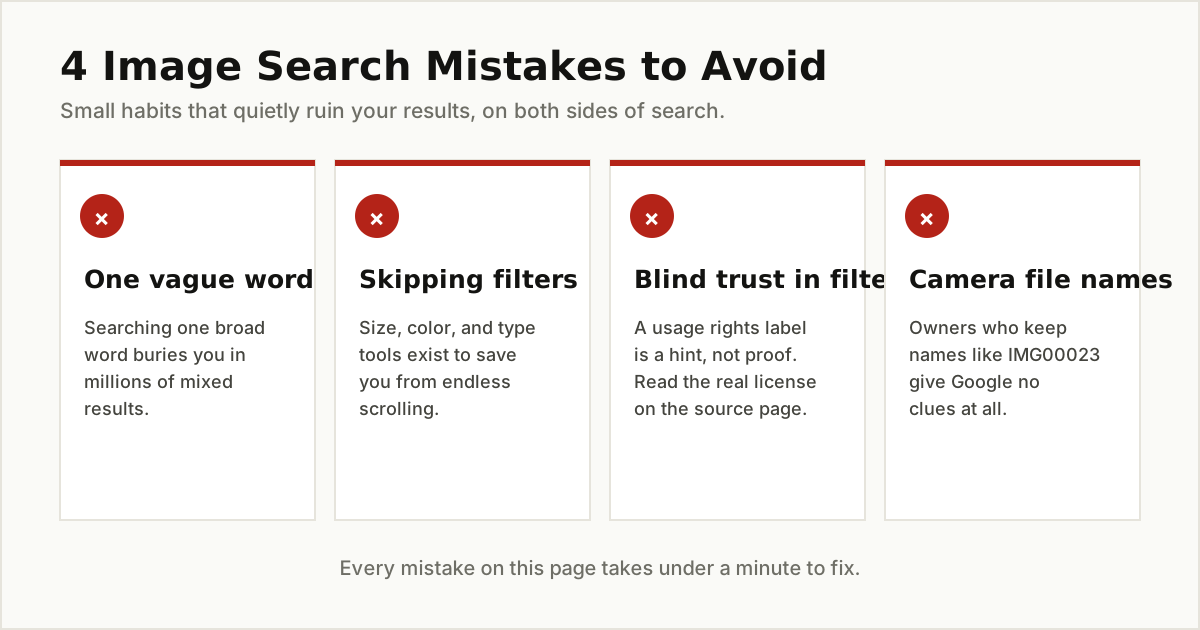
Even the best image search techniques fail against a short list of common habits. Searchers type one vague word, never open the Tools menu, and treat the usage rights label as a legal guarantee. Owners upload camera named files, skip alt text or stuff it with keywords, and bury good pictures on unrelated pages. Every one of these takes under a minute to fix, and the fixes compound: better words find better pictures, and better labeled pictures are the ones that get found.
The Bottom Line
Image search techniques come down to one idea: give the algorithm clear signals. As a searcher, that means specific words, the right filters, and a picture itself when words fall short. As a site owner, it means honest file names, human alt text, and pages where the words and pictures agree.
Master both sides and you stop scrolling and start finding, while your own images quietly pull in visitors you never paid for. Keep going with our other SEO and Search guides, where we break down search operators, SEO tools, and search engines the same plain English way.