
Your inbox is not a to-do list, but it acts like one. Bills sit next to newsletters, a client waits under a pile of receipts, and the one email that matters today hides on page three. Most people lose the fight because they sort by hand, one message at a time.
This guide shows you how to use an AI agent to sort emails in three levels. Level 1 uses the smart filters already inside Gmail and Outlook. Level 2 turns on the AI features built into those apps. Level 3, the real step-by-step part, sets up a small AI agent with a no-code tool, so new mail gets read, sorted and filed on its own. You can stop at any level and still win back hours every week.
The Three Levels at a Glance
You do not need the most powerful setup. You need the one that matches your inbox and your comfort level.
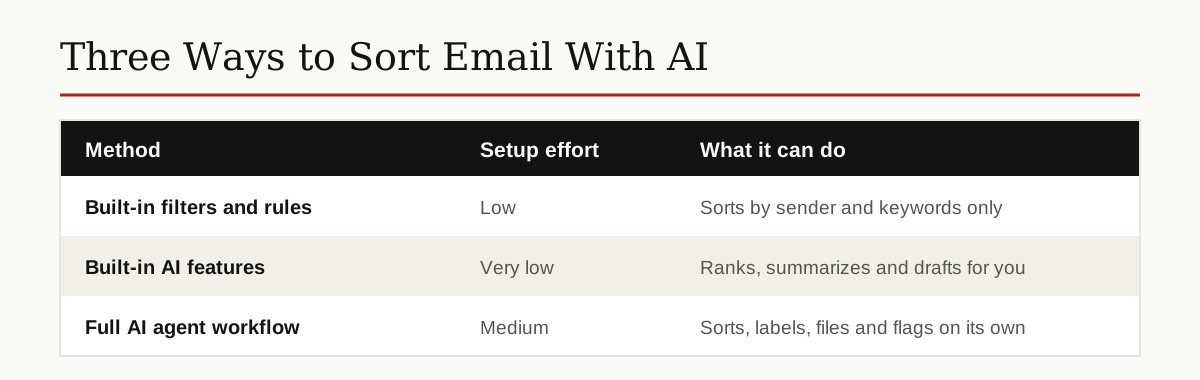
Start with Level 1 today. It takes ten minutes and needs no new accounts. Move to Level 2 if your email app already includes AI help. Try Level 3 when you want true hands-off sorting, and read the privacy section before you connect anything. Each level builds on the one before it, so nothing you set up today gets wasted later. And you do not need to be technical, or pay for anything, to begin.
Level 1: Smart Filters and Labels
Filters are simple rules: when an email matches, do something with it. They never get tired and they never forget. If you have never set one up, Google’s own filter guide walks through the basics.
Gmail filters, step by step
- Click the search settings icon at the right end of the Gmail search bar.
- Type a sender address, a word in the subject, or a phrase you see often, such as “unsubscribe” for newsletters.
- Click Create filter.
- Choose actions: Skip Inbox, Apply the label, and pick or create a label like Bills or Read Later.
- Tick the box to apply the filter to matching old emails too, then click Create filter again.
Good first filters: one for receipts from your usual stores, one for newsletters, one that stars anything from your manager, and one that files bank alerts under Bills.
Outlook rules, step by step
- Right-click any email from a sender you want to sort.
- Choose Rules, then Create Rule.
- Pick the condition, such as the sender or a subject word.
- Pick the action, such as moving the message to a folder, then click OK.
Outlook also has a Focused Inbox view that splits mail into Focused and Other. It is a blunt tool, but turning it on is a fair first step.
Level 2: The AI Already Built Into Your Email App
Filters match exact words. Built-in AI reads meaning instead, which is a real upgrade for sorting.
Gmail with Gemini
Google has added several Gemini features to Gmail. An AI Inbox view reviews your mail and surfaces top priorities and topics to catch up on, instead of one long chronological list. Long threads get automatic summaries with the key points at the top, so you can decide in seconds whether a conversation needs you. When you search, an AI Overview can answer a question from your emails directly above the results.
For replies, Help me write drafts a full message from a short prompt, and Suggested Replies offers detailed one-click responses based on the thread. These features arrived first for Workspace and Google AI plan users, and availability varies by account and country, so check what your own Gmail shows. The official Gmail product page lists what is currently offered.
For sorting, the habit that matters most is simple: open the AI Inbox or priority view first, handle what it surfaces, and let the rest wait.
Outlook with Copilot
Microsoft Copilot in Outlook has a feature called Prioritize my inbox. It reviews messages as they arrive and marks each one high, normal or low priority, with a short reason why it might matter to you. You turn it on in Outlook settings under Copilot, and you can filter or sort the inbox by that priority.
Copilot also summarizes long threads with one click, drafts replies from a prompt, and gives feedback on your drafts through Coaching by Copilot. A newer trick worth knowing: you can ask Copilot in plain words to create or show your Outlook rules, which makes Level 1 much faster to set up.
Both apps point the same way. The AI gives every message a first read, and you spend your time only where a human is actually needed.
Level 3: Set Up a Simple AI Agent With a No-Code Tool
This is the level most people picture when they ask how to use an AI agent to sort emails: a small workflow that watches your inbox, judges each new email, and acts without you. If the word agent is new to you, our guide on what an AI agent is explains the idea in plain words first.
No-code tools like Make and Zapier connect your email account to an AI model with drag-and-drop steps. No programming is needed. Here is the setup.
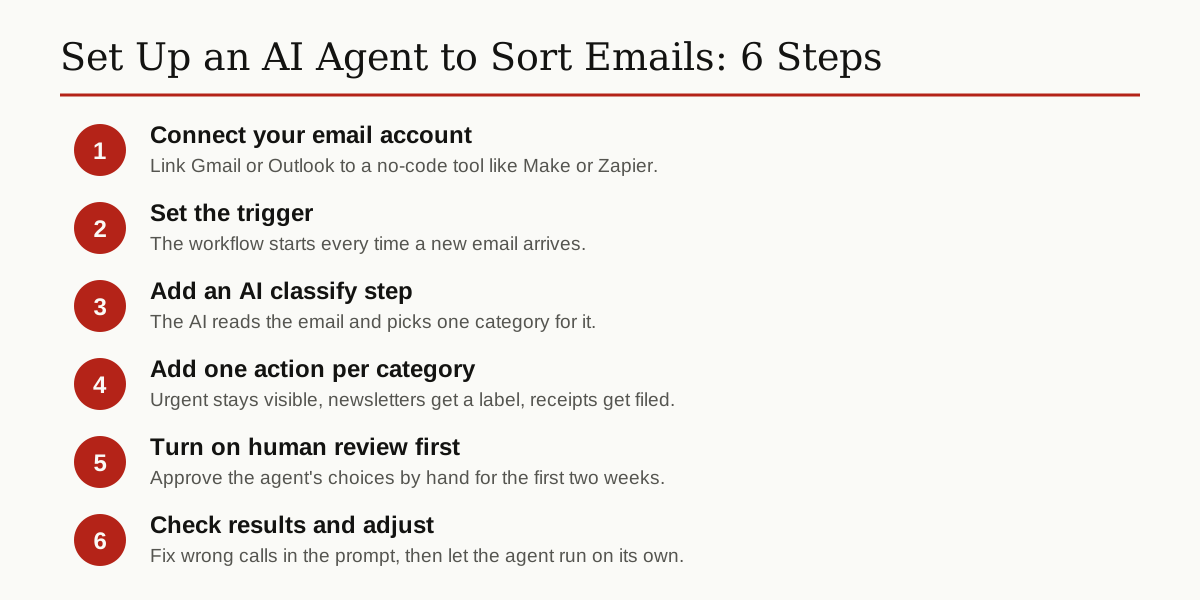
Step 1: Connect your email
Create an account with the tool, then connect Gmail or Outlook and grant the permissions it asks for. Read that permission screen slowly. The tool needs to read messages and apply labels or move mail. It should never need permission to send mail as you during setup.
Step 2: Set the trigger
Choose new email arrives as the trigger. Most tools check every few minutes on free plans and near instantly on paid ones. Pick the inbox only, not every folder, so the agent does not reprocess mail you already filed.
Step 3: Add the AI classify step
Add an AI step, such as a ChatGPT or Claude action, and give it a clear classification prompt. The prompt is where this setup succeeds or fails, so write it like instructions to a careful new assistant. Our prompt engineering guide shows how to write prompts that behave.
You are an email sorting assistant. Read the email below
and reply with ONE category only.

Categories:
- URGENT: a real person is waiting on my reply today
- BILL: invoices, payment requests, bank or card alerts
- NEWSLETTER: bulk updates, blogs and marketing mail
- RECEIPT: order confirmations, bookings, payment receipts
- FYI: reports, copied-in threads and general notices

Reply with only the category name, nothing else.

Email subject: {subject}
Email body: {body}
Step 4: Add one action per category
After the AI step, add a router or filter for each category:
- URGENT: apply a red Urgent label and leave the email in the inbox.
- BILL: apply the Bills label, keep it in the inbox, never archive automatically.
- NEWSLETTER: apply Read Later and skip the inbox.
- RECEIPT: apply Receipts and archive it.
- FYI: apply FYI and archive it.

Step 5: Keep human review on
For the first two weeks, the agent should label only. Do not let it delete, and do not let it send anything. Spend two minutes a day checking its choices. When it misfiles something, fix the prompt with one extra line, such as a note that mail from your landlord counts as URGENT. Once the labels are right almost every time, you can allow archiving for the safe categories.
That review habit is what makes this safe. You are training the system on your real inbox while nothing important can go wrong. That is the heart of how to use an AI agent to sort emails well: the machine does the reading, and you keep the judgment.
Sorting Rules That Work
Categories only help if the actions behind them are sane. This is the starter set most people end up with.
| Type of email | How to spot it | Action |
|---|---|---|
| Urgent | Boss or key client, needs a reply today | Keep in inbox, star it |
| Bills | Invoices, bank alerts, due dates | Label Bills, never auto delete |
| Newsletters | Updates you signed up for | Label Read later, skip inbox |
| Receipts | Orders, bookings, confirmations | Label Receipts, archive |
| FYI | Copied in, reports, group notices | Label FYI, read once |
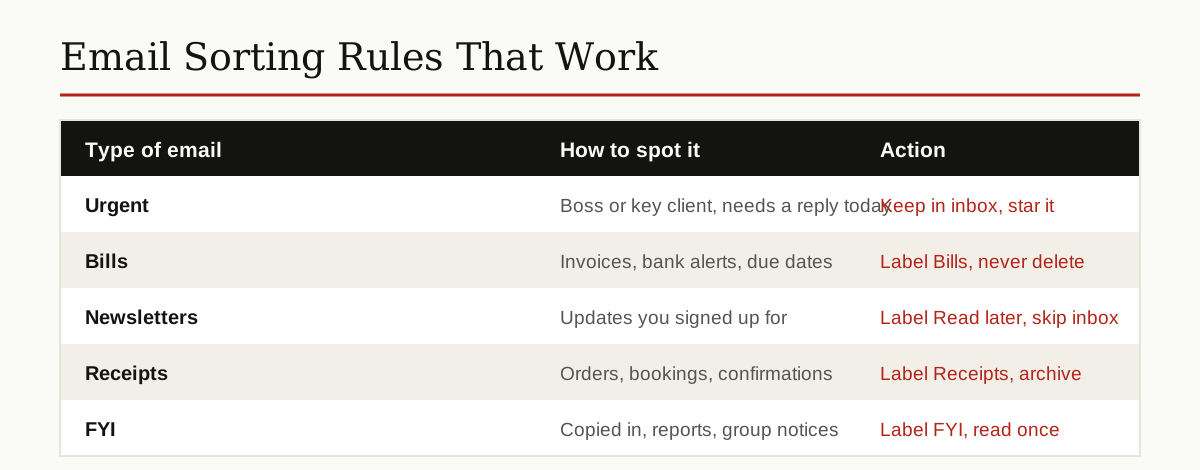
Change the words to fit your life. A freelancer may add Clients and Leads. A student may add School. Five or six categories beat twenty, because the AI makes fewer mistakes with fewer choices.
Privacy and Safety, Honestly
Sorting only works if the tool can read your email. That is a real trade, so make it with open eyes.

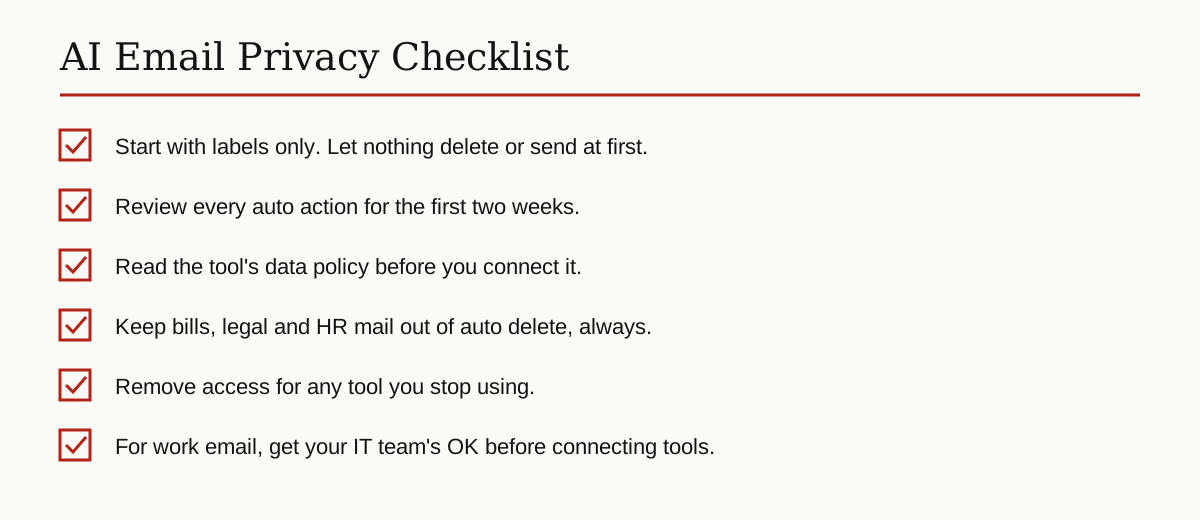
- Know what the tool can see. A connected agent can read subjects, senders and usually full message bodies. Treat that like giving a very fast assistant a key to your mailbox.
- Read the data policy. Check whether the tool stores your emails, for how long, and whether your data trains its models. Short retention and a clear no-training promise are what you want.
- Labels before actions. Start with labels only, review the results, and unlock archiving later. Never auto delete in the first month.
- Protect the money mail. Bills, legal notices, tax and HR emails should never sit in an auto delete or auto archive path without a human glance.
- Work email has rules. Many companies ban outside connectors or require IT approval. Ask first. Getting your inbox sorted is not worth a policy problem.
- Remove access you stop using. Every connected tool is a door into your account. Close the ones you no longer use, the same way our guide on turning off Google AI features suggests reviewing AI settings you forgot about.
Mistakes to Avoid
Most setups fail in predictable ways. If you are learning how to use an AI agent to sort emails for the first time, these are the traps to skip.
- Too many categories. Twelve labels feel thorough and perform badly. The AI confuses near matches, and so will you.
- Auto deleting anything. Storage is cheap, regret is not. Archive is the harshest action a sorting agent needs.
- Letting it reply for you. Drafts are fine. Sending is a different level of trust, and most people should not grant it.
- One giant prompt. Short, plain category rules beat a page of clever instructions.
- Set and forget. Your senders change over time. A monthly two-minute review keeps accuracy high.
A Weekly 10-Minute Routine
Sorted does not mean finished. This small routine keeps the system honest:
- Minutes 1 to 3: open the Urgent label and clear anything waiting.
- Minutes 4 to 6: scan the agent’s labels for mistakes and fix the prompt if a pattern repeats.
- Minutes 7 to 8: pay or file anything under Bills.
- Minutes 9 to 10: unsubscribe from one newsletter you never read, at the source.
That last step shrinks tomorrow’s inbox, which no agent can do for you.
Conclusion
You now know how to use an AI agent to sort emails at whatever level suits you. Filters handle the predictable mail today, in ten minutes, for free. Built-in AI in Gmail and Outlook adds meaning-based ranking and summaries. And a small no-code agent does the full job on its own, as long as you keep human review on while it learns your inbox.
Start at Level 1 tonight. Add the agent when you are ready, keep the categories few and the delete key out of its reach, and your inbox can go back to being a tool instead of a chore. For more guides like this, browse the rest of our generative AI and agentic AI articles.