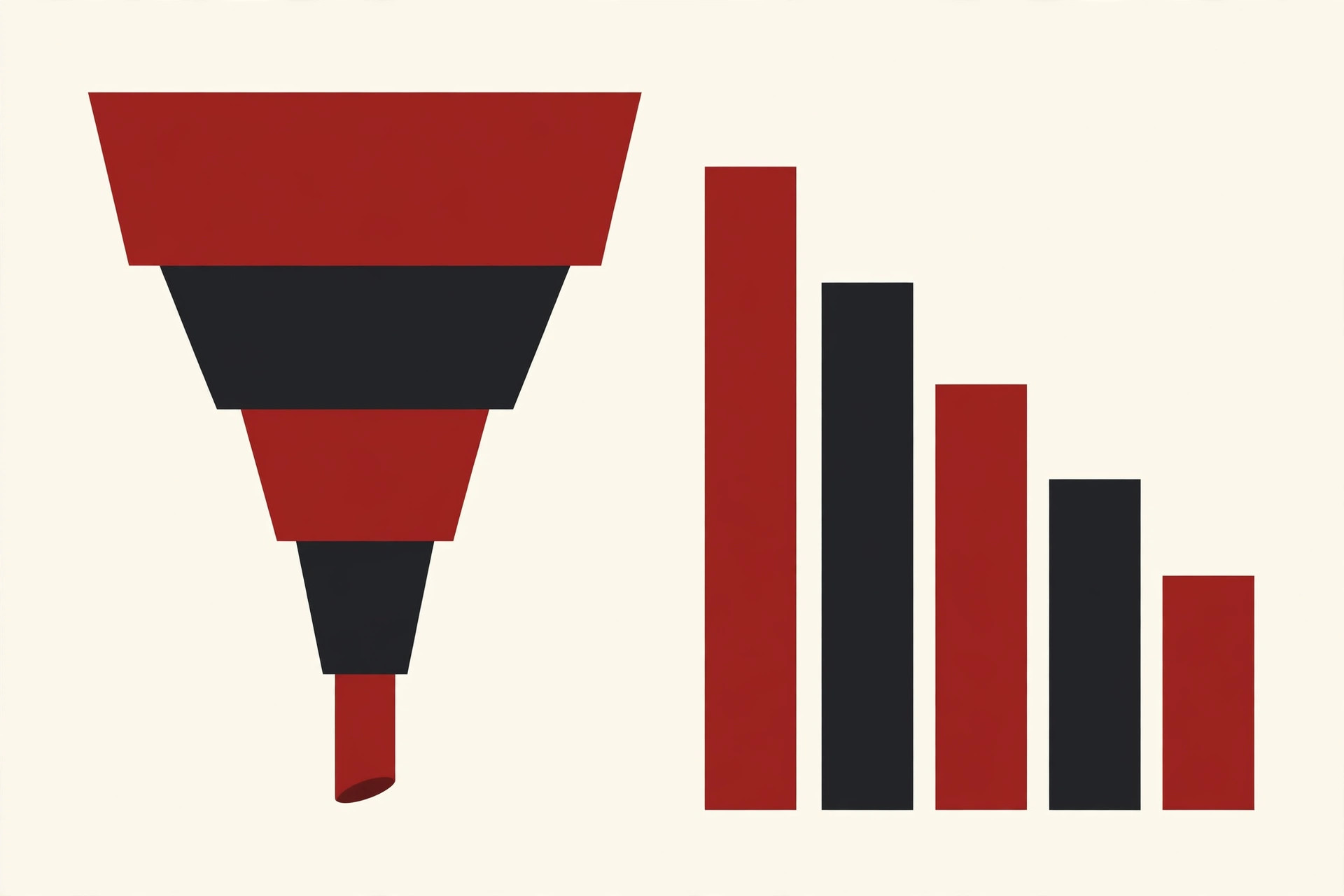
A funnel chart shows how many people start a journey and how many are still there at each step. Ten thousand people visit your site, some sign up, fewer start a trial, and only a small group pays. One picture tells that whole story, which is why marketers, sales teams and product managers love this chart.
In this tutorial you will build that picture yourself. You will start with a plain CSV file, use a free AI chat tool to clean the data and work out the numbers, and then build the chart in Tableau step by step. No coding, no paid add-ons, no design skills. By the end you will have a finished funnel chart, and you will understand the full ai funnel chart generator tableau csv workflow well enough to repeat it with your own data.
What You Need Before You Start
You only need three things:
- Tableau. Tableau Desktop works, and so does Tableau Public, which is free. The steps below are the same in both.
- A CSV file with funnel data. If you do not have one yet, use the small practice file in the next section. It is the same file we use for every step.
- An AI chat tool. ChatGPT, Claude or Gemini all work. You will use it to clean the CSV and check the math, not to draw the chart.
That is the whole toolkit for this ai funnel chart generator tableau csv method. Now let us look at the data itself.
The CSV Format: Two Columns and Nothing Else
A funnel chart needs exactly two columns. The first column holds the stage names, in the order people pass through them. The second column holds how many people reached that stage. Here is the practice data we will use:
| Stage | Visitors |
|---|---|
| Visited site | 10,000 |
| Signed up | 4,200 |
| Started trial | 2,100 |
| Added payment | 900 |
| Paid | 540 |
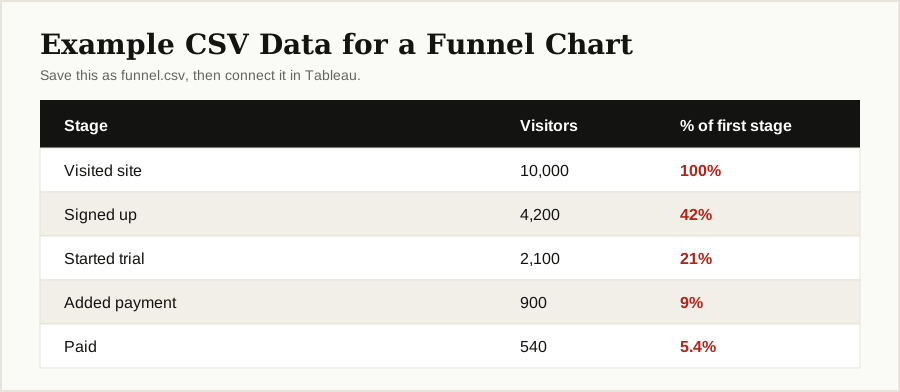
When you save this as a real CSV file, the numbers lose their commas, because a comma is the mark that separates one column from the next. The saved file looks like this:
Stage,Visitors
Visited site,10000
Signed up,4200
Started trial,2100
Added payment,900
Paid,540
Two rules matter here. First, keep stage names short, because they become the labels on your chart. Second, always list the stages in journey order, biggest first. Sorting mistakes at this stage are the number one cause of broken funnels, so it pays to get the file right before Tableau ever sees it. Connecting clean files like this is the base of any good AI data integration workflow, where tidy inputs save hours of fixing later.
Where does this data come from in real work? Most teams export it from tools they already use. Google Analytics can report visits and signups, a CRM can export sales stages, and an app database can count trials and payments. The export almost always arrives messy, with extra columns, odd names and numbers written three different ways. That is normal, and it is exactly why the next step exists.
Step 1: Use AI to Clean and Shape the CSV
Real funnel data is rarely this tidy. It comes from spreadsheets with extra columns, totals rows, commas inside numbers, and stage names like “Step 3: trial started (new)”. Cleaning that by hand is slow. An AI chat tool can do it in seconds, and it can also work out the conversion numbers as a check.
Open your AI chat tool, paste your raw data under this prompt, and copy the prompt exactly as written:
I have funnel data in a messy spreadsheet. Turn it into a clean CSV
with exactly two columns: Stage and Visitors.

Rules:
1. Keep only the stage name and the number of people at that stage.
2. Remove commas from numbers, so 10,000 becomes 10000.
3. Sort the rows from the biggest stage to the smallest.
4. Use short stage names, like Visited site, Signed up, Started trial.
5. Delete any totals rows or blank rows.
6. Give me back only the CSV text, ready to save as funnel.csv.
Save the answer as a file called funnel.csv. Then ask one follow-up question: “What percent is each stage of the first stage?” The AI will give you 100%, 42%, 21%, 9% and 5.4% for our practice data. Write those numbers down. You will use them in Step 4 to check that Tableau is showing the same math. This double check is the quiet advantage of the ai funnel chart generator tableau csv approach: the AI prepares and verifies, Tableau draws.
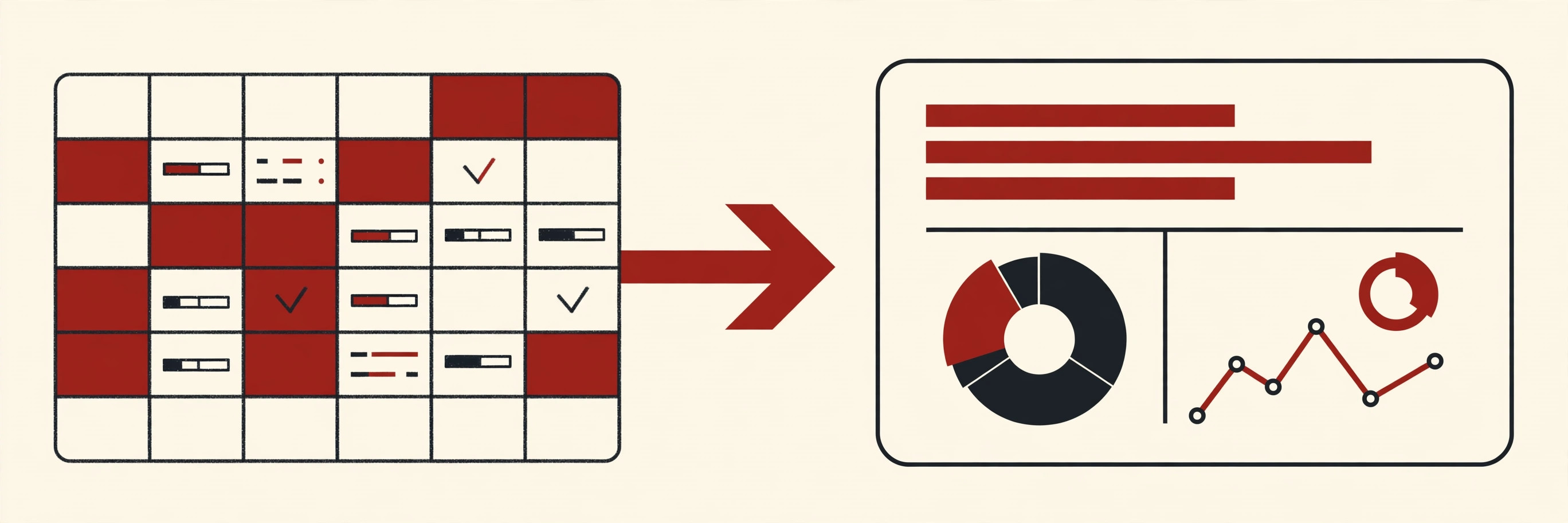
Step 2: Connect the CSV in Tableau
- Open Tableau and click Connect, then Text file, and pick funnel.csv.
- Tableau shows a preview of your data. Check that Stage is text and Visitors is a number. If Visitors shows a small “Abc” icon, click it and change the type to Number (whole).
- Click Sheet 1 at the bottom to open a blank worksheet.
Your data is now inside Tableau. If you are new to shelves and pills, the official guide on how to drag fields to build views explains the basics in plain terms. Everything from here is dragging, sorting and one small formula.
One quick check before you move on. In the Data pane on the left, Stage should carry a small Abc icon, which means text, and Visitors should carry a # icon, which means number. If Tableau guessed either one wrong, the bars in the next step will not build the way you expect. Fixing the types now takes five seconds and saves a confusing ten minutes later.
Step 3: Build the Funnel With Sorted Bars
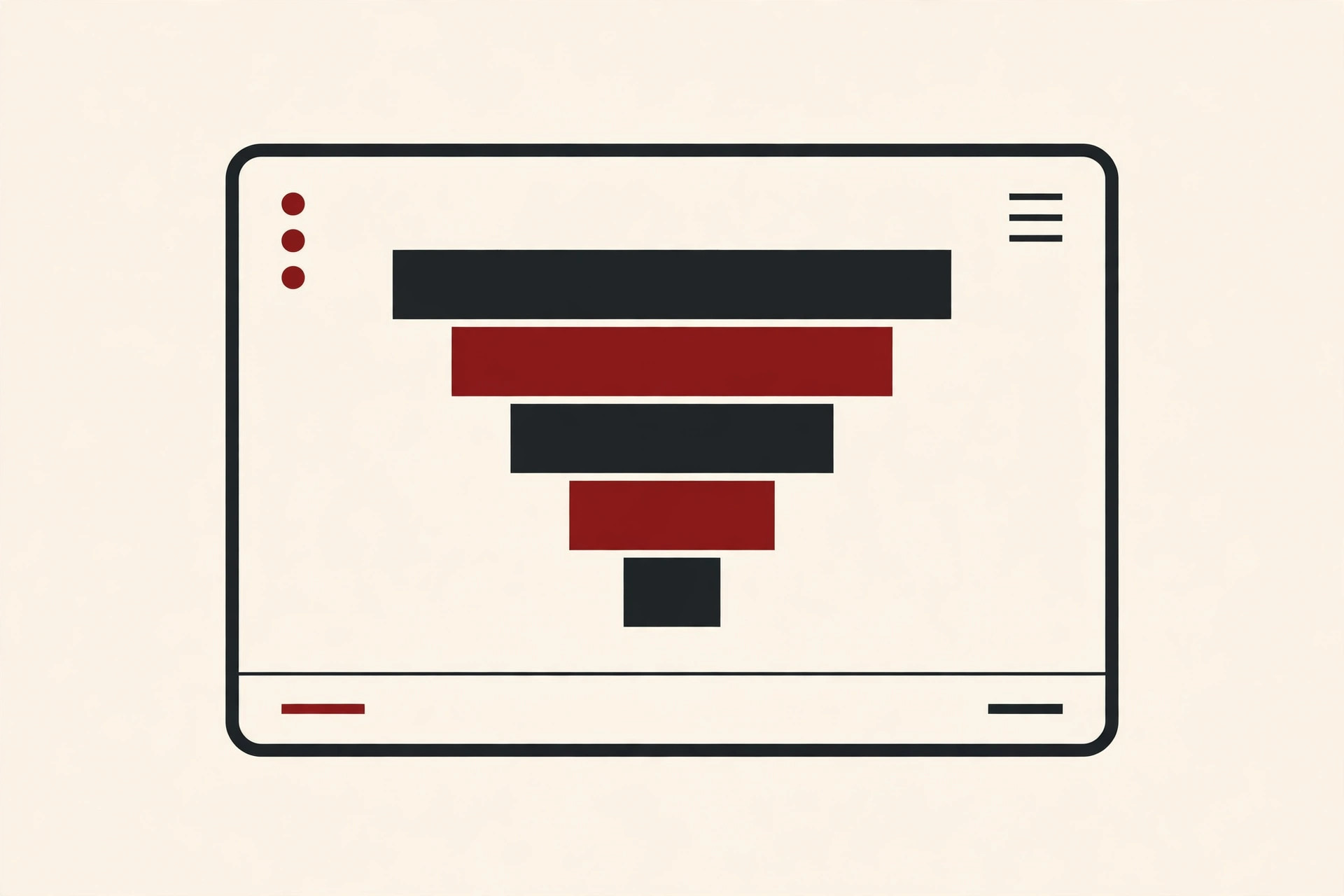
Tableau has no funnel button. The standard trick, the one Tableau itself teaches, is to start with sorted bars and then mirror them so they line up in the center. It sounds odd, but it takes about a minute.
- Drag Stage to the Rows shelf. You get one row per stage.
- Drag Visitors to the Columns shelf. You now have a normal bar chart.
- Sort the stages. Click the Sort descending button in the toolbar, or right-click Stage on Rows, choose Sort, then By Field, Descending, field Visitors, aggregation Sum. The biggest bar must sit on top.
- Now mirror the bars. Go to Analysis, then Create Calculated Field. Name it “Mirror” and type this formula:
-SUM([Visitors])Tableau has a full help page on how to create a calculated field if you want the details. Click OK, then drag Mirror onto the Columns shelf, next to SUM(Visitors). Your bars now grow in both directions from the center line, and the funnel shape appears.
- Change the mark type from Bar to Area on the Marks card if you want the smooth, joined-up funnel look. Keep Bar if you prefer clear separate stages. Both are correct.
- Add centered labels. Drag Stage onto Label on the Marks card, and drag Visitors onto Label as well. Because the shape is mirrored around zero, the text lands in the middle of each band instead of hanging off one side. If the labels sit slightly off center, open the Label settings and set alignment to center.
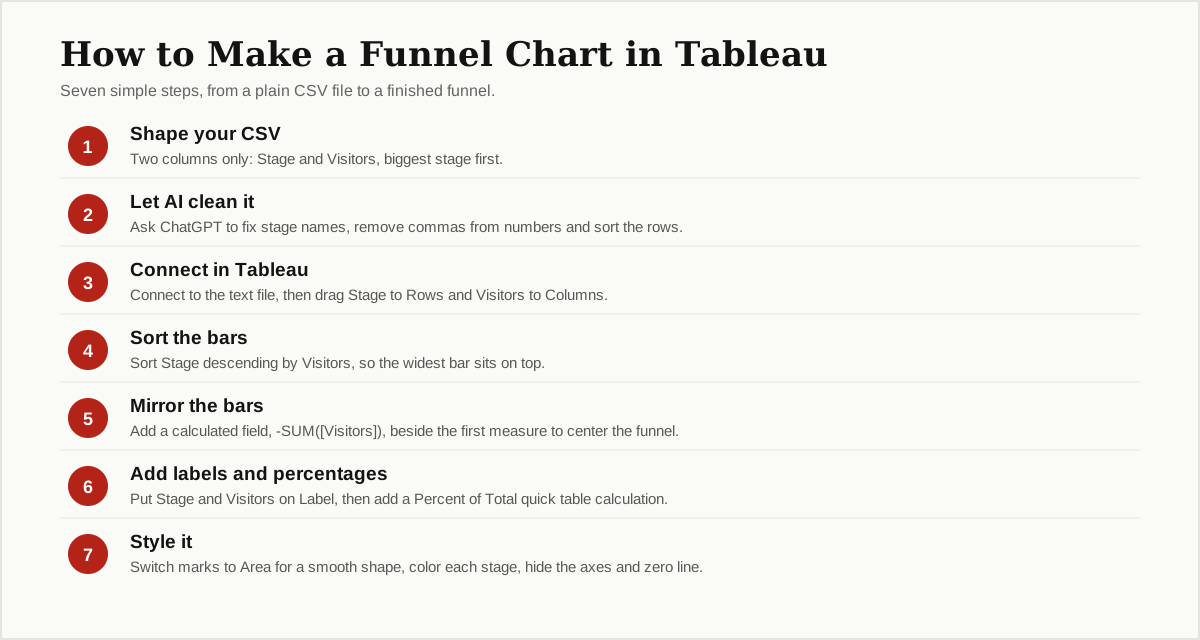
You now have a real funnel chart. A funnel chart is simple by design: wide at the top where everyone starts, narrow at the bottom where only a few finish. If yours looks like that, the hard part is done.
Step 4: Add Conversion Percentages
Raw numbers tell half the story. Percentages tell the other half, because they show where the biggest drop happens.
- Drag Visitors onto Label one more time. A second copy of the numbers appears.
- Right-click that new label pill, choose Quick Table Calculation, then Percent of Total. The labels now show each stage as a share.
- Format them with one decimal place so 5.4% does not turn into 5%.
One honest warning: Percent of Total in Tableau means share of all stages added together, which is not how most funnel readers think. Most readers want each stage as a percent of the first stage, the numbers your AI tool gave you in Step 1: 100%, 42%, 21%, 9%, 5.4%. To get those, create one more calculated field:
SUM([Visitors]) / LOOKUP(SUM([Visitors]), FIRST())Put it on Label, right-click it, and set Compute Using to Table (down). Format it as a percentage. Now compare the chart with the AI numbers from Step 1. If they match, your funnel math is right.
Step 5: Style It So People Read It Fast
- Drag Stage onto Color on the Marks card, so each stage gets its own color. Pick calm, related colors rather than a rainbow.
- Hide the clutter. Right-click each axis header and untick Show Header. Remove the zero line in Format, then Lines.
- Set the view to Entire View so the funnel fills the sheet.
- Give the sheet a clear title, like “Website Signup Funnel”. A reader should know what the chart shows before reading a single label.

Troubleshooting: The Three Usual Problems
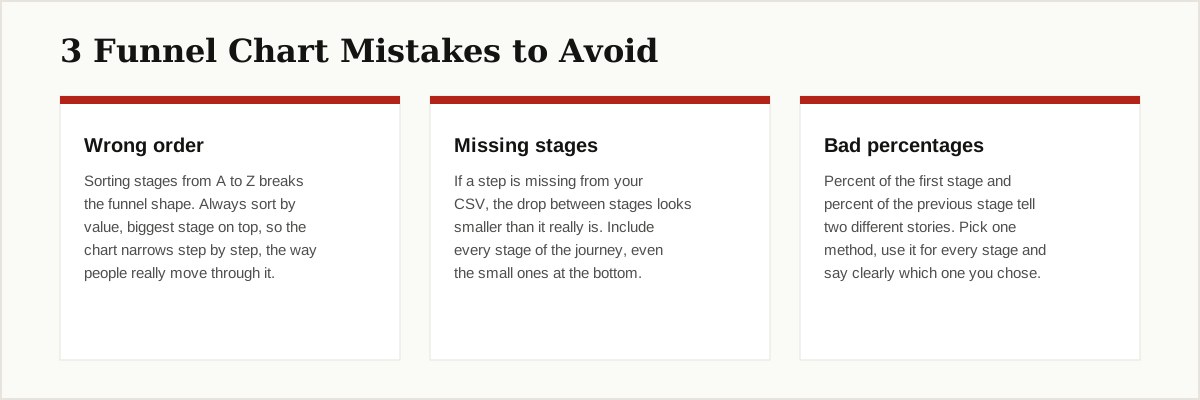
The funnel is upside down. The stages are sorted ascending instead of descending. Re-run the sort from Step 3 and make sure the biggest number is on top. Also check that you did not reverse the axis by accident.
The stages are in the wrong order. Tableau sorts text from A to Z by default, which scrambles journey order. Sort by the Visitors field, descending, or use a manual sort and drag the stages into journey order yourself.
The labels are off center. This happens when labels are applied to only one side of the mirrored chart. Add Stage and Visitors labels, set label alignment to center, and check that both SUM(Visitors) and the Mirror field are still on the Columns shelf sharing the same center line.
When a Ready AI Funnel Chart Generator Makes More Sense
Building the chart in Tableau is the right choice when the funnel lives on a dashboard, needs to refresh with new data, or must sit next to other charts. But sometimes you just need one picture, fast, for a slide or a report.
In that case, a ready ai funnel chart generator tableau csv tool can be the smarter pick. You paste or upload the same clean CSV, and the tool draws the funnel for you in seconds, no Tableau steps at all. The trade-off is control: you get fewer styling choices, the chart does not refresh on its own, and you should always check the percentages it shows against your own numbers, the same check you did in Step 4. A good rule is simple. One-time picture, use the generator. A living dashboard your team checks every week, build it in Tableau once and let it update itself.
Conclusion
You now know the complete path: shape a two-column CSV, let AI clean it and check the math, connect it in Tableau, sort the bars, mirror them with one small formula, and label the result with honest percentages. The ai funnel chart generator tableau csv workflow is really just that, clean data in and a clear chart out.
Keep your funnel.csv file when you finish. Next month you can drop in fresh numbers, repeat Steps 2 to 5 in a few minutes, and compare the new chart with this one side by side. Watching those percentages move over time is where a funnel chart really earns its keep, because a growing drop at one stage tells you exactly where to look first.
Once the method clicks, it works for any funnel: job applications, sales pipelines, app signups, course completions. If you want to go deeper, our guide to machine learning algorithms explains the models behind the predictions teams layer on top of funnels like these, and our profile of what a data scientist does shows who builds them at work. For more tutorials like this one, browse the AI, ML and Data Science category.