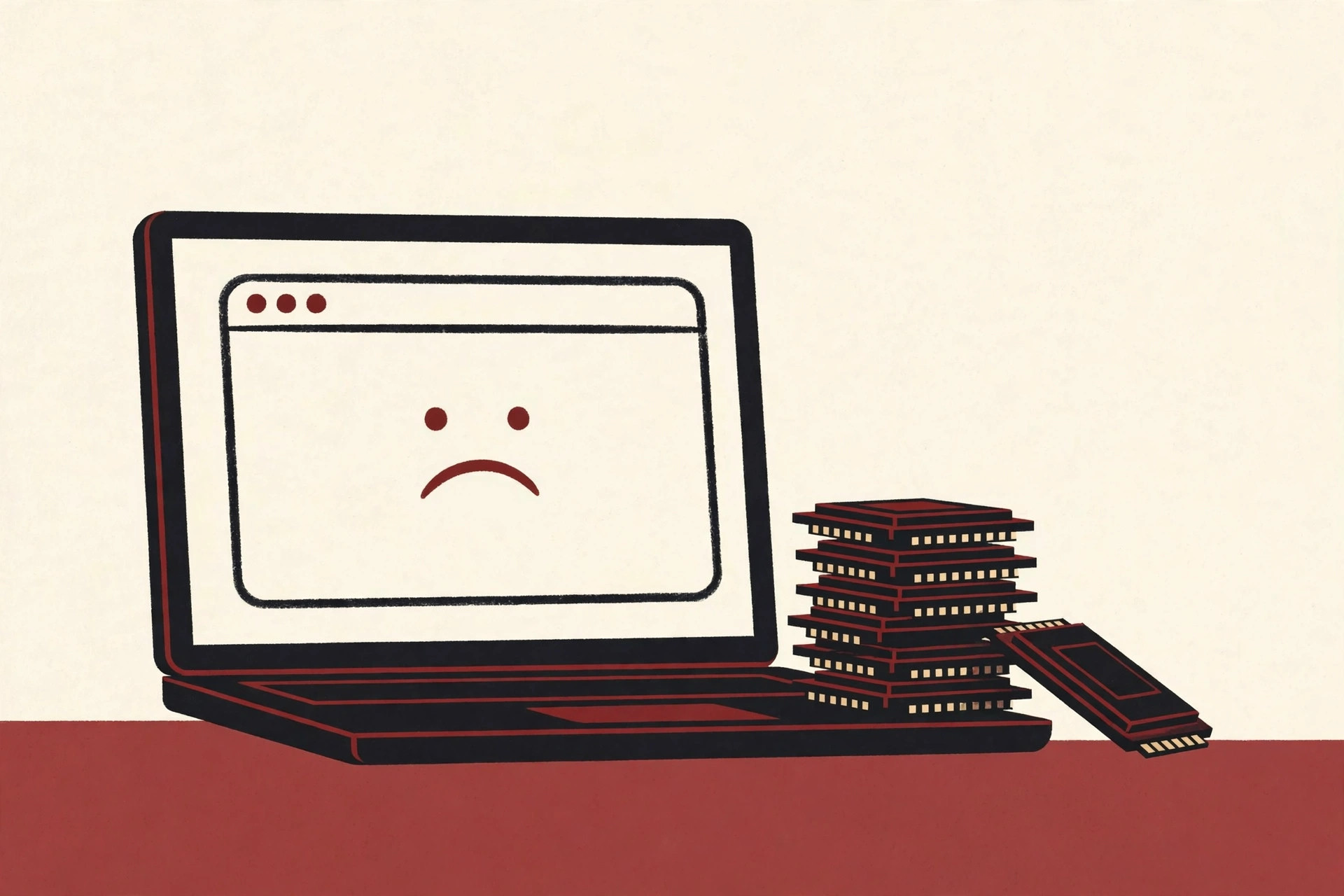
You clicked a link, waited, and instead of the page you got a plain white screen with a short, rude message: not enough memory to open this page. Under the headline, Chrome quietly adds its own first piece of advice: try closing other tabs or programs to free up memory.
This error sounds alarming, but it is one of the most fixable problems in Chrome. It does not mean the website is broken, and it does not mean your hard drive is full. It means a single tab asked for more memory than your computer could give it at that moment, so Chrome shut that tab down to protect everything else you had open.
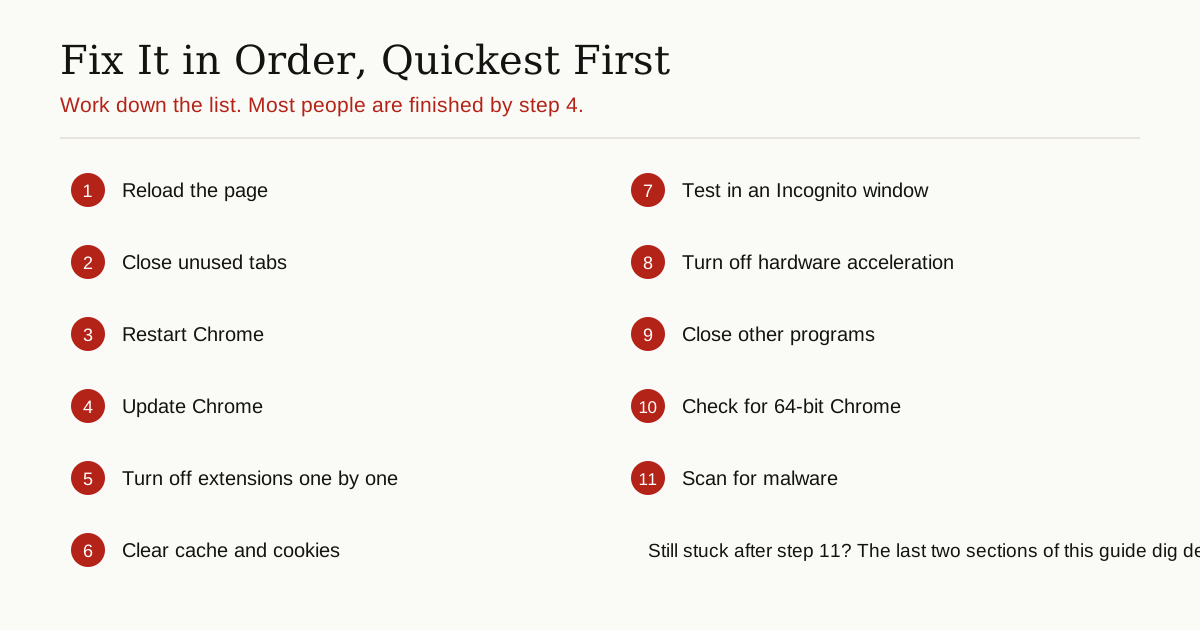
Below are the fixes, in the order you should try them, starting with a two second reload and ending with the deeper checks most guides skip. Most people never get past step 4.
What This Error Actually Means
Every Chrome tab runs in its own process, a separate little worker on your computer. That design is why one bad tab crashes alone instead of taking the whole browser down with it. The trade-off is memory: each worker needs its own share of RAM to hold the page, its pictures, its videos, and all the code running behind the scenes.
When a tab asks for more than the computer can spare, Chrome ends that tab and shows this error page instead. It belongs to the same family as the Aw, Snap! crash page, which Google describes simply as Chrome having problems loading the page. The out of memory version just swaps the headline for a more honest one.
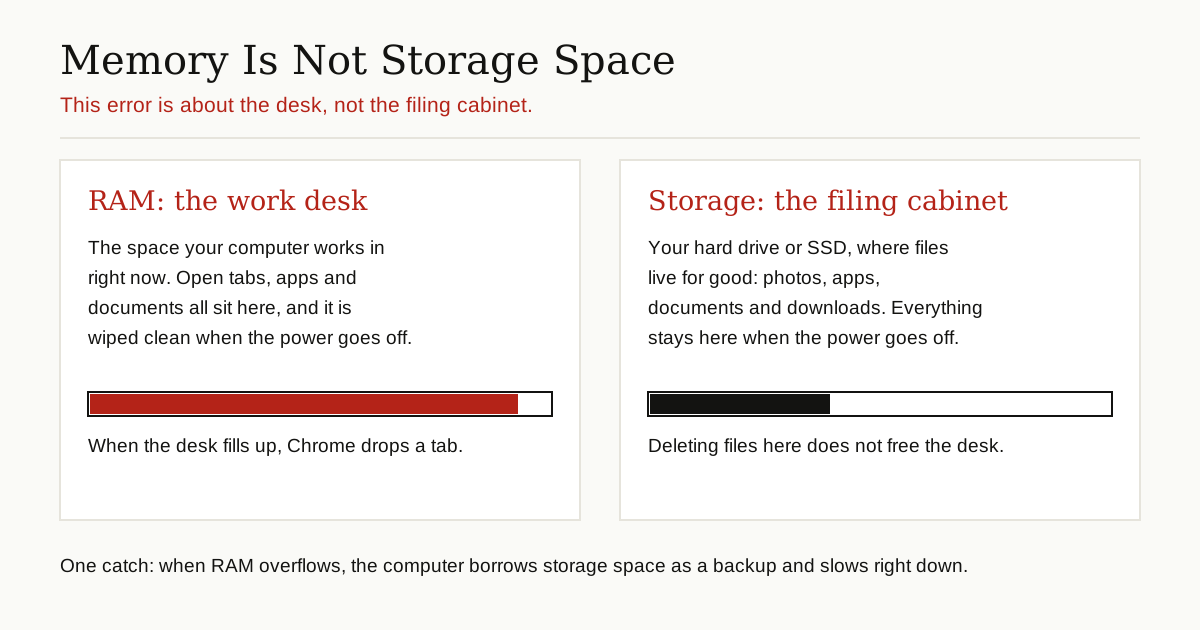
One mix-up causes endless confusion here, so let us clear it up right away. Memory does not mean storage space. Memory is RAM, the fast, temporary working space your computer uses while programs run. Storage is your hard drive or SSD, where your files live for good. A full drive produces a different warning entirely. This error is about the desk being full, not the filing cabinet.
There is one honest catch. When RAM fills up, your computer borrows a slice of storage as emergency backup memory, and that backup is much slower. This is why a nearly full drive can make a low memory machine feel even worse. But the root problem is still RAM, and deleting photos will not fix it.
The 11 Fixes, in the Order You Should Try Them
Work down this list and stop as soon as the page loads and stays loaded. After each step, go back to the failed tab and reload it before moving on.
1. Reload the Page
Sometimes a page just hits a one-off spike: a heavy ad, a video that tried to load all at once, a web app doing one big calculation. Reloading hands the tab a fresh start with a fresh share of memory. Click the Reload button, or press F5, or Ctrl + R. If the reload fails too, press Ctrl + Shift + R, which reloads while ignoring the stored cache.
If the crash closed a tab you were working in, press Ctrl + Shift + T to bring closed tabs back, most recent first. It works like an undo button for your whole tab strip, and our guide to the redo shortcut collects more keyboard rescues in the same spirit.
2. Close Unused Tabs
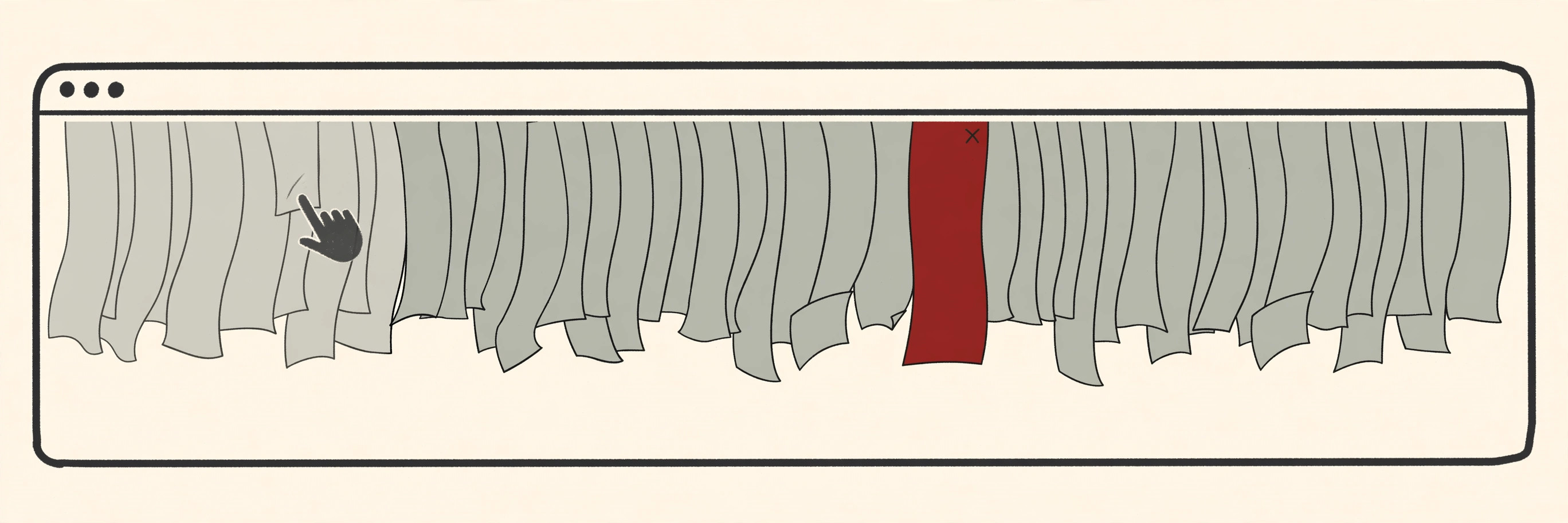
Every open tab holds memory even when you are not looking at it, and the tabs you opened this morning are still sitting there eating. Google’s own crash advice is blunt: close every tab except the one showing the error, then reload it. You do not have to be quite that ruthless. Start with the obvious weight: old video tabs, duplicate inboxes, shopping carts from last week.
If you want to keep the pages for later, press Ctrl + Shift + D to save all your open tabs as bookmarks in one new folder. Then close them all without losing a single one.
3. Restart Chrome
Chrome’s memory use creeps upward the longer it stays open, because pages and extensions are not always tidy about giving memory back. If Chrome has been running for days, close it completely and reopen it. On Windows, check that no Chrome window is left hiding anywhere. On a Mac, quit properly with Cmd + Q rather than just closing the window. When it reopens, restore only what you actually need instead of all forty tabs at once.
4. Update Chrome
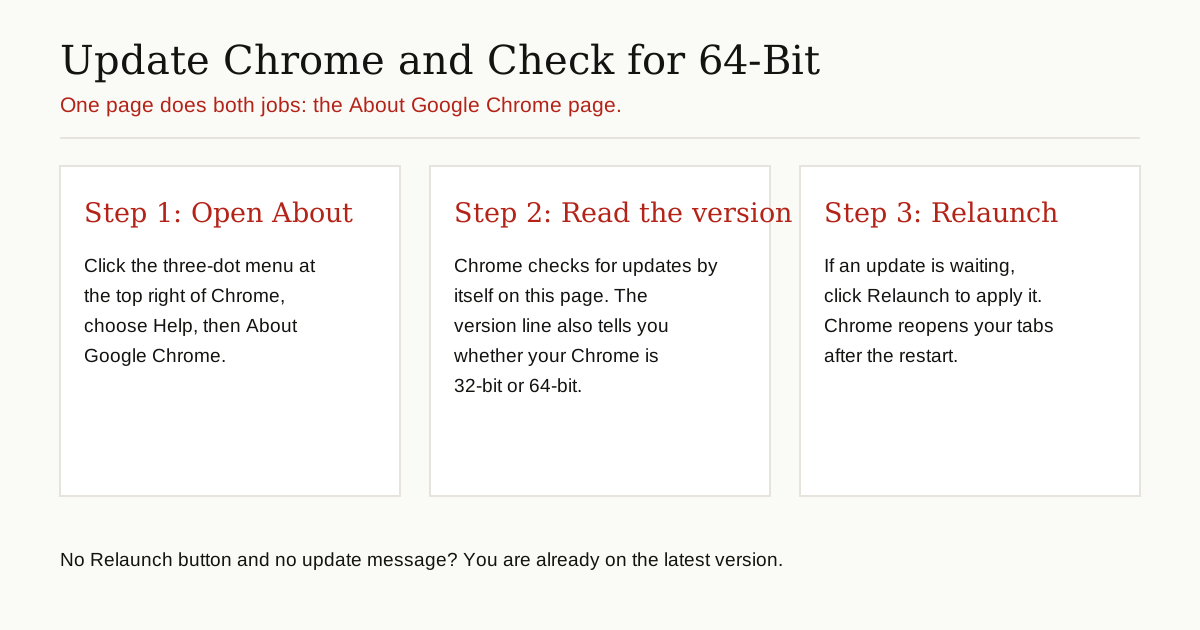
Memory bugs are among the most common fixes in Chrome updates, so an old version can crash on pages that a new one handles fine. Open the three-dot menu, go to Help, then About Google Chrome. As Google’s update guide explains, Chrome checks for updates by itself when you open that page, and if one is waiting you will see a Relaunch button. Click it, let Chrome restart, and try the page again.
5. Find the Hungry Extension
Extensions run inside every page you open, and one badly built extension can leak memory all day: a little more every hour, until tabs start dying. The way to catch it is to switch them all off, then bring them back one at a time.
Type chrome://extensions into the address bar, the same bar you normally search Google or type a URL into, and turn every switch off. Reload the problem page. If it behaves now, turn your extensions back on one by one, using the page for a few minutes after each one. When the error returns, the last extension you switched on is the culprit. Remove it, or look for a lighter alternative that does the same job.

6. Clear the Cache and Cookies
Chrome keeps copies of images and site files so pages load faster next time. That cache lives on your disk, not in RAM, but a damaged or bloated cache can make one particular site crash again and again while everything else works fine. Press Ctrl + Shift + Delete to open the Delete browsing data box. Set the time range to All time, tick Cached images and files plus Cookies and other site data, and click Clear data. You will be signed out of most websites, so expect to log in again afterwards.
7. Test the Page in an Incognito Window
An Incognito window is a quick diagnostic tool, not just a privacy feature. Extensions stay off by default in Incognito, and it starts with a clean slate. Press Ctrl + Shift + N (Cmd + Shift + N on a Mac) and open the problem page there.
If the page loads happily in Incognito, your browser itself is fine, and the fault is almost certainly an extension, which sends you back to step 5, or your stored site data, which step 6 just cleared. If it crashes in Incognito too, the page itself is genuinely heavy, or the problem is bigger than one setting.
8. Turn Off Hardware Acceleration
Chrome normally hands drawing work, especially video and animation, to your graphics chip. When the graphics driver is old or buggy, that teamwork backfires, and tabs crash with memory complaints that have nothing to do with RAM at all. Turning the feature off makes Chrome draw everything itself, which is a little slower but far more predictable.
Open Settings, then System, and switch off the option called Use graphics acceleration when available (older versions label it hardware acceleration), then relaunch Chrome when it asks. Treat this as a test: if the crashes stop, your driver was the problem, and updating the graphics driver may let you switch it back on later.
9. Close Other Programs to Free Up RAM
Chrome is rarely the only hungry program on the machine. Video editors, games, a second browser, and a stack of chat apps all hold RAM whether you are looking at them or not. Quit the ones you are not using, pause big downloads and uploads, and then reload the page.
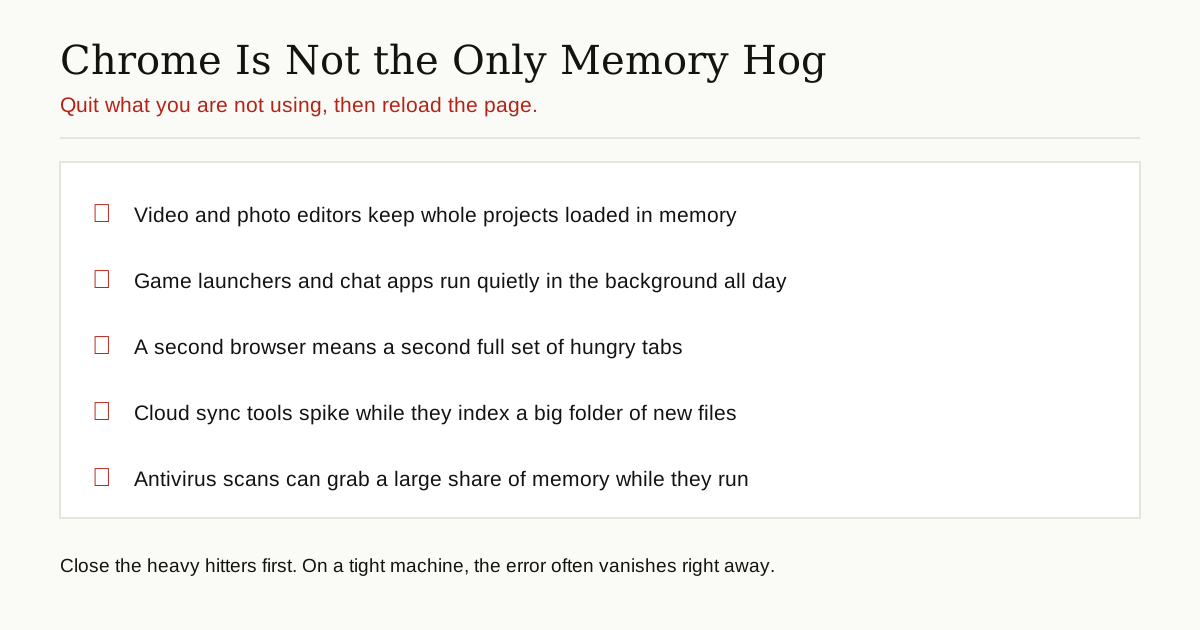
Windows users should also know about one built-in background process that loves memory at the worst moments. Our guide to the Antimalware Service Executable explains why that Windows Security process sometimes spikes in memory and CPU while a scan runs, and what you can safely do to calm it down.
10. Check That Chrome Is 64-Bit
This one surprises people. A 32-bit program can only use a limited amount of memory, no matter how much RAM your computer has, and this exact error hits 32-bit Chrome users far more often. Go back to the About Google Chrome page from step 4 and read the version line: it ends with either 64-bit or 32-bit.
If yours says 32-bit and your Windows is a 64-bit version, download Chrome again from Google’s website and install it over the top. Your bookmarks, passwords, and settings stay exactly where they were, and the new copy will be the 64-bit one.
11. Scan for Malware
Last on the list, because it is the least common cause, but do not skip it if anything else feels off. If this error arrived suddenly, together with pop-ups, a home page you did not choose, or extensions you never installed, something unwanted may be burning memory in the background.
Run a full scan with the antivirus you already have, such as Windows Security on a Windows PC. Then open Chrome Settings, go to Privacy and security, and run the Safety Check, which flags harmful extensions and other known problems for you.
Find the Real Culprit With Chrome’s Task Manager
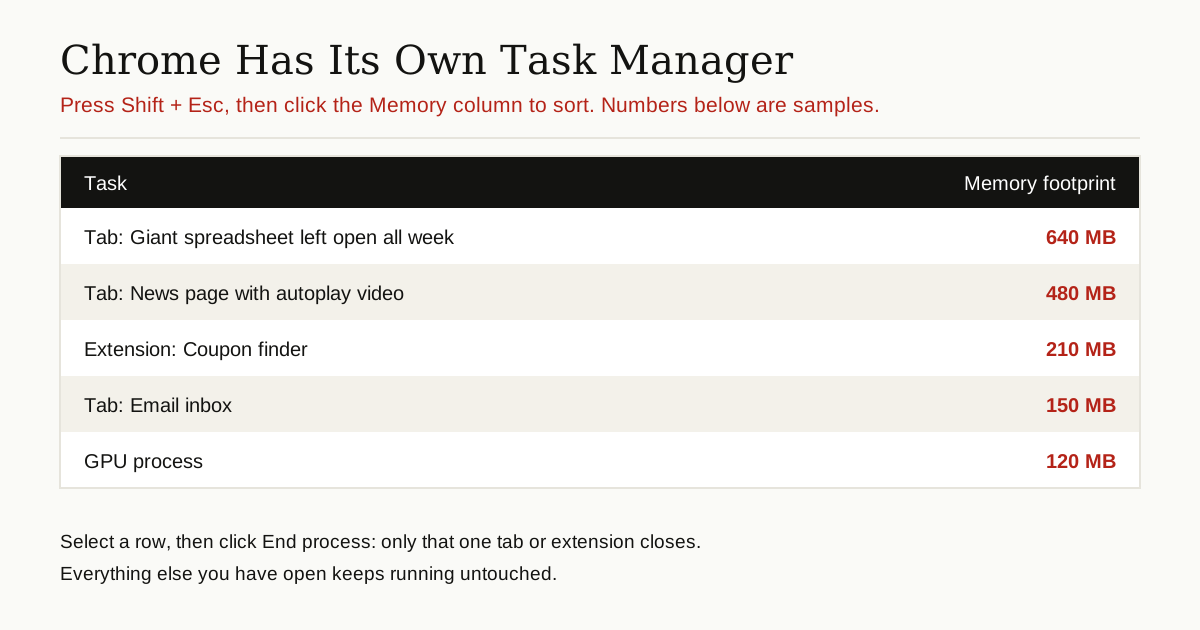
If the error keeps coming back after the quick fixes, stop guessing and get names and numbers. Chrome has its own task manager that lists every tab, extension, and helper process, along with the memory each one is using. On Windows and Linux, press Shift + Esc. On a Mac, open the Window menu and choose Task Manager. Google’s keyboard shortcut reference confirms Shift + Esc as the shortcut that opens it.
Click the Memory footprint column heading to sort the list, and the greediest item floats straight to the top. You might find a forgotten spreadsheet tab holding more memory than everything else combined, or an extension you barely use sitting near the top. Select the offender and click End process: that one tab or extension closes on its own, and everything else keeps running. Reload the closed tab only if you still need it.
Why It Happens More on Some Computers
Worked through the fixes and wondering why this error keeps finding you in particular? Some setups simply live closer to the edge:
- Little RAM to begin with. A laptop with 4 GB or 8 GB of memory can be filled by a handful of modern web apps, because popular sites today are closer to full programs than to documents.
- Heavy pages. Giant online spreadsheets, design tools, document editors, and endless social feeds that keep loading as you scroll all hold growing amounts of memory. A page left open for days can slowly leak even more.
- Tab habits. Forty open tabs is really forty programs waiting for memory. Chrome’s Memory Saver setting, under Settings and then Performance, frees up memory from tabs you are not using, and it is worth turning on if this sounds like you.
- Busy extensions. Anything that reads every page you visit pays for that access in memory, on every tab, all day long.
When the Computer Itself Is the Problem
One honest warning to finish the diagnosis. If every website triggers this error, even with three tabs open, extensions off, and Chrome fully updated, the browser is probably not the broken part. Other programs crashing too, the whole machine slowing to a crawl, or memory errors appearing outside Chrome all point at the computer itself: too little RAM for the way you work, or, in rarer cases, a failing memory stick that a repair shop can test for you.
For an older laptop with a free memory slot, adding RAM is one of the cheapest upgrades there is, and it fixes this error at the root instead of just managing it week after week.
The Short Version
If you remember only two things, make it these. First, this error is about RAM, not storage, and the fastest cure is usually freeing memory: close tabs, close programs, reload. Second, when it keeps happening, Shift + Esc opens Chrome’s task manager and shows you exactly who is eating your memory, with no guessing required.
Keep Chrome updated, keep your extension list short, and this error becomes a rare visitor instead of a daily one. For more everyday fixes explained this plainly, browse the tips and tricks category.