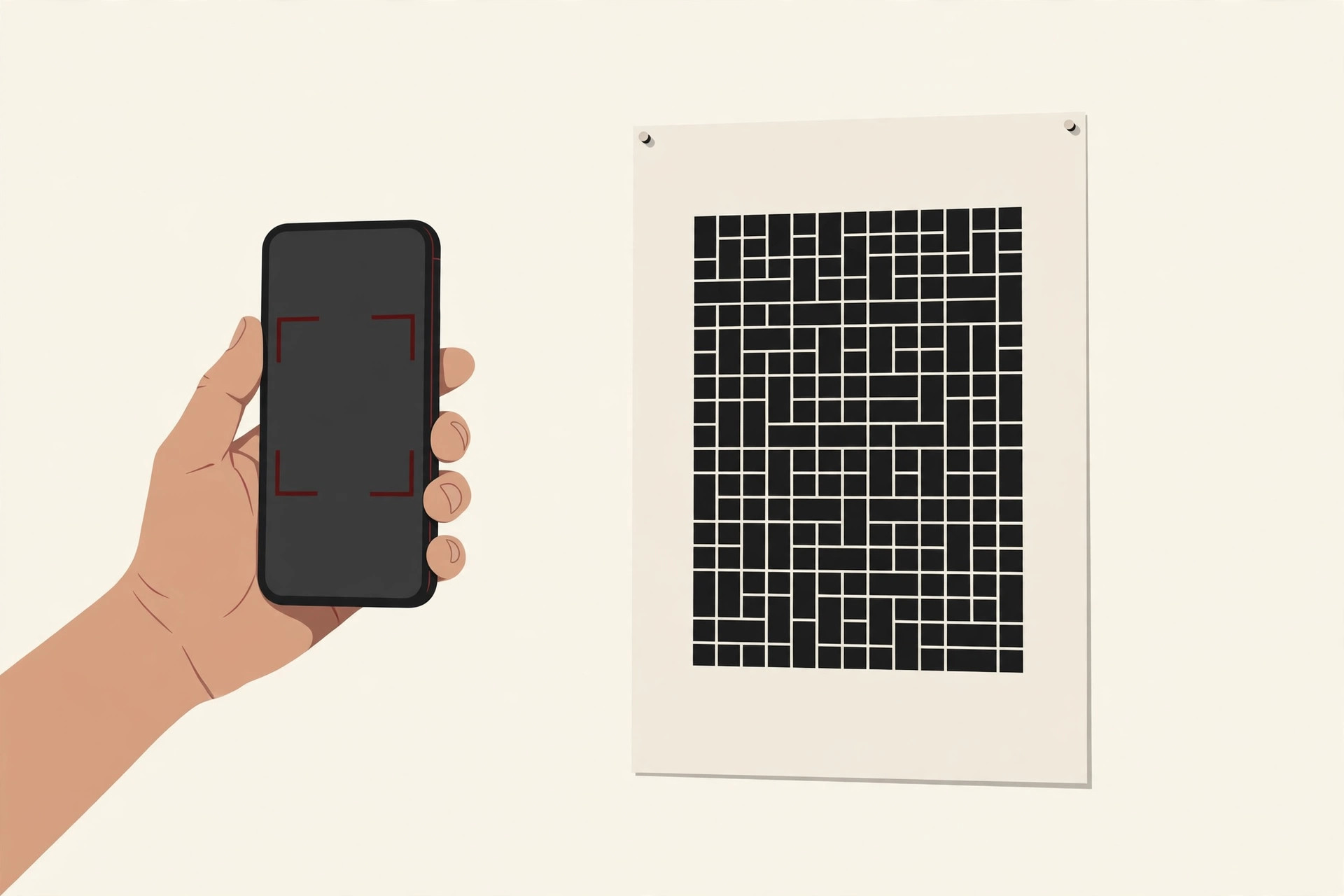
You have a link you want people to open: a menu, a sign-up form, a video, your shop page. Asking people to type a long web address almost never works. Half of them will make a typo, and the other half will give up, which is the same problem we covered in our guide to search Google or type a URL. A QR code removes the typing completely. Someone points a phone camera at a small square, taps once, and your page opens.
The good news is that you probably need no new app and no account. The browser already on your computer can make a QR code for a link in under a minute, and it is free forever. This guide walks through the fastest methods first, then explains the one trap that catches many people with so-called free QR websites, the printing rules that keep a code scannable, and how to scan other people’s codes safely.
The Fastest Way: Make a QR Code in Chrome on a Computer
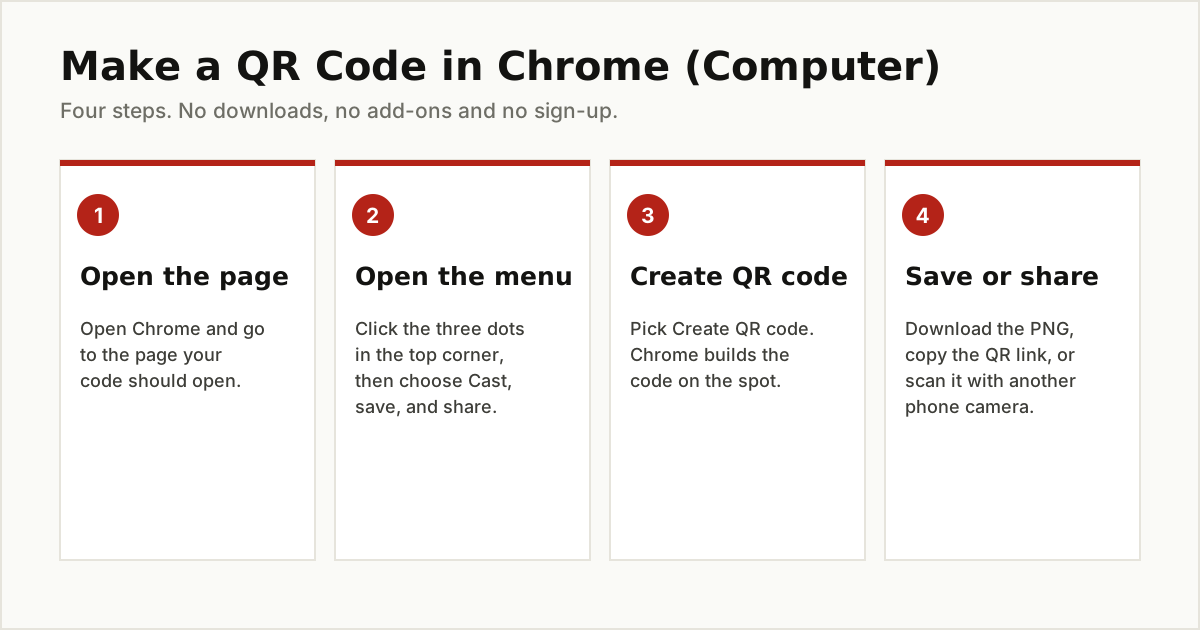
Google Chrome has a QR code maker built in, and it works on Windows, Mac, Linux and Chromebooks. Here is the method Google Chrome Help gives in its guide to sharing tabs:
- Open Chrome and go to the exact page you want your code to open.
- Click the three dots (More) in the top right corner of Chrome.
- Choose Cast, save, and share, then Create QR code.
- Chrome shows the code at once. You can copy the QR link, click Download to save the code as a picture file, or let someone scan it straight off your screen with another device’s camera.
There is also a shortcut. On most current versions of Chrome, you can right-click an empty area of the page and choose Create QR code for this page. Both routes build the same code.
Two small things worth knowing. First, the little dinosaur in the middle of the code is normal. It is Chrome’s mascot, and scanners read around it without trouble. Second, Chrome codes hold the address of the page you had open, exactly as it was. So before you create the code, make sure you are looking at the page your visitors should land on. If the link leads to a file in cloud storage, open the shared viewing link, not your private editing screen, or your guests will hit a sign-in wall.
Make a QR Code in Chrome on Android
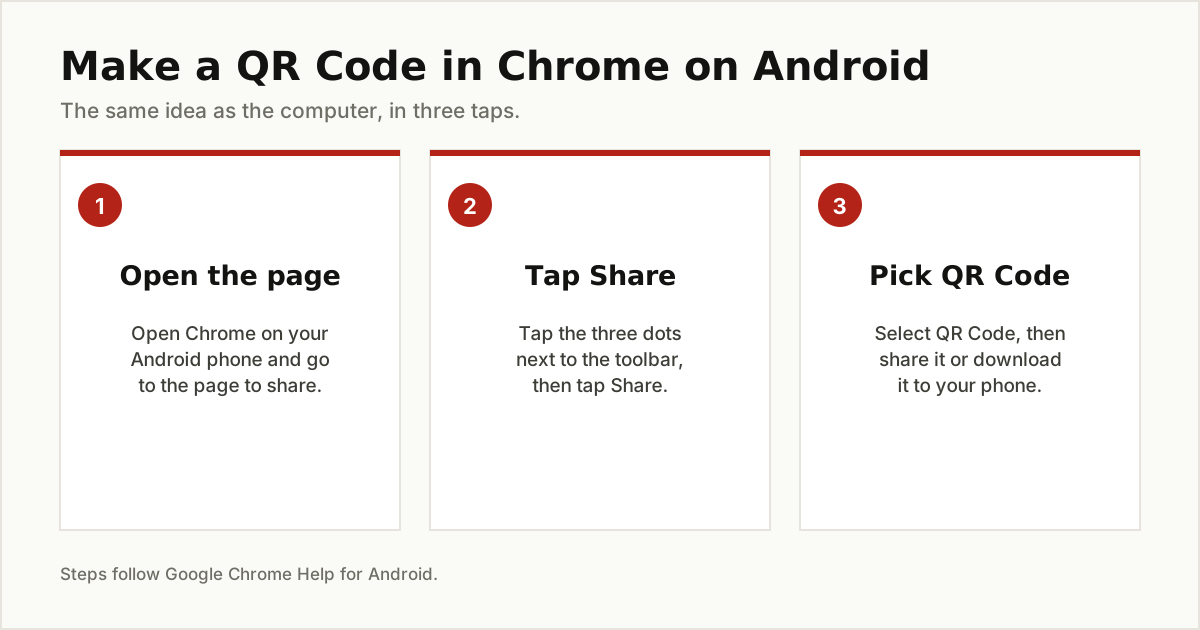
Your phone can do the same trick, which is handy when the page is open on your phone and the poster is on your desk. The steps below follow Google Chrome Help for Android:
- Open Chrome and go to the page you want to share.
- Next to the toolbar, tap More (the three dots), then tap Share.
- Select QR Code.
- Follow the on-screen instructions to share the code with an app, or download it to your phone.
The same screen also works in reverse: you can use it to scan a QR code from someone else’s phone.
On an iPhone, the path in Chrome is similar. Tap the Share icon in the address bar, choose Create a QR Code, then save the image to your photos.
What About Edge, Safari and Firefox?
Microsoft Edge has the feature built in too. As Microsoft’s Edge site explains, you simply right-click on the page and choose Create QR code for this page, then download the picture. If you already use Edge, you need nothing else.
Safari has no QR code maker built in, on Mac or iPhone. The neatest built-in option for Apple users is the Shortcuts app, which comes with the iPhone and Mac. It includes a ready-made Make QR Code action: paste your link, run the shortcut, and it builds a code you can save or share. No download and no account are involved. If you would rather not set that up, use one of the generator websites below, carefully.
Firefox does not include a QR code generator either. You can install an add-on for it, but the simpler and safer route is to open the page in Chrome or Edge just for this one job.
Using a Free QR Code Generator Website
Sometimes a browser code is not enough. Maybe the link is not open in any browser, or you want a print-ready file in a bigger size. A generator website can help, and a good one looks like this:
- It lets you paste a link and download the code as a PNG or SVG file, with no forced sign-up for a simple code.
- It puts your real link inside the code, not its own short address.
- It does not hide the download behind countdown timers or a maze of ads.
Now the big warning, and it is the most important paragraph in this guide. Many “free” QR websites do not put your link in the code at all. Instead, the code points at their short redirect address, and their server forwards each visitor to your page. That makes your code a dynamic code (explained below), and it means the website holds your printed code hostage. When the free trial ends or you stop paying, the redirect can be switched off, and every poster, menu and business card you printed turns into a dead square. People often discover this weeks later, when a customer says the code does nothing.
You can check any code in ten seconds. Scan the finished code with your phone camera and read the address in the preview before you tap it. If the preview shows your own link, you are fine. If it shows the generator’s domain or a short string of random letters, the code depends on that company staying alive and paid. For anything printed, prefer a code that carries your link directly.
Static vs Dynamic QR Codes, in Plain Words
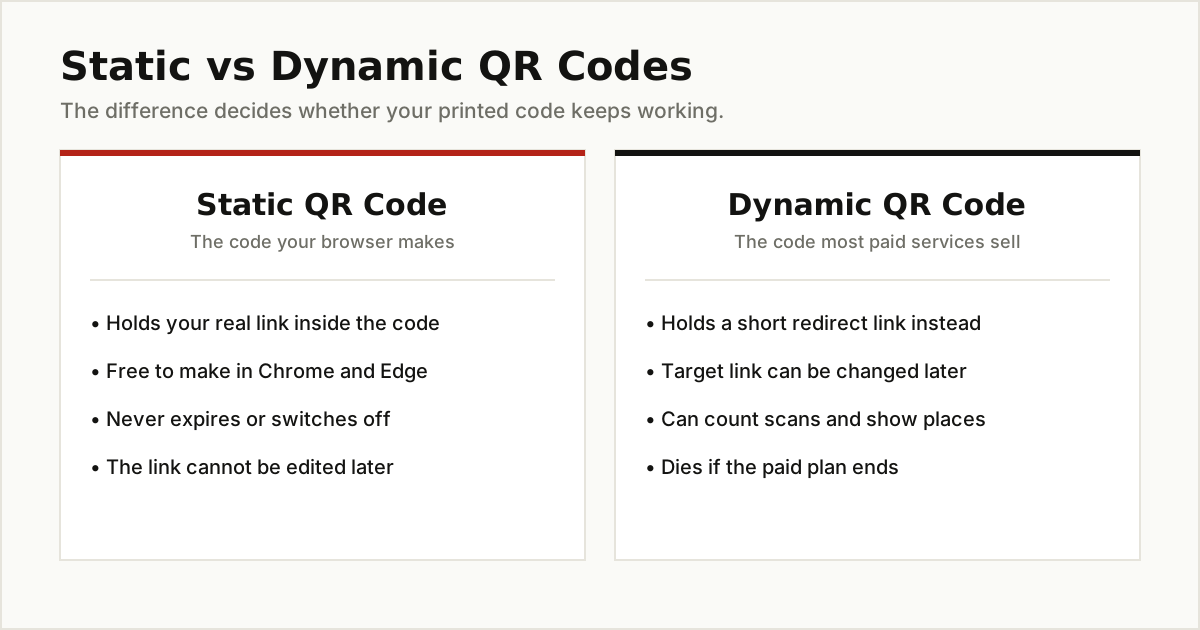
The two kinds of QR code look identical. The difference is what is stored inside the pattern.
A static code stores your actual link. That is what Chrome and Edge make. It is free, it never expires, and nobody can switch it off. The trade-off is that the destination is fixed: if the page moves, the printed code still points at the old address, and there is no count of how many people scanned it.
A dynamic code stores a short address owned by a QR service. When someone scans, the service sends them on to your link. Because the service sits in the middle, you can change the destination later without reprinting, and you can see scan counts and rough locations. The price is total dependence on that service and, usually, a subscription.
For a home project, a cafe menu, a poster or a one-off event, static is almost always the right choice. Dynamic codes earn their cost on big campaigns where the link may change and the scan numbers matter, and only from a reputable provider you plan to keep paying.
Printing Rules: Size, Contrast and the Quiet Zone
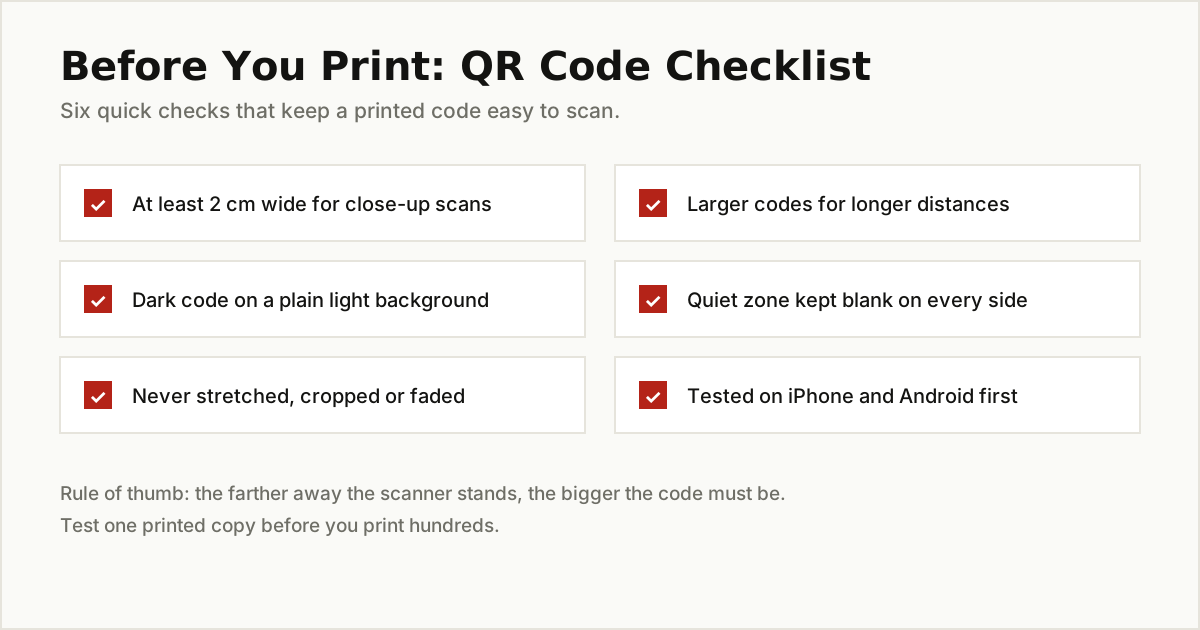
A QR code that works on your screen can still fail on paper. A few simple rules prevent almost every failure.
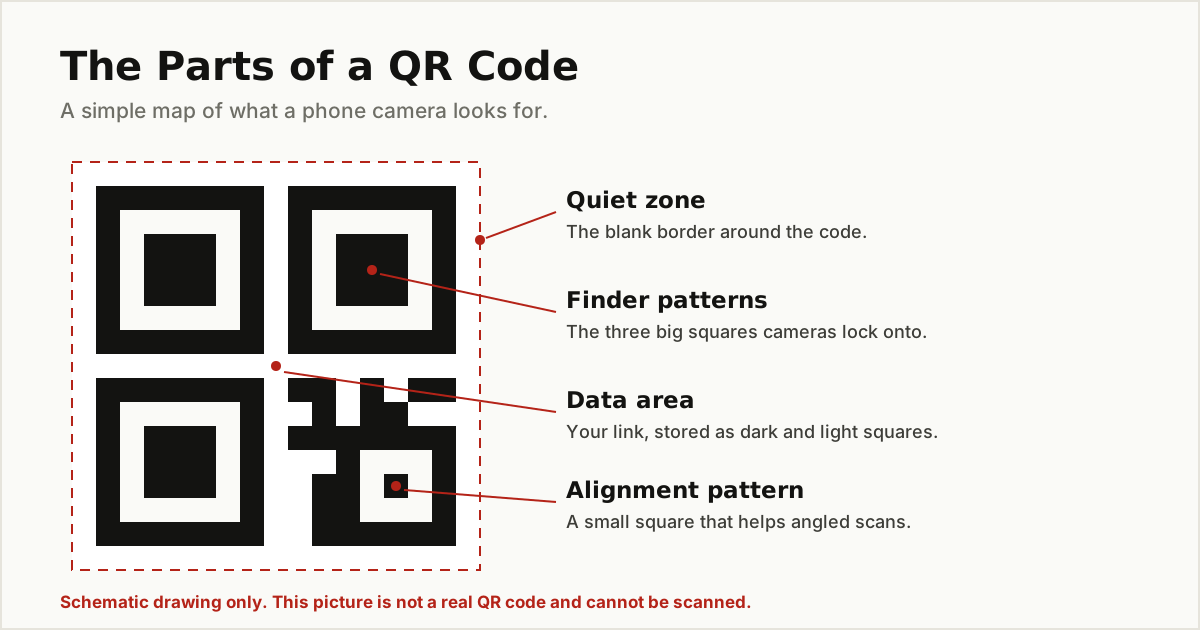
Keep the quiet zone. Every QR code needs a blank border around it, roughly as wide as four of its small squares. Scanners use that empty frame to find the code. Cropping it, or printing text and logos right up against the edge, is the most common reason a code will not scan.
Size it for the distance. For close-up scanning at arm’s length, like a menu or business card, make the code at least about 2 cm (0.8 inches) wide. Then scale up with distance: a useful rule of thumb is that the code should be about one unit wide for every ten units of distance. A poster people scan from 2 meters away needs a code of roughly 20 cm.
Mind the contrast. Print dark squares on a plain, light background. Avoid placing the code over a photo, a pattern or a shiny surface that reflects light, and do not reverse it into pale squares on a dark background, because many phone cameras still struggle with that.
Test before you print hundreds. Print one copy at the final size. Scan it with two different phones, one iPhone and one Android, standing where your visitors will stand, in the real light. If both phones open your page quickly, you are safe to print the full run of 500 flyers. If not, make the code bigger and test again.
Good Jobs for a Link QR Code
Once you can make a code in a minute, uses turn up everywhere:
- Menus and price lists, where the menu changes more often than the budget for reprinting.
- Posters and event signs, linking to tickets, maps or a sign-up form.
- Business cards, opening your website, portfolio or contact page.
- Product boxes and packaging, linking to a setup video or a fuller manual, the way our user manual guide describes.
- Wi-Fi cards for guests, cafes and waiting rooms. A Wi-Fi code is a special type that stores the network name and password instead of a link, and most generator sites offer it as its own option. Guests join with one scan instead of typing a long password read aloud across the room.
Stay Safe When You Scan: Quishing
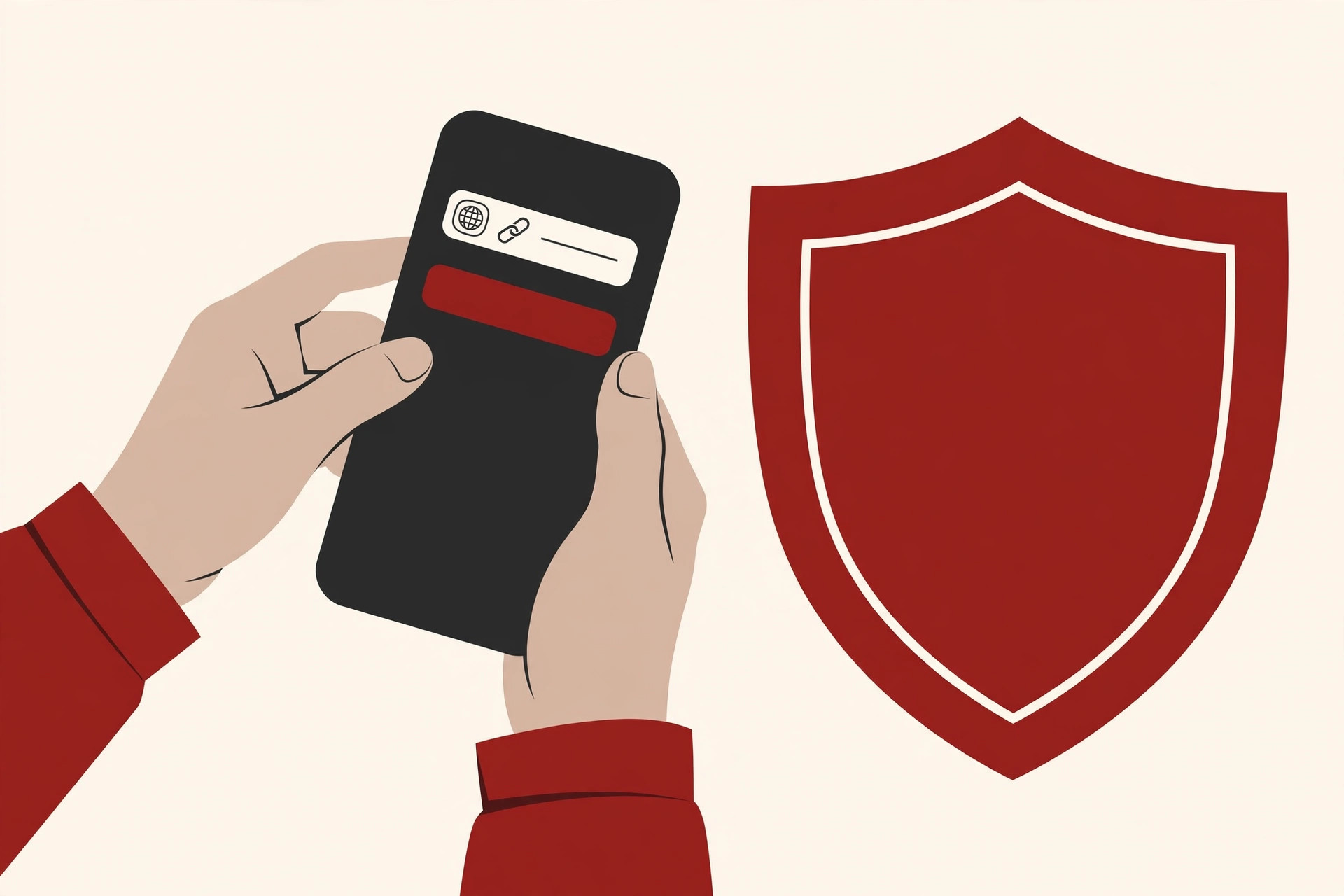
Making your own codes is safe. Scanning codes made by strangers deserves a little care, because a QR code hides its address until you scan it. Phishing done with QR codes has its own nickname: quishing.
The US Federal Trade Commission has warned about the main tricks. Scammers cover real QR codes on parking meters with stickers carrying their own codes. They also send codes by text and email with urgent stories: a package that could not be delivered, a problem with your account, or suspicious activity that needs a password change right away. The code leads to a lookalike site that steals whatever you type, or tries to install malware. The urgency is the point: they want you to scan and open the page without thinking.
A few habits keep you safe, and they match the general scam advice in our computer virus prevention guide:
- Preview the address before you open it. Your phone shows where the code leads. Check that the spelling matches the real company, with no swapped letters or extra words.
- Do not scan codes in emails or texts you were not expecting, especially ones pushing you to act immediately.
- Go direct when it matters. If a message claims to be from a company, contact it through a phone number or website you already know is real, not through the code.
- Check public codes for tampering. A sticker sitting on top of a printed code is a red flag.
- Keep your phone updated, and protect accounts with strong passwords and multi-factor authentication, so one bad scan does less damage.
The Short Version
To make a QR code for a link, skip the random free websites and start with the browser you already have. Chrome and Edge build a static code in under a minute, free, with your real link inside it, and that code will keep working for as long as the page exists. Save dynamic codes for campaigns that truly need a changeable destination and scan counts. Print with a clear quiet zone, strong contrast and enough size for the distance, and always test with two phones first. For more simple, useful guides like this one, browse the tips and tricks category.